Adobe customer support entitlement configuration
To configure support entitlements for your organization, first add or invite the user through the Admin Console.
Adding support entitlement roles to an organization
The Support administrator role is a non-administrative role that has access to support-related information. A Support administrator can view, create, and manage issue reports.
To add or invite an admin:
-
In the Admin Console, choose Users > Administrators.
-
Click Add Admin.
-
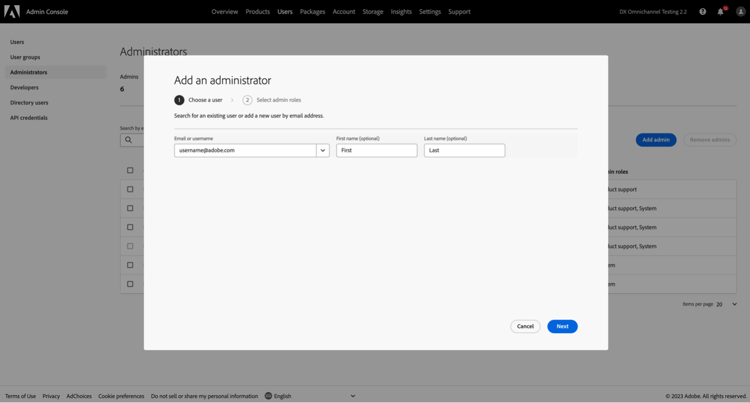
Enter a name or email address.
You can search for existing users or add a new user by specifying a valid email address and filling the information on the screen.
-
Click Next. A list of admin roles appears.
To assign a Support administrator role to a user (enable a user to be able to contact support):
-
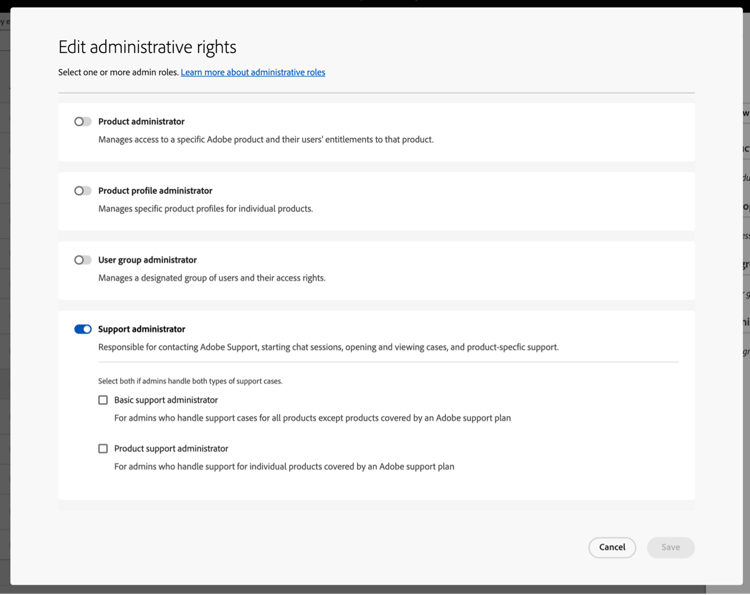
Select the Support administrator option.
-
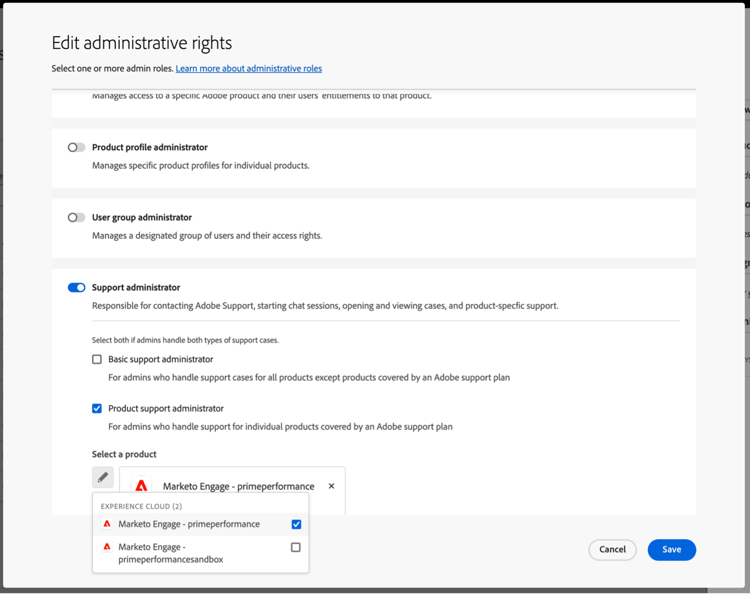
Choose one of the following two options:
- Option 1: Basic support administrator. Select this option if you would like to give the user support access for all solutions (except Marketo Engage).
- Option 2: Product support administrator: Select this option for Marketo Engage support. Select which Marketo Engage instances to give the user support access.
-
Once you have made the selections, click Save.
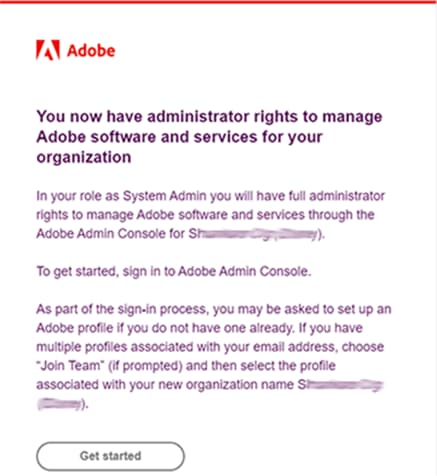
The user receives an email invitation regarding the new administrative privileges from message@adobe.com.
Users must click Get started in the email to join the organization. If new admins do not use the Get started link in the email invitation, they would not be able to sign into the Admin Console.
As part of the sign-in process, users may be asked to set up an Adobe profile if they do not have one already. If users have multiple profiles associated with their email address, users must choose Join Team (if prompted) and then select the profile associated with the new organization.
For more details refer to Edit enterprise admin role instructions in the administrative roles documentation. Note that only a system administrator for your organization can assign this role. For more information on administrative hierarchy, visit the Administrative roles documentation.