Administrative roles
Using the Adobe Admin Console, organizations can define a flexible administrative hierarchy that enables fine-grained management of Adobe product access and usage. One or more System admins, provisioned during the enterprise onboarding process, sit at the top of the hierarchy. These System admins can delegate responsibilities to other admins, while still retaining overall control.
Administrative roles provide the following key benefits to enterprises:
- Controlled decentralization of administrative responsibilities
- Quick view of product assignments—by user and by product
- Functionality to assign quotas to Product admins
Administrative hierarchy
Applies to: Adobe enterprise customers.
The administrative hierarchy can be used to suit the unique requirements of your enterprise. For example, an enterprise can appoint different admins to manage entitlements to Adobe Creative Cloud and Adobe Marketing Cloud offerings. Alternatively, an enterprise can have different admins to manage entitlements of users belonging to different business units.
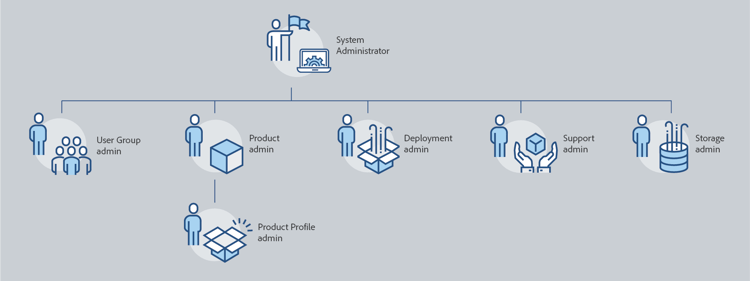
Admin roles hierarchy
Also, has permissions to delegate the following administrative functionality to other users: Product admin, Product Profile admin, User Group admin, Deployment admin, and Support admin.
Administers the products assigned to that admin and all associated administrative functions, which include:
- Create product profiles
- Add users and user groups to the organization but not remove these
- Add or remove users and user groups from product profiles
- Add or remove Product Profile admins from product profiles
- Add or remove other product admins from the product
- Add or remove Group admins from groups
Administers the Product Profile descriptions assigned to that admin and all associated administrative functions, which include:
- Add users and user groups to the organization but not remove these
- Add or remove users and user groups from product profiles
- Assign or revoke product permissions to users and user groups from product profiles
- Manage product roles of users and user groups for product profiles
Administers the user group descriptions assigned to that admin and all associated administrative functions, which include:
- Add or remove users from groups
- Add or remove User Group admins from groups
For a detailed list of permissions and privileges for each admin role, see Permissions.
Add an enterprise admin role add-enterprise-role
Applies to: Adobe enterprise customers.
As an admin, you can assign an admin role to other users, giving them the same privileges as you have, or privileges for a role under your admin role in the hierarchy as described above. For example, as a Product admin you can give Product admin privileges or Product Profile admin privileges to a user, but not Deployment admin privileges. For the permissions on the Admin Console, see the Permissions matrix.
To add or invite an admin:
-
In the Adobe Admin Console, choose Users > Administrators.
Alternatively, go to the relevant Product, Product Profile, or User Group and navigate to the Admins tab.
-
Click Add Admin.
-
Enter a name or email address. You can search for existing users or add a new user by specifying a valid email address, and filling in the information on the screen.
-
Click Next. A list of admin roles appears.
note NOTE - The options on this screen depend on your account and admin role. You can either give the same privileges as you have, or privileges for a role under yours in the hierarchy.
- As the System Admin of a team, you can assign only one admin role: System Admin.
-
Select one or more admin roles.
-
For Admin types like Product Administrator, Product Profile Administrator, and User Group Administrator, select the specific products, profiles, and groups respectively.
note NOTE For a Product Profile Administrator, you can include profiles for more than one product. 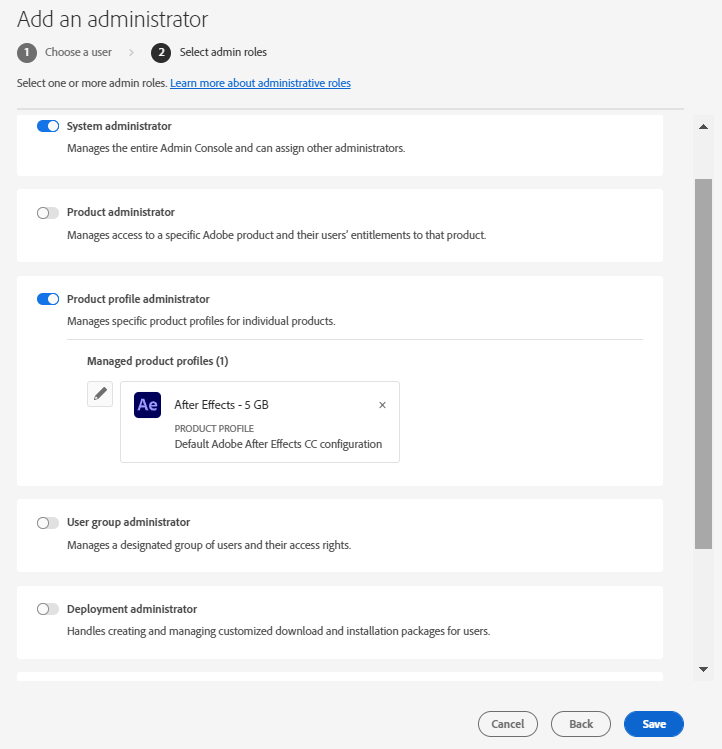
-
Review the admin roles assigned to the user and click Save.
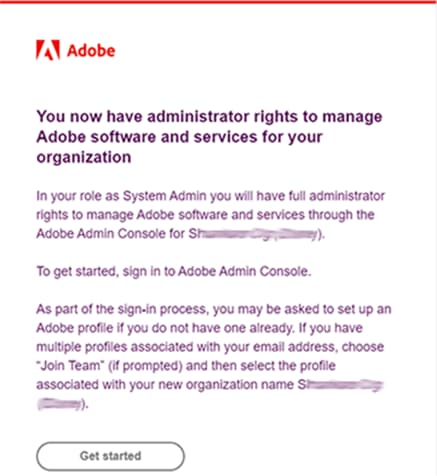
The user receives an email invitation regarding the new administrative privileges from message@adobe.com.
Users must click Get started in the email to join the organization. If new admins don’t use the Get started link in the email invitation, they would not be able to sign in to the Admin Console.
As part of the sign-in process, users may be asked to set up an Adobe profile if they do not have one already. If users have multiple profiles associated with their email address, users must choose “Join Team” (if prompted) and then select the profile associated with the new organization.
Add a teams admin add-admin-teams
Applies to: Adobe teams customers.
As an admin, you can assign the System admin role to other users, giving them the same privileges as you have.
To add or invite a System admin:
-
In the Adobe Admin Console, choose Users > Administrators.
A list of existing admins displays.
-
Click Add Admin.
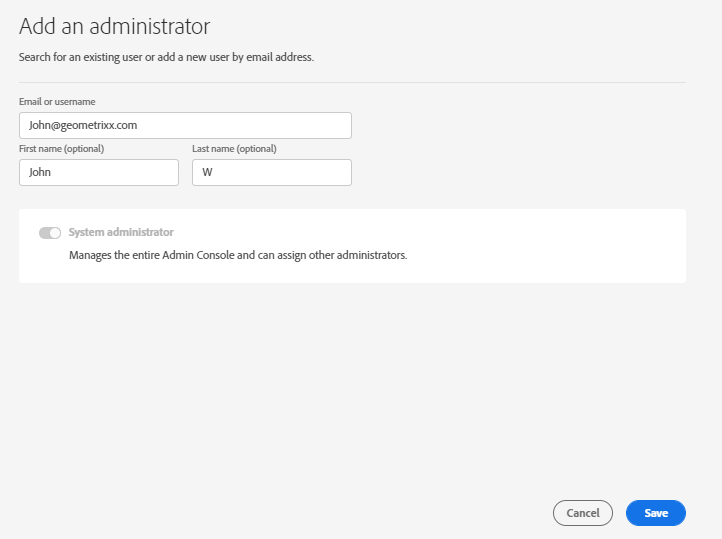
The Add an Administrator screen displays.
-
Enter a name or email address. You can search for existing users or add a new user by specifying a valid email address, and filling in the information on the screen.
By default, System Administrator is selected.
-
Click Save.
Since all users in a teams organization are Business ID users, they receive an email invitation regarding the new administrative privileges from message@adobe.com.
Users must click Get started in the email to join the organization.
As part of the sign-in process, users may be asked to set up an Adobe profile if they do not have one already. If users have multiple profiles associated with their email address, users must choose “Join Team” (if prompted) and then select the profile associated with the new organization.
Edit enterprise admin role
Applies to: Adobe enterprise customers.
As an admin, you can edit the admin role for another admin who is below you in the administrative hierarchy. For example, you can remove admin privileges of other admins.
To edit admin roles:
-
In the Adobe Admin Console, choose Users > Administrators. The list of existing admins displays.
Alternatively, go to the relevant Product, Product Profile, or User Group and navigate to the Admins tab.
-
Click the name of the admin to edit.
-
In the User Details, click


-
Edit the administrative rights and save your changes.
Edit teams admin role
Applies to: Adobe teams customers.
As a teams System admin, you can remove the System admin privileges of other admins.
To revoke System admin privileges:
-
In the Adobe Admin Console, choose Users > Administrators.
The list of existing admins displays.
-
In the User Details, click
-
Edit the administrative rights and save your changes.
Remove an admin
Applies to: Adobe teams enterprise customers.
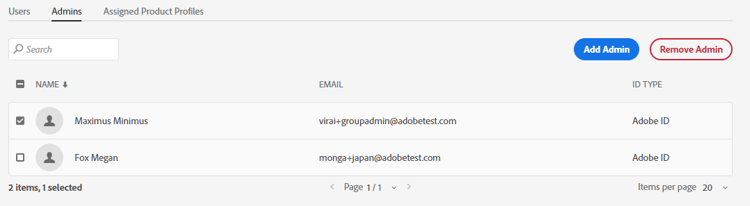
To revoke admin permissions, select a user and then click Remove Admin.
Enterprise admins permissions matrix
Applies to: Adobe enterprise customers.
The following table lists all the permissions for the different types of admins, categorized by the following areas of functionality: