Migrate existing users to the Adobe Admin Console
Applies to enterprise & teams.
This document is for organizations with existing Creative Cloud, Document Cloud, and Acrobat licenses through an Enterprise Term License Agreement (ETLA) or Value Incentive Plan (VIP) subscription that are migrating to a different buying program or license type.
To help avoid a lapse in end-user product access, assign licenses in the Adobe Admin Console before the existing VIP subscription term ends.
- For ETLA customers, allow at least 30 days of product overlap. Complete the migration prior to the anniversary date so users keep access to Adobe apps and services. For ETLA contract expiry details, see Automated expiration stages for ETLA contracts.
- For VIP customers, purchase licenses before your anniversary date and assign licenses before the renewal window closes on your current VIP term.
- CLP or TLP customers can migrate from serialized Acrobat or Creative Suite to named-user licenses using the migration instructions in Licensing.
Quick License Assignment (VIP to VIP)
Current VIP members who purchased Creative Cloud for enterprise or Acrobat (for enterprise) through VIP may be able to assign licenses quickly during their renewal window using Quick License Assignment. Eligible customers meet criteria such as the following.
-
Products are the same
- The renewal window is open (30 days before or after the VIP agreement anniversary date).
- The enterprise products on the order are new SKUs equivalent to the team versions in the current term.
- The enterprise license order quantity is greater than or equal to the existing team license quantity.
-
Products are higher value
- The renewal window is open.
- The enterprise products on the order are new SKUs that are higher-value products than the team products in the current term.
- The enterprise license order quantity is greater than or equal to the existing team license quantity.
-
Quick License Assignment is not available when
- The quantity of enterprise licenses on the order is less than the number of existing team licenses.
- The order is for higher-value enterprise products but the ordered enterprise license quantity is less than the existing team license quantity.
- The order mixes team and enterprise products, regardless of quantity.
- The customer already purchased team and enterprise products before the renewal period.
- Enterprise renewal SKUs are used for the new enterprise order.
- The enterprise product order is for a different VIP agreement number.
- Current team products include items that have no enterprise versions.
After Adobe processes your enterprise purchase order, you receive a confirmation email with instructions, including the day you must transfer users from team licenses to enterprise licenses in the Admin Console before they lose access.
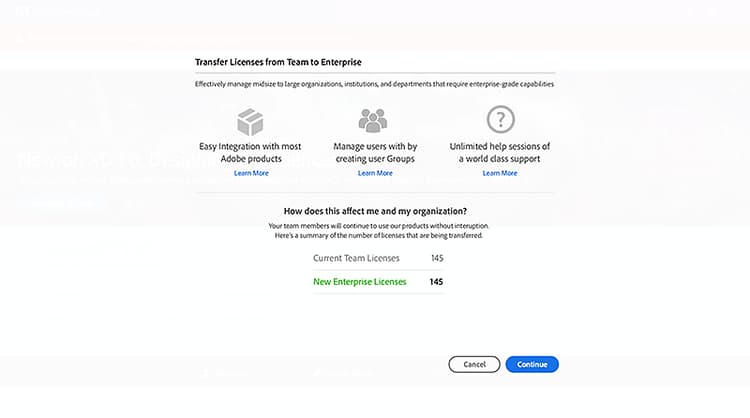
In the Admin Console, you are prompted to assign licenses using Quick License Assignment:
-
Confirm the number of licenses for assignment.
-
Confirm that the team product licenses being unassigned match the enterprise licenses being assigned.
-
You receive an email when the process is complete.
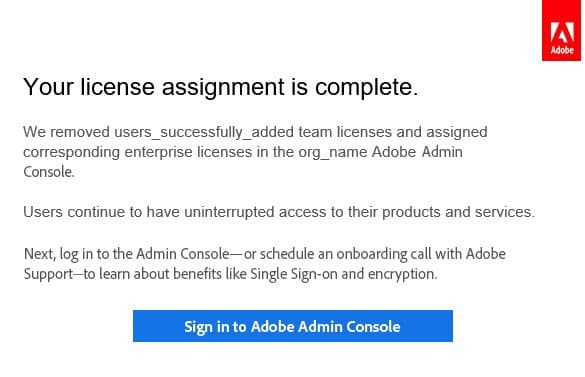
Download the results report in the Admin Console to confirm all licenses were assigned. If you finish before the date in your confirmation email, end users should not experience a lapse in service.
Schedule a 1:1 onboarding call with an Adobe Onboarding Specialist (if you have not already) to learn more about the Admin Console, including Administrative roles and Identity.
Bulk license assignment (VIP to VIP)
Assign licenses with a bulk operation using a CSV template from the Admin Console. Use this approach when:
- You are a VIP customer who does not meet Quick License Assignment requirements, or
- You need to assign licenses outside your renewal window.
-
After you have access to the Adobe Admin Console and your licenses are added, go to Users > Users.
-
Click

-
In the Edit Users by CSV dialog, click Download CSV template and choose Current user list.
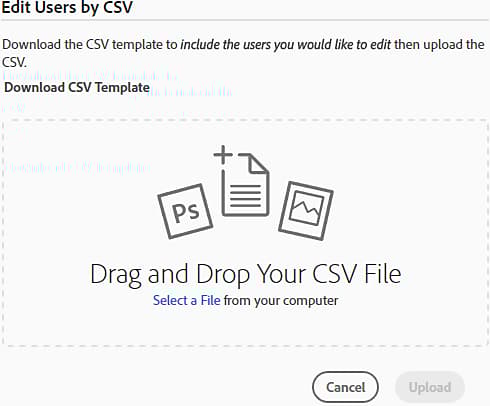
For field descriptions in the downloaded file, see CSV file format.
-
Add license assignments to the CSV, then drag the updated file into the Edit Users by CSV dialog and click Upload. You receive an email when the operation completes.
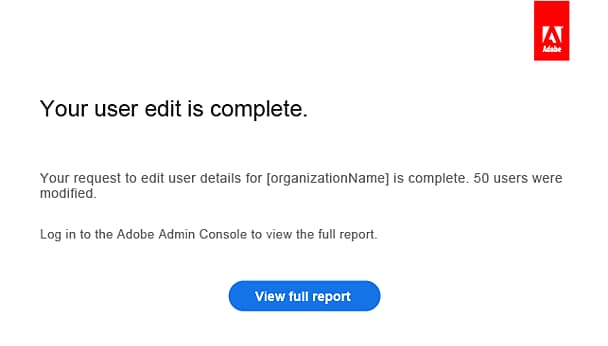
Download the results report to validate assignments. Then schedule onboarding with an Adobe Onboarding Specialist to learn about administrative roles and identity.
Bulk license assignment (VIP to ETLA)
If you have a VIP subscription and are moving users to ETLA, use this bulk flow:
- Sign in to the Adobe Admin Console and open the organization that contains your VIP users.
- Go to Users > Users.
- Click
- Open the ETLA organization where you want those users.
- Go to Users > Users.
- Click Add Users by CSV.
- Click Download CSV template, then add the VIP users from the CSV you exported in step 3.
- Upload the updated CSV.
You receive an email when users are added to the ETLA organization.
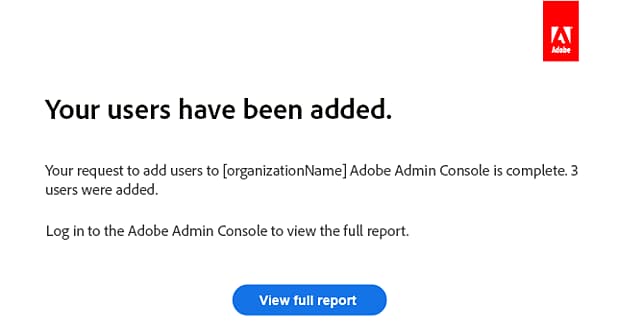
Download the results report to validate assignments. Schedule onboarding with an Adobe Onboarding Specialist for administrative roles and identity.
For bulk upload issues, see Troubleshoot bulk user upload.
Bulk license assignment (ETLA to VIP)
If you have an ETLA subscription and are moving users to VIP:
-
Sign in to the Adobe Admin Console and open the organization that contains your ETLA users.
-
Go to Users > Users.
-
Click
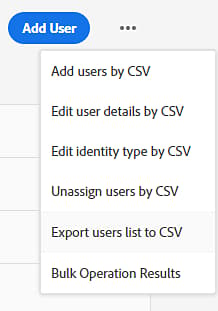
-
Open the VIP organization where you want those users.
-
Go to Users > Users.
-
Click Add Users by CSV.
-
Click Download CSV template, then add the ETLA users from the CSV you exported in step 3.
-
Upload the updated CSV.
You receive an email when users are added to the VIP organization.
Download the results report to validate assignments. Schedule onboarding with an Adobe Onboarding Specialist for administrative roles and identity.
For bulk upload issues, see Troubleshoot bulk user upload.