Manage product profiles in the Global Admin Console
Applies to: Enterprise
Global administrators can add, edit, and delete product profiles in the Global Admin Console.
As in the standard Admin Console, product profiles allow you to fine-tune the usage of products within an organization. You can also assign administrators — called Product Profile administrators — to product profiles. These administrators can add end users to the product profiles they manage.
To manage product profiles, select a product. The controls to add, edit, and delete product profiles will be displayed.
Add a product profile
-
In the Global Admin Console, select an organization to edit, then navigate to the Products tab.
-
Select a product to add a product profile to.
-
Select Add Profile.
-
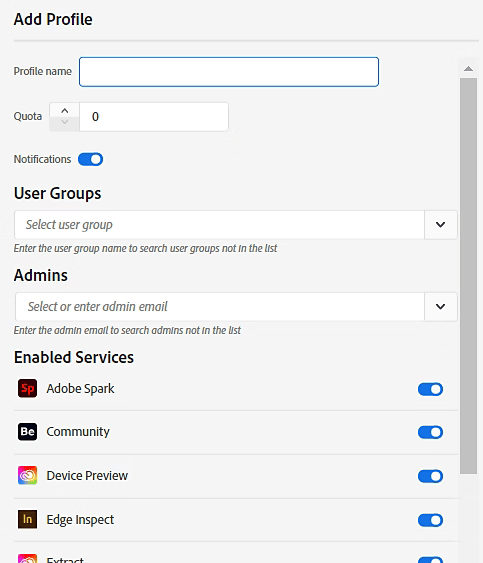
In the Add Profile dialog box, enter the following details:
table 0-row-2 1-row-2 2-row-2 3-row-2 4-row-2 Field Description Name A unique name for the product profile within the organization, distinct from other Product Profiles and user groups. Quota The target number of licenses allotted for this profile. User Groups Select from the dropdown or type a user group name. If the user group doesn’t yet exist, create it first via the User Groups tab. Admins Select from the dropdown or enter an admin’s email address. If the admin doesn’t yet exist, create them first via the Admins tab. The User Groups specified are assigned the product profile. The admins specified become the Product Profile Admins, who can manage the profile via the Adobe Admin Console for the relevant organization.
-
Use the Notifications toggle to enable or disable email notifications. When enabled, users are notified by email when they are added to or removed from the profile.
-
Use the individual Services toggles to enable or disable specific services for the Product Profile. For more information, see Enable/Disable Services for a product profile.
-
Select Save.
-
Select Review Pending Changes once you have finished editing the organizations. After reviewing, select Submit Changes to execute them.
Edit a product profile
- Select an organization to edit, navigate to the Products tab, and select a product.
- Select the More Options

- Update the product profile details as needed and select Save.
- Select Review Pending Changes once you have finished editing the organizations. After reviewing, select Submit Changes to execute them.
Delete a product profile
- Select an organization to edit, navigate to the Products tab, and select a product.
- Select the More Options
- Select OK in the confirmation dialog box.
- Select Review Pending Changes once you have finished editing the organizations. After reviewing, select Submit Changes to execute them.