Substance in MODO Overview
Overview:
Opening a Substance
-
Create a material or select a material group.
-
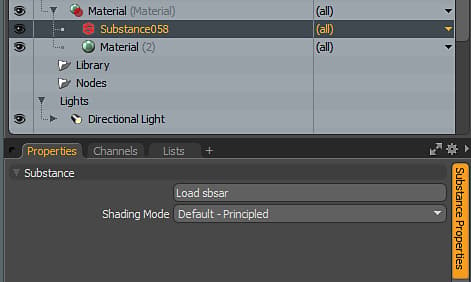
Under Texture>Substance, choose create Substance or use the Create button under the Substance Kit options. This will create a Substance material in the shader tree.
-
Click the Load sbsar to load an sbsar file.
Creating Outputs
Using the Default - Principled Shading Mode, you can create outputs using the metallic/roughness workflow.
-
In the Outputs section of the Substance Properties, click the outputs needed for shading. The Substance texture will be generated, added to the Shader Tree with the correct Material Layer Effect. For Principled Shading Mode, you will need the following:
table 0-row-3 1-row-3 2-row-3 3-row-3 4-row-3 Substance Output Colorspace Material Layer Effect (Principled Shading Mode) Base Color sRGB Diffuse Color Normal Linear Normal Roughness Linear Roughness Metallic Linear Metallic 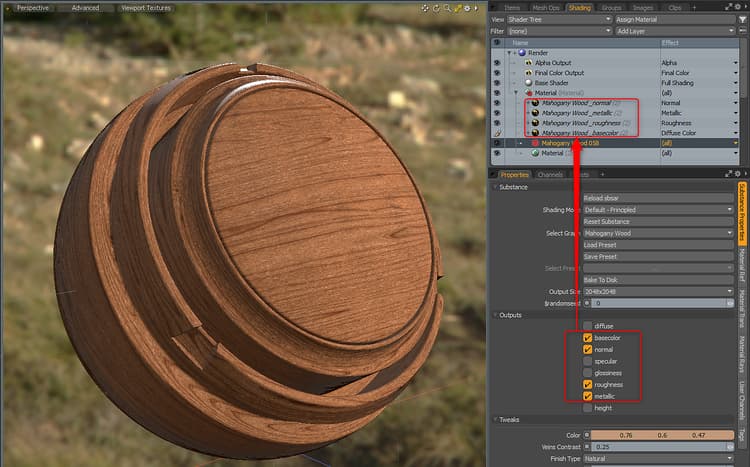
Changing Resolution/Parameters
You can change Substance parameters to update or change the generated textures. Changing a parameter will cause the Substance Engine to recompute the textures that are fed into the MODO material.
-
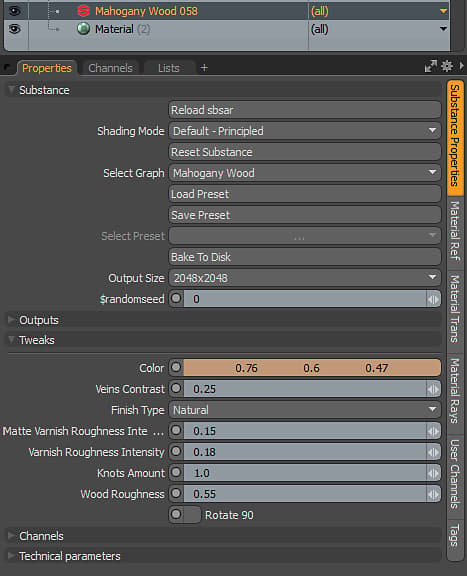
Go to the Substance Properties for the Substance Material and in the Tweaks section, change any of the parameters.
-
You can change the resolution of the generated textures using the Output Size drop down menu. Substances can be set to generate up to 8K. The Substance GPU engine is required for 8K output.