Downloading and Installing the Plugin
Download
To download the plugin, visit Substance 3D in Blender. Click Download the plugin to start the download.
You can also get the latest version directly from the links below.
There are two separate .zip files to download and install:
- Substance 3D add-on for Blender (single download for all platforms)
- Substance 3D Integration Tools (download Windows, Mac, or Linux versions)
WARNING
For Mac users: Users should disable “open safe files after downloading” if they are downloading the Plugin with Safari.
Safari web browser defaults to unzipping downloaded .zip files, which need to remain zipped for installation. To prevent the file from unzipping, update Safari preferences to not open “safe” files after downloading.
- Open Safari
- Click Preferences
- Under the General tab, uncheck the option Open “safe” files after downloading.
Install Steps
First time installation
- Download the Plugin .zip files from the Adobe prerelease page.
- Open Blender (v. 3.0 or higher).
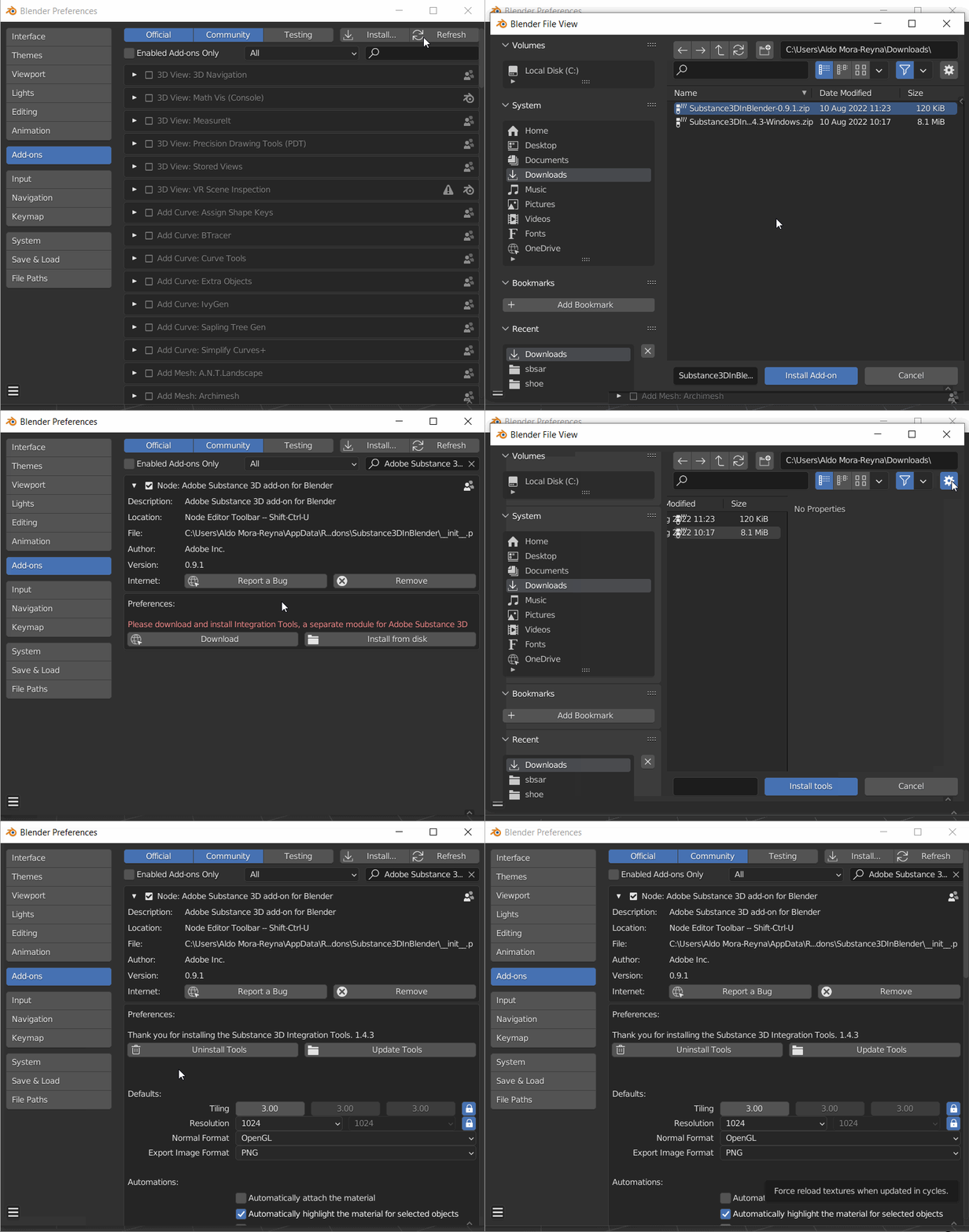
- From the top navigation bar, select Edit and then Preferences. Then select the Add-ons tab.
- Click the Install button.
- In the file explorer, locate the folder to where the .zip files were downloaded to
- Select the Substance3DInBlender.zip file and click the Install Add-on button.
- In the Add-ons section, click the checkbox to enable the add-on and click the drop-down arrow the expand the section.
- You will be prompted to install the Integration Tools. Click Install from disk to select the Substance3DIntegrationTools.zip and click the Install tools button.
If they were not previously downloaded, click Download to open the Adobe prerelease page in your browser and download the tools, then use Install from disk to install them. - The addon is now ready to use!
Updating the Plugin and Tools
- Download the newest release from the links above.
- Use the Uninstall Tools button to remove the Substance 3D Integration Tools.
- Use the Remove button to uninstall the add-on
- Close and restart Blender
- From the top navigation bar, select Edit and then Preferences. Then select the Add-ons tab.
- Click the Install button.
- In the file explorer, locate the newly downloaded ZIP files.
- Select the Substance3DInBlender.zip file and click the Install Add-on button.
- In the Add-ons section, click the checkbox to enable the add-on and click the drop-down arrow the expand the section.
- You will be prompted to install the Integration Tools. Click Install from disk to select the Substance3DIntegrationTools.zip and click the Install tools button.
If they were not previously downloaded, click Download to open the Adobe prerelease page in your browser and download the tools, then use Install from disk to install them. - The addon is now ready to use!
Updating Individual Components
When updating the Add-on only:
- From the add-on preferences, use the Remove button to uninstall the add-on.
- Restart Blender
- Navigate to the add-on preferences again and use the Install button to load the new version of the Plugin. The previously loaded Integration Tools will remain.
When updating the Integration Tools only:
- From the add-on preferences, use the Update Tools button to load the newer version of the Integration Tools. The previously used Add-on will remain.
- Restart Blender for changes to take effect.
OR
- From the add-on preferences use the Uninstall Tools button to remove the Integration Tools.
- Restart Blender
- Use the Install from disk button to find and load the newer version of the Integration Tools. The previously used Add-on will remain.
recommendation-more-help
substance-3d-help-substance-3d-integrations