Project panel
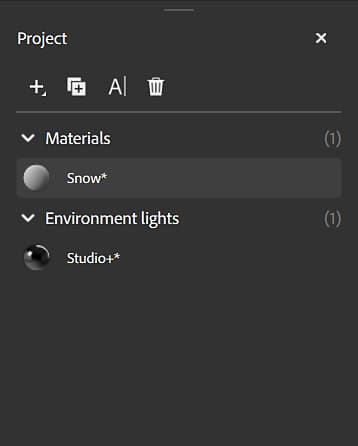
Projects in Sampler act like packages that can store multiple assets. The Project panel displays the materials that make up your current project.
Controls at the top of the Project panel allow you to add or manage materials in your current project:
- Use the Add button to open the Material preset menu and add a new material to your project.
- Use the Duplicate button to duplicate the currently selected material.
- Use the Rename button to rename the currently selected material.
- Use the Delete button to delete the currently selected material.
NOTE
You can also right click any material to Rename, Delete, or Duplicate it.
Click one of your assets to load them in the Viewport, or drag an material onto the Layers panel to use it in other materials.
recommendation-more-help
substance-3d-sampler-help-guide