Metal Finish

In: Wear and Finish
Description
Convert your material into a metal with a number of finishes and styles.
A raw metal material is converted into a brushed metal surface with the Metal Finish filter.
| table 0-row-2 0-border-0 1-border-0 2-border-0 html-authored no-header | |
|---|---|
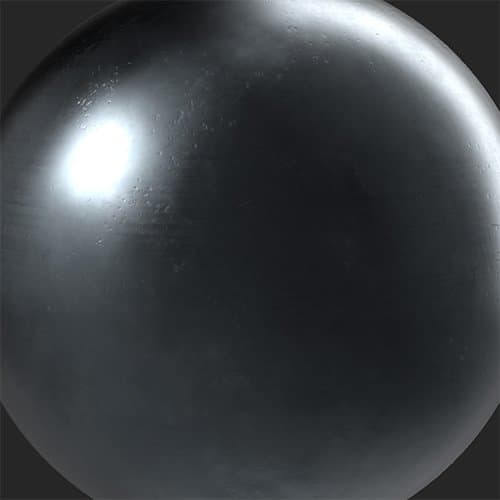
|
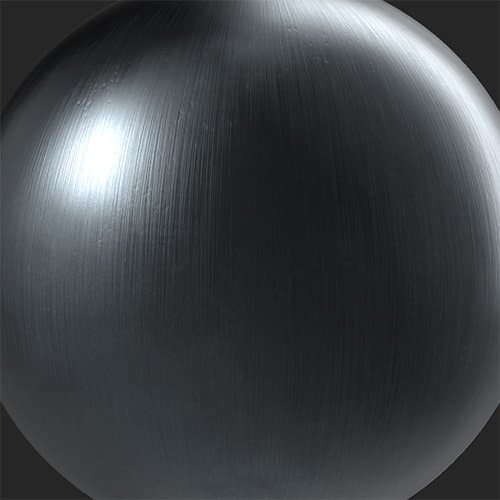
|
Parameters
Basic parameters
-
Random Seed:
The random seed determines the random values of other parameters that use randomness in this filter. -
Modify Only Metallic: toggle
When enabled, this filter will limit it’s changes to the metallic channel. -
Metal Color Mode:
Select a color based on an existing metal or choose your own. With Custom Color selected, the following control will appear:- Metal Color: color select
Select a custom color for your metal finish.
- Metal Color: color select
-
Finish Type:
Select a style to apply to your metal. Each style has different parameters that allow you to adjust it’s appearance. The following parameters can appear:- Intensity: 0-1
Adjust the intensity of the chosen finish. - Scale: 0-1
Modify the scale of the pattern driving the chosen finish. - Roughness: 0-1
Control the roughness value of the metal. - Beads Scale: 0-1
Available for Sandblasted. Set the size of the beads used to create the sandblasting effect. - Polished: 0-1
Available for Cast. Adjust the amount of polishing which smooths away higher parts of the material. - Pattern:
Available for Grinded. Set the pattern used by the grinder. - Relief Details: 0-1
Available for Raw. Adjust the normal strength. - Orientation: 0-1
Available for Brushed. Change the direction of the brush effect. - Brush Length: 0-1
Available for Brushed. Change the length of the strokes used to create the brush effect. - Brushed: 0-1
Available for Galvanized. Overlay a brushed appearance on the galvanized finish.
- Intensity: 0-1
Mask
-
Use Custom Mask: toggle
Enable or disable the use of a custom mask. If enabled the following parameters appear:- Mask: image/brush
Select an image to use as a mask or use the brush to paint a custom mask directly in the 2D view. - Custom Mask - Blur: 0-1
Blur the mask. - Custom Mask - Invert: toggle
Invert the mask.
- Mask: image/brush
Advanced Parameters
- Base Color: toggle
Set whether the base color channel is affected by the filter. - Metallic: toggle
Set whether the metallic channel is affected by the filter. - Roughness: toggle
Set whether the roughness channel is affected by the filter. - Specular Level: toggle
Control whether the specular level channel is affected by the filter. If enabled, an additional control appears:- Specular Level - Value: 0-1
Adjust the value for the specular channel.
- Specular Level - Value: 0-1
-
Normal: toggle
Set whether the normal channel is affected by the filter. If enabled, an additional control appears:- Normal Intensity: 0-1
Adjust the strength of the normal modification by the filter.
- Normal Intensity: 0-1
-
Height: toggle
Set whether the height channel is affected by the filter. -
Emissive: toggle
Set whether the emissive channel is affected by the filter. If enabled, an additional control appears:- Emissive - Color: color select
Set the color of the emissive channel.
- Emissive - Color: color select
-
Ambient Occlusion: toggle
Set whether the ambient occlusion channel is affected by the filter. If enabled, the following additional controls appear:- Ambient Occlusion - Intensity: 0-1
Adjust the strength of the generated AO. - Ambient Occlusion - Radius: 0-1
Adjust the radius of the AO effect.
- Ambient Occlusion - Intensity: 0-1
-
Opacity: toggle
Set whether the opacity channel is affected by the filter. If enabled, an additional control appears:- Opacity - Value: 0-1
Change the opacity of the material.
- Opacity - Value: 0-1