Clone Stamp

In: Tools
Description
The Clone Stamp tool helps you to manually duplicate or patch parts of your material. This is useful for fixing seams, or removing errors from your material… The Clone Stamp filter is one of the tools available in the left sidebar.
The images below show the Clone Stamp being used to remove debris from a snow material.
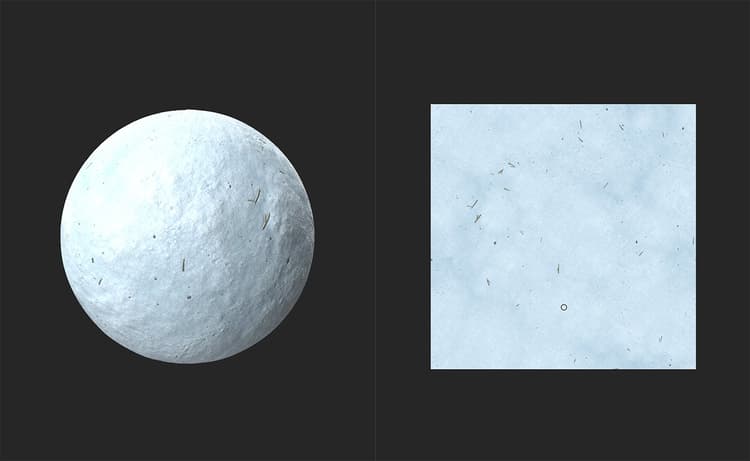
In the image above, the snow material includes a number of twigs and other debris scattered around.
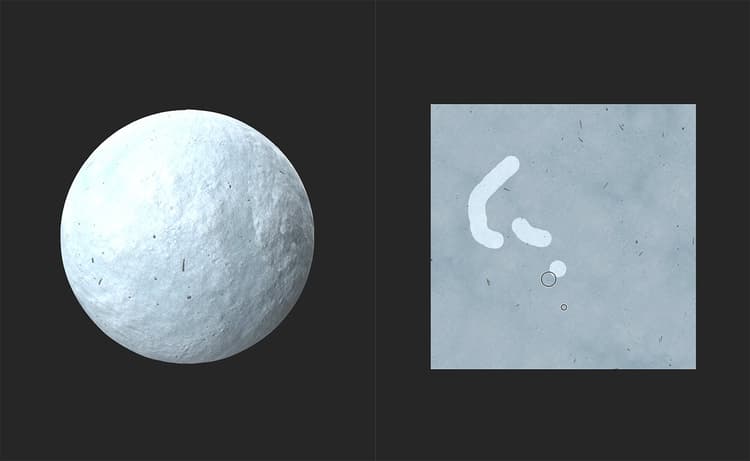
The Clone Stamp tool is used to remove some twigs and replace them with clean snow.
Clone Stamp tutorial
Parameters
Basic parameters
-
Expand mask: 0-1
Adjust how far around the painted area the filter will attempt to match the underlying material. -
Fade blending: 0-1
Soften the edge of the cloned area to help blend with the underlying material. -
Blur mask: 0-1
Adjust the amount of detail of the edge of the clone stamp. Increasing this value will make the edges of the cloned area more blob-like. -
Keep ratio: toggle
When toggled off, allows you to adjust the proportions of the stamped area.- Horizontal: 0-2
- Vertical: 0-2
-
Rotation: -180 to 180
Rotate the stamped area. -
Flip Horizontal: toggle
Mirror the stamped area along a horizontal axis. -
Flip Vertical: toggle
Mirror the stamped area along a vertical axis.
Fade blending
Use the Fade blending controls to individually adjust the Fade blending for each channel in your material.
Advanced
- Normal intensity: 0-2
Adjust the strength of normals in the stamped area. - Source position:
0-1: Adjust the horizontal source position.
0-1: Adjust the vertical source position. - Target position:
0-1: Adjust the horizontal target position.
0-1: Adjust the vertical target position. - Tiling mode: dropdown
Enable or disable tiling.
Usage Guide
Click the Clone Stamp tool to create a new Clone Stamp filter layer at the top of your layer stack. You can also add a Clone Stamp filter by using the Add a layer button in the Layers panel.
Creating a Clone Stamp filter layer automatically opens the 2D view in the Viewport. A Toolbar appears at the top of the 2D view when the Clone Stamp layer is selected.
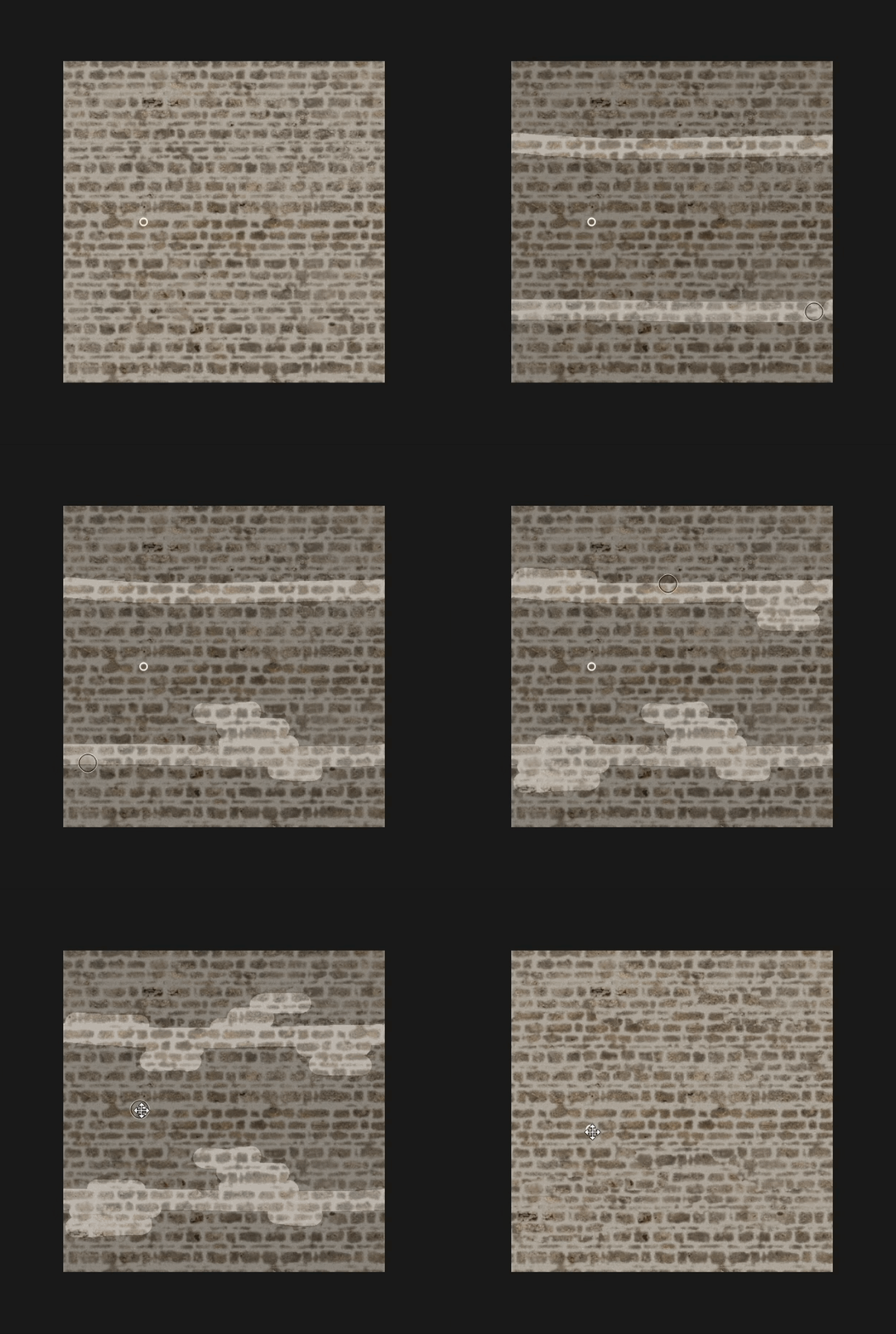
To start using the Clone Stamp tool, click and drag over the problematic area in the 2D view. The material will begin to automatically update based on the source. Areas where you use the Clone Stamp tool are highlighted.
Toolbar
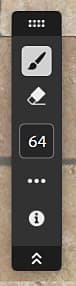
While the Clone stamp layer is selected, a toolbar appears in the 2D view with additional controls.
-
Select either the Brush tool to add to the mask, or the Erase tool to remove from the mask.
-
Set the size of the currently selected tool.
-
Access additional controls:
- Brush tiling:
Toggle X and Y brush tiling. - Overlay:
Toggle whether the overlay is shown while hovering over the 2D view.
- Brush tiling:
-
View 2D View controls.
Source Selection
Use Ctrl + Click in the 2D View to add a new source. Adding a new source will create an additional stamp under the Clone Stamp layer in the Layers panel. You can control each stamp individually.