Fill

In: Adjustments
Description
The Fill filter lets you replace or adjust the values of specific channels based on a selected value.
From Sampler 6.0, the Fill filter adapts its parameters based on the type of channel it is applied to. This ensures that the available controls always match the physical meaning and data type of the selected channel, and that the filter can be applied to any map, even from custom workflows.
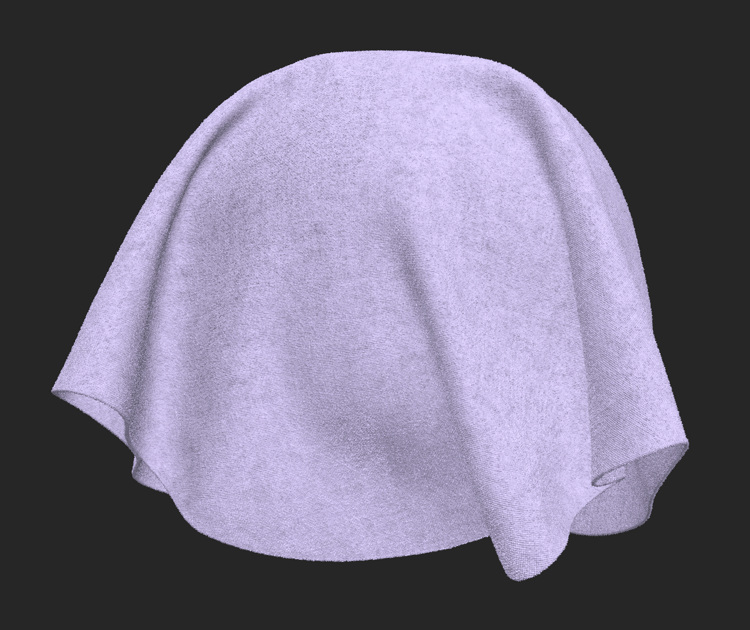
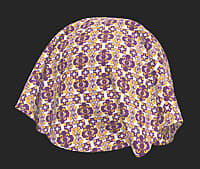
In the images below, the base color channel has been replaced.
| table 0-row-2 0-border-0 1-border-0 2-border-0 html-authored no-header | |
|---|---|
|
|
Parameters
Applied to…
The Applied to… dropdown determines which channel the Fill filter affects.
Only channels that are currently enabled in the material’s channel settings appear in this list. If the channel you want to fill is not available:
- Open the channel settings panel (at the very bottom of the left navigation bar)
- Click “Edit list”
- Enable the desired channel
- Reapply or update the Fill filter
Once enabled, the channel becomes available in the Applied to… dropdown.
Basic parameters
The Fill filter parameters change dynamically depending on the type of channel selected in Applied to…. There are four parameter sets, each corresponding to a specific type of map.
Colour map parameters
Used when the Fill filter is applied to colour channels.
Example channels:
- Base Color
- Coat Color
- Subsurface Color…
Available parameters
- Colour
Selects the RGB colour used to fill the channel. - Custom Value
Switch toggle to open the custom map. Select an image to replace the selected channel with, or paint directly in the 2D view. - Random Seed
Changes the randomisation used when procedural variations are enabled. - Blending Mode
Determines how the fill blends with layers below (for example: Copy, Add, Multiply). - Opacity
Adjust the opacity of the new channel information relative to the existing channel information. In other words, this controls the opacity of the mask used to apply the new channel fill.
This mode is typically used to initialise or override colour information.
Greyscale map parameters
Used when the Fill filter is applied to scalar greyscale channels.
Example channels:
- Specular Roughness
- Base Metalness
- Opacity
- Height…
Available parameters
- Value
Sets a single greyscale value for the channel. - Random Seed
Changes the randomisation used when procedural variations are enabled. - Custom Value
Switch toggle to open the custom map. Select an image to replace the selected channel with, or paint directly in the 2D view. - Blending Mode
Copy, Add (linear Dodge), Substract, Multiply, Add Sub, Max (lighten), Min (Darken), Switch, Divide, Overlay, Screen, Soft Light.
Select the blending mode to blend the custom input with the layers bellow. - Opacity
Adjust the opacity of the new channel information relative to the existing channel information. In other words, this controls the opacity of the mask used to apply the new channel fill.
This mode is useful for defining uniform physical properties, such as a constant roughness or opacity value.
Normal map parameters
Used when the Fill filter is applied to Normal channels.
Example channels:
- Normal
- Coat Normal
Available parameters
- Random Seed
Changes the randomisation used when procedural variations are enabled. - Custom Value
Switch toggle to open the custom map. Select an image to replace the selected channel with, or paint directly in the 2D view. - Opacity
Adjust the opacity of the new channel information relative to the existing channel information. In other words, this controls the opacity of the mask used to apply the new channel fill.
This mode is primarily used to reset or neutralise normal information, or to establish a clean baseline before adding normal detail.
Uniform value parameters
Used for channels that rely on a single uniform physical value rather than a texture map.
Example channels
- Specular IOR…
Available parameters
- Random Seed
Changes the randomisation used when procedural variations are enabled. - Value
Defines the constant value applied to the channel. - Blend mode
Between Normal and Multiply
This mode is particularly useful when working with advanced material behaviours introduced through templates, where some properties are controlled by scalar values rather than maps.
Typical use cases
The Fill filter is commonly used to:
- Initialise channels when creating a material from scratch
- Override existing channel values
- Set uniform physical properties (for example fixed roughness or metalness)
- Neutralise channels such as Normal before rebuilding detail
- Quickly tweak advanced properties such as fuzz, translucency, or coating values
Because the Fill filter adapts automatically to the selected channel, it provides a consistent and predictable workflow across all material types.