Equalize

In: Adjustments
Description
The Equalize filter adjusts local contrast based on a distance range. The goal of the Equalize filter is to reduce large differences in each channel. As a result, it’s generally useful as part of the Image to Material (B2M) workflow - the Image to Material (AI powered) filter includes an Equalize pass within the filter to improve results.
The images below show the Equalize filter in action.
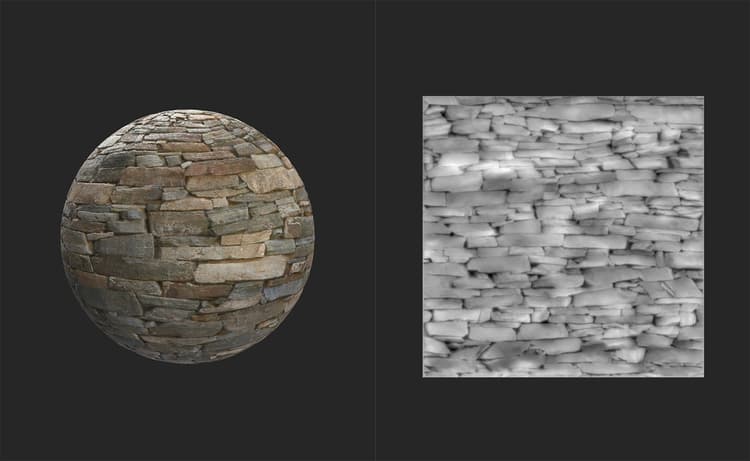
Before the Equalize filter has been added, there is significant variation across the height map and base color of this material.
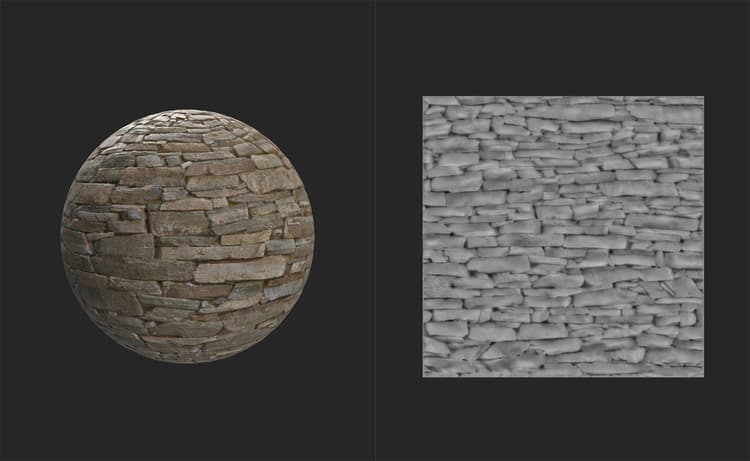
After the Equalize filter has been added, both the height map and base color channels are more uniform without losing detail.
Equalize filter tutorial
Parameters
Basic parameters
- Input Tiled: toggle
When enabled, treat the material as if it’s tiled repeatedly, so changed near borders will be influenced by color values on the opposite border. - Radius: 0-1
Spread the Equalize effect over a wider area. - Color bleeding: 0-1
Control which colors bleed into the surrounding area. - Local details: 0-1
Adjust how the Equalize filter tries to preserve local detail.
Channel
The controls for each channel work the same way.
-
Override Common Parameters: toggle
Enable this to customize the Equalize effect for this channel. When enabled, additional controls appear:- Input Tiled: toggle
When enabled, treat the material as if it’s tiled repeatedly, so changed near borders will be influenced by color values on the opposite border. - Radius: 0-1
Spread the equalize effect over a wider area. - Keep Local Differences: toggle
Enable to make the equalize effect work at a higher resolution to maintain details
- Input Tiled: toggle
-
Target Mode:
Select how to bias the Equalize effect. By default Equalize attempts to move colors towards the average color of the channel. Use Parameter to instead bias towards a chosen color or value. With Parameter selected, an additional control will appear:- Target: color select
Select a color or value to act as a target for the Equalize algorithm.
- Target: color select
-
Custom Color Variation: HSL sliders
Adjust the Hue, Chroma (Saturation), and Lightness (Luminance) of the result after the Equalize algorithm has been run for the specified channel.
Mask
- Custom Mask: toggle
Enable or disable the use of a custom mask for this filter - Custom Mask: image/brush
Select an image to use as a mask, or use the brush to paint a custom mask directly in the 2D view - Custom Mask Invert: toggle