Configuring Pens and Tablets
This page list multiple recommendations to configure a graphic tablet pen on Windows in order to improve its compatibility with the application.
What is Windows Ink ?
Windows Ink is a software/service that handles Pens such as stylus or pens from graphic tablets. It offers various application such as Sticky Notes and Sketchpad to interact with a pen on the computer.
Since version 2019.3, the application relies on it to handle graphic tablets. Before this version Wintab was used instead (older service that is not supported by all graphic tablets models).
Enabling Windows Ink in Tablet driver settings
To make sure the pen pressure is properly recognized, Windows Ink has to be enabled in the driver settings of the Graphic Tablet.
Enabling Windows Ink for Wacom Tablets
- Open the Start menu.
- Type Wacom Tablet Properties and click on the first search result.
- In the Wacom Tablet Properties Window click on the Pen in the tool list.
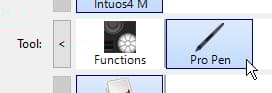
- Click on the plus “+” button to add an application profile.

- Click on the Browse button in the new window to locate Substance 3D Painter executable.
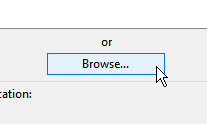
- Click on OK to validate and create the profile.
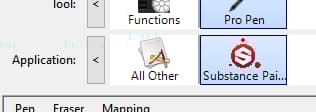
- Click on the Mapping tab.
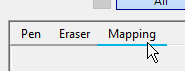
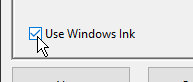
- In the bottom left of the window, make sure Use Windows Ink is enabled.
Enabling Windows Ink for Huion Tablets
- Open the Start menu.
- Type Huion Tablet and click on the first search result
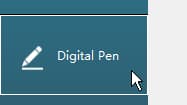
- In the Huion Tablet window click on Digital Pen .
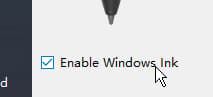
- In the bottom left of the window, make sure Enable Windows Ink is enabled.
How to access Windows Ink settings
Windows Ink settings can be accessed in the general Windows settings:
- Open the Start menu.
- Click on the Settings icon.

- In the Settings window, click on Devices .
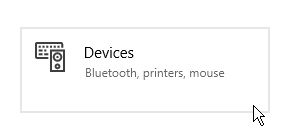
- In the Devices window, click on Pen & Windows Ink (only available if a graphic tablet is connected).
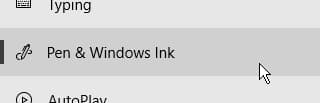
Recommended Windows Ink settings
Below are the Windows Ink settings and the recommended configuration for each of them.
- Circle when right-clicking.
- Tooltip below the mouse when pressing a key modifier (Ctrl, Alt, or Shift).
Pen Settings
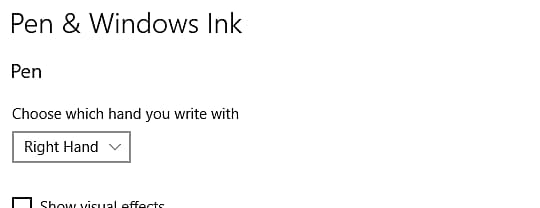
Recommended: Disabled This settings controls visual effects that are displayed during various Pen interaction. Disabling it allow to hide the ripple circle effect when clicking:

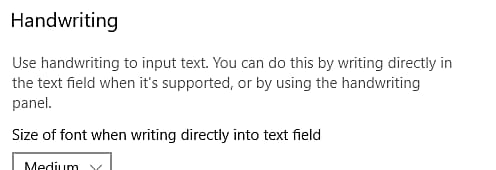
Handwriting Settings
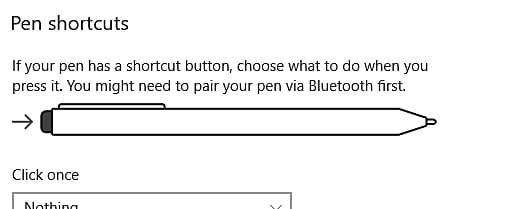
Pen Shortcuts Settings
How to access Pen and Touch settings
Pen and Touch settings can be accessed in the Control Panel:
- Open the Start menu.
- Type Control Panel and click on the first search result.
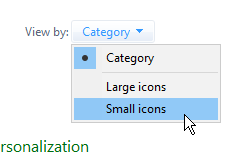
- Switch the Control Panel display mode to small icon .
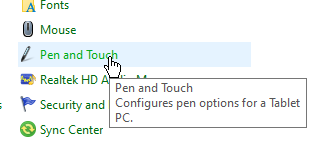
- Click on Pen and Touch settings.
Recommended Pen and Touch settings
The following settings are recommended to improve the painting behavior and camera manipulation.
To access the settings, click on one of the pen action in the window and then click on the settings button.
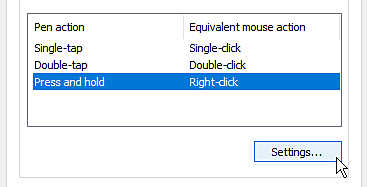
Recommended: Disable the setting"Enable press and hold for right-clicking" Disabling this setting will allow to drag any element normally without activating the Windows drag circle:
