Vector graphic (.svg & .ai)
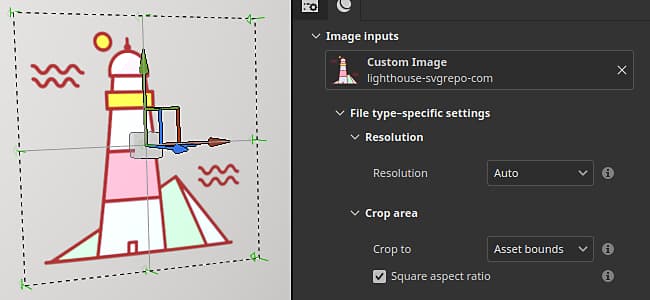
Vector graphic files (both .svg and Illustrator .ai) can be imported like regular images inside Painter. A few settings are available to adjust the look of the graphic and make it fit better the rest of the texturing.
- For more information about SVG files, see this page.
- For more information about AI files, see this page.
SVG and AI files are automatically converted into pixel images when used inside the Layer Stack (depending on the setting selected). This is a non destructive process, changing the resolution or updating the source file will update the final result accordingly.
Properties
After importing an vectorial file and loading it inside a layer or tool properties, a set of parameters will be available:
Define at which size the svg will be converted into a bitmap image (pixels) when used for the texturing inside the Layer Stack. Possible values:
- Auto: the resolution is determined by the resolution of the current Texture Set (when used in fill layer/effect) or to 512 pixels when using in a brush tool.
- Asset: the resolution is determined by the pixel size defined inside the SVG file itself.
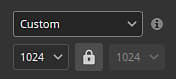
- Custom: the resolution is determined by the resolution setting just under in the interface.
Define how the SVG shapes will be limited to the rendered area. Possible values:
- Asset bounds: the area is defined by the bounds defined inside the SVG file.
- Custom: the area is defined by explicit values via the settings of the interface just below.
Scope window
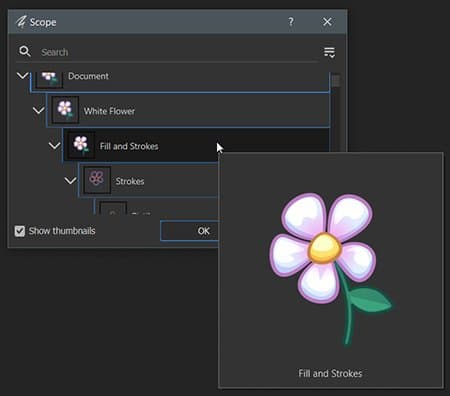
When editing the scope of a vector graphic (see the setting above) a window will appear with a list of elements to select to specify what to include or exclude from the final rendered image.
Use the Show thumbnails checbox to display an image for each element.