UV projection
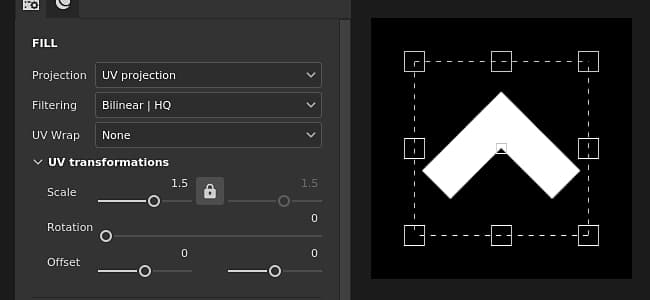
The UV Projection of the fill is a 2D Projection that only works in the 2D texture space. It offers controls to move, rotate and scale an image.
Properties
Controls how the texture or material will be filtered. This settings can impact what the texture looks like when repeated multiple times. With high scaling values, using a different filtering method than the default may produce better looking result. Currently available settings:
- Bilinear
|HQ : (default) Advanced bilinear filtering which tries to improve the quality of the texture when tiling values are high. - Bilinear
|Sharp : Simple bilinear filtering that smooths the texture slightly but tries to preserve details. - Nearest : No filtering, useful if the Bilinear filtering gives a blurry result and breaks fine details. Can introduce aliasing in the texture.
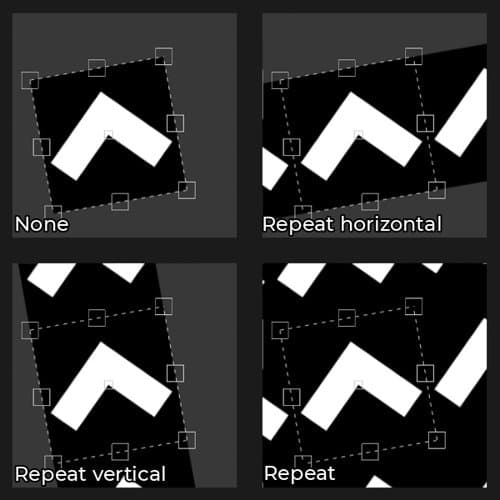
Controls how the Material / Image projected should repeat inside the projection shape. Possible values are:
- None : There is no repetition of the projection.
- Repeat horizontally : Repeat only horizontally.
- Repeat vertically : Repeat only vertically.
- Repeat (default) : Repeat both horizontally and vertically.
UV transformation
The UV transformation settings control the texture/material within the projection.
Contextual Toolbar
Several settings and tools are available from the Contextual toolbar sitting at the top of the viewport which give control over the manipulator and the projection:


This menu contains three settings that define how big the handles of the transform are in the viewport:
- Small
- Medium
- Large


Manipulator
The UV Projection uses a manipulator that is only available in the 2D view.
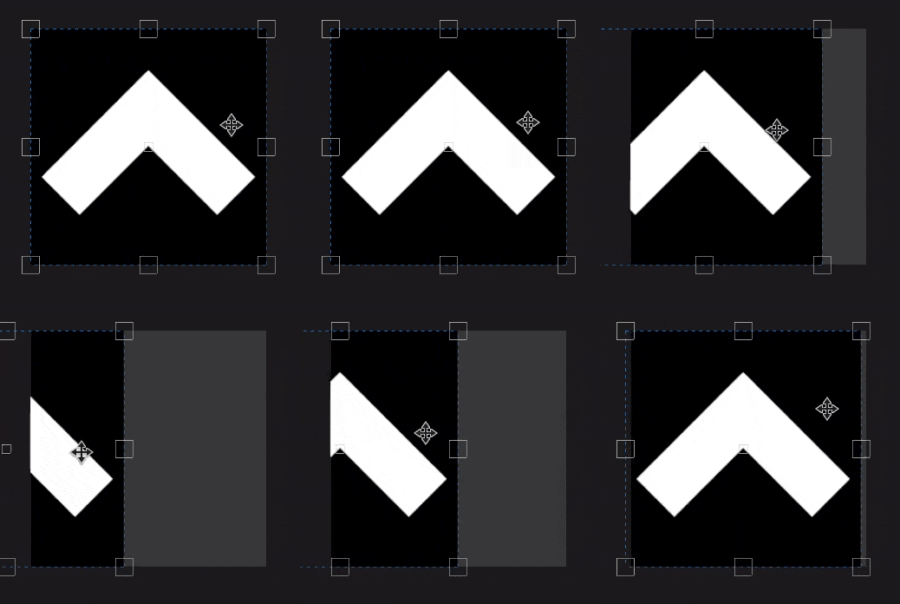
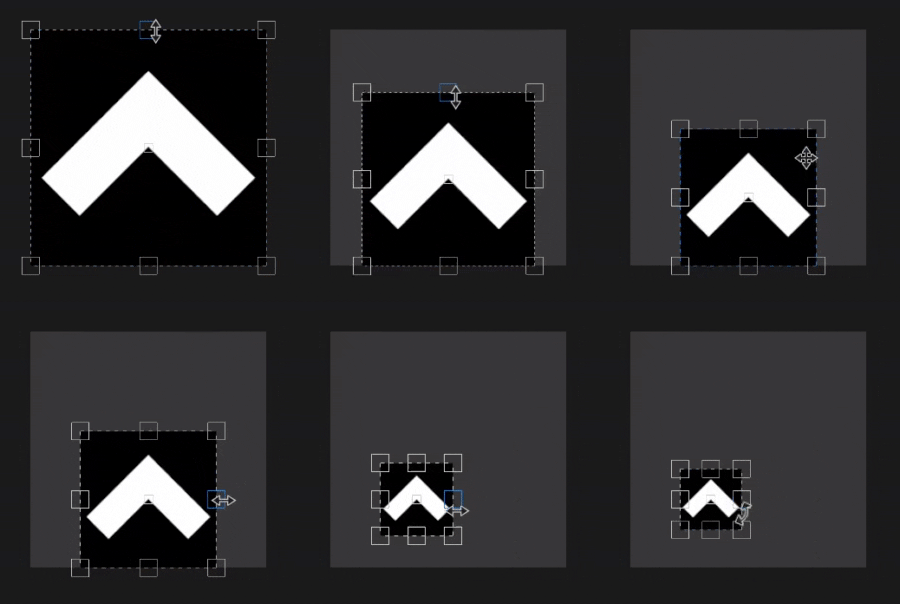
Click and drag any area inside the transformation to move it.
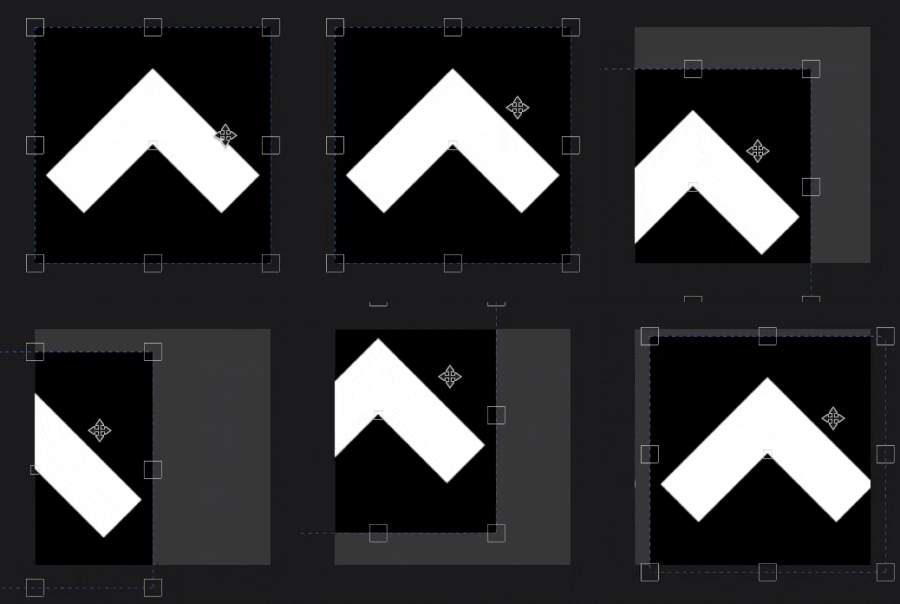
Click and drag any area inside the transformation while pressing and maintaining the shortcut to move it only along one axis. The axis can be either horizontal or vertical and aligned with the camera, it is based on the mouse direction.
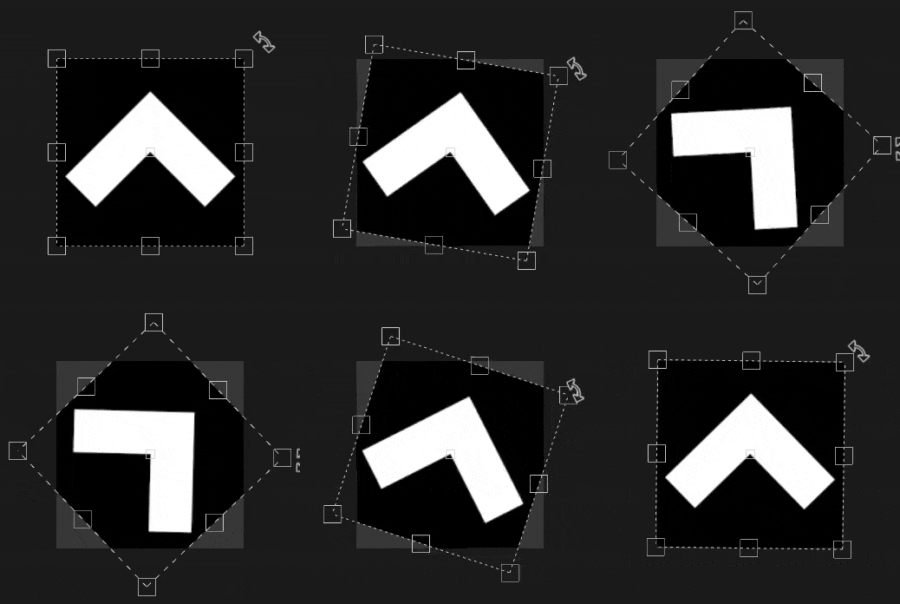
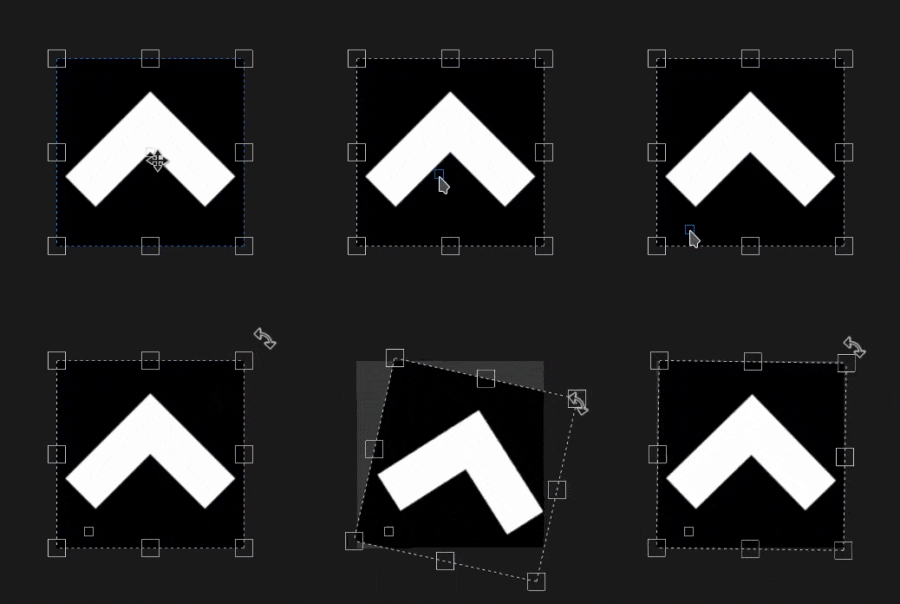
Clicking and dragging from outside of the transformation allows to rotate it. Moving the pivot also allows to change the rotation origin point.
| table 0-row-2 0-border-0 1-border-0 2-border-0 html-authored no-header | |
|---|---|
|
|
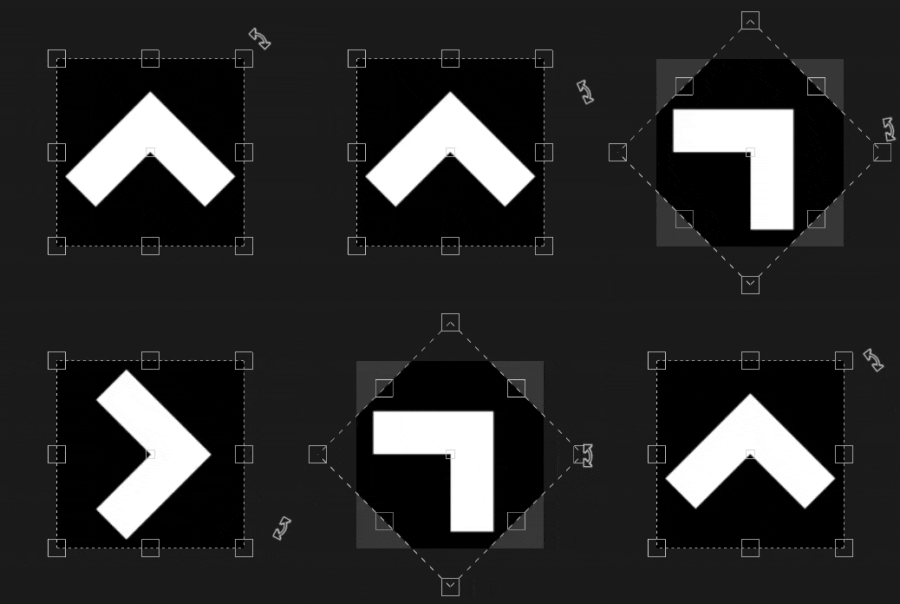
Clicking and dragging from outside of the transformation while pressing and maintaining the shortcut allows to rotate it only every 45 degrees.
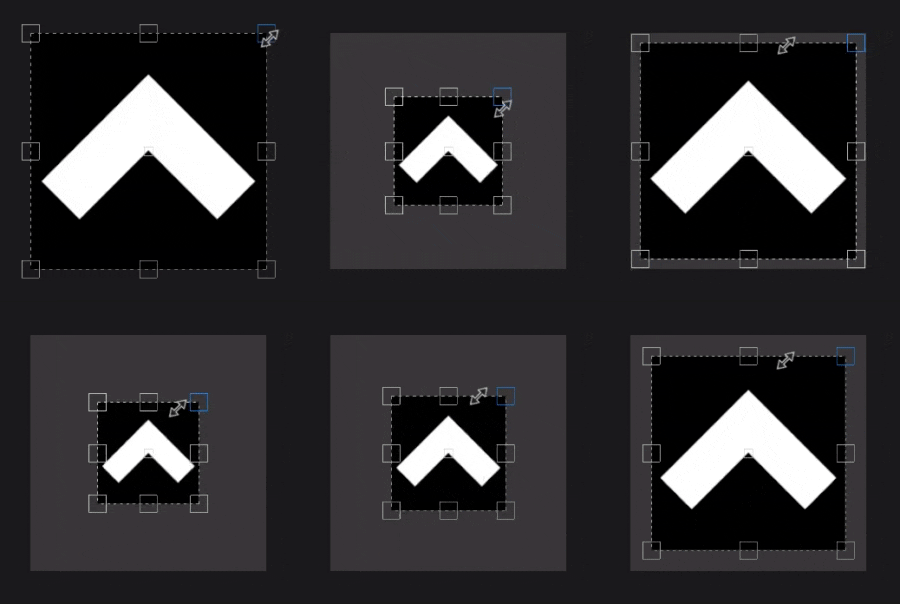
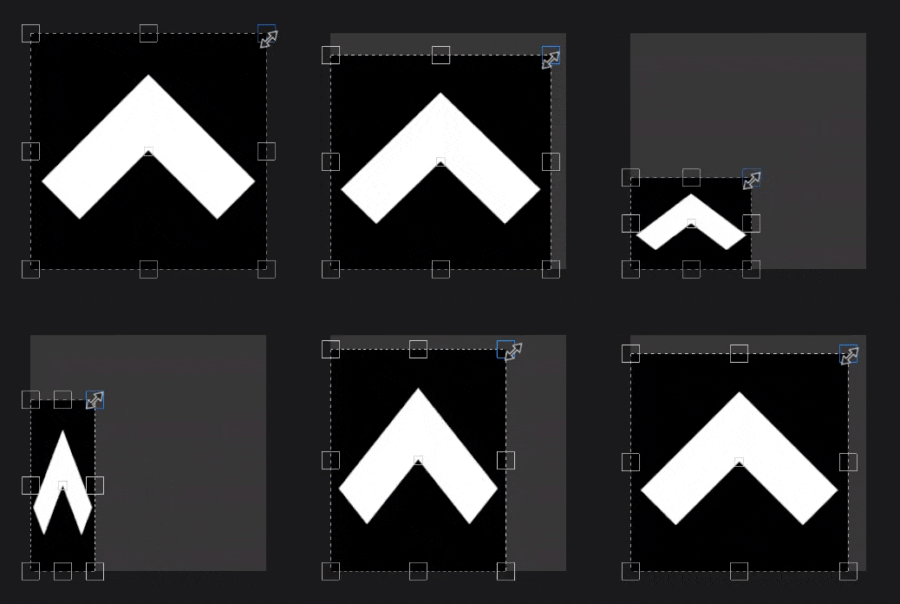
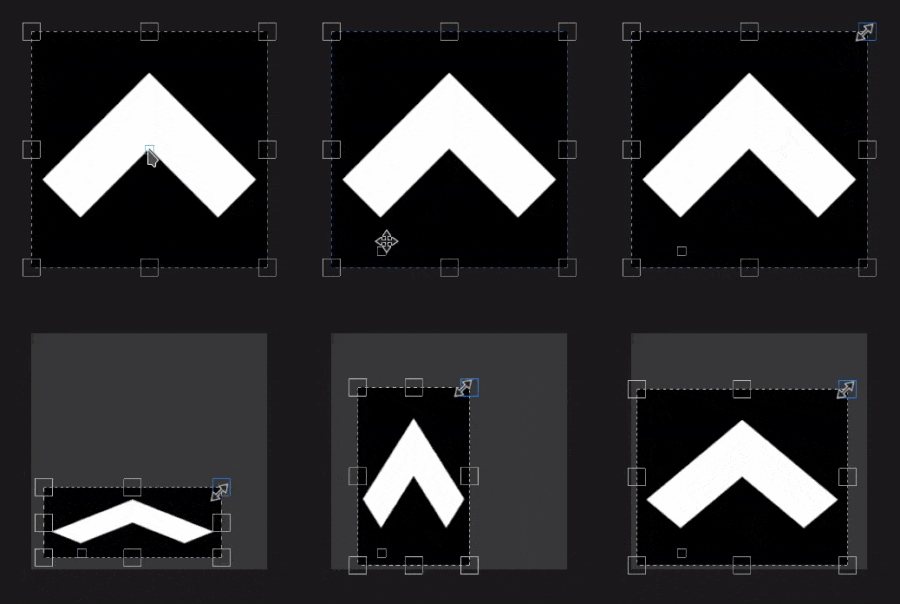
Clicking and dragging any handles of the manipulator allows to deform the transformation.
| table 0-row-2 0-border-0 1-border-0 2-border-0 html-authored no-header | |
|---|---|
|

|
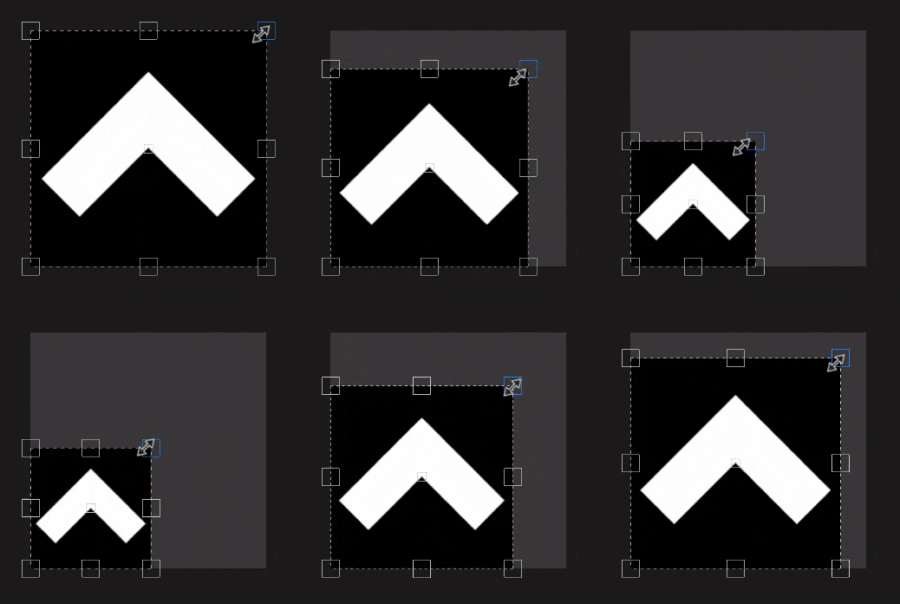
By pressing and maintaining the shortcut while dragging an handle, the transformation is forced to keep its ratio.
| table 0-row-2 0-border-0 1-border-0 2-border-0 html-authored no-header | |
|---|---|
|
|
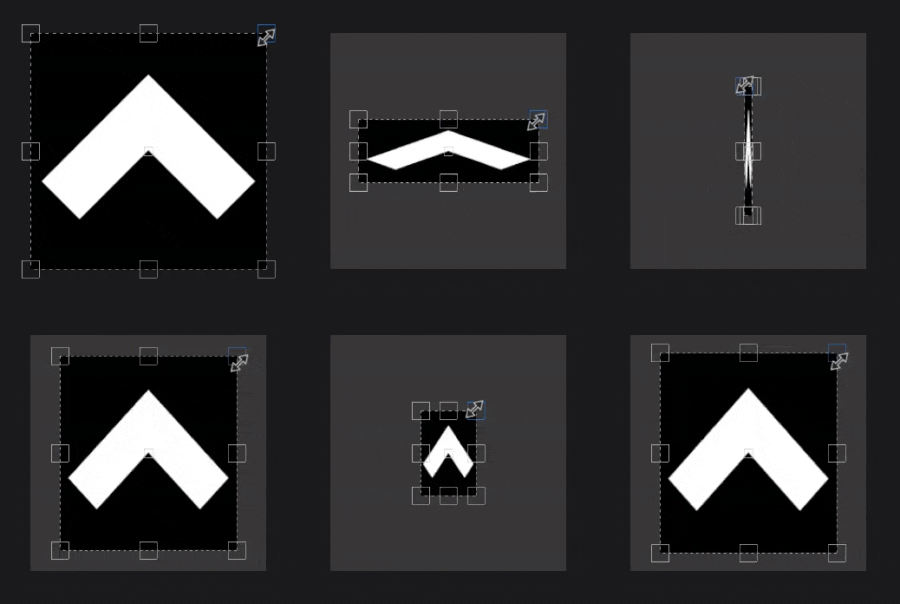
When moving any handle while pressing the shortcut, the other handles will perform a similar movement. It allows to deform the transformation in symmetry around the pivot point.
| table 0-row-2 0-border-0 1-border-0 2-border-0 html-authored no-header | |
|---|---|
|
|
Combining both shortcuts allow to deform the transformation in symmetry while preserving the aspect ratio.