Tri-planar projection
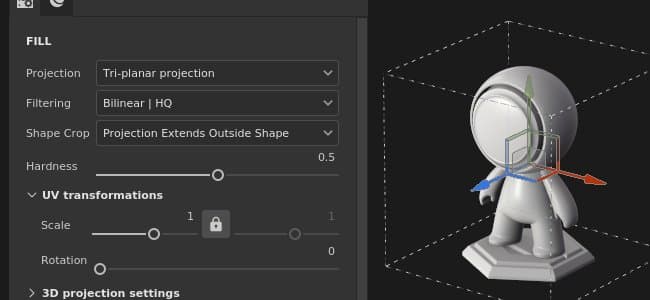
The Tri-planar projection of the fill is a 3D projection that combines multiple planar projections together and blend them to cover the whole 3D mesh. It is very useful to project noises and patterns without creating any visible seams.
Properties
Controls how the texture or material will be filtered. This setting can impact how the texture looks when repeated multiple times. With high scaling values using a different filtering than the default may produce better looking result. Current settings available:
- Bilinear - HQ (default): Advanced bilinear filtering that tries to improve the quality of the texture when the tiling values are high.
- Bilinear - Sharp: Simple bilinear filtering that smooths the texture slightly but try to preserve details.
- Nearest: No filtering, useful if the Bilinear filtering gives a blurry result and breaks fine details. Can introduce aliasing in the texture.
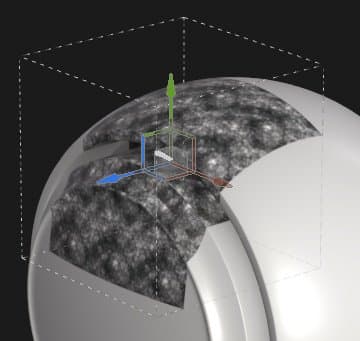
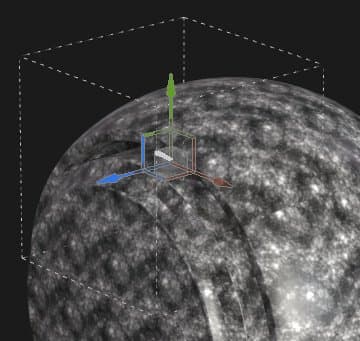
Define if the projected texture should be visible outside of the projection area. Possible values are:
- Project cropped to shape: the projection is confined within the projection area.
- Projection extends outside shape (default): the projection continues beyond the projection area.
| table 0-row-2 0-border-0 1-border-0 2-border-0 html-authored no-header | |
|---|---|
|
|
Control how hard or soft are the transitions between planes of the projection. A value or 1.0 means there will be a clear cut between each plane.
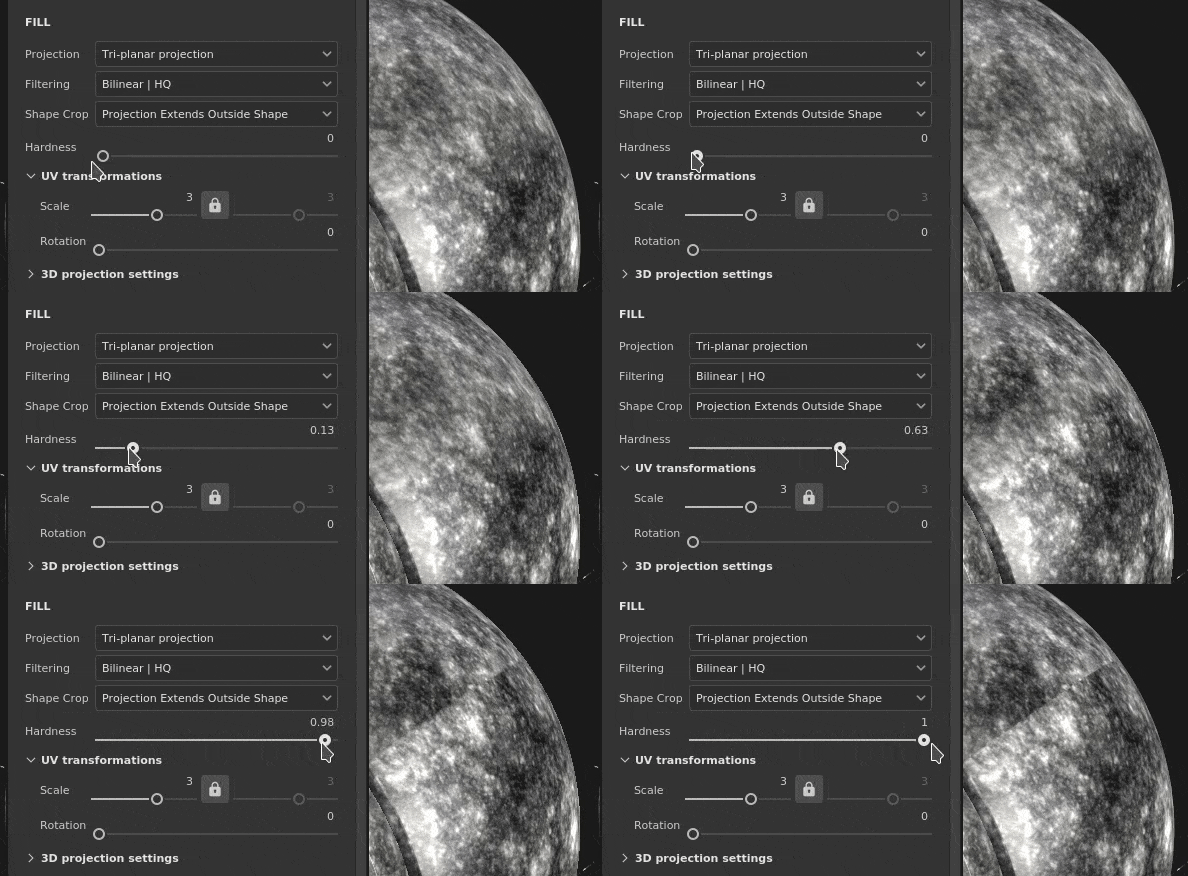
Note: The transition of each plane is defined by the mesh vertex normal (without taking into account the normal mesh map). This means abrupt or broken vertex normals can lead to unexpected results when blending planes together.
UV transformation
The UV transformation settings control the texture/material within the projection.
3D projection settings
The 3D projection settings control the transformation of the projection in 3D space.
Contextual Toolbar
Several settings and tools are available from the Contextual toolbar sitting at the top of the viewport which give controls over the manipulator and the projection:


This menu contains three settings:
- Manipulator size: control how big the manipulator is in the viewport.
- Grid steps: define the size of the step when translating with a constraint.
- Angle steps: define the angle of the step when rotating with a constraint.


Define in which space the transformation are performed. Possible values are:
- Local space: axes are aligned with the current transformation.
- World space: axes are aligned with scene.


Manipulator
This projection manipulator is only available in the 3D viewport.
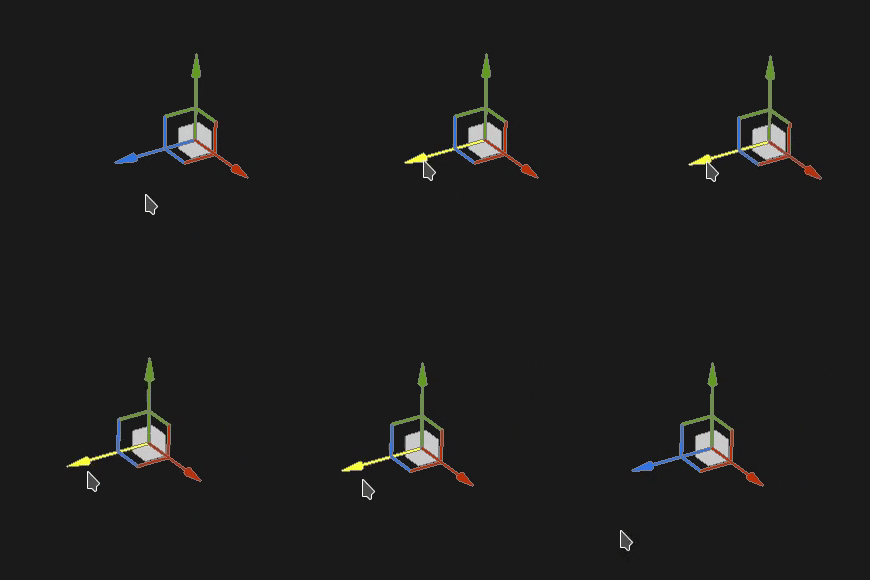
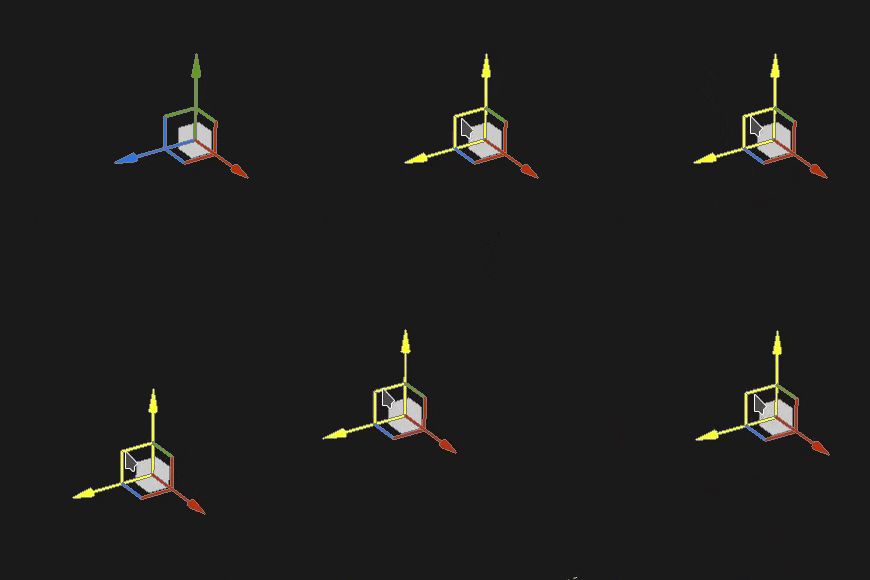
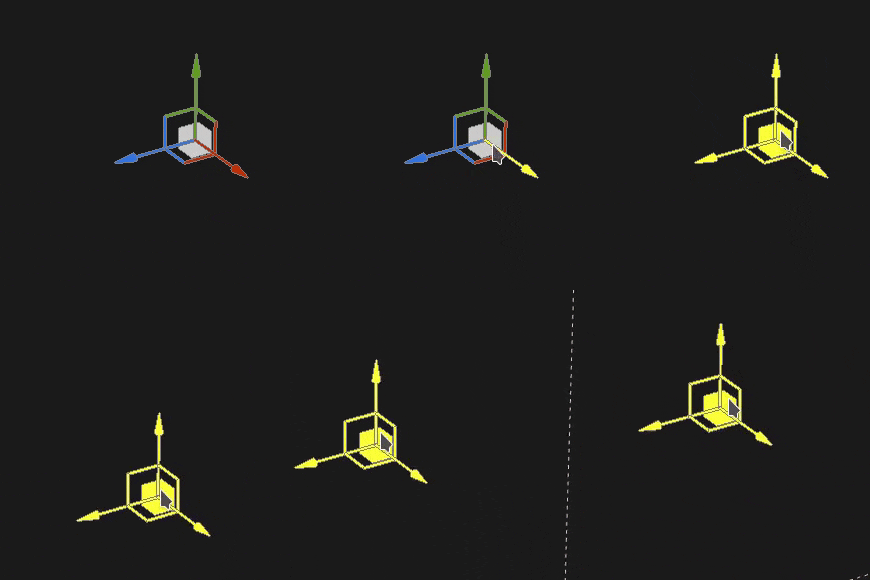
With the Translation manipulator, clicking on the axes move the projection:
- One axis: only move in one direction the projection.
- Two axes: move the projection on the plans aligned with the axes.
- Three axes: move the projection in the space of the camera (plan facing it).
| table 0-row-3 0-border-0 1-border-0 2-border-0 3-border-0 html-authored no-header | ||
|---|---|---|
|
|
|
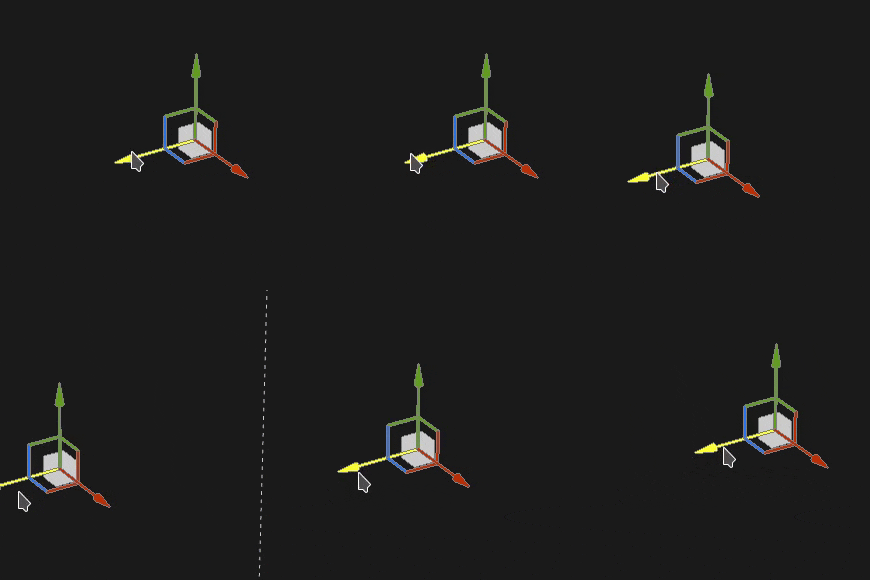
With the Translation manipulator, move the projection along the selected axes but only at specific intervals (stepping). The size of the interval is defined via the manipulator settings.
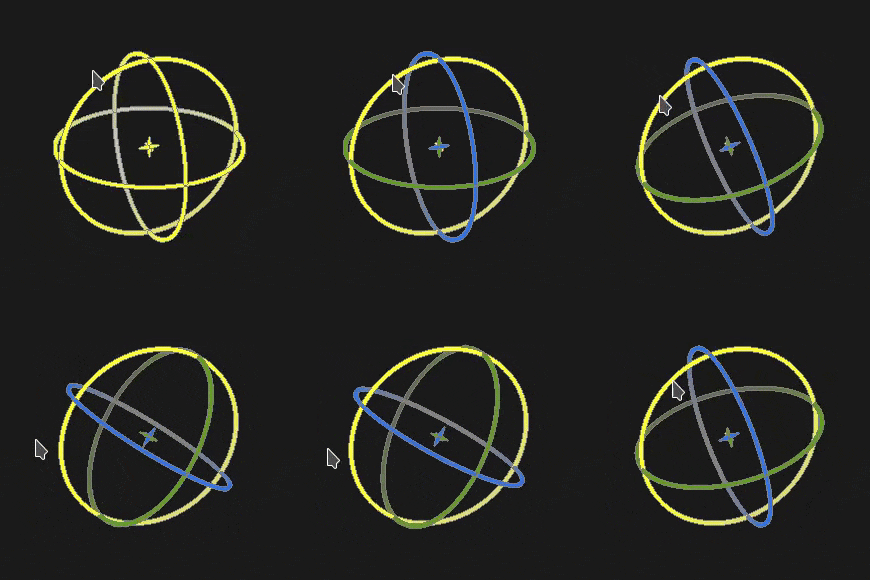
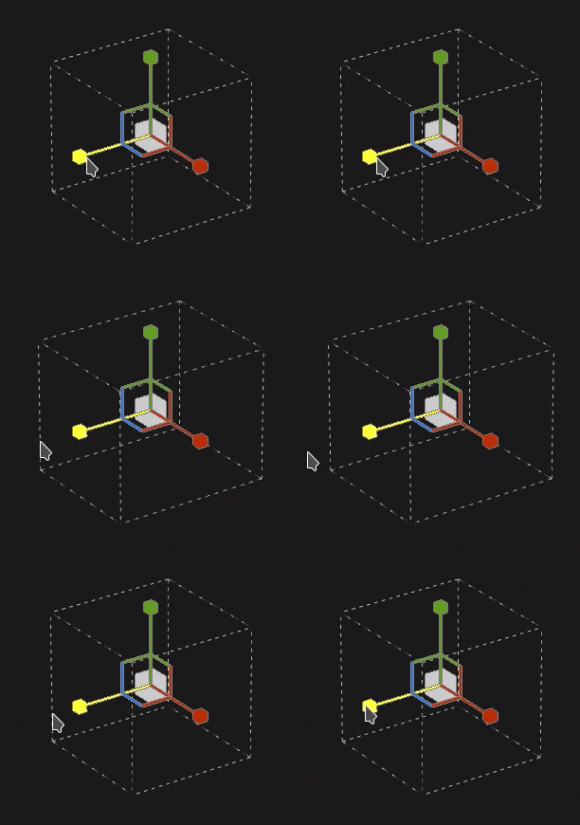
With the Rotation manipulator, clicking on one axes rotate the projection. Click in-between the axes allow to rotate all the axes at the same time.
| table 0-row-2 0-border-0 1-border-0 2-border-0 html-authored no-header | |
|---|---|
|
|
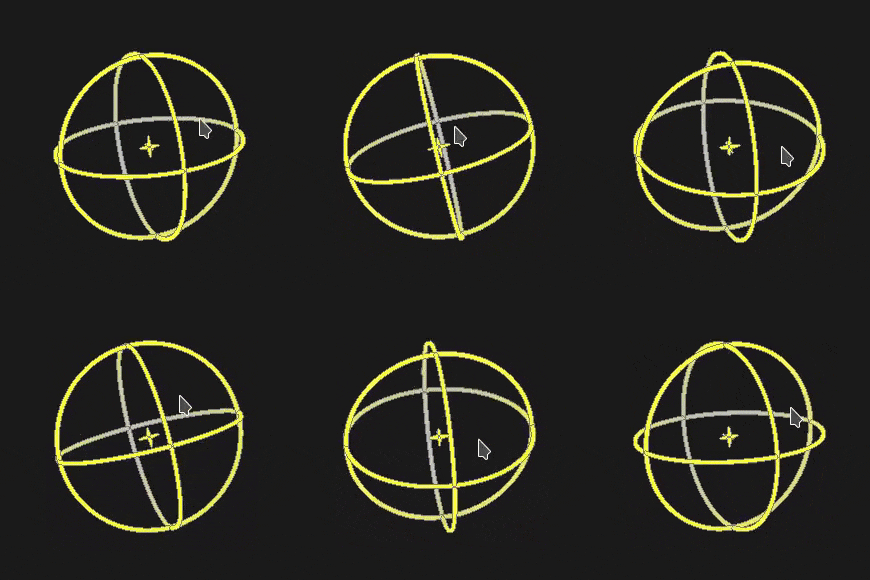
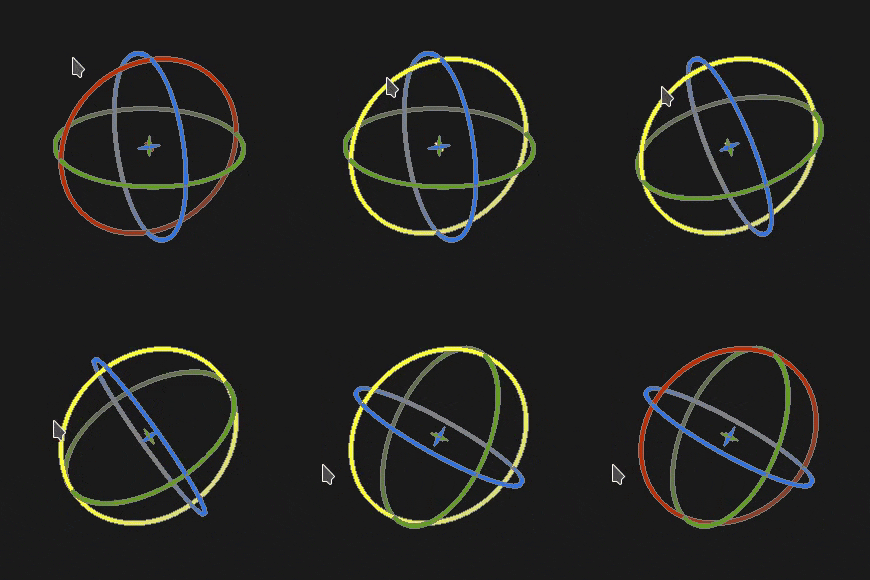
With the Rotation manipulator, clicking on one axis to rotate the projection will only happen at specific intervals. The step is defined by an angle via the manipulator settings.
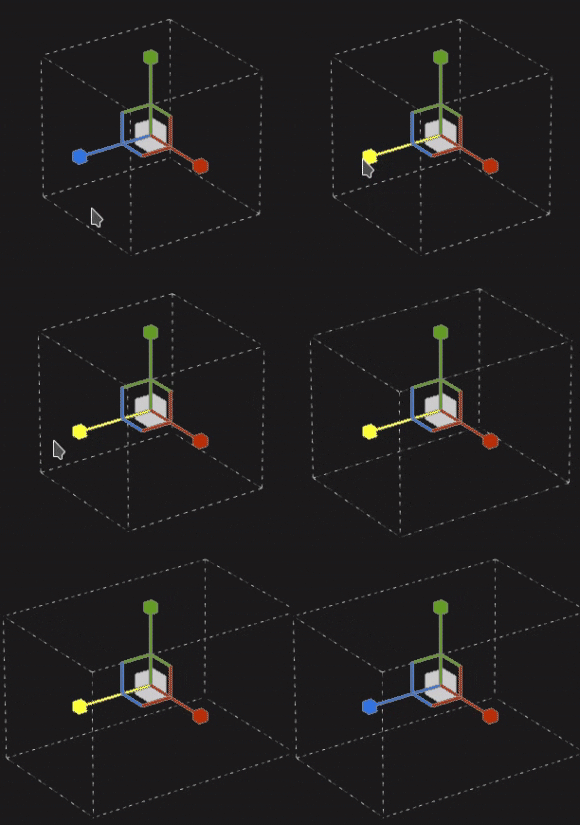
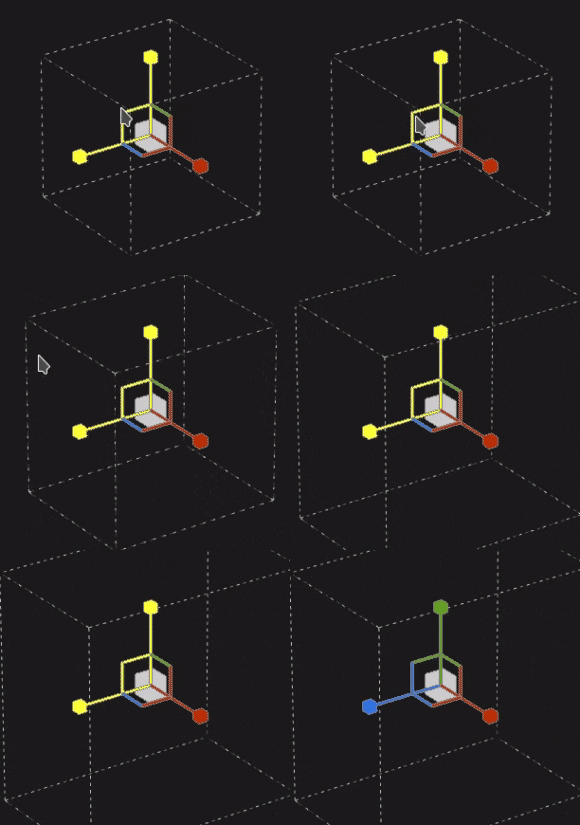
With the Scale manipulator, clicking on one axis handle resize the projection along the given axis.
| table 0-row-3 0-border-0 1-border-0 2-border-0 3-border-0 html-authored no-header | ||
|---|---|---|
|
|
|
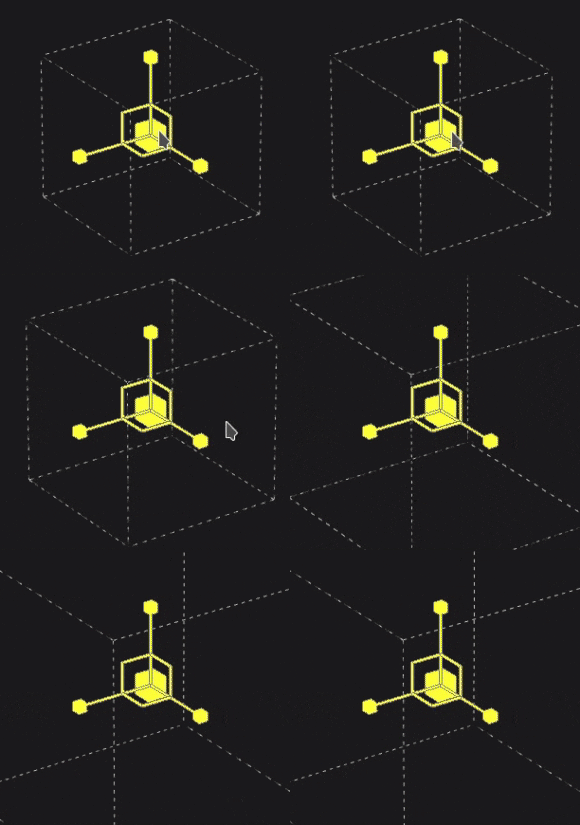
With the Scale manipulator, clicking on one axis handle while maintaining the shortcut will resize the projection in steps. The step size is the same as for the Translation manipulator.
With the Surface manipulator, clicking and dragging it over the 3D model will snap it on the surface.
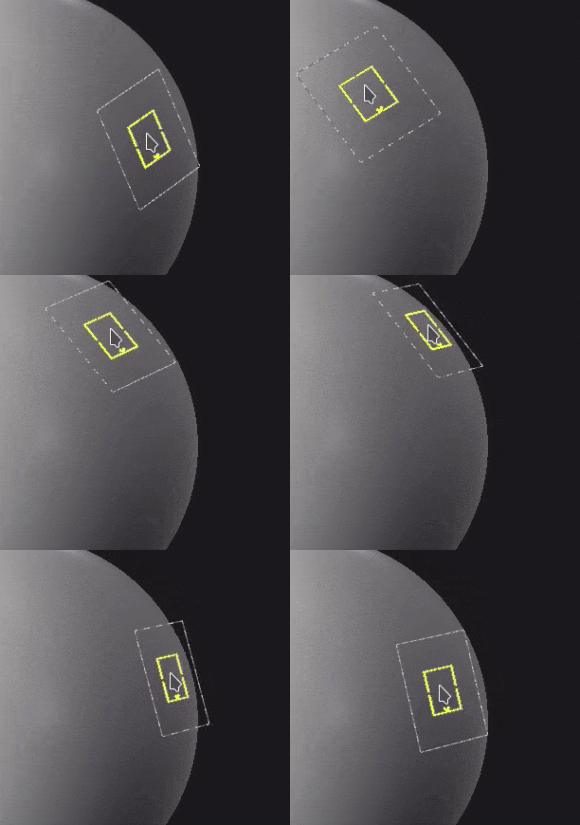
Note: This manipulator is only available with the Planar and Warp projection types.