Geometry mask
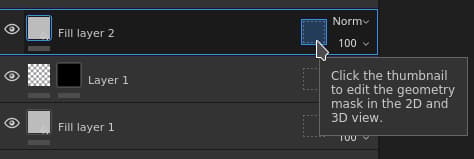
The Geometry mask is a secondary mask on layers that allows to mask a layer based on the 3D model geometry of the associated Texture Set. It can mask by mesh names or by UV Tiles.
Overview
The Geometry mask works by specifying on which part of the 3D Model the layer should apply via a include/exclude list.
The Geometry mask is an useful tool to quickly discard big part of the 3D model geometry. It offers several advantages to the paint mask:
- It is usually faster to setup and use with viewport selection modes.
- It offers better performances as geometry can be completely discarded when generating the textures.
- It is non-destructive and will be updated when the 3D model change after a re-import.
- It allows to paint geometry that is underneath masked geometry, allowing to paint hidden parts.
- Like paint mask, the geometry mask can be applied on a group to affect multiple layers at once.
Icon states
The geometry mask icon can indicates in which state it is:


Editing the Geometry mask
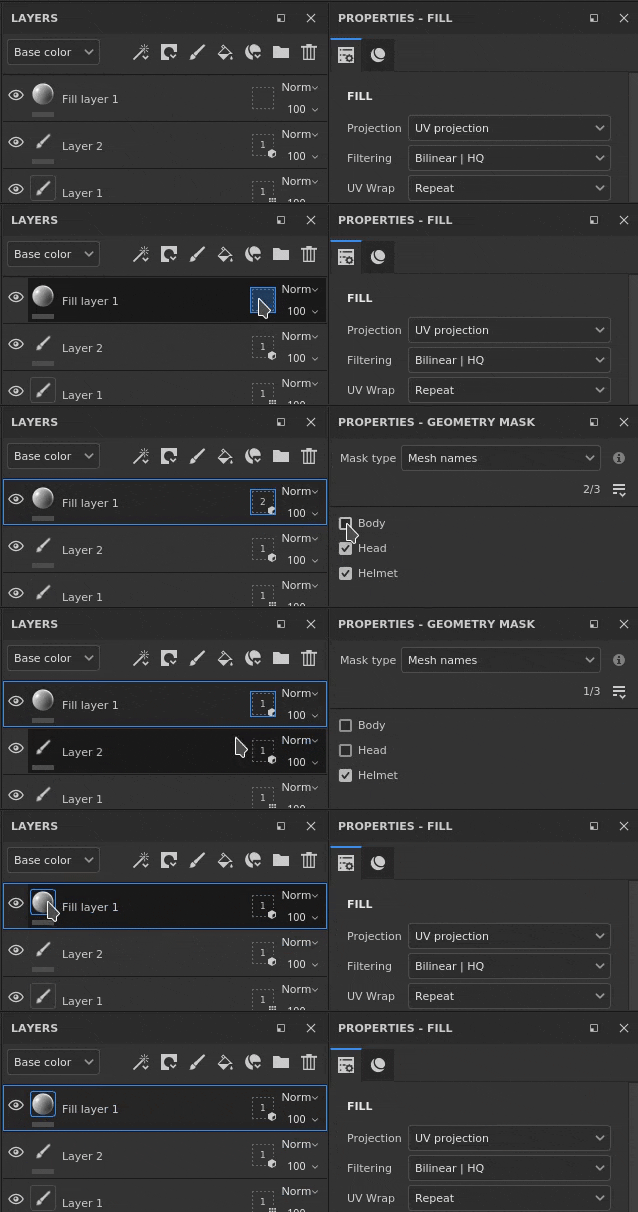
To modify the Geometry mask of a given layer, simply click on the dedicated icon. To exit the editing mode, simply click on another part of the layer such as the content or the paint mask:
Masking types
The geometry mask support two types of masking:
Layer stack actions
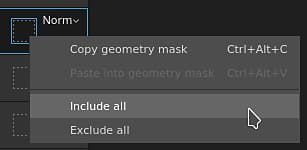
The Geometry mask state can be quickly modified from the layer stack directly by right-clicking on the icon.
It offers the following actions:
Painting through masked geometry
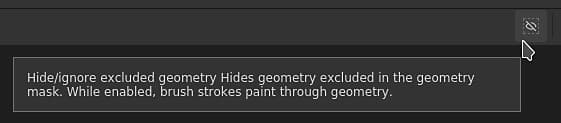
When parts of the geometry have been excluded, then can be hidden in the viewport. This allows to paint on the geometry that was previously underneath and unaccessible.
To hide the excluded geometry, use the button at the top of the viewport in the contextual toolbar:
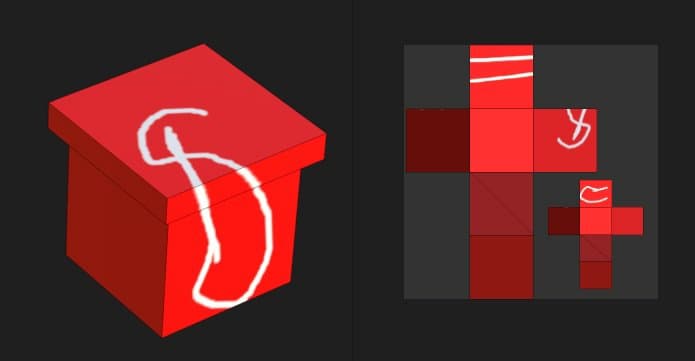
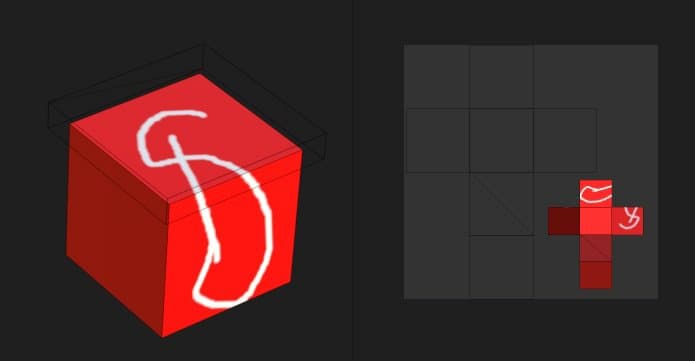
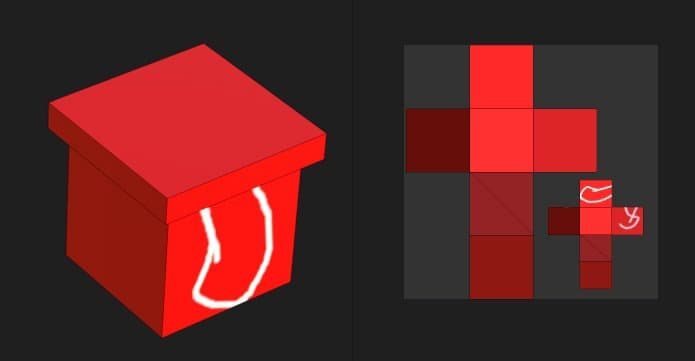
In the example below, the 3D model has been split in two objects: a top and bottom part. By default brush strokes collide with all the objects. by excluding the top part it is now possible to only paint on the bottom part exclusively.