Flatten layers
Flatten layers
Flattening layers allows you to condense the visible texture data of a selected group into a single layer. This can help to simplify the layer stack, improving performance and making your projects easier to manage.
How to Flatten layers
To flatten a series of layers:
- Select the desired layers.
- Use CTRL + G (CMD + G) to group the selection.
- Use CTRL + M (CMD + M) to merge the selection.
You can also access these options from the right-click menu instead of using keyboard shortcuts.
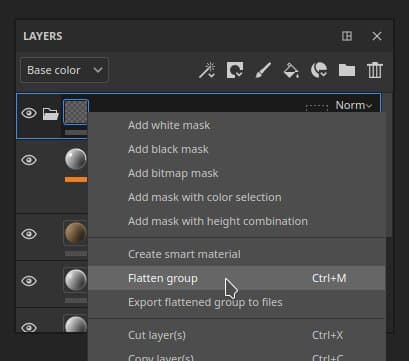
When layers are flattened, a new Fill layer is created with flattened textures, and the source group is disabled.
Flatten specific channels
-
On a fill layer, use the Properties panel to disable channels you don’t want to flatten. Information is not lost when channels are disabled. Once you’ve flattened the layer, you can re-enable the channels, and the data will still be there
-
For groups or paint layers, you can use blending modes to disable channels:
- At the top of the Layer stack, select the channel to disable.
- Change the blending mode of the desired layer to “Disabled”.
- You can apply the same blending mode to all channels for a layer by right-clicking the blending mode and selecting “Apply to all channels”.
Export flattened maps from the layer stack
Use Export flattened group to files from the right-click menu in the layer stack to quickly export textures. This option is available when a layer or group is selected. When multiple layers or groups are selected, they will be handled as a batch - as if you exported each of them one by one.
File management
When you select Export flattened group to files, you will have the opportunity to select a folder location for the exported files.
Exported files are named following the pattern in the filename field. The default pattern is:
- $textureSet_$layerName_$srcMap(.$udim)
With this pattern, maps will have the texture set name, layer name, channel name, and, if it is a UV tile project, the UDIM number.
If you modify the pattern, it will be available again the next time the window is opened.
Exported file properties
Properties for the exported files are based on the following values at the time of export:
- Resolution is based on Texture set resolution.
- Bitdepth is based on channel bitdepth in Texture set settings.
The following properties are hardcoded and cannot be changed:
- Padding is locked to 1px.
- File format depends on the channel being exported. Maps like height and normal usually need more bitdepth and are exported as EXR, while other channels are exported as PNG.
- If only a mask is exported, you can select the export format.
How is the flattened layer generated?
The flatten function creates a bitmap per enabled channel inside a new fill layer. The resolution is based on the Texture set resolution, and the Bitdepth is determined by the Texture Set settings.
Flatten works when there is texture data inside a given channel. Flatten will not work on an empty paint layer, and will post an error message to the log if there is no data in the selection.
Only visible layers and effects can be flattened. If some layers in the group are disabled when the group is flattened, the effects of these layers will not be included in the flattened result.
Disabled layers
Only visible layers and effects can be flattened. If some layers in the group are disabled when the group is flattened, the effects of these layers will not be included in the flattened result.
Layer Masks and Geometry masks
Masks are flattened separately from texture data. This means, if you flatten a group with a mask, both a flattened fill and flattened mask will be generated.
When using a geometry mask, if only some UV tiles are selected inside the geometry mask, the flattened layer will retain this selection. UV tiles that were not selected in the geometry mask are considered empty, and therefore their texturing is not retained in the flattened result.
Manage flattened content
Flattened images are automatically tagged “flattened”, so you can easily search for them in the Assets panel. They are also automatically stored in the Saved Searches category “Flattened layers”.
Clean up unused images
Removing unused images from your project file can help to lighten the size of your project. In the Assets panel, you can delete images from the right-click menu. Or, to remove all unused images, use File > Remove unused resources. Be aware that this will not only delete flattened images, but any resources that are not being used in the layer stack, backed maps slots, or elsewhere in the UI.