Viewport settings
This section of the Display Settings controls various settings related to the display of the viewport such as the texture filtering and the mesh wireframe.
Texture filtering
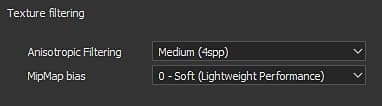
The Anisotropic Filtering and MipMap Bias allow to control the display of textures in the viewport. These settings don’t affect the textures directly and won’t be applied at export, they just refine the rendering process in the viewport. The MipMap Bias setting allows to force to use very sharp textures for pixels that are far away or at oblique angles, however in some cases they can create Moiré patterns or jittering.
Default settings are a compromise of quality and performances and should only be changed when really needed.
Anisotropic Filtering improves the texture quality when viewing at oblique angles. High quality values provide a better filtering but can result in a loss of performances. This setting controls the amount of samples per pixel (spp) used for the filtering :
- Disabled : No filtering
- Low (2spp)
- Medium (4spp) : Default value
- High (8spp)
- Very High (16spp)
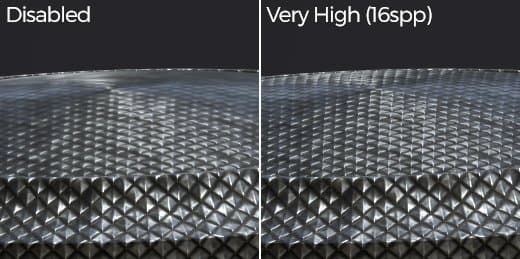
Offset the MipMap level of detail to improve the texture quality. Sharp values can result in loss of performances and jagged textures.
- 0 - Soft (Lightweight Performance) : Default value
- 1 - Medium Soft
- 2 - Sharp
- 3 - Very Sharp (Intensive Performance)
(From 0 to -3)
Camera frame
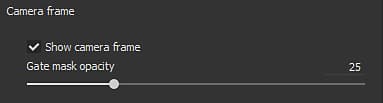
For more information regarding Camera Management see : Camera management
Tool display
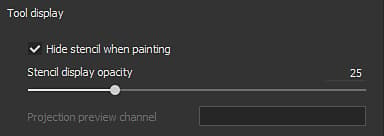
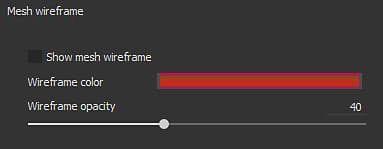
Mesh wireframe
Channel display
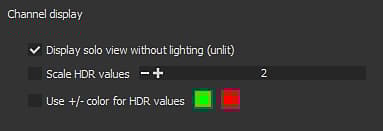
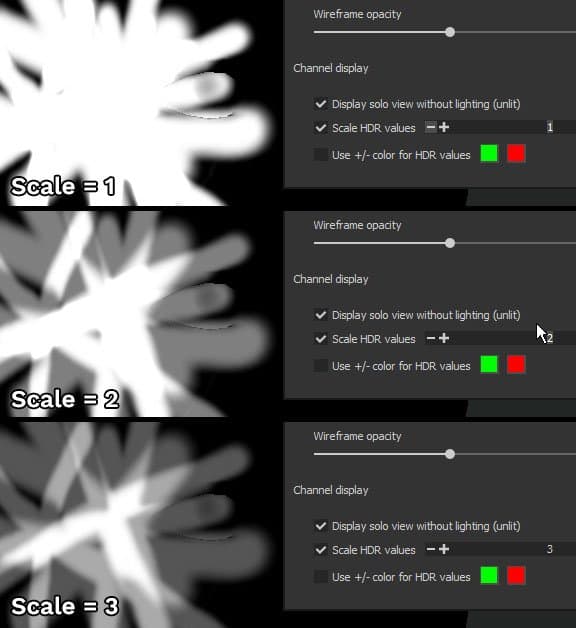
When viewing in single channel mode an HDR texture (such as the height) this setting will scale the total values. This is useful for viewing values that go over 1 or below -1. The result equals Channel dived by scale.With the example below, the height channel has values up to 3. However by default they cannot be viewed unless the scale value is changed :
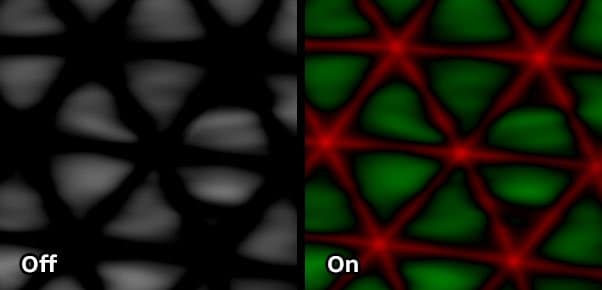
This setting allows to view more easily HDR texture by replacing positive values by the first color and negative values by the second color. Neutral values (0) are black.Example :
Modify the viewport viewmode to only display individually the R, G, B or Alpha component of the current channel. This setting is not available in Material display mode. When enabled, the name of the selected color channel is displayed in the viewport:
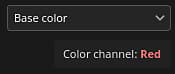
Possible values:
- RGBA (default): on Color channels, display all the components with the transparency.
- Grayscale+Alpha (default): on Grayscale channel, display the grayscale values with the transparency.
- R: on Color channels, only display the Red component.
- G: on Color channels, only display the Green component.
- B: on Color channels, only display the Blue component.
- Alpha: on any channels, only display the transparency of the texture.
Grid
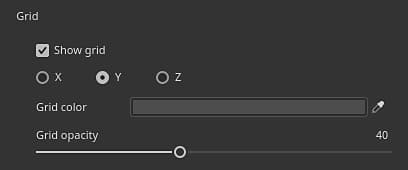
The grid settings allow to display and control the drawing of a 3D grid inside the 3D viewport.
The grid divisions are automatic based on the current camera level of zoom and angle. The current grid unit is displayed in the bottom left of the viewport.