SpaceMouse® by 3Dconnexion
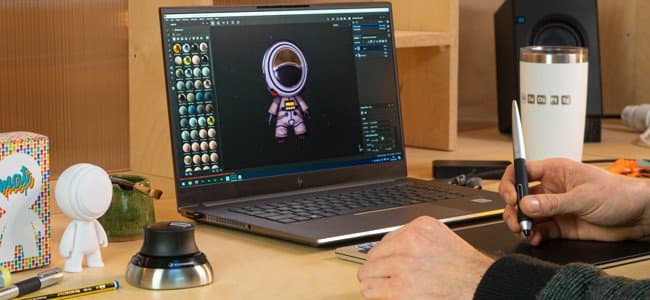
The SpaceMouse® by 3Dconnexion is a device that allows to easily navigate in 3D. It can be used to manipulate the camera/3d model in the application viewport.
- The SpaceMouse® is supported since version 7.4.2.
- To use correctly this device, make sure to install the latest driver from 3Dconnexion.
Tutorial
Overview
The main control knob or the SpaceMouse® lets you rotate, pan and zoom in the viewport in ways that are not possible with regular mouse/stylus and keyboard controls. The device can used in combination with mouse and tablets with stylus.
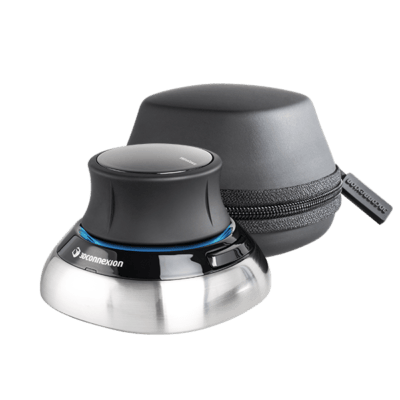
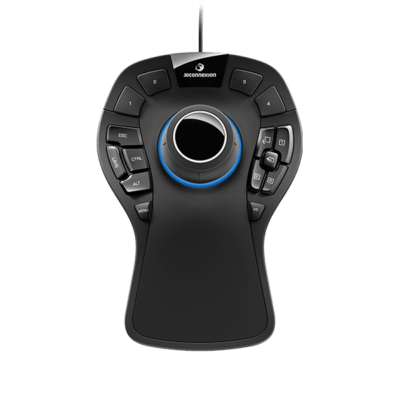
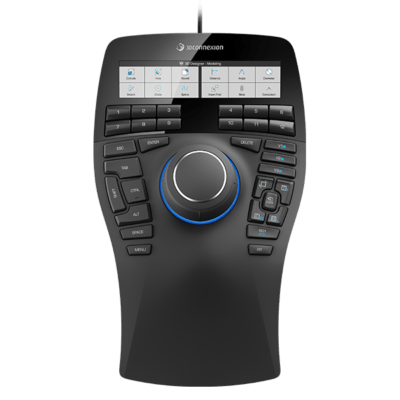
All models and versions should be compatible with the application:
Radial menu
The menu can be accessed directly from the device:
-
On the Compact model by clicking on the left button and choosing properties from the radial menu:
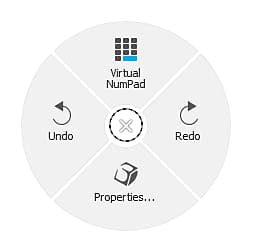
-
On the Pro and Enterprise models, the properties menu can be accessed by pressing the Menu button.
Alternatively, right click on the 3Dconnexion icon in the system tray (next to the system clock) and choose Open 3Dconnexion Settings. This menu is context sensitive based on the last active window. Its title bar indicates to which program it corresponds, if it is not Adobe Substance 3D Painter, switch to the Painter window and then go back to the settings window:
Default settings
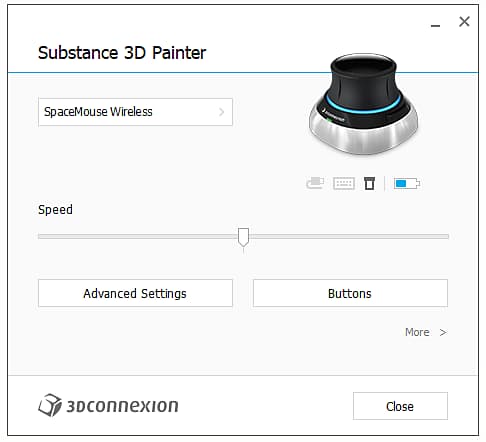
In the settings panel of the SpaceMouse®, default settings for Painter are available in the latest version of the drivers. No additional configuration is needed, simply connect the device and it will be plug and play.
Make sure to select the correct device from the top drop down menu, by default it should select the correct one.
The “speed” slider changes the sensitivity in all axes and directions.
Advanced settings
By clicking on “Advanced Settings” button, it lets you change the detailed behavior of the main controls.
Any default setting can be modified. There are two important sections with the tabs Navigation Modes and Rotation Center.
Navigation modes
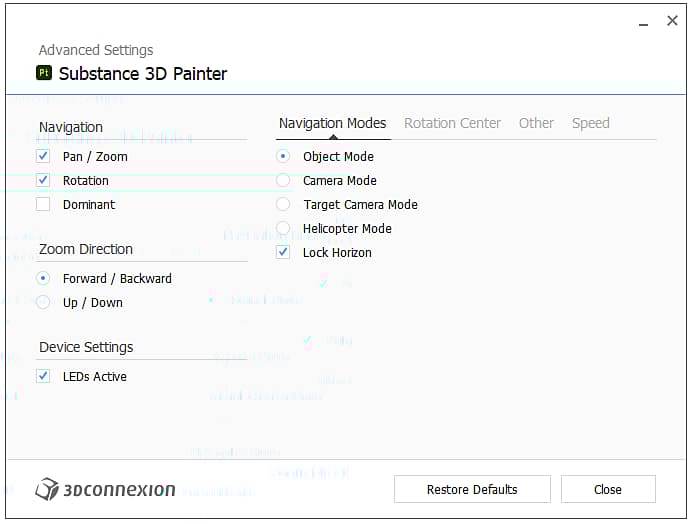
Define the behavior how behaves the knob in 3D:
Rotation center
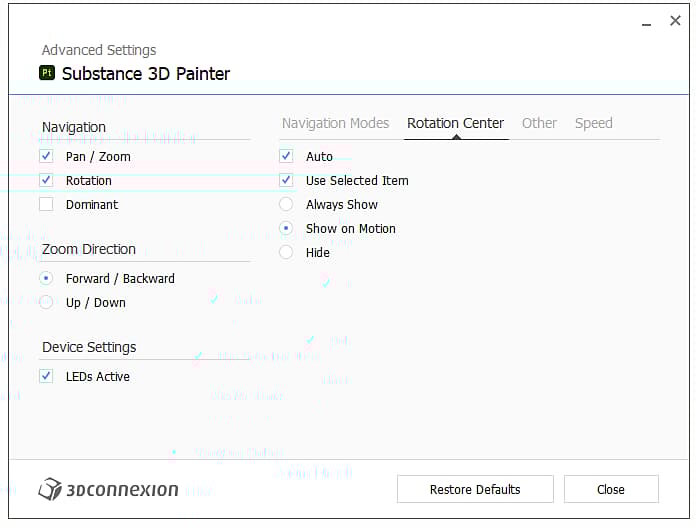
Define the small pivot icon behavior:
Buttons
By clicking on Buttons, it is possible to assign commands, macros or radial menus. See the 3Dconnexion documentation for more details.