Pin
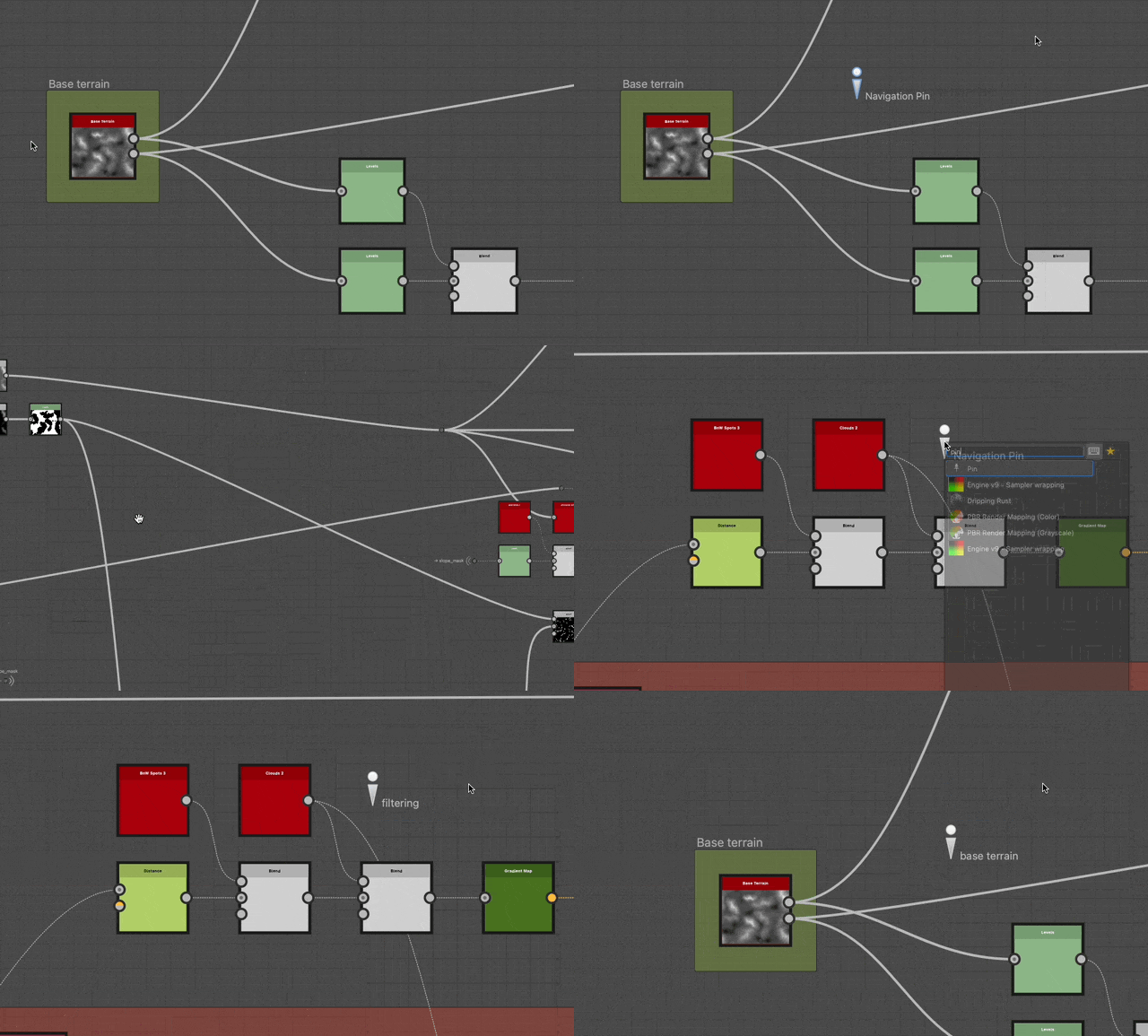
A Pin is a helper that lets you quickly jump across specific locations in graphs.
You may set a custom label using their Description property.
Creating pins
Pins may be created in any of the following ways:
Node menu
Press Spacebar in the Graph view to open the Node menu, and select the ‘Pin’ item in the list.
Type ‘pin’ in the search field to surface the item and find it more quickly.
Shortcut
If a keyboard shortcut is mapped to the ‘Pin’ item in the Preferences, press that shortcut when the Graph View has focus.
Contextual menu
In the Graph View, press RMB in empty space and select the Add Pin option.
Graph toolbar
In the Graph View toolbar, click the ‘Pin’ button in the Node Palette.
Library
In the Library, select the Graph Items category then drag and drop the ‘Pin’ item into the Graph View.
TIP
When a pin is created, its ‘Description’ property automatically gains focus so you can immediately edit the pin’s text.
Jumping to pins
In any graph type, pressing the F2 cycles through all pins in that graph in order of creation.
Pins will be framed in the viewport at the current zoom level.
recommendation-more-help
substance-3d-designer-help-guide