Splatter Circular

In: Texture Generators > Patterns
Description
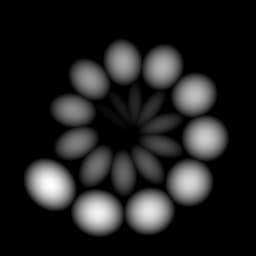
Splatter Circular generates a ring-based pattern with various controls. It can use pre-defined shapes or custom inputs. It’s similar to Tile Generator, but with a circular placement instead of a grid.
This is useful for when you want to place shapes in a circular way with various randomisation options.
Inputs
Both inputs are optional.
Pattern Image Input 1-6 Grayscale Input (Color input)
Splatter Circular only: Custom pattern image, used when the “Pattern” parameter is set to “Image Input”.
Background Grayscale Input (Color input)
Parameters
Pattern Amount 1 - 64
Amount of pattern tiles to place on a ring.
Pattern Amount Random 0.0 - 1.0
Randomisation of the amount of patterns to be placed. Best used with a Ring Amount higher than 1.
Pattern Amount Random Min 1 - 10
Sets the minimal amount of patterns for randomisation.
Ring Amount 1 - 10
Sets the number of rings to fill. The rings are always placed inside the outer one, and space evenly.
Non Square Expansion False/True
Enables compensation of squash and stretch with non-square ratios.
Pattern
Pattern Image Input, Square, Disc, Paraboloid, Bell, Gaussian, Thorn, Pyramid, Brick, Gradation, Waves, Half Bell, Ridged Bell, Crescent, Capsule, Cone
Selects what pattern shape to use.
Pattern Input Number 1 - 6
Sets number of different Image inputs to use. Only available when Image Input is selected above.
Pattern Input Distribution Random, By Pattern Number, By Ring Number
Sets how multiple Pattern Inputs are chosen. Random means a random one is chosen, Pattern Number means they are just placed in a looping sequence, By ring numbers means every ring has a different one in sequence.
Image Input Filtering Bilinear + Mipmaps, Bilinear, Nearest
Pattern Specific 0.0 - 1.0
Lets you change the selected pattern’s shape. The effect is dependent on the selected pattern.
Symmetry Random 0.0 - 1.0
Sets the number of tiles that should be randomly flipped/mirrored according to the below behaviour.
Symmetry Random Mode Horizontal + Vertical, Horizontal, Vertical
Determines symmetry mirroring behaviour.
Position
Radius 0.0 - 1.0
Sets the radius from the center at which the patterns are placed.
Radius Random 0.0 - 1.0
Randomises the radius for every pattern tile.
Ring Radius Multiplier 0.0 - 1.0
Affects spacing of multiple rings.
Angle Random 0.0 - 1.0
Randomises the angle of each pattern. A higher amounts means more rotation.
Spiral Factor 0.0 - 1.0
Turns the rings into Spirals, where every tile is placed at a slightly increasing radius.
Spread 0.0 - 2.0
Sets the amount of turns a ring does. This can be increased beyond its limits.
Offset along Direction 0.0 - 1.0
Moves every pattern out from the center along its angle. The effect greatly depends on Angle Random, or it looks just like a multiplier for the Radius.
Global Offset 0.0 - 1.0
Translates the entire shape.
Size
Connect Patterns False/True
Makes the length of pattern tiles dependent on the radius, meaning each shape should touch the previous and next one.
Size (Connected) 0.0 - 1.0
Changes the size of each pattern globally. When connected, it’s relative to the total radius.
Size Random 0.0 - 1.0
Randomises the size of each pattern individually.
Scale 0.0 - 2.0
Uniformly scales each pattern.
Scale Random 0.0 - 1.0
Randomises uniform scaling.
Scale by Pattern Number 0.0 - 1.0
Makes the pattern scale dependent on the position along the ring.
Invert Pattern Number False/True
Used with the previous option, this can invert scaling from small to large and vice-versa.
Scale by Ring Number 0.0 - 1.0
Makes scale dependent on ring number.
Invert Ring Number False/True
Used with the previous option, it can invert scaling from small to large and vice-versa.
Rotation
Pattern Rotation 0.0 - 1.0
Rotates every pattern uniformly.
Pattern Rotation Random 0.0 - 1.0
Randomises pattern rotation.
Pattern Rotation Pivot Center, Min X, Max X, Min Y, Max Y
Sets the pivot point position around which to rotate every pattern individually.
Center Orientation False/True
Rotates every pattern so it faces towards the center of the ring. Turning it of gives them all the same orientation - this can produce unwanted effects with Offset along direction.
Ring Rotation 0.0 - 1.0
Rotates entire ring around center.
Ring Rotation Random 0.0 - 1.0
Randomises rotation per ring.
Ring Rotation Offset 0.0 - 1.0
Offsets rotation per ring.
Color
Color (Grayscale value)
Color to multiply with selected pattern.
Luminance Random 0.0 - 1.0
Randomizss color or Luminance for every pattern tile.
Luminance By Scale 0.0 - 1.0
Makes Luminance dependent on the individual pattern scale.
Luminance by Pattern Number 0.0 - 1.0
Makes Luminance dependent on the pattern sequence. Can for example be used with spirals.
Invert Pattern Number False/True
Inverts the previous option.
Luminance by Ring Number 0.0 - 1.0
Makes Luminance dependent on the ring sequence.
Invert Ring Number False/True
Inverts the previous option.
Random Mask 0.0 - 1.0
Randomly hides patterns.
Background Color (Grayscale value)
Changes solid background color.
Blending Mode Add, Max, Add Sub
Sets how to blend overlapping patterns.
Global Opacity 0.0 - 1.0
Sets the global opacity of the entire result.
Examples
recommendation-more-help
substance-3d-designer-help-guide