Clone Patch

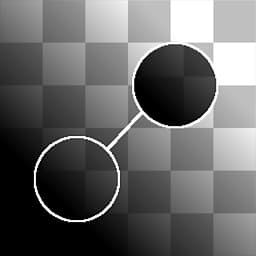
Clone Patch / Clone Patch Grayscale
In: Material Filters/Scan Processing
Complex
Description
Clone Patch is a procedural, parametric “Clone Stamp” node. It clones one area of an input to another, hiding potentially unwanted details. While it’s not as quick and easy as using a familiar tool in a brush-based application, it does provide the key advantage of being non-destructive and working within a node-based workflow. Additionally, this node performs a smart analysis of both target and source area, and tries to blend things as well as possible based on contrast, values and shapes.
This is mostly intended for those rare moments where you want to do a manual fix of a specific area, in case there is an unwanted detail somewhere.
Keep in mind this does not work like a standard, simple “Stamp” brush. The shape of your blended area is based on the shapes and values of the areas you’re working with, meaning this is quite a heavy node that requires patience - but does offer excellent results.
Also important to understand is the fact that you can move the Target area with a gizmo, but the Source area needs to be set by changing the “Source Matrix” Parameters.
| note note |
|---|
| NOTE |
| If you want this for a full material (as is most often the case), see Material Clone Patch. |
| For those cases where you want to perform this operation on multiple inputs at the same time (without it being a material), see Multi Clone Patch. |
Parameters
-
Is Normal (only for Color): False/True
Sets whether the input is a Normalmap, and whether blending should be treated as such. -
Shape: Square, DiscSets Stamp shape. Used only as base.
-
Edge
- Threshold: 0.0 - 1.0Sets how far the blended area should reach. This grows in steps, along shapes in the target area, and has very little effect with uniform backgrounds*.*
- Blur: 0.0 - 2.0Blurs the edges of the stamp area in case a softer transition is needed.
- Smoothness: 0.0 - 2.0Rounds off the edges of the stamp shape, making for smoother-flowing outlines.
- Grid Resolution: 1 - 11Sets the quality resolution of the blending analysis. A higher value means more accurate blending.
-
Transformations
- Source Matrix: *(Transformation Matrix)*Transforms source (Scale & Rotation). Cannot be done on canvas, change through these parameters only.
- Source Offset: -0.5 - 0.5Translates source location. Cannot be done on canvas, change through these parameters only. This parameter is probably the main one you want to change!
- Target Matrix: *(Transformation Matrix)*Transforms target location (Scale & Rotation). Can also be done through gizmo on canvas.
- Target Offset: -0.5 - 0.5Translates target location. Can also be done through gizmo on canvas.
Example Images
| table 0-row-1 1-row-1 |
|---|
| There are no images attached to this page. |