Vector editing tools
This page describes the editing tools available in the 2D View panel for compatible vector graphics.
Overview
The 2D View panel offers basic vector editing tools which let you create or edit vector graphics manually directly within Substance 3D Designer. These tools are particularly useful, for instance, for quickly creating masks or patterns.
The tools support pen input. To take advantage of pen displays, you may undock the 2D view panel, then place and resize it into any configuration which is more comfortable for painting.
Edits can be undone individually, and all the other features of the 2D View panel are still available to you while you edit the vector image, such as Histogram panel, Tiled display, and Background image.
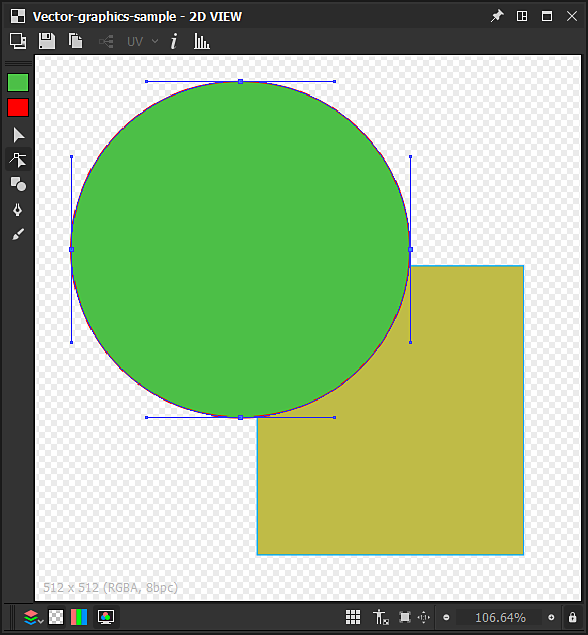
Enabling the vector editing tools
The vector editing tools will be enabled automatically in the 2D view panel when the following criteria regarding a vector graphics image are met:
- The vector graphics image is a new or imported resource
- The bitmap is displayed in the 2D view panel
New vector graphics images can be created the following ways:
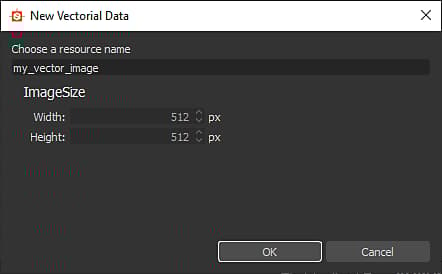
The New vectorial data window will open, letting you set the name and resolution of the new vector graphics resource.
Exporting vector graphics from other software
Designer only supports vector graphics using the SVG file format.
For the best compatibility and reliability in Designer and its editing tools, please make sure all objects are converted to outlines and ungrouped to separate objects using flat colors, so that none of the following remain:
- Text
- Gradients
- Patterns (both for fills and stroke outlines)
- Styles
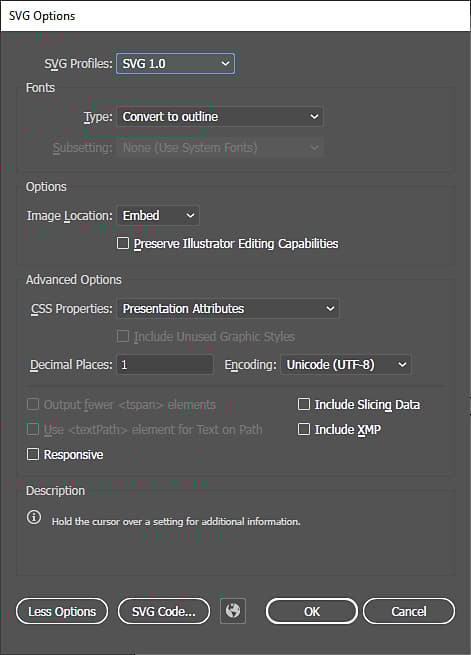
Adobe Illustrator users can refer to the attached image for recommended SVG export settings.
Tools
The painting tools and options are arranged in toolbars within the 2D view panel. These toolbars can be relocated to any side of the panel or as a floating toolbar, by clicking and holding LMB on their handle – displayed as a triple line – then releasing LMB at the desired location.
Two toolbars are displayed when the vector editing tools are enabled:
- Tool selection toolbar: lets you select a tool as well as the fill/outline colors, and is placed on the left side of the 2D View panel by default
- Tool options toolbar: lets you set the options for the currently selected tool, and is placed on the top side of the 2D View panel by default
Keyboard shortcuts let you access tools quickly, and are marked below between parentheses after the tool/function name:
The


-
Fill color: Click on the fill color thumbnail (top), or double-click LMB on the canvas
-
Outline color: Click on the outline color thumbnail (bottom), or hold Ctrl and double-click LMB on the canvas
The set colors will then be applied to the currently selected shapes.
If the current outline color is black – i.e. luminance 0 or RGB (0, 0, 0) – it will not be applied to the selected shapes until you click on the outline color thumbnail.
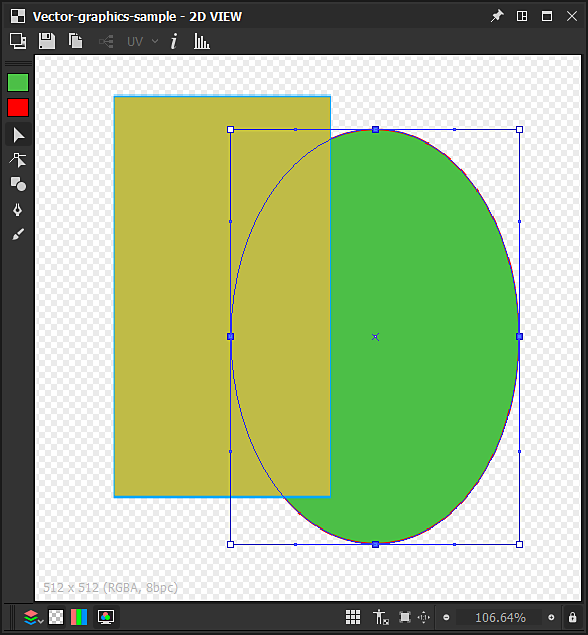
The

Move: Click and hold LMB inside the gizmo
Scale: Click and hold LMB on any of the square handles along the gizmo to scale the object horizontally, vertically, or both. By default, scaling is done relatively to the handle on the opposite side of the gizmo. You can hold the Alt key to perform the scaling relatively to the center of the gizmo, and hold the Shift key to lock the gizmo width/height ratio
Rotate: Click and hold LMB next to any of the square handles along the gizmo, outside of the gizmo.
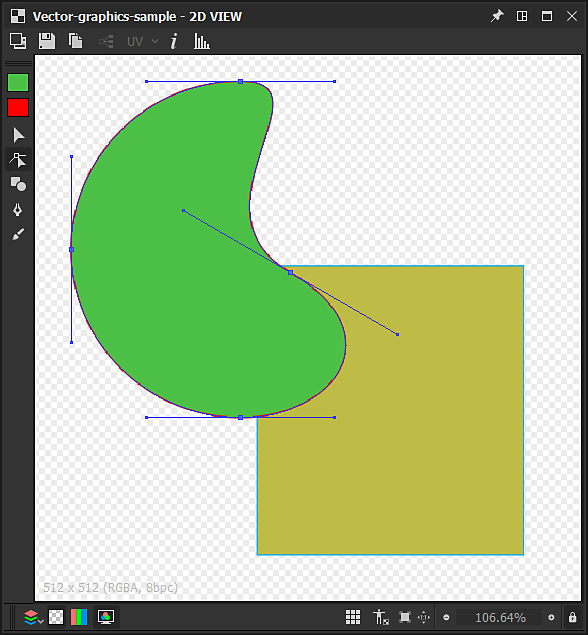
The

Add vertex: Ctrl+LMB on the shape outline
Remove vertex: Ctrl+LMB on the vertex
Move vertex: Hold LMB on the vertex
Move vertex handles: Hold LMB on the handle
Move vertex handle independently: Hold Alt+LMB on the handle. Note that handles will be unlinked past this point until they are reset
Reset handles: Click Alt+LMB on the vertex. The handles will be reset to the vertex position
Move reset vertex handles: Hold Alt+LMB on the vertex. Linked handles will appear
The

-
Rectangle;
-
Ellipse;
-
Rounded rectangle: The rounded angles have a locked radius;
-
Polygon: Creates an octogon.
To draw a primitive, Hold LMB anywhere in the canvas from any of its corners. Hold Alt+LMB to draw the shape from its center.
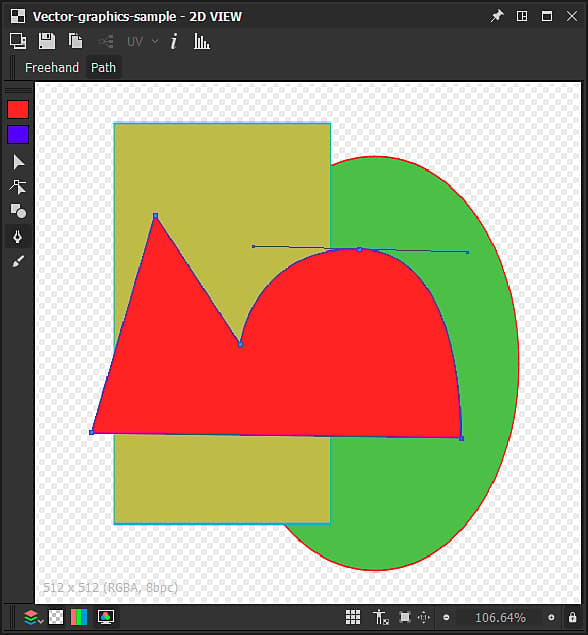
The

In Path mode, the shape is drawn one vertex at a time. The following controls are available:
Add straight in/straight out vertex: Click LMB
Add curve in/curve out vertex (aligned tangents): Hold LMB and drag
Add curve in/curve out vertex (unaligned tangents)*: Hold LMB and drag, then hold Alt+LMB
Add curve in/straight out vertex*: same as curve in/curve out vertex (unaligned tangents), but the out line needs to be placed on top of the new vertex
Add straight in/curve out vertex*: Hold Alt+LMB and drag
Close shape on next vertex: Hold Ctrl
Close shape on current vertex: Press Enter, or click LMB on the first vertex of the current shape
Freehand mode lets you draw shapes directly by dragging the pen across the canvas while holding LMB.
Vertices are automatically placed along the stroke so that the resulting path matches the stroke as closely as possible. The shape is automatically closed when the stroke ends, connecting the first vertex to the last in the stroke.
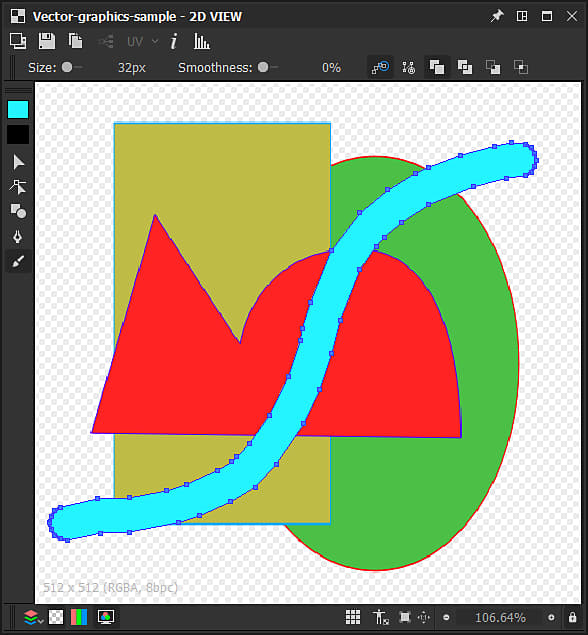
The

The following drawing modes are available:


The drawn shape can be controlled using these parameters:
Size: Controls the diameter of the radial shape drawn at the cursor location.
Smoothness: Controls the amount by which the drawn shape should be smoothed out and simplified when added together at the end of the stroke.
When the drawing is completed, the shape is added together and merged with the currently selected shape using one of these available merging modes:


Shape operations
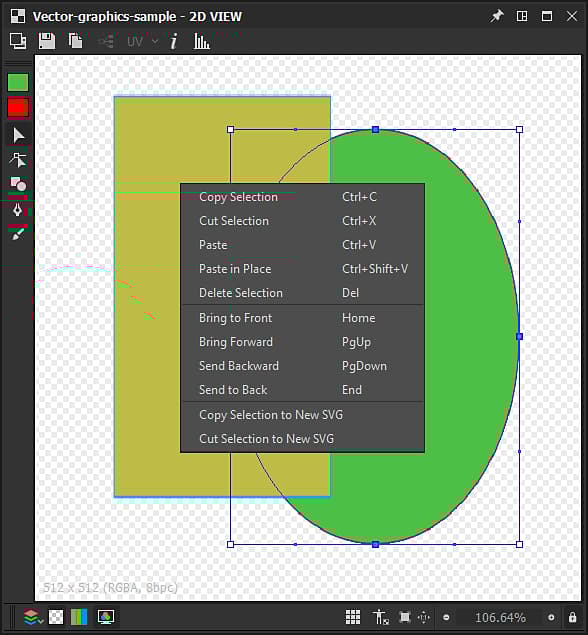
In addition to the tools listed above, a number of operations can be performed on selected shapes, using the contextual menu available when clicking RMB. These operations nearly all have a keyboard shortcut (in parentheses below) are organised in the following categories:
Cut selection (Ctrl+X): Copy the selected shapes to the clipboard and remove the shapes
Paste (Ctrl+V): Create the copied shape currently in the clipboard, at the cursor location
Paste in place (Ctrl+Shift+V): Create the copied shape currently in the clipboard, at the copied shape location
Delete selection (Del): Remove the selected shapes
Shapes are arranged in a stack, which sets the order of the shapes in the canvas – i.e. which is on top of which. New shapes are created on top of the canvas by default, and the following controls let you change this arrangement:
Bring to front (Home): raises the selected shapes to the top of the shapes stack
Bring forward (PgUp): raises the selected shapes up by one level in the shapes stack
Send backward (PgDown): lowers the selected shapes down by one level in the shapes stack
Send to back (End): lowers the selected shapes to the bottom of the shapes stack
You can use shapes in the current image to create a new SVG resource in the current SBS package. To that regard, the following actions are available:
Copy selection to new SVG: Creates a new SVG resource, and copies the selected shapes in place in this new image.
Cut selection to new SVG: Creates a new SVG resource, copies the selected shapes in place in this new image, and removes them from the current image.