[Limited Availability]{class="badge informative"}
Manage connections manage-connections
The My connections workspace provides a centralized location for managing your connections. You can view existing connections in the Existing connections section and see any connections that require action in the Action required section.
View connection view-connection
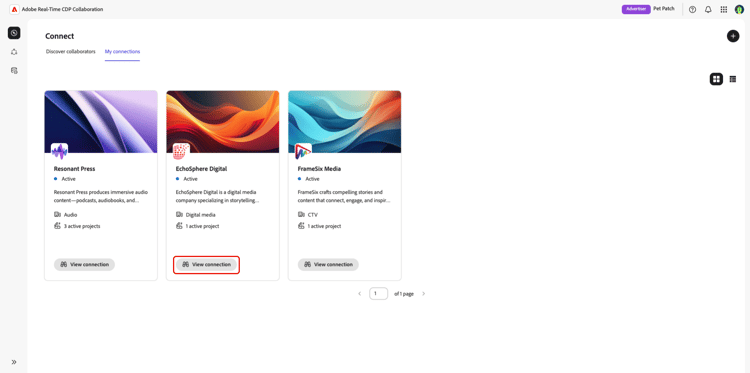
To view your existing connections, navigate to the Connect workspace. As a publisher, your existing connection will be displayed. As an advertiser, you should then navigate to My connections.
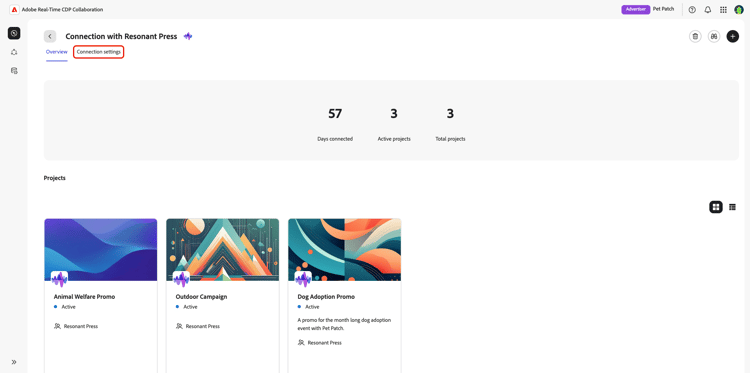
The connection overview workspace appears, displaying details about the connection and its active projects. Select Connection settings to view the connection settings.
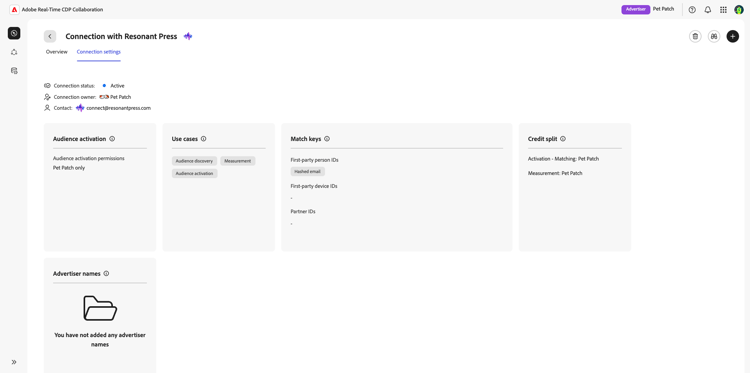
The connection settings workspace appears, displaying the connection details between you and your collaborator. Here, you can view all the settings selected during the connection process, the current status of the connection, the connection owner, and the contact information for your collaborator. For information on specific connection settings, see the connection settings guide.
Configure an auto-activation destination configure-auto-activation-destination
As the receiving collaborator, you can select a destination that Collaboration uses to automatically activate audiences sent to you through the connection. Before you begin, make sure that you own at least one active destination. For instructions on configuring destinations, see the destinations overview.
In the connection settings workspace, go to Activation control and select EDIT. Next, choose an Auto-activation destination from the dropdown and select Save to confirm.
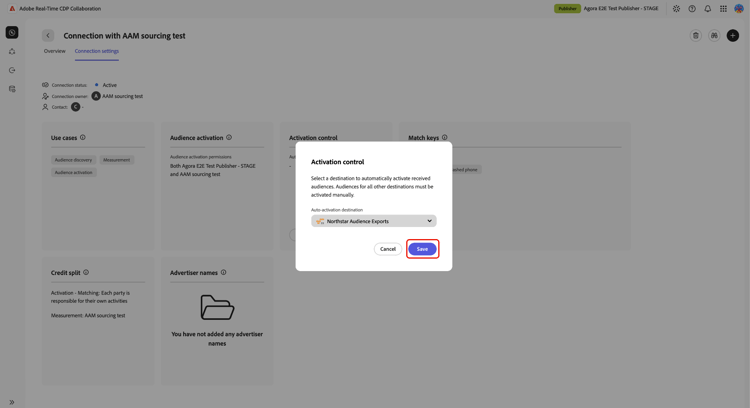
After you save the destination, the collaborator who sends an audience chooses its activation schedule. Your destination appears as a read-only selection in their sending workflow. When the audience is received, Collaboration creates the activation for you according to that schedule. In other words, the receiver chooses the destination, the sender chooses the schedule, and Collaboration creates the activation.
Changes to the auto-activation destination apply only to audiences shared after the change. Existing auto-created activations continue to use their original destination. To turn off auto-activation for future shares, clear the auto-activation destination and save your changes.
Delete connection delete-connection
You can delete any connections with collaborators that you do not want to continue working with. To delete a connection, navigate to the connection you wish to delete and then select the delete icon

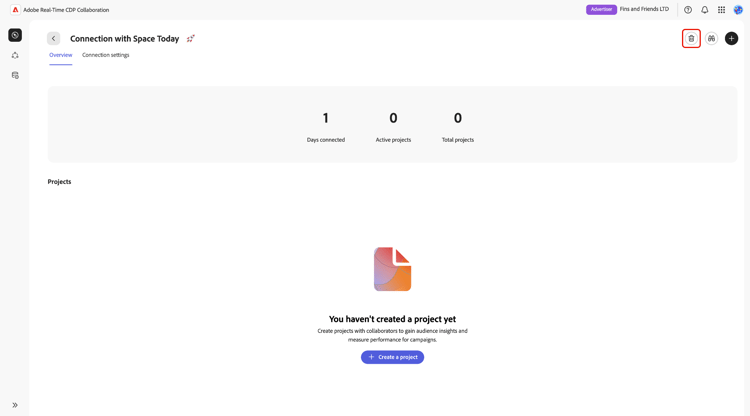
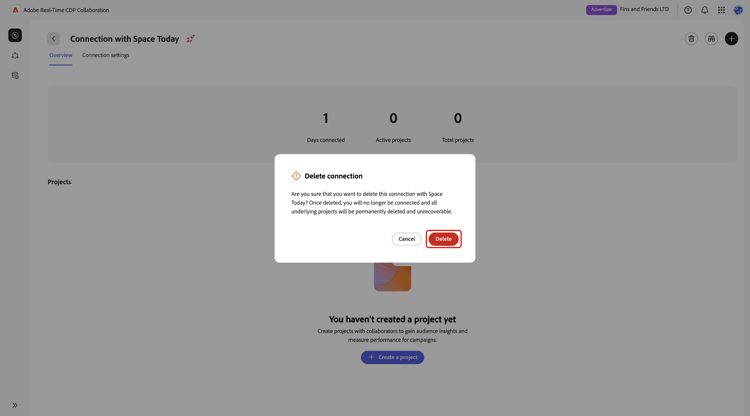
A confirmation dialog appears, asking you to confirm the deletion of the connection. Select Delete to confirm the deletion.
Edit connection edit-connection
As the owner of a collaboration connection, you can edit the connection settings with your collaborator after the connection is established. You can:
- Add use cases
- Add match keys. Match key removal will be supported in the future.
- Update audience activation permissions
- Update credit split settings
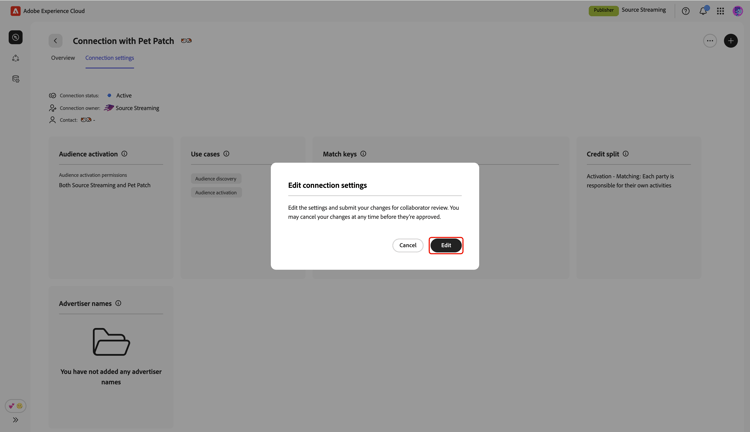
To edit connection settings, navigate to the connection settings workspace. Select the three dots icon (

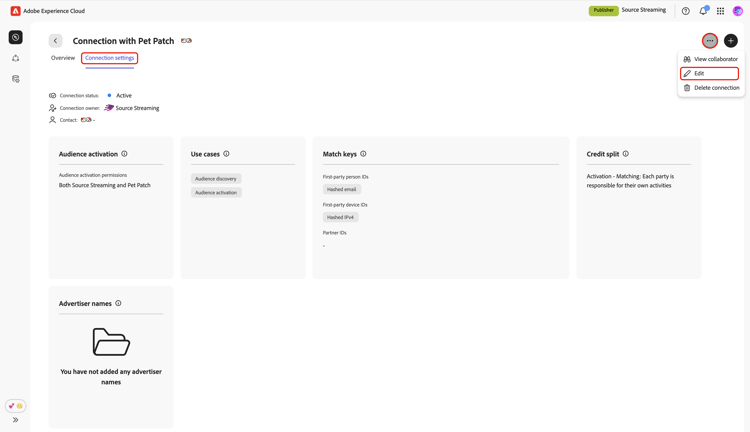
A dialog appears, prompting you to edit and submit the settings changes for collaborator review. Select Edit.
Edit audience activation edit-audience-activation
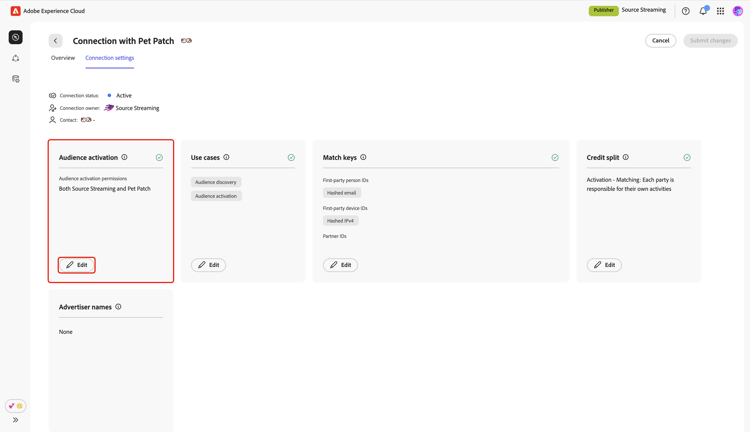
Audience activation settings determine which collaborator in the connection can activate audiences to destinations. To change these settings, select Edit within the Audience activation section.
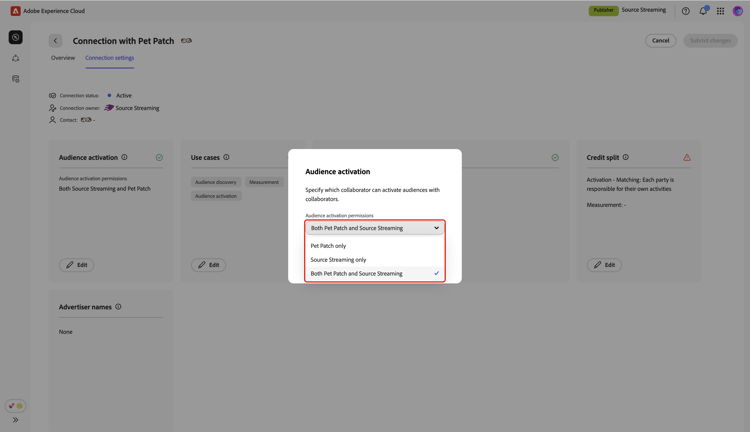
In the Audience activation dialog, use the dropdown menu to update the audience activation permissions. You can choose a single collaborator or allow both collaborators to activate audiences.
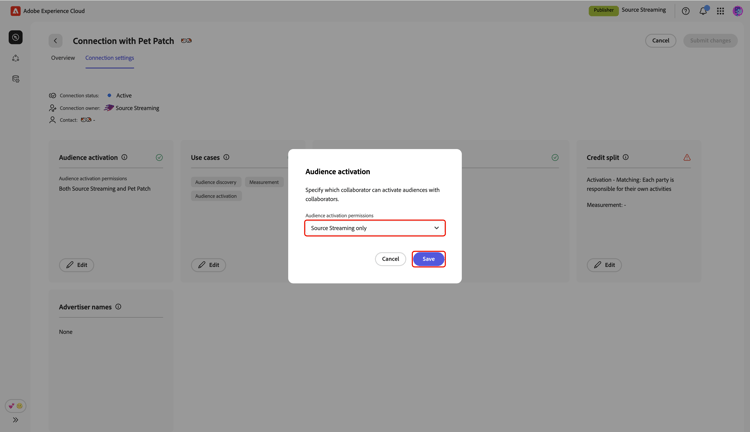
Once finished, select Save.
Add use cases add-use-cases
In Collaboration, use cases such as Discover, Activate, and Measure determine which project sections and features you can use with your collaborator. You can add additional use cases to an existing connection for future projects. For more information, see collaboration use cases.
To add new use cases, select Edit in the Use cases section.
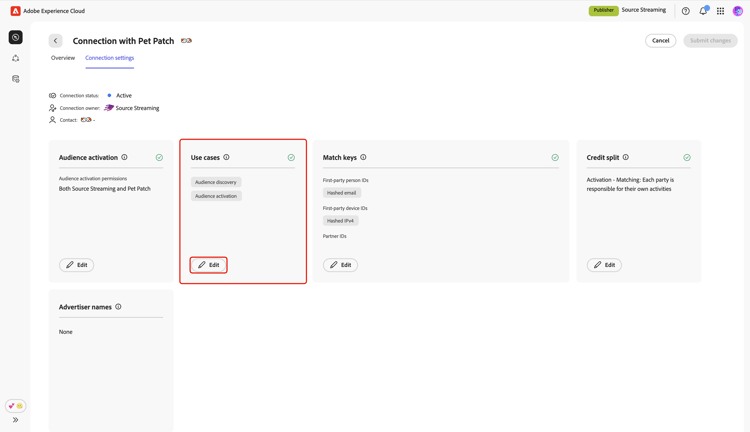
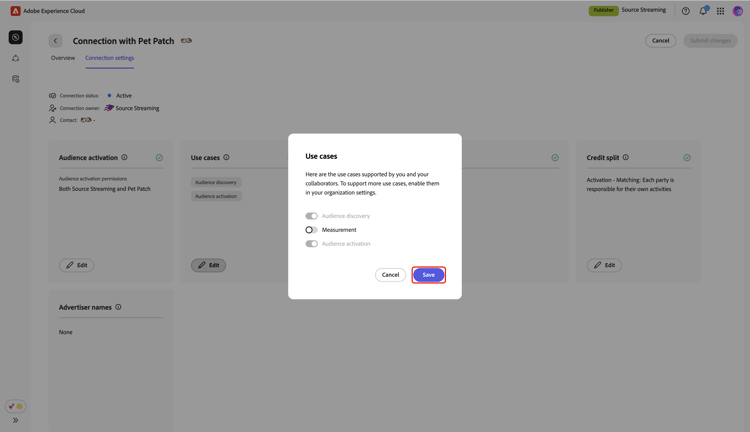
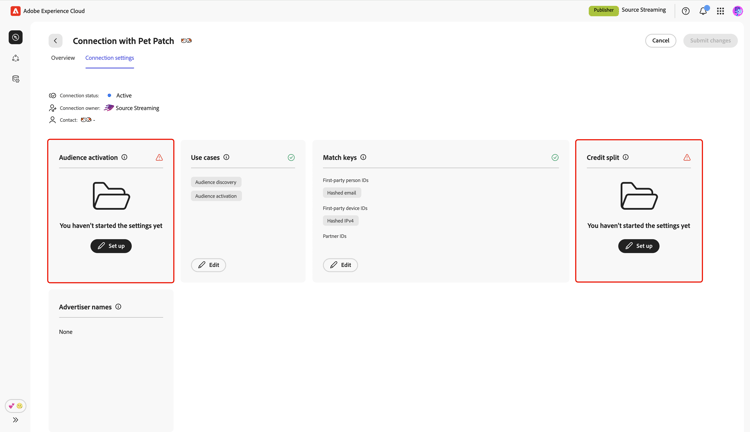
In the Use cases dialog, toggle on new use cases you want to add, followed by Save.
Add match keys add-match-keys
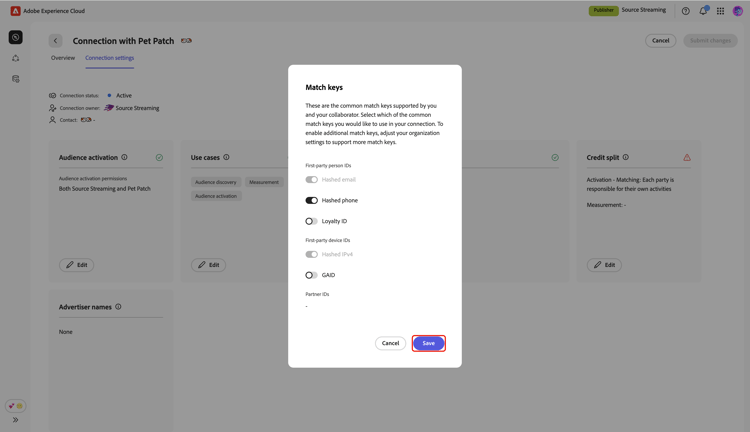
Only match keys that are configured in your account and also selected by your collaborator are available for the connection. Once you add new match keys to your account and your collaborator also selects the same keys, you can enable them within your existing connections.
In the edit connection settings screen, select Edit within the Match keys section.
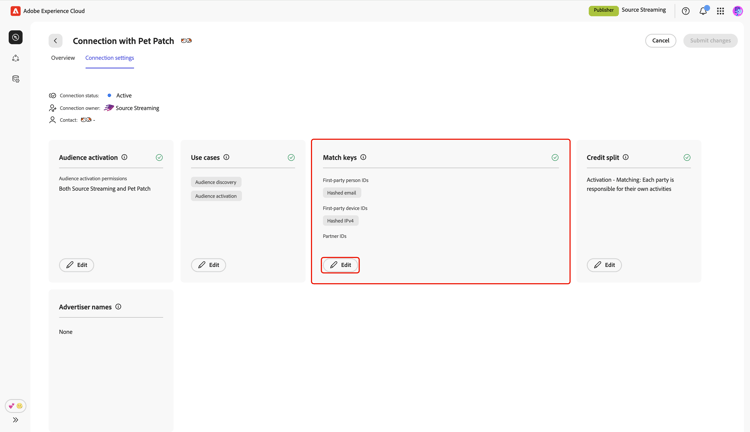
A Match keys dialog appears, showing the existing match keys configured for the connection. Select the match keys you want to add, followed by Save.
Edit credit split edit-credit-split
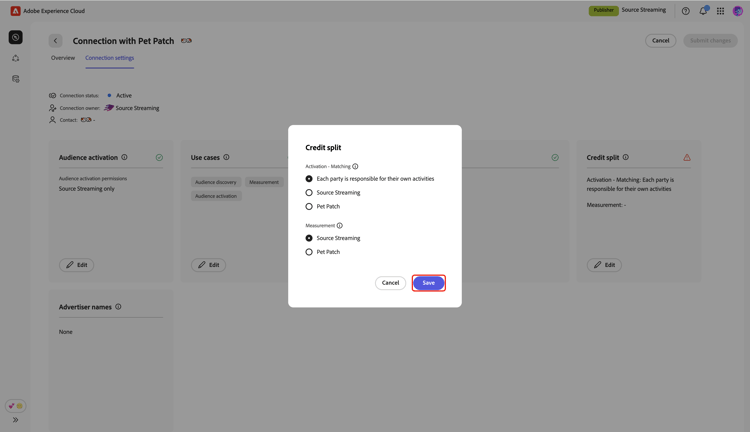
The credit split settings specify which collaborator is responsible for the costs associated with each use case in the connection. To update these settings, select Edit in the Credit split section.
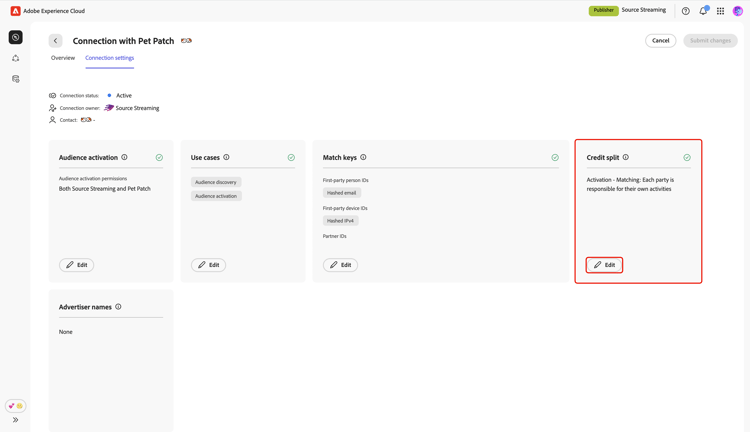
In the Credit split dialog, select the preferred settings for Activation-Matching and Measurement. Then, select Save to confirm.
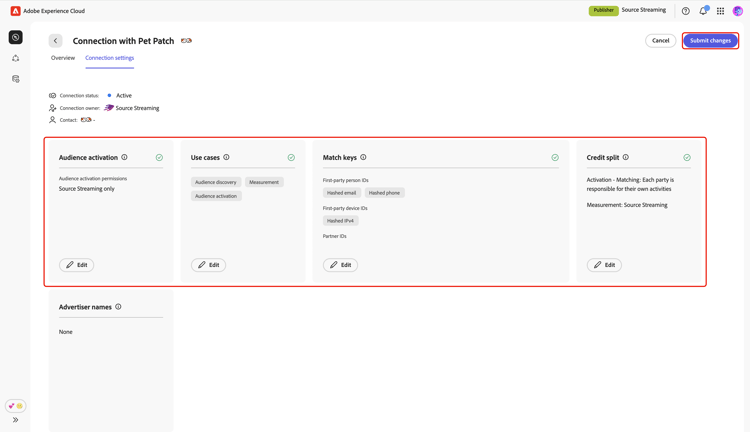
Review and submit changes review-and-submit-changes
When you complete editing the connection settings, review and select Submit changes. The connection settings updates will be sent to your collaborator for review.
Save connection settings changes as draft
You can save the connection settings changes as a draft and return to finish updating the connection settings at any time.
To save the changes as a draft, select Cancel next to Submit changes. Then, in the Unsubmitted changes dialog, select Continue later to confirm.
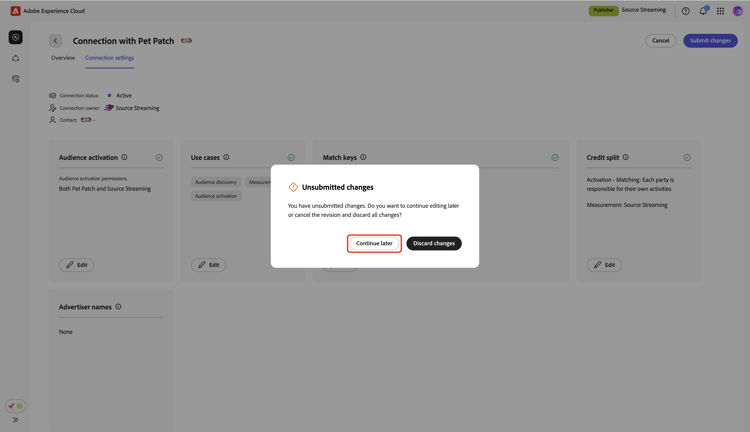
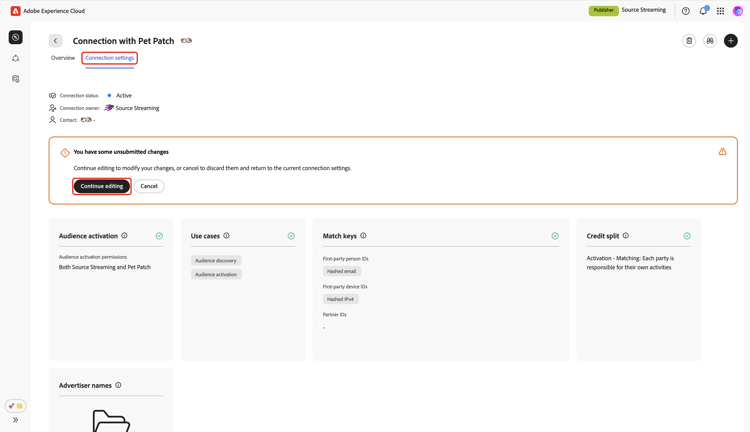
Your changes are now saved as a draft. In the connection settings workspace, you can see a notification indicating that there are unsubmitted changes. To make further updates, select Continue editing.