Monitor Experience Platform events in Slack
Learn how to receive Experience Platform notifications in Slack by integrating with an Adobe App Builder webhook proxy. Data engineers and administrators may want to receive proactive notifications in Slack from Adobe Experience Platform to monitor the health of their Platform implementations. This tutorial outlines the architecture and implementation steps to connect Adobe I/O Events to Slack using Adobe App Builder.
Hello, in this guide we will integrate Slack webhooks using Adobe’s runtime deployments. Before we begin, make sure that the prerequisites for this project are completed and that your user has the Developer role enabled. If not, you can ask the administrators of your organization to provide it for you. Let’s begin. First, we will create a project from a template and we will choose the App Builder option. Give a meaningful name for the project. I will call mine Slack Webhook Integration. I will not add any other workspace, so we will use the default ones.
Save the project. Now, we will need to initialize the runtime environment on our machine. For this, open up a terminal. Log in to Adobe IEO using the aio-login command.
I am already logged in, so I will skip this command. Every command that will be run in the terminal in this guide can also be found on the written documentation guide.
Now, let’s initialize the application by running the following command. From here, choose your org and choose the project that you’ve just created. In my case, Slack Webhook Integration. From here, using your arrow keys, choose the only template supported by my org option. From here, we will simply press enter. We will skip this. We will choose the actions deploy runtime actions option.
Use your arrow keys and choose the Adobe Experience platform real-time customer profile option. Press enter.
From here, we will choose the pure HTML or JS project. We will leave the sample action with the generic template, so we will press enter.
And we will leave the name as given.
So, we will press enter again. Awesome. Our project has been initialized.
Let’s go into the directory of the project, namely Slack Webhook Proxy.
Now that we are here, let’s add an action. From here, choose the only action template supported by my org option. Press enter. And from here, press space in order to choose the template Adobe Generator Ad Publish Events.
On my machine, you can see that the circle next to the name has been filled.
This confirms the selection.
Press enter. Here, we will name our action Webhook Proxy. Make sure that this name is identical to what is in the documentation. Great. Our action has been created.
Now, we will have to navigate into a text editor or an IDE in order to do some modifications to the files.
For this project, I will choose IntelliJ IDEA. You can use any tool that you have at your disposal. In the root directory, you can see that we have an action directory. Here, you will also see that we have the action that we’ve just created, namely Webhook Proxy. Under this directory, there is an index.js file. Here is where the code for our Webhook Proxy will reside.
I will delete the content that is in it by default, and I will save the file.
And I will now copy the code that is needed. There we go.
Make sure that you save the file.
Next up, we have to configure the runtime in order to see this action and enable it as needed.
For this, we will go into the app.config.yaml file.
Here, we will also delete the existing content. Now, from the written documentation, you should copy the content that is put there for the file app.config.yaml. This is what it should look like. We have our project, Slack Webhook Proxy, with a defined action Webhook Proxy, with a function that is given in the action slash Webhook Proxy directory. Next up, make sure that in your environment file, you will add the Slack Webhook URL, as indicated in the documentation.
This part is crucial. I will not do it on video, as the credentials are sensitive. After you do that, make sure that you save the file. Cool.
Now, let’s go back to the terminal.
Now that our action has been configured as needed, we need to deploy our action.
For this, run the following command. Make sure that you are in the root of your directory. Otherwise, this one would… Our action has been deployed. Now, we will go back to our project in the Developer Console. From here, we will choose a workspace. I will choose Stage. We will add a service, Event. Choose Experience Platform and Platform Notifications. From here, choose any and all events that you want to receive on your Slack application.
For this tutorial, I will choose all the events. Leave this as default. And give a meaningful name to this event registration. Give it also a description. Cool. On the How to Receive Events page, we will go for the second option, namely Runtime Action, and we will choose the action that we’ve just deployed, the Webhook Proxy action. Save your configured events. And here we are. On the Event Delivery method, we have the Webhook Proxy action that we just created. In order to test whether the integration was successful or not, you should send a sample event.
I will send the Streaming Throughput Capacity. Looking into my Select Channel, I can see that I’ve received the event that I’ve set, namely Streaming Personalization Throughput Capacity Breached. Awesome.
The configuration worked.
Thank you for your attention on this tutorial.
Why a webhook proxy?
Directly connecting Adobe I/O Events to a Slack Incoming Webhook is not possible due to a protocol mismatch in the verification process.
-
The Challenge: When you register a webhook with Adobe I/O Events, Adobe sends a “Challenge” request (either a
GETorPOST) to your endpoint. Your endpoint must successfully process this challenge and return the specific value to confirm ownership. -
The Limitation: Slack’s Incoming Webhooks are designed only to ingest JSON payloads for messaging. They do not have logic to recognize or respond to Adobe’s verification challenge handshake.
-
The Solution: Deploy an intermediary webhook proxy using Adobe App Builder. This proxy sits between Adobe and Slack to:
- Intercept the request from Adobe and respond to the verification challenge.
- Format the payload into a Slack-compatible message and forward it to Slack.
-
Delivery method: Runtime Actions. Runtime actions come packaged with Adobe App Builder. When using a Runtime Action (non-web action) as the event handler, Adobe I/O Events automatically handles signature verification and challenge responses. Runtime actions are the recommended approach as it requires less code and provides built-in security.
Architecture overview
What is Adobe Developer Console?
Adobe Developer Console is the central portal for managing your Adobe projects, APIs, and credentials. It is where you create your project, configure authentication, and register your webhooks.
What is App Builder?
Adobe App Builder is a complete framework that enables enterprise developers to build cloud-native applications.
-
Provisioning: App Builder is not enabled by default; it must be provisioned for your organization as a feature. Ensure that your organization has the App Builder entitlement.
-
Project Template: App Builder projects are created specifically using the App Builder template in the Developer Console (Project from Template > App Builder). The template automatically sets up the necessary workspaces and runtime environments.
-
App Builder Getting Started Guide: Refer to the documentation to provision and create your first project from the template.
What is Adobe I/O Runtime?
Adobe I/O Runtime is the serverless platform that powers App Builder. It allows developers to deploy code (Functions-as-a-Service) that runs in response to HTTP requests without managing server infrastructure.
In this implementation, we use an Action. An Action is a stateless function (written in Node.js) that runs on the Adobe I/O Runtime. Our Action serves as the public HTTP endpoint that Adobe I/O Events talk to.
For more information, see the Adobe I/O Runtime documentation.
Implementation guide
Prerequisites
Before starting, ensure you have the following:
-
Adobe Developer Console Access: You must have access to a System Admin or Developer role within an organization that has App Builder enabled.
note tip TIP To verify App Builder provisioning, log into Adobe Developer Console, make sure you are in the desired organization, select Create project from template, and verify that the App Builder template is available. If it is not, please review the App Builder FAQ section “How to get App Builder” -
Node.js & npm: This project requires Node.js, which includes NPM (Node Package Manager). NPM is used to install the Adobe CLI and manage project dependencies.
- Download Node.js (LTS version recommended)
- npm Getting Started Guide - A guide on how to verify your installation.
-
aio CLI: Installed via your terminal:npm install -g @adobe/aio-cli -
Slack App Configuration: You need a Slack App set up in your workspace with an Incoming Webhook activated.
- Create a Slack App
- Slack Incoming Webhooks Guide - Follow this guide to create your app and generate the Webhook URL (starts with
https://hooks.slack.com/…).
Step 1: Create a project in Adobe Developer Console
First, create a project with the App Builder template in Adobe Developer Console:
- Log into Adobe Developer Console
- Select Create project from template
- Select the App Builder template
- Enter a Project Title, for example
Slack webhook integration - Select Save
Initialize the runtime environment
Run the following commands in your terminal to create the project structure:
Log into aio
aio login
Step 2: Initialize a new App Builder project
aio app init slack-webhook-proxy
-
Select your Organization and press Enter
-
Select the Project that you created in the previous step (for example,
Slack webhook integration) and press Enter -
Select the Only Templates Supported By My Org option
-
Skip the sample section by pressing Enter
-
When prompted, make sure that the following components are selected (circle should be filled in) and press Enter:
- Actions: Deploy Runtime actions
- Events: Publish to Adobe I/O Events
- Web Assets: Deploy to hosted static assets
-
With your ‘Up’ and ‘Down’ arrows, navigate the incoming list and choose Adobe Experience Platform: Realtime Customer Profile and press Enter
-
Generic actions are generated automatically
-
Choose the Pure HTML/JS for the UI and press Enter
-
Keep generic as the sample action to showcase how to access an external API name and press Enter
-
Keep the publish-events as the sample action name to create messages in cloud events format and press Enter
Your app initialization should complete.
Navigate to the project directory
cd slack-webhook-proxy
Add the web action
aio app add action
- Choose Only Templates Supported By My Org and press Enter
- See the publish-events action in the table that is presented; press Space to select the action. If the circle next to the name is filled as shown in the video tutorial, press Enter
- Name the action
webhook-proxy
Step 3: Update the proxy action code
In an IDE or text editor, create/modify the file actions/webhook-proxy/index.js with the following code. This implementation forwards events to Slack. Signature verification and challenge handling are automatic when using Runtime Action registration.
const fetch = require("node-fetch");
const { Core } = require("@adobe/aio-sdk");

/**
 * Adobe I/O Events to Slack Runtime Proxy
 *
 * Receives events from Adobe I/O Events and forwards them to Slack.
 * Signature verification and challenge handling are automatic when
 * using Runtime Action registration (non-web action).
 */
async function main(params) {
  const logger = Core.Logger("webhook-proxy", { level: params.LOG_LEVEL || "info" });

  try {
    logger.info(`Event received: ${JSON.stringify(params)}`);

    // Forward to Slack
    return forwardToSlack(params, params.SLACK_WEBHOOK_URL, logger);

  } catch (error) {
    logger.error(`Error: ${error.message}`);
    return { statusCode: 500, body: { error: "Internal server error" } };
  }
}

/**
 * Forwards the event payload to Slack
 */
async function forwardToSlack(payload, webhookUrl, logger) {
  if (!webhookUrl) {
    logger.error("SLACK_WEBHOOK_URL not configured");
    return { statusCode: 500, body: { error: "Server configuration error" } };
  }

  // Extract Adobe headers passed to runtime action
  const headers = {
    "x-adobe-event-code": payload["x-adobe-event-code"],
    "x-adobe-event-id": payload["x-adobe-event-id"],
    "x-adobe-provider": payload["x-adobe-provider"]
  };

  const slackMessage = buildSlackMessage(payload, headers);

  const response = await fetch(webhookUrl, {
    method: "POST",
    headers: { "Content-Type": "application/json" },
    body: JSON.stringify(slackMessage)
  });

  if (!response.ok) {
    const errorText = await response.text();
    logger.error(`Slack API error: ${response.status} - ${errorText}`);
    return { statusCode: response.status, body: { error: errorText } };
  }

  logger.info("Event forwarded to Slack");
  return { statusCode: 200, body: { success: true } };
}

/**
 * Builds a Slack Block Kit message from the event payload
 */
function buildSlackMessage(payload, headers) {
  // Adobe passes event code as x-adobe-event-code header (available in params for runtime actions)
  const eventType = headers["x-adobe-event-code"] ||
                    payload["x-adobe-event-code"] ||
                    payload.event_code ||
                    payload.type ||
                    payload.event_type ||
                    "Adobe Event";
  const eventId = headers["x-adobe-event-id"] || payload["x-adobe-event-id"] || payload.event_id || payload.id || "N/A";
  const eventData = payload.data || payload.event || payload;

  return {
    blocks: [
      {
        type: "header",
        text: { type: "plain_text", text: `Event: ${eventType}`, emoji: true }
      },
      {
        type: "section",
        fields: formatDataFields(eventData)
      },
      { type: "divider" },
      {
        type: "context",
        elements: [{
          type: "mrkdwn",
          text: `*Event ID:* ${eventId}  |  *Time:* ${new Date().toISOString()}`
        }]
      }
    ]
  };
}

/**
 * Formats event data as Slack mrkdwn fields
 */
function formatDataFields(data, maxFields = 10) {
  if (typeof data !== "object" || data === null) {
    return [{ type: "mrkdwn", text: `*Payload:*\n${String(data)}` }];
  }

  const entries = Object.entries(data);
  if (entries.length === 0) {
    return [{ type: "mrkdwn", text: "_No data provided_" }];
  }

  return entries.slice(0, maxFields).map(([key, value]) => ({
    type: "mrkdwn",
    text: `*${key}:*\n${typeof value === "object" ? `\`\`\`${JSON.stringify(value)}\`\`\`` : value}`
  }));
}

exports.main = main;
Step 4: Configure the action
The action configuration in app.config.yaml is critical. Use web: no to create a non-web action that can be registered as a Runtime Action in the Developer Console.
application:
  runtimeManifest:
    packages:
      slack-webhook-proxy:
        license: Apache-2.0
        actions:
          webhook-proxy:
            function: actions/webhook-proxy/index.js
            web: no
            runtime: nodejs:22
            inputs:
              LOG_LEVEL: info
              SLACK_WEBHOOK_URL: $SLACK_WEBHOOK_URL
            annotations:
              require-adobe-auth: false
              final: true
Why web: no?
When you use a non-web action and register it via the “Runtime Action” option in the Developer Console, Adobe I/O Events automatically:
- Handles challenge verification (both
GETandPOST) - Verifies digital signatures before invoking your action
- Chains a signature validator action in front of your action
This means that your code only needs to handle the business logic (forwarding to Slack).
Step 4: Update the environment variables
To securely manage credentials, we use environment variables. Create/modify the .env file in the root of your project to add your Slack webhook URL. Be sure to show hidden files on your system if you don’t see the .env file:
# ... other .env file content ...

SLACK_WEBHOOK_URL=https://hooks.slack.com/services/YOUR/WEBHOOK/URL
Step 5: Deploy the action
Once the environment variables are set, deploy the action. Make sure to be in the root of your project, namely slack-webhook-proxy, when running this command in the terminal.
aio app deploy
Your action is deployed to Adobe I/O Runtime and is available in the Developer Console for registration.
Step 6: Register the action in Adobe Developer Console
Now that your action is deployed, register it as the destination for Adobe Events.
-
Navigate to the Adobe Developer Console and open your App Builder project.
-
Choose your Workspace
-
Select Add Service and select Event.
-
Select Adobe Experience Platform as the product.
-
Select Platform Notifications as the type of events.
-
Select the specific events (or all) you would like to be notified of in Slack and select Next.
-
Select or create your OAuth credential.
-
Configure Event registration details:
- Registration Name: Give your registration a descriptive name.
- Registration Description: Make sure this is explicit so that other contributors can be aware of what it does.
- Select Next
- Delivery Method: Select Runtime Action (not “Webhook”).
- Runtime Action: Choose
webhook-proxyfrom the dropdown (refresh the page if you don’t see it).
-
Select Save Configured Events.
Step 7: Validate with a sample event
You can test the entire flow end-to-end by clicking the ‘Send sample event’ icon next to any configured event.
The sample event is sent on the channel that you have configured when making your Slack app and creating the webhook; You should see something similar to the following:
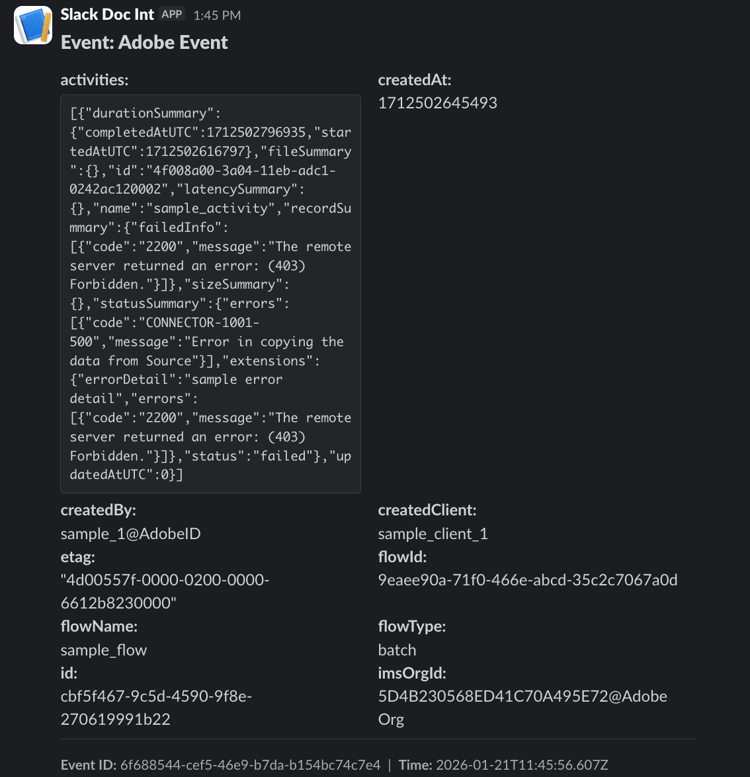
Congratulations, you have successfully integrated Slack with Experience Platform events!
Common Issues
Here are some issues that you may run into when configuring the proxy and some potential ways to address them.
- Unable to see IMS orgs: If you don’t see your list of IMS orgs when running
aio app inittry the following. Runaio logoutin your Terminal, log out of Experience Cloud on your default web browser, and runaio loginagain. - Action not appearing in dropdown: Ensure
web: nois set inapp.config.yaml. Only non-web actions appear in the Runtime Action dropdown. Refresh the Developer Console page after deploying. - Signature verification failed: If you see this in the activation logs, it means that Adobe’s built-in validator rejected the request. This shouldn’t happen for legitimate Adobe events. Check that the event registration is correctly configured.
- Slack not receiving messages: Check that
SLACK_WEBHOOK_URLis correctly set in your.envfile and that the Slack app has the Incoming Webhook enabled. - Action timeout: Runtime actions have a 60-second timeout. If your action takes longer, consider using the journaling approach instead.