Split and merge paths nodes
Use split and merge paths nodes in person journeys to segment people into distinct paths based on conditions you define, then merge those paths so the journey can continue. Split paths let you tailor actions and events to specific audience segments, while merge paths combine those segments at a common point.
Split paths nodes
Use split nodes to segment people according to the conditions that you define. Create paths for the audience list according to conditions, define each path with action and event nodes for the segment, and then combine the paths and continue the journey.
A Split paths node defines one or more segmented paths based on people filters.
How a split path node functions
- Evaluation of each path is from top to bottom. If a person matches the first and second paths, they proceed along the first path only.
- The node supports the definition of an Other people path, where you can add actions or events for people that do not match one of the defined segments/paths.
Matched person filters
For each path that you define for the node, use the following filter types to match people according to one or more conditions.
Attributes from the company/account profile, including:
-
Annual revenue
-
Company name
-
Billing country
-
Industry
-
Num employees
-
SIC code
-
State
Status and attributes based on the opportunities associated with the person profile, including:
-
Has opportunity
-
Number of opportunities
-
Total opportunity amount
-
Was added to opportunity
-
Was removed from opportunity
Attributes from the B2B person profile, including:
-
City
-
Country
-
Date of birth
-
Email address
-
Email invalid
-
Email suspended
-
First name
-
Inferred state region
-
Job title
-
Last name
-
Mobile phone number
-
Person engagement score
-
Phone number
-
Postal code
-
State
-
Unsubscribed
-
Unsubscribed reason
Supported Marketo Optimizer activities for condition filters
For path conditions, Marketo Optimizer supports activities from the Marketo Engage instance that is connected as the data source.
You can build conditions around the following Marketo Engage activities:
- Filled Out Marketo Engage form - Matches leads who have completed a specific Marketo Engage form at any point in their non-aged-out activity log.
- Visited Marketo Engage web page - Matches leads who have viewed a specific URL on your website or Marketo Engage landing pages. It functions directly using the Munchkin tracking code installed on your site.
- Clicked link on Marketo Engage web page - Matches leads who have clicked a specific link or asset on a tracked page.
- Was sent Marketo Engage email - Matches leads to whom Marketo Engage attempted to send a specific email, accounting for deployment actions prior to hard bounces or server acceptances.
- Was delivered Marketo Engage email - Matches a lead whose mail server (MX) returned a success response (a 250 OK message) to the Marketo Engage sending server.
- Marketo Engage email bounced - Matches for leads who experienced a hard bounce (permanent delivery failure) on a specific email send or within a timeframe.
- Marketo Engage email bounced soft - Matches leads whose emails experienced a temporary delivery failure (such as a full inbox or an offline server) rather than a permanent hard bounce.
- Unsubscribed from Marketo Engage email - Matches leads who opted out of non-operational marketing emails. When this occurs, Marketo Engage automatically updates the lead’s
Unsubscribedfield value totrue, suppressing them from future standard email sends. - Opened Marketo Engage email - Matches leads who opened a tracked Marketo Engage email.
- Clicked link in Marketo Engage email - Matches leads who clicked any link (or a specific link) inside a Marketo Engage email.
Add a split paths node
-
Navigate to the journey canvas.
-
Click the plus ( + ) icon on a path and choose Split paths.

-
To define a condition applicable to Path 1, click Apply condition.
-
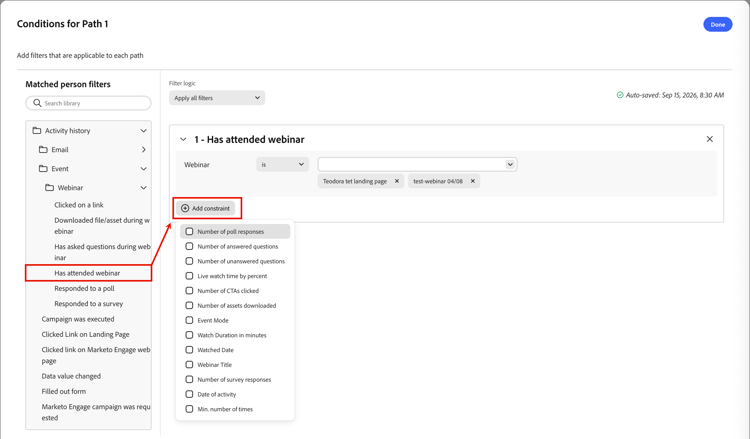
To define the split path, add one or more filters in the conditions editor.
-
Drag and drop any of the people filters from the left navigation and complete the match definition.
-
Click Add constraint for each constraint that you want to use to refine the filter match.
-
Refine your conditions by applying the Filter logic at the top. You choose to match all conditions or any one condition.
-
Click Done.
-
-
To add more paths, click Add path and repeat the previous steps to add conditions applicable to the path.
You can also label each path based on these conditions or use the default labels.
-
If needed, reorder the paths according to the priority that you want for the split.
Path filtering is evaluated in top-down order. Each person proceeds along the first path that matches.
Click the up and down arrows at the top right of each path card to move it higher or lower in the list of paths.
-
Enable the Other people option to add a default path for people that are not a match for the defined paths.
When this option is not enabled, people that do not match a defined segment/path move past the split and proceed to the next step in the journey.
When you have conditions defined for each path, you can add action or event nodes that you want to apply to people on a path.
Merge paths nodes
-
Navigate to the journey canvas and locate the split paths node with two or more paths.
Each path should have a combination of action and event nodes.
-
Click the plus ( + ) icon at the end of any one of these paths and choose Merge paths from the displayed options.
-
In the node properties at the right, select the paths you want to merge.
At this point, the paths are merged so that people from the selected paths combine to a single path that can continue to progress through the journey.
-
If needed, you can unmerge paths by navigating back to the merge paths node properties and clearing the checkbox for any paths that you want to remove.