Intent configuration
A single standardized set of activity weights does not work across customers. What signals real buying intent varies by business. Configure and activate an intent model to specify what matters to you, for example, whether a form fill signals more than an email click, instead of inheriting one global default.
The Intent Configuration panel tools control how much each lead-intent activity counts toward a person’s intent score. It is the only configurable input into intent scoring. Other factors, such as content relevance, decay, and thresholds, are system-managed. It is available through the Intent configuration skill.
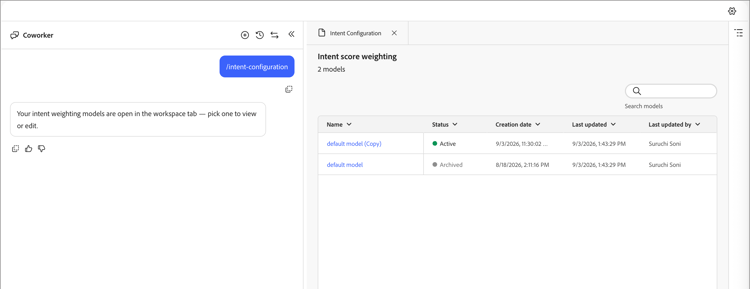
Open the panel using one of two methods from the Coworker chat interface:
- Enter the
/intent-configurationcommand. - Click +, select Use an agent skill, select the Intent tab, and then click Intent configuration.
- View B2B Intent Configuration - Required to view intent configurations (intent weighting models).
- Manage B2B Intent Configuration - Required to create, edit, and delete intent configurations.
- Manage B2B Conversational Experience - Required to open the panel from the chat interface.
Model list view
Landing in the panel shows Intent score weighting, with the total model count below the title, a search field to filter by name, and a sortable table:
Only one model can be Active at any time and it is the model driving scoring. Every other model is in a Draft (being edited, not yet live) or Archived (a former Active model, automatically demoted when a new one is activated) state.
Click a row to open the model detail view.
Model detail view
The detail view shows the model name, status badge, last-saved timestamp, and a breadcrumb showing Intent score weighting and the model name, which you can click to return to the list.
The detail view lists the buyer-intent activities and the importance level each contributes to the person’s intent score. The activity catalog is fixed, and only the levels can change. These levels are independent: they do not need to add up to any total. Only one version of the weighting model can be active at a time. To make changes, duplicate the current version and edit the copy.
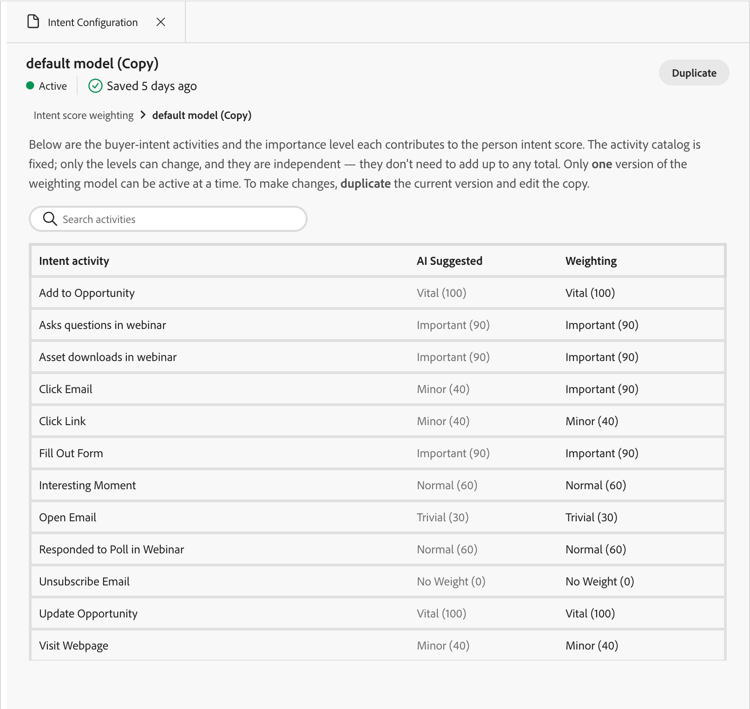
A search field filters activity rows by name. The table itself:
Weighting tiers (same scale for both AI Suggested and Weighting columns):
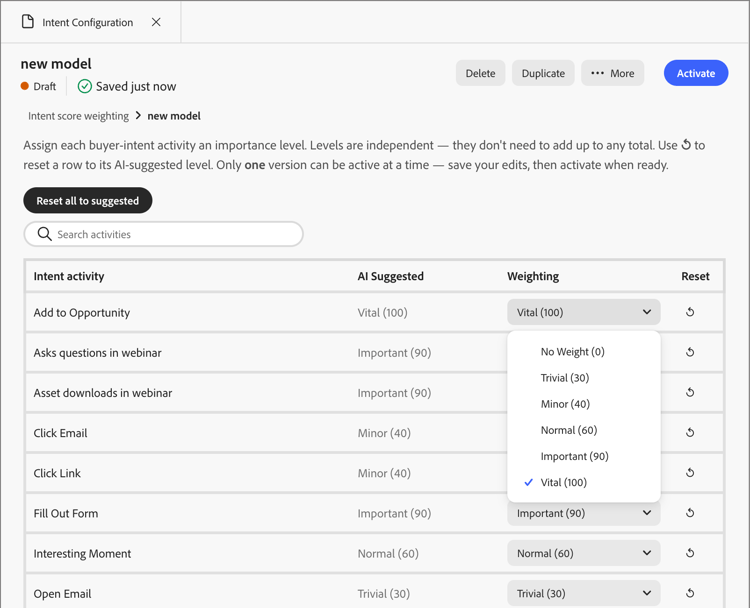
Setting an activity to No Weight (0) drops it from scoring entirely. The system currently excludes Unsubscribe Email by default using this method.
Click Reset all to suggested above the table to restore every row to its AI Suggested value.
Create and activate a model
To create and activate a new weighting model, follow these steps.
-
Start from an existing Draft model.
You can also click Duplicate for the current Active model to clone its weights into a new draft.
-
Adjust weights row by row to reflect what matters for your business.
For example, downgrade a low-signal activity to Trivial, or upgrade a high-signal one to Important or Vital.
-
Click Save.
Saving prompts you to activate the model immediately.
-
Confirm activation.
The confirmation makes it the new Active model and automatically demotes the previously active one to Archived. Only one model can be active at a time.
AI Suggested column
The AI Suggested column is a starting point, not a trained recommendation.
-
One LLM completion call handles all activities at once for a tenant, not one call per activity.
-
For each activity, the model reads only its name and description, then picks a weight tier based on general knowledge of B2B buyer behavior. For example, consider what Fill Out Form or Click Email typically signals for a B2B buyer. It has no access to the tenant’s customer data, CRM records, or historical engagement patterns, and is not tenant- or subscription-specific today.
-
The output populates
SUGGESTED_WEIGHT_VALUEinIBG_INTENT_ACTIVITY_WEIGHTat model creation time, and stays static afterward. It does not update as you edit the Weighting column. -
Every activity row always has a populated suggested value. None are left blank.
Review and adjust every row to reflect your own business context. The suggested values are a reasonable default, not a tuned model.
Actions on a model
You can manage a model based on its status.
Because only draft models are editable, the normal workflow is to click Duplicate for the current Active model, adjust weights on the draft copy, then click Save. You can activate it immediately or later using the Activate button.
Weighting calculations in intent scores
The Weighting column displays the number used in daily scoring, read from the row for the currently Active model. Three things drive a lead’s intent score:
-
The weight configured here (
WEIGHT_VALUE) for each activity. It starts from the AI suggestion but can be overridden per tenant. Only the row tied to the Active model is used, so a weight change doesn’t need a code release. -
Content relevance: not configurable here. The system extracts keywords from activity-related content or assets and scores how well that content matches a keyword, product, or category from 0 to 1.
-
Frequency: how many times a lead has interacted with that content, factored into the averaging across a person’s engagements.
For Marketo Optimizer, initial bootstrapping of intent scores looks back two years of lead activity.
Formally, per engagement: activity weight × content relevance, averaged into a daily score with a seven-day exponential decay applied so recent activity dominates. The decay mechanism runs every seven days: if a lead doesn’t engage in new activities, their intent score decays. The result is then min-max normalized to 0 to 1 across the current population and bucketed:
Content relevance
For web-based activities, the system inspects the asset URL and the associated company, then derives relevant keywords from that company’s taxonomy. For example, a URL tied to Intuit surfaces keywords like tax or payroll. A lead’s actual engagement with that content, for example, viewing a TurboTax page or a QuickBooks page, is compared against those keywords to determine which specific product the interest maps to. For non-web activities such as Interesting Moment (including offline events), the model evaluates the moment’s description or content, such as an offline webinar topic, rather than the activity type. The content, not the event category, determines relevance.
Known limitations
The following limitations apply to intent configuration today.
- No custom or tenant-defined activities today. The activity catalog is fixed, and Marketo Engage is the sole source of truth. An activity must be logged in Marketo Engage to be scored. A future column for tenant-defined activities is being scoped.
- No third-party intent ingestion today, for example, from Demandbase, ZoomInfo, or 6sense. This update is planned for later releases. Until then, the workaround is to build the audience in the third-party tool and push it into Marketo Engage or Marketo Optimizer directly, bypassing intent scoring for that signal.
- No native export from the weighting panel or from intent reports. See Report follow-up for prompts that turn report results into a person list.