CloudFront (BYOCDN)
This configuration routes agentic traffic (requests from AI bots and LLM user agents) to the Edge Optimize backend service (live.edgeoptimize.net). Human visitors and SEO bots continue to be served from your origin as usual. To test the configuration, after the setup is complete, look for the header x-edgeoptimize-request-id in the response.
Prerequisites
Before setting up the CloudFront configuration, ensure you have:
- An existing CloudFront distribution serving your website.
- AWS IAM permissions to create Lambda functions, IAM roles, CloudFront distributions, and cache policies.
- An Edge Optimize API key retrieved from the Adobe Brand Visibility UI. For steps, see Retrieve your API keys.
- (Optional) To test staging routing, see Staging API key.
Setup options
There are two ways to configure CloudFront for Optimize at Edge:
- Option 1: Guided setup in Adobe Brand Visibility (recommended) - Use Adobe Brand Visibility to deploy the routing configuration.
- Option 2: Manual setup - Configure the routing in the AWS console.
Option 1: Guided setup in Adobe Brand Visibility
- Open CDN Configuration for the URL you want to configure.
- In Deploy Optimizations to AI Agents, select Enable if needed.
- Select Deploy routing in CloudFront (Beta).
- Enter the 12-digit AWS account ID that contains the CloudFront distribution.
- Use the link generated by Adobe Brand Visibility to create the connector role. If you are not an AWS administrator, copy and share the link with someone who can create the role.
- Select the CloudFront distribution, existing origin, and cache behavior that you want to configure.
- Review the proposed changes, then follow the guided steps to deploy and verify the configuration.

Option 2: Manual setup
Use the following steps to configure CloudFront manually.
Step 1: Create Edge Optimize Origin
Navigation: AWS Console > CloudFront > Distributions > [Your Distribution] > Origins tab
-
Click Create origin.
-
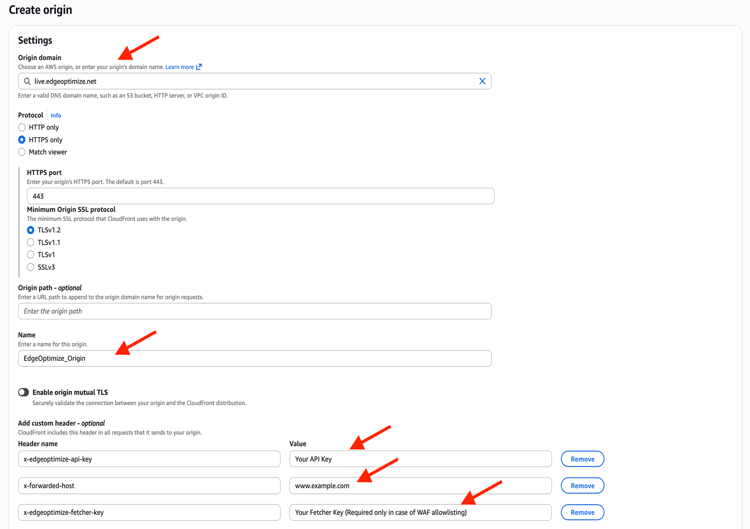
Configure the origin:
- Origin domain:
live.edgeoptimize.net - Name:
EdgeOptimize_Origin
- Origin domain:
-
Leave all other fields with their default values.
-
Add custom headers:
table 0-row-2 1-row-2 2-row-2 3-row-2 Header Value x-edgeoptimize-api-keyYour API key x-forwarded-hostwww.example.comx-edgeoptimize-fetcher-keyYour Fetcher Key (Required only in case of WAF allowlisting) Replace
www.example.comwith your actual website domain andYour API keywith the Edge Optimize API key provided by your Adobe representative. -
Click Create origin.
Step 2: Create viewer request function
Navigation: AWS Console > CloudFront > Functions
-
Click Create function.
-
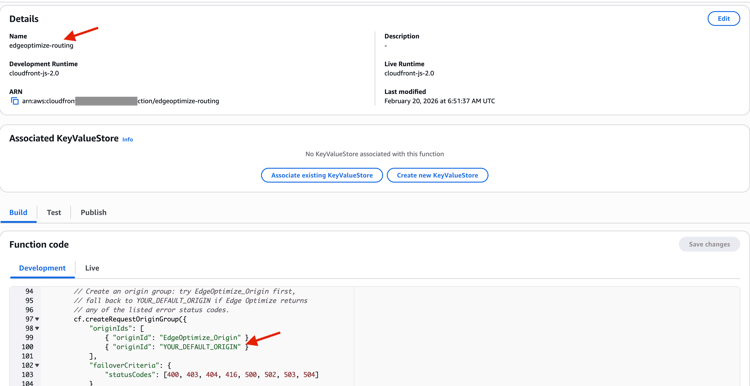
Configure:
- Name:
edgeoptimize-routing - Runtime:
cloudfront-js-2.0
- Name:
-
Replace the default code with the code from viewer-request.js.
Before publishing,customize the following values in the code:
YOUR_DEFAULT_ORIGIN— Replace with the name of your existing default origin (found in CloudFront > Distributions > [Your Distribution] > Origins tab).TARGETED_PATHS— Set tonullto target all HTML pages, or set to an array of specific paths, for example,['/', '/products', '/about'].
-
Click Save changes > Publish function.
Step 3: Configure cache policy
Navigation: AWS Console > CloudFront > Distributions > [Your Distribution] > Behaviors
Check the cache policy currently attached to your behavior. Click Edit on your behavior and look at the Cache key and origin requests section to identify your scenario:
- Scenario A (Legacy): You see a radio button labeled Legacy cache settings selected. There is no policy name dropdown — instead you see inline TTL and header settings.
- Scenario B (Custom policy): You see Cache policy selected with a policy name that you or your team created (not an AWS-provided policy).
- Scenario C (Managed policy): You see Cache policy selected with an AWS-provided name like
CachingOptimized,CachingDisabled, orCachingOptimizedForUncompressedObjects— these cannot be edited.
Scenario A: Legacy cache settings
If your behavior uses legacy cache settings:
-
Under Cache key and origin requests, you will see Legacy cache settings selected.
-
Add
x-edgeoptimize-configandx-edgeoptimize-urlto the Headers allow list:- Select Include the following headers from the dropdown.
- Add
x-edgeoptimize-configandx-edgeoptimize-url.
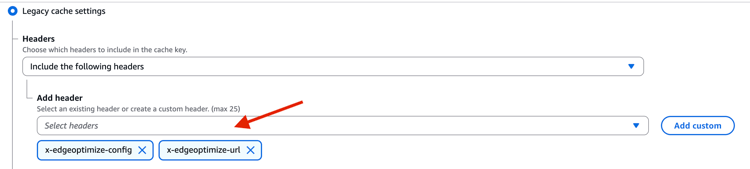
If you already have All selected in the Headers dropdown, skip this step — all headers are automatically forwarded to the origin.
-
Check the Object caching setting:
- If set to Customize — it is recommended to set Minimum TTL to
0. However, if your current Minimum TTL is already very short, you may not need to change it. - If set to Use origin cache headers — no change needed.
- If set to Customize — it is recommended to set Minimum TTL to
-
Click Save changes.
Scenario B: Non-legacy with a custom cache policy
If your behavior already uses a custom cache policy (one you created, not an AWS managed policy):
Navigation: AWS Console > CloudFront > Policies > Cache
-
Click on your existing policy.
-
Click Edit.
-
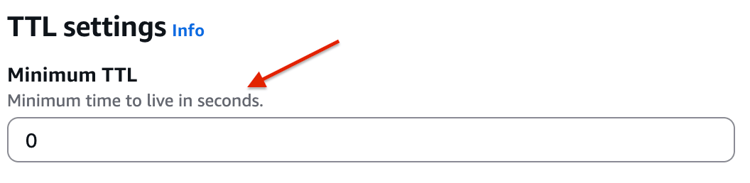
It is recommended to set Minimum TTL to
0. However, if your current Minimum TTL is already very short, you may not need to change it.
-
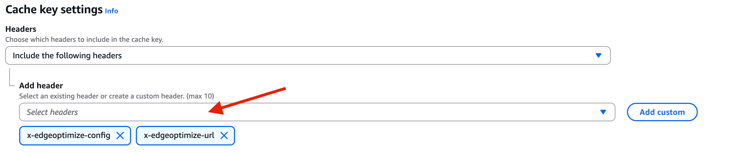
Under Cache key settings > Headers, along with your existing inclusions, add
x-edgeoptimize-configandx-edgeoptimize-url.
-
Click Save changes.
Scenario C: Non-legacy with a managed (AWS) cache policy
If your behavior uses an AWS managed cache policy (for example, CachingOptimized), you cannot edit it. You need to create a new custom cache policy that replicates the existing managed policy settings and adds the Edge Optimize headers on top.
Part 1: Note down your current managed cache policy settings
Navigation: AWS Console > CloudFront > Policies > Cache
-
Find and click on the managed cache policy currently attached to your behavior (for example,
CachingOptimized). -
Note down all the existing settings:
- Minimum TTL, Maximum TTL, Default TTL
- Headers included in the cache key
- Cookies included in the cache key
- Query strings included in the cache key
- Compression support (Gzip, Brotli)
Part 2: Create a new custom cache policy with the same settings + Edge Optimize config
Navigation: AWS Console > CloudFront > Policies > Cache
-
Click Create cache policy.
-
Name:
edgeoptimize-cache
-
Replicate all the settings noted in Part 1, with the following modifications:
- It is recommended to set Minimum TTL to
0. However, if your current Minimum TTL is already very short, you may not need to change it.
- Under Cache key settings > Headers, include everything the managed policy had, plus add
x-edgeoptimize-configandx-edgeoptimize-url.
- It is recommended to set Minimum TTL to
-
Click Create.
-
Go back to your behavior and associate the newly created policy:
Navigation: AWS Console > CloudFront > Distributions > [Your Distribution] > Behaviors
- Edit your behavior.
- Under Cache key and origin requests, select Cache policy.
- Choose
edgeoptimize-cachefrom the dropdown. - Click Save changes.
Step 4: Create Lambda@Edge function (origin request and response)
us-east-1 (N. Virginia) region. This is an AWS requirement. Even though the function is created in us-east-1, AWS automatically replicates it to all CloudFront edge locations worldwide, so it executes at the nearest edge location to the viewer. Make sure you are in the us-east-1 region in the AWS Console before proceeding.Create the Lambda function
Navigation: AWS Console > Lambda
-
Click Create function.
-
Select Author from scratch.
-
Configure:
- Function name:
edgeoptimize-origin - Leave all other fields with their default values.
- Function name:
-
Click Create function.
-
In the code editor, replace the default code with the code from origin-request-response.js.
-
Click Deploy to save the code.
-
Note the execution role name shown under Configuration > Permissions (for example,
edgeoptimize-origin-role-xxxxx). You need this in the following steps.
Update the execution role’s trust policy
The auto-created role only trusts lambda.amazonaws.com. For Lambda@Edge, you must also add edgelambda.amazonaws.com.
Navigation: AWS Console > IAM > Roles > [your role from the previous step] > Trust relationships tab
-
Click Edit trust policy.
-
Replace the policy with the content from trust-policy.json.
-
Click Update policy.
edgelambda.amazonaws.com service principal is required for Lambda@Edge. Without it, CloudFront cannot invoke your function at edge locations.Fix the CloudWatch Logs permission policy
The auto-created role comes with an AWSLambdaBasicExecutionRole policy configured for regular Lambda, which has the wrong region and log group name for Lambda@Edge. You need to update it.
Navigation: AWS Console > IAM > Roles > [your role] > Permissions tab > click on the attached policy name (for example, AWSLambdaBasicExecutionRole-xxxx)
-
Click Edit.
-
Replace the policy with the content from cloudwatch-policy.json.
In the JSON, replace
ACCOUNT_IDwith your actual AWS account ID (found in the top-right corner of the AWS Console) andFUNCTION_NAMEwith the name of your Lambda function (for example,edgeoptimize-origin). -
Click Save changes.
* — Lambda@Edge executes at the nearest edge location to the viewer, so logs are written to CloudWatch in the region of the edge location (for example, ap-south-1, eu-west-1), not necessarily us-east-1. The log group uses a region-prefixed name: /aws/lambda/us-east-1.FUNCTION_NAME, where us-east-1 is always the function’s home region.Fix the CloudWatch logs link
By default, the View CloudWatch logs shortcut in the Lambda console links to /aws/lambda/FUNCTION_NAME in us-east-1 — the wrong log group for Lambda@Edge. Configure a custom log group so the link points to the correct path.
Navigation: AWS Console > Lambda > [your function] > Configuration > Monitoring and operations tools
-
Click Edit.
-
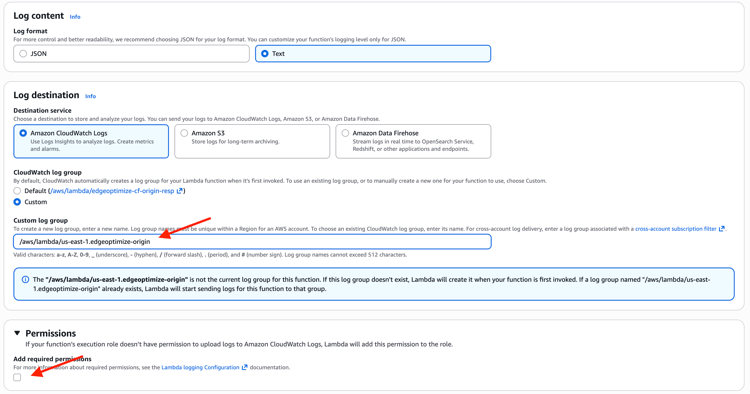
Under CloudWatch log group, select Custom.
-
Set the custom log group name to
/aws/lambda/us-east-1.edgeoptimize-origin. -
Under Permissions, leave the Add required permissions checkbox unchecked.
-
Click Save.
eu-west-1, ap-south-1), not us-east-1. You still need to switch to the correct region in CloudWatch to see the logs.Publish a version
-
On the function page, click Actions (top right) > Publish new version.
-
Add a description.
-
Click Publish.

-
Copy or note down the Function ARN — you need this in the next step.

Step 5: Associate the functions and cache policy with behavior
Navigation: AWS Console > CloudFront > Distributions > [Your Distribution] > Behaviors
-
Edit your behavior.
-
If you created a new cache policy in Step 3 (Scenario C), set Cache policy to
edgeoptimize-cache.

-
Under Function associations, configure:
- Viewer request:
edgeoptimize-routing - Origin request: Versioned Function ARN from Step 4 (in Publish a version)
- Origin response: Versioned Function ARN from Step 4 (in Publish a version)

- Viewer request:
-
Click Save changes.
Allow Optimize at Edge through firewall rules (optional)
If your CDN uses a WAF or Bot Manager:
-
Allowlist the
*AdobeEdgeOptimize/1.0*user agent in your WAF or Bot Manager so the Optimize at Edge service can fetch your origin content. -
If your firewall requires additional verification beyond user agent, generate a secret (for example,
openssl rand -hex 32) and:- Add
x-edgeoptimize-fetcher-keywith the secret in your routing rules alongside the otherx-edgeoptimize-*headers. - Add a WAF or Bot Manager rule to allow requests where
x-edgeoptimize-fetcher-keymatches the same secret.
- Add
-
Optimize at Edge forwards this header as-is — you own the full key lifecycle.
Step 6: Test the configuration
1. Test bot traffic (should be optimized)
Send a request with an agentic bot user agent. On the first request, Edge Optimize may return a proxied (non-optimized) response while it processes and caches the page. You can identify this by the x-edgeoptimize-proxy: 1 header in the response.
Simulate an AI bot request using an agentic user-agent:
curl -svo /dev/null https://www.example.com/page.html \
  --header "user-agent: chatgpt-user"
A successful response includes the x-edgeoptimize-request-id header, confirming that the request was routed through Edge Optimize:
< HTTP/2 200
< x-edgeoptimize-request-id: 50fce12d-0519-4fc6-af78-d928785c1b85
2. Test human traffic (should NOT be affected)
Simulate a regular human browser request:
curl -svo /dev/null https://www.example.com/page.html \
  --header "user-agent: Mozilla/5.0 (Macintosh; Intel Mac OS X 10_15_7) AppleWebKit/537.36"
The response should not contain the x-edgeoptimize-request-id header. The page content and response time should remain identical to before enabling Optimize at Edge.
3. How to differentiate between the two scenarios
x-edgeoptimize-request-idx-edgeoptimize-fo1)The status of the traffic routing can also be checked in the Adobe Brand Visibility UI. Navigate to Customer configuration and select the CDN configuration tab.

4. Verify logs are flowing correctly
After running the test requests above, verify that logs are being written for both the CloudFront function and the Lambda@Edge function.
CloudFront function logs (edgeoptimize-routing)
Navigation: AWS Console > CloudWatch > Log groups (in us-east-1 or the region where your CloudFront distribution is configured)
-
Look for a log group named
/aws/cloudfront/function/edgeoptimize-routing. -
Open the latest log stream.
-
For agentic requests, you should see entries such as:
Adding origin group for userAgent: chatgpt-userRouting to Edge Optimize origin for userAgent: chatgpt-user
-
For non-agentic requests, you should see:
Routing to Default origin for userAgent: ...
You can also check the Metrics tab under AWS Console > CloudFront > Functions > edgeoptimize-routing to view invocation counts and error rates.
Lambda@Edge logs (edgeoptimize-origin)
us-east-1. Check CloudWatch in the AWS region closest to where you ran the curl command.Navigation: AWS Console > CloudWatch > Log groups (ensure you are in the correct region)
-
Look for a log group named
/aws/lambda/us-east-1.edgeoptimize-origin. -
Open the latest log stream.
-
For agentic requests, you should see entries such as:
Calling Edge Optimize Origin for agentic requests— primary pathCalling Default Origin in case of failover for agentic requests— failover pathFailover Triggered for agentic requests— origin-response failover detection
If the log group is not present, verify that the IAM permissions were updated correctly in Step 4. Also check other nearby AWS regions — the edge location that served your request may differ from what you expect.
Troubleshooting
x-edgeoptimize-request-id in response for agentic requestsYOUR_DEFAULT_ORIGIN was replaced correctly in the CloudFront function code (Step 2).x-edgeoptimize-api-key header value in the Edge Optimize origin custom headers (Step 1).us-east-1.cache-control: no-store0 in your cache policy (Step 3). If your Minimum TTL is already very short, this may not be the issue.Disabling and Re-enabling Optimize at Edge
The Lambda@Edge function (edgeoptimize-origin) is associated with the origin request and origin response events of your CloudFront behavior. Because it runs inline on every request passing through that behavior — both human and agentic — a Lambda@Edge outage will impact all live traffic, not just agentic requests. If you detect a Lambda@Edge outage, remove the function associations immediately to restore normal traffic flow to your default origin.
How to detect a Lambda@Edge outage
- AWS Service Health Dashboard — Check the AWS Service Health Dashboard for any active incidents affecting Amazon CloudFront or AWS Lambda. A global or regional outage reported here is the fastest way to confirm the issue is on the AWS infrastructure side rather than in your configuration.
- Lambda@Edge errors — Navigate to AWS Console > CloudFront > Monitoring > [Your Distribution]. Open the Lambda@Edge errors tab and check the Execution errors graph for execution errors. If these are high, Lambda@Edge might be down.
Detaching the Lambda@Edge function
Navigation: AWS Console > CloudFront > Distributions > [Your Distribution] > Behaviors
-
Click Edit on your behavior.
-
Scroll down to the Function associations section.
-
Set the following associations to No association:
table 0-row-2 1-row-2 2-row-2 3-row-2 Event Change to Viewer request No association Origin request No association Origin response No association 
-
Click Save changes.
-
Wait for the CloudFront distribution to finish deploying. The status changes from Deploying to the last modified date, typically within a few minutes.
Once deployed, all traffic routes directly to your default origin. No configuration is deleted; the Lambda function and its associations can be restored at any time.
Re-attaching the Lambda@Edge function
Navigation: AWS Console > CloudFront > Distributions > [Your Distribution] > Behaviors
-
Click Edit on your behavior.
-
Scroll down to the Function associations section.
-
Restore the associations:
table 0-row-2 1-row-2 2-row-2 3-row-2 Event Set to Viewer request edgeoptimize-routing(CloudFront function)Origin request Versioned Lambda ARN from Step 4 Origin response Versioned Lambda ARN from Step 4 Use the versioned Function ARN you noted in Step 4 (in Publish a version).
-
Click Save changes.
-
Wait for the distribution to finish deploying, then verify that agentic requests return the
x-edgeoptimize-request-idheader as described in Step 6.
To learn more about Optimize at Edge, including available opportunities, auto-optimization workflows, and FAQs, return to the Optimize at Edge overview.