Cloudflare (BYOCDN)
This configuration routes agentic traffic (requests from AI bots and LLM user agents) to the Edge Optimize backend service (live.edgeoptimize.net). Human visitors and SEO bots continue to be served from your origin as usual. To test the configuration, after the setup is complete, look for the header x-edgeoptimize-request-id in the response.
Prerequisites
Before you set up the Cloudflare Worker routing rules, ensure you have:
- A Cloudflare account with Workers enabled on your domain.
- Access to your domain’s DNS settings in Cloudflare.
- An Edge Optimize API key retrieved from the Adobe Brand Visibility UI. For steps, see Retrieve your API keys.
- (Optional) To test staging routing, see Staging API key.
How routing works
When configured correctly, a request to your domain (for example, www.example.com/page.html) from an agentic user agent is intercepted by the Cloudflare Worker and routed to the Edge Optimize backend. The backend request includes the required headers.
Testing the backend request
You can verify the routing by making a direct request to the Edge Optimize backend.
curl -svo /dev/null https://live.edgeoptimize.net/page.html \
  -H 'x-forwarded-host: www.example.com' \
  -H 'x-edgeoptimize-url: /page.html' \
  -H 'x-edgeoptimize-api-key: $EDGE_OPTIMIZE_API_KEY' \
  -H 'x-edgeoptimize-config: LLMCLIENT=TRUE;'
Required Headers
The following headers must be set on requests to the Edge Optimize backend:
x-forwarded-hostwww.example.comx-edgeoptimize-url/page.html or /products?id=123x-edgeoptimize-api-keyyour-api-key-herex-edgeoptimize-configLLMCLIENT=TRUE;Setup options
There are two ways to configure Cloudflare for Optimize at Edge:
- Option 1: Guided setup in Adobe Brand Visibility (recommended) — Uses Adobe Brand Visibility to deploy the Worker, add the route, and verify the configuration.
- Option 2: Manual setup — Provides step-by-step instructions for creating and configuring the Worker yourself. Use this option if you already have a Cloudflare Worker for the domain and need to merge the Edge Optimize code into it, or if you prefer full control over the deployment.
For the manual setup, you must manually link the Worker to your domain. See Add a route to your domain.
Option 1: Guided setup in Adobe Brand Visibility
- Open CDN Configuration for the URL you want to configure.
- In Deploy Optimizations to AI Agents, select Enable if needed.
- Select Deploy routing in Cloudflare.
- Select Connect with Cloudflare OAuth. Sign in with a Cloudflare user who can manage Workers and Worker routes, then approve access to the correct account and zone. You do not need to enter an API token in Adobe Brand Visibility.
- Select the Cloudflare zone for the site. Ensure that the target hostname has a proxied DNS record and is not handled by an existing custom Worker or overlapping Worker route.
- Follow the guided steps to deploy the dedicated Worker, add the route, and verify the configuration.

Option 2: Manual setup
Follow these steps to create and configure the worker manually.
Step 1: Create the Cloudflare Worker
- Log in to your Cloudflare dashboard.
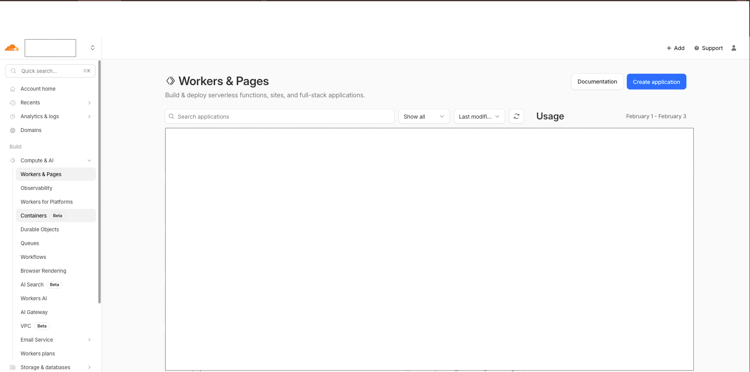
- Navigate to Workers & Pages in the sidebar.
- Click Create application and then Create Worker.
- Name your worker (for example,
edge-optimize-router). - Click Deploy to create the worker with the default code.
Step 2: Add the Worker code
After creating the worker, click Edit code and replace the default code with the code from worker.js. If you already have an existing Cloudflare Worker, merge the code with your existing worker code instead of replacing it entirely.
Click Save and deploy to publish the worker.
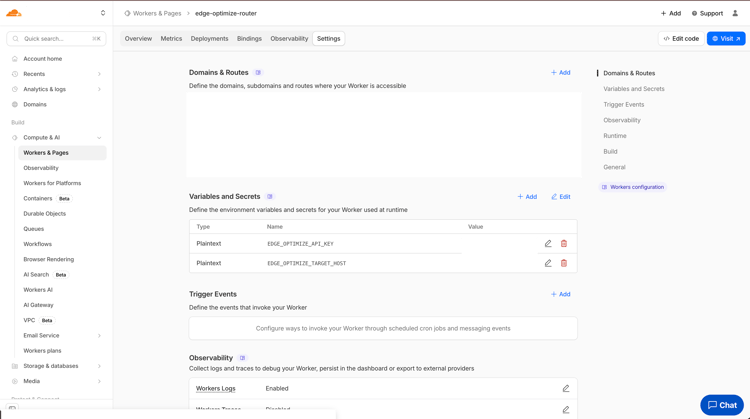
Step 3: Configure environment variables and secrets
Environment variables store sensitive configuration like your API key securely.
-
In your worker’s settings, navigate to Settings > Variables.
-
Under Environment Variables, click Add variable.
-
Add the following variables:
table 0-row-3 1-row-3 2-row-3 Variable Name Description Required EDGE_OPTIMIZE_API_KEYYour Adobe-provided Edge Optimize API key. Yes EDGE_OPTIMIZE_TARGET_HOSTThe target host for Edge Optimize requests (sent as x-forwarded-hostheader) and the origin domain for failover. Must be the domain only without protocol (for example,www.example.com, nothttps://www.example.com).Yes -
For the API key, click Encrypt to store it securely.
-
Click Save and deploy.
Add a route to your domain add-a-route-to-your-domain
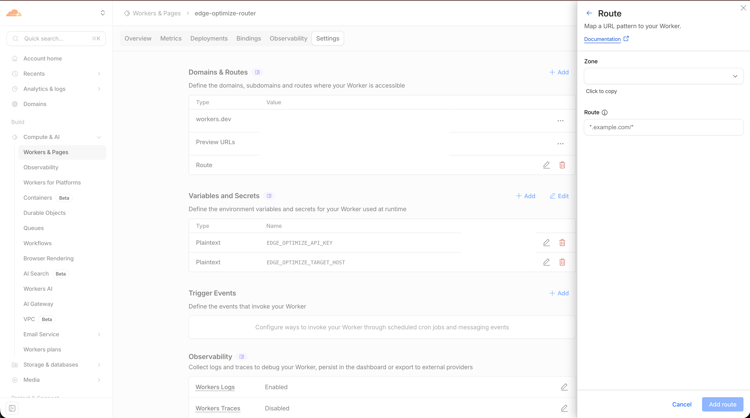
If you used the manual setup, manually link the Worker to your domain. This step activates the Worker on your traffic.
- Go to your worker’s Settings > Triggers.
- Under Routes, click Add route.
- Enter your domain pattern (for example,
www.example.com/*orexample.com/*). - Select your zone from the dropdown.
- Click Save.
Alternatively, you can configure routes at the zone level:
- Navigate to your domain in Cloudflare.
- Go to Workers Routes.
- Click Add route and specify the pattern and worker.
Verifying failover behavior
If Edge Optimize is unavailable or returns an error, the worker automatically fails over to your origin. Failover responses include the x-edgeoptimize-fo header:
< HTTP/2 200
< x-edgeoptimize-fo: 1
You can monitor failover events in Cloudflare Workers logs to troubleshoot issues.
Understanding the Worker logic
The Cloudflare Worker implements the following logic:
-
User Agent detection: Checks if the incoming request’s user agent matches any of the defined agentic bots (case-insensitive).
-
Path targeting: Optionally filters requests based on targeted paths. By default, all HTML pages (URLs ending with
/, no extension, or.html) are routed. You can specify specific paths using theTARGETED_PATHSarray. -
Loop protection: The
x-edgeoptimize-requestheader prevents infinite loops. When Edge Optimize makes requests back to your origin, this header is set to"1", and the worker passes the request through without routing it back to Edge Optimize. -
Header security: Before setting Edge Optimize headers, the worker removes any existing
x-edgeoptimize-*headers from the incoming request to prevent header injection attacks. -
Header mapping: The worker sets the required headers for Edge Optimize:
x-forwarded-host– Identifies the original site domain.x-edgeoptimize-url– Preserves the original request path and query string.x-edgeoptimize-api-key– Authenticates the request with Edge Optimize.x-edgeoptimize-config– Provides cache key configuration.
-
Failover logic: If Edge Optimize returns any error status code (4XX client errors or 5XX server errors) or the request fails due to a network error, the worker automatically fails over to your origin using
EDGE_OPTIMIZE_TARGET_HOST. The failover response includes thex-edgeoptimize-fo: 1header to indicate that failover occurred. -
Redirect handling: The
redirect: "manual"option ensures that redirect responses from Edge Optimize are passed through to the client without the worker following them.
Customizing the configuration
You can customize the worker behavior by modifying the configuration constants at the top of the code:
Agentic bot list
Modify the AGENTIC_BOTS array to add or remove user agents:
const AGENTIC_BOTS = [
  'AdobeEdgeOptimize-AI',
  'ChatGPT-User',
  'GPTBot',
  'OAI-SearchBot',
  'PerplexityBot',
  'Perplexity-User',
  'ClaudeBot',
  'Claude-User',
  'Claude-SearchBot',
  // Add additional user agents as needed
];
Targeted paths
By default, all HTML pages are routed to Edge Optimize. To limit routing to specific paths, modify the TARGETED_PATHS array:
// Route all HTML pages (default)
const TARGETED_PATHS = null;

// Or specify exact paths to route
const TARGETED_PATHS = ['/', '/page.html', '/products', '/about-us'];
Failover configuration
By default, the worker fails over on any 4XX or 5XX error from Edge Optimize. Customize this behavior:
// Default: failover on any 4XX or 5XX error
const FAILOVER_ON_4XX = true;
const FAILOVER_ON_5XX = true;

// Failover only on 5XX server errors (not 4XX client errors)
const FAILOVER_ON_4XX = false;
const FAILOVER_ON_5XX = true;

// Disable automatic failover (not recommended)
const FAILOVER_ON_4XX = false;
const FAILOVER_ON_5XX = false;
Important considerations
-
Failover behavior: The worker automatically fails over to your origin if Edge Optimize returns any error (4XX or 5XX status codes) or if the request fails due to a network error. Failover uses
EDGE_OPTIMIZE_TARGET_HOSTas the origin domain (similar to Fastly’sF_Default_Originor CloudFront’sDefault_Origin). Failover responses include thex-edgeoptimize-fo: 1header, which you can use for monitoring and debugging. -
Caching: Cloudflare caches responses based on the URL by default. Because agentic traffic receives different content than human traffic, ensure your cache configuration accounts for this. Consider using Cache API or cache headers to differentiate cached content. The
x-edgeoptimize-configheader should be included in your cache key. -
Rate limiting: Monitor your Edge Optimize usage and consider implementing rate limiting for agentic traffic if needed.
-
Testing: Always test the configuration in a staging environment before deploying to production. Verify that both agentic and human traffic behave as expected. Test failover behavior by simulating Edge Optimize errors.
-
Logging: Enable Cloudflare Workers logging to monitor requests and troubleshoot issues. Navigate to Workers > your worker > Logs to view real-time logs. The worker logs failover events for debugging purposes.
Troubleshooting
x-edgeoptimize-request-id header in responseAGENTIC_BOTS array.EDGE_OPTIMIZE_API_KEY is correctly set in environment variables and secrets. Contact Adobe to confirm your API key is active.x-edgeoptimize-request header check is in place.TARGETED_PATHS is configured correctly.x-edgeoptimize-fo: 1 header in responseFAILOVER_ON_4XX and FAILOVER_ON_5XX are set to true. Check worker logs for error messages.TARGETED_PATHS (if specified) and matches the HTML page regex pattern.EDGE_OPTIMIZE_TARGET_HOST includes protocol (for example, https://).example.com, not https://example.com).Allow Optimize at Edge through firewall rules (optional)
If your CDN uses a WAF or Bot Manager:
-
Allowlist the
*AdobeEdgeOptimize/1.0*user agent in your WAF or Bot Manager so the Optimize at Edge service can fetch your origin content. -
If your firewall requires additional verification beyond user agent, generate a secret (for example,
openssl rand -hex 32) and:- Add
x-edgeoptimize-fetcher-keywith the secret in your routing rules alongside the otherx-edgeoptimize-*headers. - Add a WAF or Bot Manager rule to allow requests where
x-edgeoptimize-fetcher-keymatches the same secret.
- Add
-
Optimize at Edge forwards this header as-is — you own the full key lifecycle.
Verify the setup
After completing the setup, verify that bot traffic is being routed to Edge Optimize and that human traffic remains unaffected.
1. Test bot traffic (should be optimized)
Simulate an AI bot request using an agentic user-agent:
curl -svo /dev/null https://www.example.com/page.html \
  --header "user-agent: chatgpt-user"
A successful response includes the x-edgeoptimize-request-id header, confirming that the request was routed through Edge Optimize:
< HTTP/2 200
< x-edgeoptimize-request-id: 50fce12d-0519-4fc6-af78-d928785c1b85
2. Test human traffic (should NOT be affected)
Simulate a regular human browser request:
curl -svo /dev/null https://www.example.com/page.html \
  --header "user-agent: Mozilla/5.0 (Macintosh; Intel Mac OS X 10_15_7) AppleWebKit/537.36"
The response should not contain the x-edgeoptimize-request-id header. The page content and response time should remain identical to before enabling Optimize at Edge.
3. How to differentiate between the two scenarios
x-edgeoptimize-request-idx-edgeoptimize-fo1)The status of the traffic routing can also be checked in the Adobe Brand Visibility UI. Navigate to Customer configuration and select the CDN configuration tab.

To learn more about Optimize at Edge, including available opportunities, auto-optimization workflows, and FAQs, return to the Optimize at Edge overview.