Create and manage a quiz
As an Instructor, the Quiz feature lets you measure how well learners have grasped a topic during a Live Hub session. Unlike a quick single-question poll, a quiz lets you build a structured, multi-question assessment with multiple-choice and multiple-answer questions, scoring, and settings such as time limits and randomized question or option order.
This article walks through every quiz action available to Instructors, from creating a quiz to sharing its results.
Create a quiz
You can create a quiz to assess learner understanding during a session. Quizzes can include different question types and support scoring to track performance. If no quizzes are available, you can create a new quiz from the Quiz tab.
To create a quiz:
-
Select the Quiz tab from the Polls & Quizzes panel.

Select the Quiz tab from the Polls & Quizzes panel. -
Select Create new quiz. A new quiz titled Untitled Quiz 1 opens.
-
In the question field, enter your question.
-
Enter your answer options in the Option fields. Three options are provided by default. You can:
-
Select + Add option to add another option.
-
Select the X next to an option to remove it.
-
Drag the handle beside an option to reorder it.
-
-
Mark the correct answer:
-
To set a single correct answer, select the radio button next to the correct option.
-
To allow more than one correct answer, enable the Multiple correct answers toggle, and then select the radio button for each correct option.
-
-
To add additional questions, select + Add question.
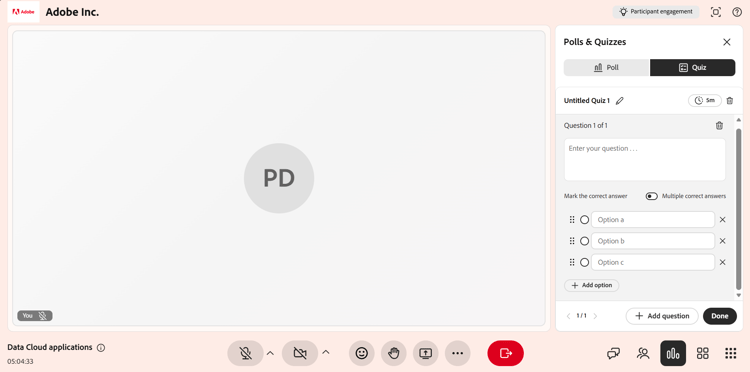
Quiz tab interface showing the option to create a quiz. -
Select Done.
-
Select Save. The quiz is now available to launch.
Set a time limit for the quiz
You can set an optional time limit so that learners must complete the quiz within a fixed duration. The time limit is set from the timer at the top of the quiz.
To set a time limit:
-
Select the Timer icon at the top of the quiz.
-
Enable Set time limit.
-
Set the duration in minutes.

Quiz tab interface showing the option to set the quiz time limit.
Edit a quiz
Update questions, modify answer options, or reorder questions before launching the quiz. Once the quiz is launched, it cannot be edited.
To edit a quiz:
-
Select the Quiz tab.
-
Navigate to the quiz you want to edit.
-
Select the edit (pencil) icon.
-
Perform any of the following actions:
-
Edit the question text.
-
Update or remove answer options.
-
Select the correct answer(s).
-
Add a new question using Add question.
-
Delete a question if it is no longer required.

Quiz tab interface showing the option to edit a quiz. -
-
Select Save to apply the changes.
Launch a quiz
After you create and save a quiz, it appears in the Quiz tab with a New label. Launching makes the quiz visible to learners and allows them to attempt questions in real time.
To launch a quiz:
-
Select the Quiz tab.
-
From the saved quiz list, select Launch quiz.
When you launch a quiz, it appears in the Polls & Quizzes panel for learners to answer. If a time limit is set, you can also extend the quiz duration by selecting +1 min during the live quiz.
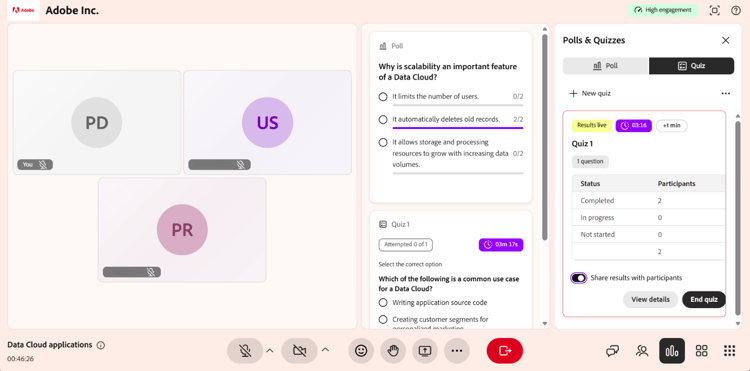
Quiz tab interface showing the quiz launched for the participants.
View quiz results
View quiz results during and after a session to monitor learner performance and participation. Results are updated in real time as learners attempt and complete the quiz.
To view quiz results:
-
From

-
Navigate to the active or completed quiz.
-
Select View results.

Quiz tab interface shows the View details option to access and view the quiz results.
The Quiz panel shows the results with the following details:
-
Learner profiles
-
Number of questions attempted
-
Scores
-
Time taken to complete the quiz
View detailed responses for a participant
Select an individual paticipant from the results list to view detailed responses. You can see how the learner answered each question.

Quiz responses pop-up window showing the detailed results for a learner.
Close a quiz
Use this option to end an active quiz when learners have completed their responses or when you want to stop submissions.
To close a quiz:
-
Select Close quiz. The quiz stops immediately for all learners.
-
The quiz status updates to Closed.

Quiz tab interface showing the Closed quiz status.
Share quiz results with participants
You can share quiz results with participants after you end or close the quiz. To make the results visible to everyone, enable the Share results with participants toggle.
When result sharing is enabled, the quiz is labeled with a Results live tag. This means that the results are being displayed to learners.

Enable Share results with participants to share the results with learners.
Manage a quiz
You can manage a saved or closed quiz from its options (…) menu in the Polls & Quizzes panel. These options let you clear responses, reuse the quiz, or remove it from the session.
To manage a quiz:
-
From
-
Navigate to the quiz and select the options (…) menu.

Quiz tab interface showing the option to Reset, Duplicate and Delete a quiz. -
Select one of the following options: