Use the Chat panel as a Learner
Use the Chat panel to participate in conversations during a Live Hub session. You can send messages to all participants, ask questions, and manage your chat messages. If your Instructor has enabled private messaging, you can also chat directly with other participants. This article describes the chat features available to Learners.
Access the Chat panel
As a Learner, you can use the Chat panel to participate in discussions, ask questions, and connect with others during a session.
Follow these steps to access the Chat panel:
-
Join the Live Hub session.
-
Select

-
Select one of the following tabs:
-
Everyone
-
Private

Chat panel showing the Everyone and Private tab for communication. -
-
Type your message and select Send.
Customize the Chat panel
You can customize the Chat panel to manage notifications and improve message readability during a Live Hub session.
To customize the Chat panel:
-
Open the Chat panel.
-
Select More options (⋯) in the upper-right corner of the Chat panel.
-
Select one of the following options:
-
Turn off notifications: Disable chat notifications for the current session.
-
Change text size: Increase or decrease the size of chat messages for easier reading.
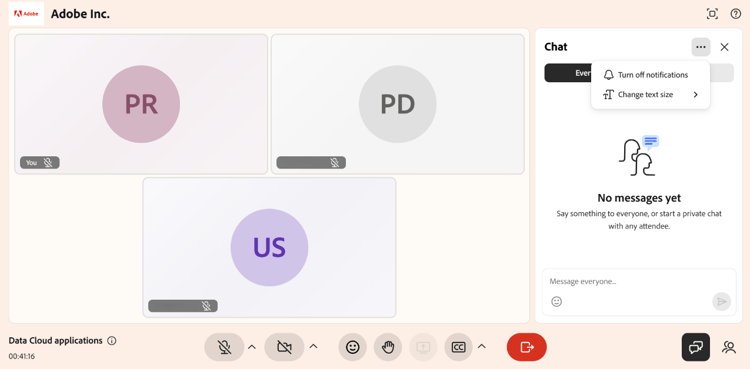
Chat panel settings showing options to turn off notifications and adjust the text size of chat messages. -
Manage your chat messages
You can interact with the messages to keep conversations organized and up to date. Reply to messages, react with emojis, edit messages after sending, or delete them when they are no longer needed.
To manage a message in the chat:
-
Hover over the message to view available actions.
-
Select the required action.
Send private messages
The Private tab allows you to communicate directly with other participants during a session without sharing messages in the public chat.
To start a private conversation:
-
Select the Private tab.
-
Select a participant from the list.

The Private tab shows a one-to-one conversation between a learner and another participant. -
Type your message and select Send.
A private conversation opens with the selected participant. Messages are visible only to you and that participant.