Submit external learning as a learner
In Adobe Learning Manager, you can log training you complete outside the platform — such as a workshop, certification exam, seminar, or online course, using the External Learning feature. Each submission goes to your manager for review. Once approved, the activity appears in your Learner Transcript.
How the external learning submission process works
External learning submissions follow a three-step process:
-
You fill out a submission form with details about the training you completed and optionally upload proof.
-
Your manager receives an in-platform notification and reviews your submission.
-
Your manager approves or rejects the request. You receive an in-platform notification of the decision.
Approved submissions appear in your Learner Transcript as completed external learning activities.
You can submit as many external learning requests as you need. There is no limit on the number of submissions you can create.
Finding External Learning in the navigation
External learning is available from My Learning in the main navigation. Select External Learning to view your submission history and create new submissions.
If you do not see the External Learning option, your administrator may not have enabled the feature for your account. Contact your administrator for assistance.
Submit an external learning request
-
In the left navigation, select My Learning.
-
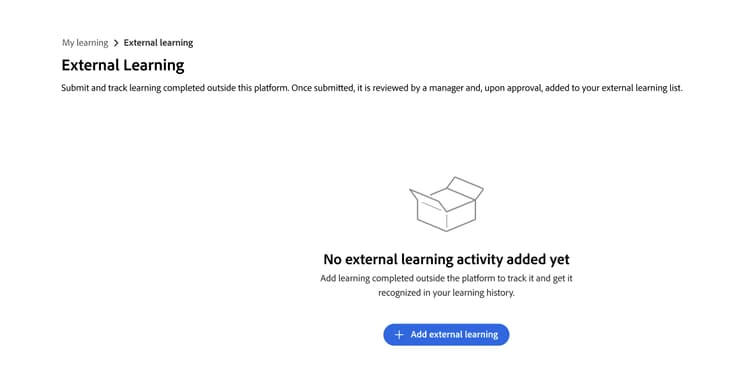
Select the External Learning option.
-
Select Add External Learning.
-
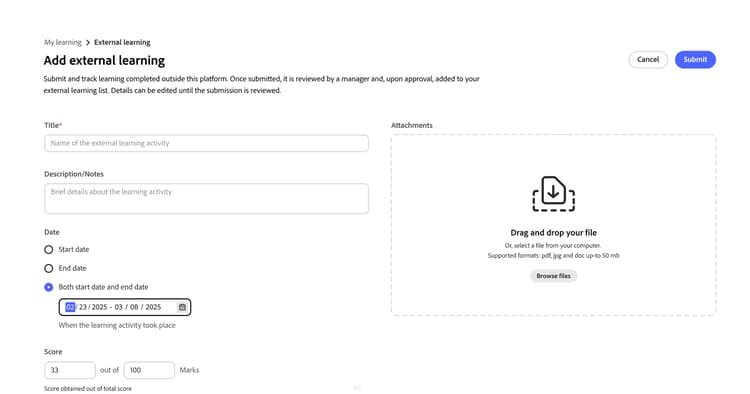
Fill in the submission form:
-
Title: Enter the name of the training. This field is required.
-
Description/notes: Add any details that help your manager understand the training, such as the provider’s name or the learning objectives.
-
Start date: Select the date the training began.
-
End date: Select the date the training was completed.
-
Duration: Enter the total time (in hours) you spent on the training.
-
Score: Enter your score if the training includes an assessment.
-
Attachments: Upload a certificate, transcript, or other document as evidence. Supported file types are PDF, DOC, DOCX, PNG, JPEG, and JPG. The maximum file size is 50 MB.
-
Fill in any additional custom fields your administrator has configured.
-
-
Select Submit.
Your manager receives an in-app notification that a new external learning request is awaiting their review. Your submission appears in your External Learning list with the status Awaiting review.
Edit a pending submission
You can edit a submission while its status is Awaiting Approval. Once your manager approves or rejects it, you can no longer edit that submission.
-
In the External Learning tab, find the submission you want to update.
-
Select the submission to open it.
-
Select Edit.
-
Update any fields as needed. The form shows the latest field configuration set by your administrator, which may include fields that were not present when you originally submitted.
-
Select Submit.
Your manager receives a new notification and reviews your updated submission.
If your submission was rejected: You cannot edit a rejected submission. To resubmit, create a new external learning request and reference any feedback your manager provided in their review comment.