Submit an assignment as a team in Adobe Learning Manager
View your team, work together on the assignment, upload one file for the whole team, and check your team’s evaluation result.
When you are assigned to a team, you receive a notification.
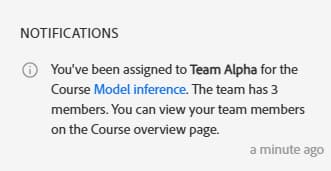
In a team-based file submission module, any team member can upload the file for everyone in the same team as them. Your instructor evaluates the work once, and the outcome applies to the whole team.
View your team and the evaluation plan
-
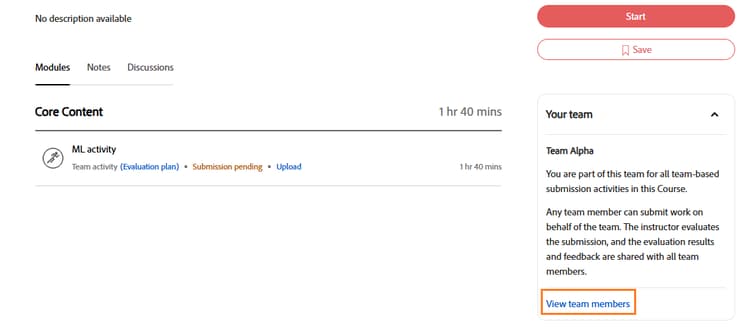
Open the course in the Learner app, and then go to the course overview page. Team activities are marked as team activities in the course outline.
-
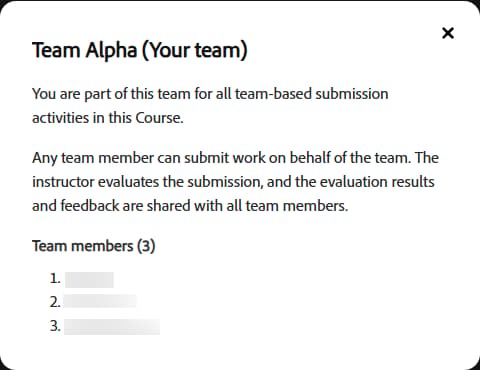
Select View team members to view a list of other learners who are in the same team as you.
-
If you aren’t on a team yet, a message tells you that the activity starts after you’re assigned to a team. Contact your instructor or administrator.
-
If the author allows it, view what you will be assessed on. You can read the evaluation plan description and each evaluation parameter’s description. You can’t view the answer options, points, or weightage.
You receive a notification and an email when you’re added to a team, removed from a team, or when a team member is added or removed.
Submit the team’s file
-
On the course overview page, open the team-based activity.
-
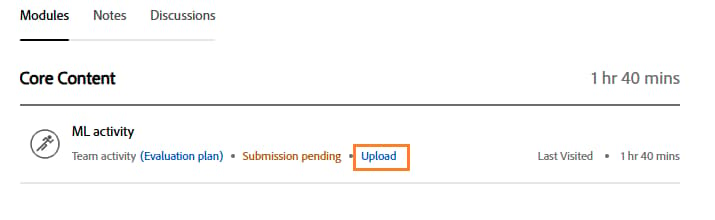
Agree with your team on the file to submit. Select Upload.
-
Upload the file. The status changes to Evaluation pending. You can, however, review your submission and submit a different file.
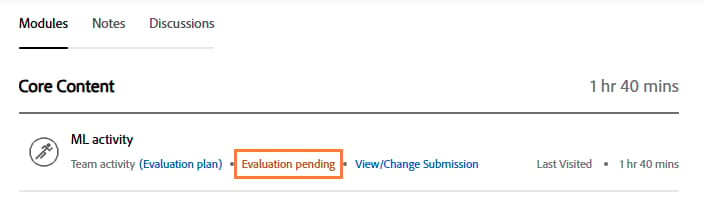
Your instructor is notified. Every team member can view the status and the submitted file, and download it. All team members receive a notification and an email when any member submits or resubmits.
To replace the file before it’s approved, select View/Change Submission, and then upload a new file.
View the result
-
Open the team-based activity after your instructor evaluates it. All team members receive a notification.
-
View the status, such as approved or rejected.
-
Read the instructor’s comments, if the instructor chose to show them.
-
If the activity has an evaluation plan, view the reviewer’s name, the selected option for each evaluation parameter, the written responses, and any remarks. Points for individual options aren’t shown.
-
If scoring is on, view your team’s overall score.
If the activity doesn’t require approval, you see that it’s evaluated, with the result.
Resubmit after a rejection
If your team’s submission was rejected, read the comments, and then upload a new file. Your new file replaces the earlier one.
Troubleshooting
The activity says you must be assigned to a team. You aren’t on a team yet. Contact your instructor.
You can’t switch to another instance. You can’t switch instances after your team submits. Switching is allowed only while your team is unlocked.
The submission disappeared and the status says pending submission. Your instructor unsubmitted it, and you received a notification and an email. Upload the file again. You don’t see the earlier submission or comments.