What is Learning Path Agent
A Learning Path Agent creates a structured Learning Path using the AI assistant. Unlike standard learning paths assigned by your administrator, such Learning Paths are generated through a guided conversation. You describe your goal, and the agent builds a path matched to your learning needs.
The agent draws content from your organization’s internal course catalog first, prioritizing courses that are approved and relevant to your team. If your administrator has enabled third-party content, the agent may also include courses from connected external providers to fill any gaps in coverage. You are always automatically enrolled in the courses within your saved path, so you can start learning immediately.
Personalized Learning Paths are designed for two main use cases:
- Targeted skill development: When you need to achieve a specific business outcome or reach a performance goal quickly, such as preparing for a new responsibility or closing a skill gap identified in a review.
- Building deep expertise: When you want to advance from beginner to expert in a chosen domain, technology, or discipline over a longer timeframe.
How the conversation-based approach works
The agent then generates a named Learning Path showing each course, its description, duration, and module count. Before saving, you can ask the agent to add, remove, or replace individual courses in the path using natural language."
From your answers, the agent identifies 3–5 learning topics with suggested proficiency levels. You can review these topics, request changes, or confirm them before the agent searches for matching courses. The agent then generates a named learning path showing each course, its description, duration, and module count. You can adjust the path further before saving it.
When you save the path, you are automatically enrolled in all courses. The path appears on your home page in the Personalized Learning Paths section, ready to start.
Content sources and course selection
The agent selects courses based on relevance to your stated goal, your current proficiency level, the total time you have available, and how recently the content was updated. When the agent cannot find matching courses for a specific topic in the available catalog, it tells you and suggests reaching out to your administrator to request additional content for that area.
Personalized Learning Paths on the home page
All saved personalized learning paths appear in the Personalized Learning Paths strip on your home page. Each card shows the path name, number of courses, and a Continue button to resume where you left off.
Sharing a Learning Path
Once you have saved a Personalized Learning Path, you can share it with colleagues. Sharing sends them a link or an email invitation. When a colleague opens a shared path, they can enroll with a single action. Sharing is useful when several people on your team have similar learning goals, and you want them to follow the same structured plan.
Best practices
- Describe your learning goal as specifically as possible when you start the conversation. The more context the agent has, the more relevant your path will be.
- Provide your time commitment upfront, so the generated path fits your actual schedule. The agent understands natural language: “two evenings a week” or “30 minutes a day” are both valid.
- Review the suggested topics before asking the agent to generate courses. Confirming or adjusting topics at that stage saves time compared to revising the course list afterward.
- If a topic shows no matching content, note it and contact your administrator to request relevant courses to be added to the catalog.
- Use natural language to fine-tune your path before saving. For example, ask to remove a course you’ve already completed or replace one that feels too advanced.
Configure the Personalized Learning Path agent
The Personalized Learning Path agent is enabled by default in Adobe Learning Manager when you enable the AI Assistant option in Settings.
Within each source, the agent ranks courses by relevance to the learner’s goal and how well the course level matches the learner’s stated proficiency.
If no matching courses are available for a topic in the catalog, the agent informs the learner and suggests they contact an administrator to request content for that area.
Create a Personalized Learning Path with the Learner AI assistant
Use the Learner AI assistant in Adobe Learning Manager to generate a personalized learning path matched to your goal, background, and available time. Then save it to your profile and start learning immediately.
Open the Learner AI assistant and start a conversation
-
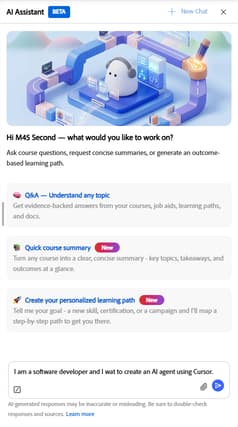
Select AI Assistant from your home page.
-
Type your learning goal in the text field. Be as specific as you can. For example:
- I am a software developer and I want to create an AI agent using Cursor.
- I just got promoted to a manager role and want to learn how to handle difficult conversations.
- I want to master financial modeling as an analyst.
-
Optionally, select + New chat to start a fresh conversation if you have previous sessions open.
Notes:
- Optionally, attach a document using the paperclip icon, such as a resume, a manager feedback email, or a project brief. The agent uses the document to get more context about your lrarning goal and background.
- Select Send.
Describe your goal and background
The agent responds with a message acknowledging your goal and asks for additional context to tailor your path. It typically asks about:
- Your current role and background what you already know, how long you have been in your role, or any relevant experience.
- Your specific challenges or scenarios the real-world situations you need this learning to address immediately.
- Your time commitment the number of hours per week you can realistically dedicate to learning.
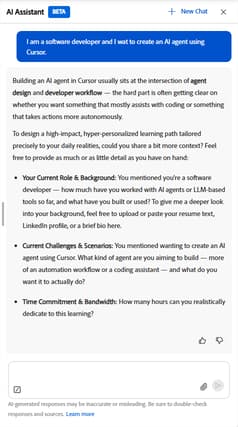
You do not need to answer every question. The only required input is your learning goal or challenge. The agent will proceed with whatever context you provide.
Type your response and select Send.
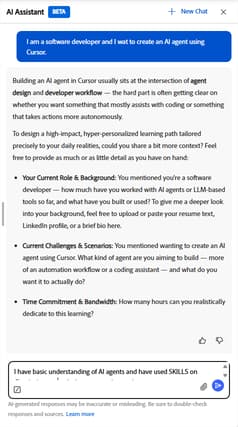
Continue the conversation until the agent presents your suggested topics.
Review the suggested topics
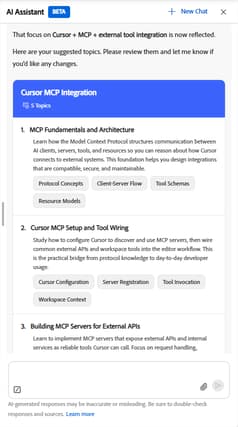
From your answers, the agent identifies 3–5 learning topics. You can review these topics, request changes, or confirm them before the agent searches for matching courses. The agent then generates a named learning path showing each course, its description, duration, and module count. You can adjust the path further before saving it.
- Review the suggested topics to make sure they align with your learning goal.
- To adjust the topics, type your feedback in the chat. You can ask the agent to add, remove, or replace a topic.
- If you are satisfied with the suggested topics, confirm them by replying in the chat or selecting the suggested confirmation prompt if one appears.
Review the learning path
The agent searches the available catalog and builds a named learning path. The path shows:
- The path name and total estimated duration
- Each course title, description, duration, and module count
- An indication if some topics had no matching content available
If some topics have no matching content:
The agent informs you that it could not find courses for those specific topics and suggests reaching out to your administrator to request content for those areas. The path is still generated for the topics where courses were found.
When you are satisfied with the path, ask the agent to save it by typing save the learning path.
Adjust your learning path before saving
Before you save your path, you can ask the agent to add, remove, or replace a course. Describe the change in plain language. The agent updates only the course you mention. The rest of your path stays the same.
For example:
- I’ve already completed the second course. Remove it.
- Add a course on [topic]. I don’t see one in the list.
- The fourth course looks too advanced. Can you replace it with something more fundamental?
The agent applies your change and shows you the updated path. Continue adjusting until you are satisfied, then save the path.
If your request is unclear, the agent asks a clarifying question before making a change. If no suitable replacement exists for a course you want to swap out, the agent explains why and suggests the closest matching course instead.
Save and access your Learning Path
When you save the path, the agent confirms the save and enrolls you automatically in all courses within the path.
To access your path:
- Select Go to the Learning Path from the confirmation message to open it immediately, or
- Find it in the Personalized Learning Paths strip on your home page at any time.
Share your Learning Path
From the path overview page, you can share your saved path with colleagues.
- Open your saved path from the Personalized Learning Paths strip on your home page.
- Select Share.
- Share the generated link, or enter email addresses to send a direct invitation.
A colleague who receives the shared link can enroll in the path with a single action.
Best practices
- Provide context about your role and current challenges. The more specific you are, the more relevant the course selection.
- Mention your weekly time commitment in natural language. The agent will confirm its interpretation before generating the path.
- Review the suggested topics before asking for path generation. Adjusting topics at that stage is faster than revising the course list afterward.
- If the generated path includes courses you have already completed, let the agent know. It can suggest alternatives.
Frequently asked questions
Where do I find my saved personalized learning paths?
All your saved paths appear in the Personalized Learning Paths strip on your home page. Each card shows the path name and a Continue button. You can also open any path from there to see its full course list and your progress.
How many personalized learning paths can I save?
The Personalized Learning Paths strip on your home page shows a maximum of 20 paths.
What information should I provide to get a relevant Learning Path?
At minimum, describe your learning goal or the specific challenge you are trying to address. The more context you provide, the better the path. Useful information includes your current role, how long you have been doing it, any relevant prior experience, and how many hours per week you can realistically dedicate to learning.
What happens if the agent cannot find matching courses for my topics?
The agent tells you directly in the conversation that it could not find matching courses for one or more of your topics. It generates the path using only the topics where courses were available.
If the agent cannot find courses for any of your topics, it will inform you that it is unable to create a path for that goal. In either case, reach out to your learning administrator and let them know which topics had no content available. They can add relevant courses to the catalog so future path requests are covered.
Can I adjust the topics in my learning path?
Yes. During the conversation, you can ask the agent to add, remove, or change topics before the path is generated. The agent will update the topic list and regenerate the path to match.
Can I change the individual courses in a generated path?
Yes. Before saving the path, you can ask the agent to add, remove, or replace a course using natural language. For example, “remove the second course” or “replace the fourth course with something more fundamental.” The agent updates only the course you mention and leaves the rest of the path unchanged…
If you want a broader change across several topics, it’s faster to adjust your topics before the agent generates the path, since course selection is based on the topics you confirm.
What happens if I try to add a course but my path is already full?
A learning path can include a maximum of five courses. If you ask to add a new course while the path is full, the agent asks which existing course you want to replace with the new one.
Why does the agent keep asking follow-up questions?
The agent needs enough clarity about your learning goal to identify relevant topics. If your initial message was broad, such as “I want to learn marketing”, it will ask questions to narrow the scope. Providing more specific details about your role, the challenges you face, and what you want to be able to do after learning will help the agent move to topic generation faster.