Discover and engage with Channels (Beta)
Channels help Learners discover and access video-based informal learning content curated in web and Cloud Confluence pages within the Adobe Learning Manager. Administrators create channels by connecting them to enterprise web pages or Cloud Confluence pages that host recorded knowledge-sharing and knowledge-transfer sessions.
Instead of searching across multiple internal sites, you can browse channel content directly in Learning Manager. Channels provide a centralized location to discover relevant videos, stay informed about new content, and engage with your organization’s self-paced learning resources.
Key benefits
- Access video content from enterprise web pages and Cloud Confluence pages in one place.
- Discover learning resources without navigating multiple internal websites.
- Subscribe to channels to stay informed when new content is added.
- Watch and like videos directly within Adobe Learning Manager.
- Participate in discussions and collaborate with other learners around shared content.
- Explore curated collections of videos relevant to your role and interests.
Find Channels
Use the Channels page to discover new content, access channels you subscribed to, and view videos you have liked.
-
Log in to Adobe Learning Manager.
-
Select Channels from the top navigation bar.
note NOTE If you are unable to view Channels tab in the navigation bar, contact your Administrator. The Channels page opens with the All tab displayed by default.
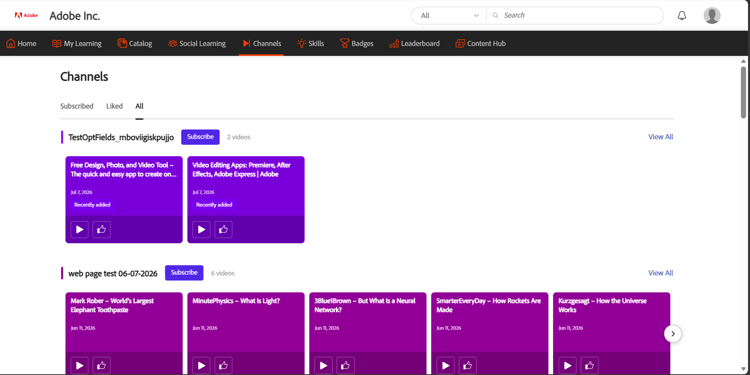
The All tab of the Channels page, where you discover and subscribe to available channels.
-
Use the following tabs to browse channel content:
table 0-row-2 1-row-2 2-row-2 3-row-2 Tab Description All Displays all channels available to you. Use this tab to discover and subscribe to new channels. Subscribed Displays only the channels that you have subscribed to. Liked Displays all videos that you have liked across channels. -
Select View All for a channel to view all videos available in that channel.
Subscribe to a channel
Subscribe to channels to quickly access the content that is most relevant to you and stay updated when new videos are added.
-
In the All tab, navigate to the channel that you want to subscribe to.
-
Select the Subscribe button.
The channel is added to the Subscribed tab.
-
Select the Subscribed tab.
This displays all channels that you have subscribed to.
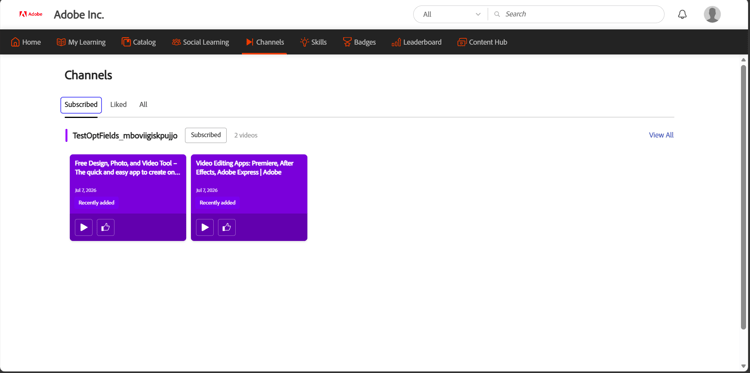
Your subscribed channels collected under the Subscribed tab for quick access.
Unsubscribe from a channel
If you no longer want to follow a channel, select the Subscribed button again. The channel is removed from your Subscribed tab and remains available under the All tab, where you can access it at any time.
Watch a video
Watch videos from your organization’s channels to access curated knowledge-sharing and learning content.
To watch a video, navigate to a channel and select the video thumbnail or play icon. On the video details page, select the Watch Video button to open and play the video.
Like a video
Like videos to save them to your Liked tab and quickly find them later.
To like a video, select the Like button on a video card or on the video details page. The like count is updated, and the video is added to your Liked tab for easy access.
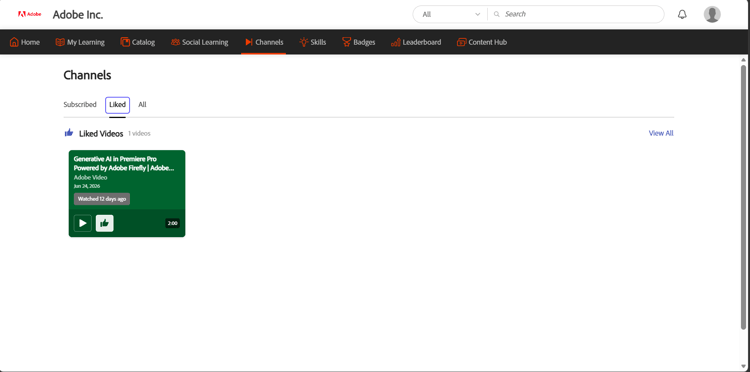
The Liked tab, where videos you like are saved so you can find them later.
Join the discussion
Use the discussion on each video to share insights, give feedback, and ask questions. Each video has its own discussion thread.
To post a comment:
-
Open the video that you want to discuss.
-
Navigate to the Start discussion section.
-
Enter your comment in the Add a comment box.
-
Select Post.
The comment is added to the discussion thread and is visible to other learners who view the video.
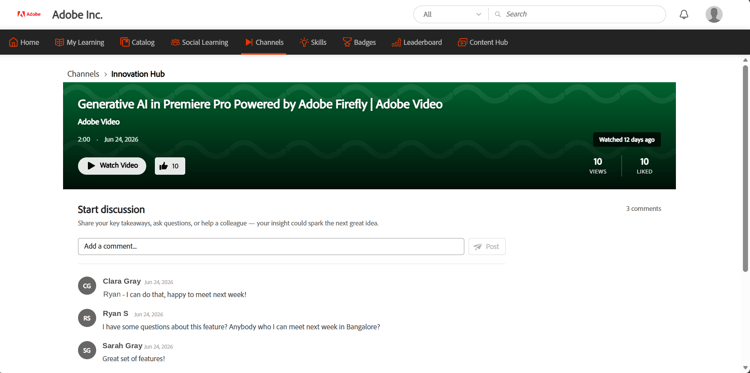
Watch a video, view its like and view counts, and join the discussion from the video details page.