Embeddable fluidic player
Read this article to learn how to embed the fluidic player in a custom application.
As an enterprise, you can now provide a custom experience for your learners even outside Learning Manager. Using the public API, you can fetch all the information related to learning objects, learners’ enrollments and learning progress and display them on your website. More importantly, you can even embed the fluidic player of Learning Manager in your website, so that the learner can consume the content right within your website. The fluidic player gives you the power to play any content that Learning Manager supports. When embedded on your own website, it has the exact same capabilities as when used within Learning Manager.
The Fluidic player plays virtually any type of eLearning content in the same consistent and intuitive manner without requiring any plugins, or downloads. The learner can launch the content and irrespective of the contents file type, it starts playing.
Notes and Bookmarking
You can take notes and bookmark any content irrespective of its file type. If you want to make a certain selection from a long file or video, you can bookmark the very points where you have found the information that is relevant to your needs. The notes and bookmarks can be searched or sent as email. Clicking on them lands you in the fluidic player exactly at that point of the video, or page of the document.
For more information on fluidic player, see Fluidic player.
Here are some examples of where you can use the embeddable fluidic player.
-
You can use the embeddable fluidic player in your** **website to list down the enrolled courses of your employee and also provide a link to launch a training on the same page. This would mean that your learners can consume trainings on your intranet website.
-
If you are in the business of training, you may perhaps have a website where your customers purchase courses. You can integrate the embeddable player with the same website so that your customers can consume the content they buy within your website.
Steps to embed fluidic player in your website stepstoembedfluidicplayerinyourwebsite
Building a custom application for embedding fluidic player in your website involves three basic steps:
- Create an application in integration admin app of Learning Manager.
- Retrieve Access token.
- Use access token to retrieve resources from Learning Manager using public API.
1. Create an application in integration admin createanapplicationinintegrationadmin
This step is required to create an application/client id and application/client secret which is used to retrieve refresh token and access token. For more information on creating an application, see Application development process.
-
Go to IntegrationAdmin app and open Applications.
-
Select Register from the top right corner of the page.
-
The Register a new application window opens. Fill in the required fields.
-
If custom application needs to be shared across multiple accounts, select No in the option field For this account only?
-
To save the application and generate your application id and secret, click Save.
2. Retrieving access token retrievingaccesstoken
As Learning Manager uses OAUTH2.0., access token is required to retrieve resources using public API. Access token can be fetched using refresh token, client id, or client secret.
2.1 Refresh token
- Retrieve OAuth Code
OAuth code is required to retrieve refresh token. Learning Manager redirects the user to the redirection URL with the OAuth code when signed-in using the below url (OAuth code extraction is exemplified in the “oauthredirect.html” file in the sample application):
code https://learningmanager.adobe.com/oauth/o/authorize
client_id= <application_id>
&redirect_uri=<redirect_uri>
&state=<dummy_data>
&scope=learner:read,learner:write
&response_type=CODE
&account=<account_id>
&email=<email_id>
Here, client id is the application id obtained in step 1.
redirect_url is the redirect_url set in step 1.
state is any dummy data based on which we need to filter redirect URL to get OAuth code. Scope is learner scope set in Step 1.
response_type is always “CODE”.
accountis an optional field
email is an optional field
* If both account id and email are provided, the above URL will allow the user to log in to the same account. This endpoint example is depicted in “index.html” file in the sample application.
- Retrieve Refresh Token
Once OAuth code is received, refresh token can be retrieved using the received OAuth code, client id, and client secret from the below endpoint:
https://learningmanager.adobe.com/oauth/token
As a response to your post request, you will receive the following:
i. refresh_token
ii. access_token
iii. user_id
iv. expires_in
v. user_role
vi. account_id
2.2 Retrieving access token from refresh token
To retrieve your access token, send another request with your refresh_token, client_id, and client_secret as a post body to the below URL:
https://learningmanager.adobe.com/oauth/token/refresh
As a response to your post request, you will receive the following:
i. refresh_token
ii. access_token
iii. user_id
iv. expires_in
v. user_role
vi. account_id
3. Retrieve resources using public api retrieveresourcesusingpublicapi
As the third step, you need to use the access token to retrieve resources from Learning Manager using public api . Access token is required to make any public api call and is required to be added in the header as exemplified in the sample application.
Embeddable player embeddableplayer
Third-party applications can make use of embeddable player to play the content of a learning object.
Open a course in embeddable player
-
Create an embeddable URL
To open a course using embeddable player, you need to create an embeddable URL as shown below:
https://learningmanager.adobe.com/app/player?lo_id=<v2-api course id>&access_token=<access_token>Here, lo_id needs to comply with the V2 API course id format.
Example:
https://learningmanager.adobe.com/app/player?lo_id=course:123456&access_token=45b269b75ac65d6696d53617f512450fCertifications, learningPrograms , and jobAids can also be played in the embeddable player.
Examples:
https://learningmanager.adobe.com/app/player?lo_id=certification:12345&access_token=c1a4847dfbf4007826a027d481b93c1ehttps://learningmanager.adobe.com/app/player?lo_id=learningProgram:12345&access_token=c1a4847dfbf4007826a027d481b93c1ehttps://learningmanager.adobe.com/app/player?lo_id=jobAid:1234&access_token=c1a4847dfbf4007826a027d481b93c1e -
Set this URL in the “src” attribute of iframe.
Closing embeddable player
code window.addEventListener("message", function closePlayer(){
   if(event.data === "status:close"){
     //handle closing event
   }
});
Sample application tutorial sampleapplicationtutorial
The attached pdf document contains a sample application tutorial.
Sample tutorial and tutorial source to embed fluidic player. Alternative contents
If you are an administrator, you can set up your course material in a way that you can offer alternative content to your learners within the fluidic player. For example, if you have learners across geographies who might want to use multiple languages, you can create the same content in multiple languages. The fluidic player will offer the learner the language that they might be set up for, but the learner also has the choice to switch to alternative language right from within the player.
Video specific controls
The streaming technology used by Learning Manager fluidic player, offers video playback experience to its learners without any delays in starting the video, and no requirements for disk space on any device. The fluidic player also offers smart controls like play back speed (1x, 1.5X), and skip ±10 seconds, which are designed to give the learner the exact level of control they need to match their speed of learning.
This is an effort that needs to be undertaken by someone from your IT team or an external consultant that can build an application that is then hosted on your site.
-
Modify the Learning Manager embedded player URL with parameters which point to the exact learning object that needs to be taken.
-
Use any one of these parameters to launch a course:
- course_id : This is the id of course to launch
- learning_program_id : This is the id of learning program to launch
- certification_id : This is the id of certification to launch
- lo_id : The id of the learning object( course/learning program/certification/job aid) to play
-
Use access token as a mandatory parameter.
- access_token : This is the security parameter, use the public API oauth access token
You can get your token by setting up your embeddable fluidic player in your integration admin. You can get your authentication token which you can be used as your access token.
Example of created URL;
https://learningmanager.adobe.com/app/player?lo_id="+lo_id+"&access_token="+accTokenHere, lo_id will be the id of the course, learning Program, certification and jobAid .
Examples of lo_id - course:21324, learningProgram:2143, certification:23432, jobAid:237
-
Make Learning Manager API calls to retrieve the above-mentioned parameters.
These API calls are to be made by the application that your IT team/consultant would write and host on your site.
More details on using the API can be found here:
Learning Manager V1 API - https://learningmanager.adobe.com/docs/primeapi/v1/
Learning Manager V2 API - https://learningmanager.adobe.com/docs/primeapi/v2/
The IDs of the objects differ from the V1 and the V2 API. The embeddable player expects IDs in the v2 format. Use the ID-mapping API in V2 to convert from V1 IDs to V2 IDs.
After constructing the URL, one way the application would use it for displaying to the learner is by putting it inside an iFrame. Clicking on this link would lead to the fluidic player being launched with the particular course in context.
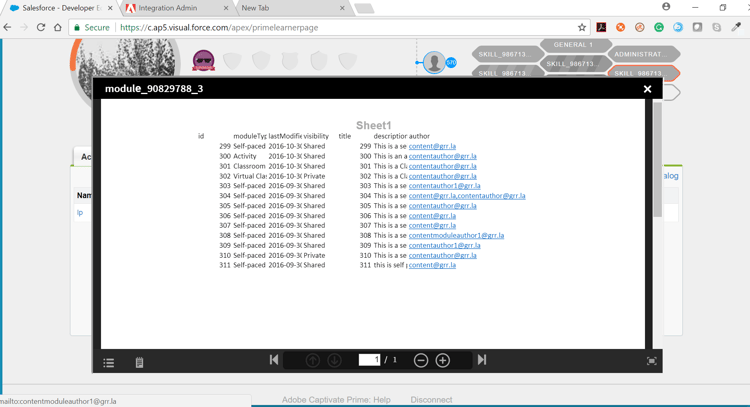
To check progress and completion reports, log in to Learning Manager.
When the learner closes the Player, the fluidic player will send a “close” message to the parent element using html5 postMessage. The loading controller should handle this message and proceed.
Modify the Learning Manager embedded player URL with parameters which point to the exact learning object that needs to be taken.
URL: https://learningmanager.adobe.com/app/player
Any one of these parameters can be used to launch a course:
- course_id : This is the id of course to launch
- learning_program_id : This is the id of learning program to launch
- certification_id : This is the id of certification to launch
- lo_id : The id of the learning object( course/learning program/certification/job aid) to play
Mandatory parameter:
- access_token : This is the security parameter, use the public API oauth access token
Make Learning Manager API calls to retrieve the above-mentioned parameters. These API calls are to be made by the application that your IT team/consultant would write and host on your site.
More details on using the API can be found here:
Learning Manager V1 API - https://learningmanager.adobe.com/docs/primeapi/v1/
Learning Manager V2 API - https://learningmanager.adobe.com/docs/primeapi/v2/