Zoom connector in Adobe Learning Manager
Introduction
The Zoom Connector in Adobe Learning Manager allows seamless integration with Zoom to deliver live virtual classroom sessions. With this integration, instructors can host Zoom meetings directly from Learning Manager, enroll learners, and track attendance and completion data. Learners receive automatic invites and can join sessions through their Adobe Learning Manager accounts. After the session, attendance and performance data are synced back to Adobe Learning Manager for reporting and tracking.
Set up the Zoom connector
To configure the Zoom Connector:
-
Log in to Adobe Learning Manager as an integration administrator.
-
Hover over the Zoom tile.
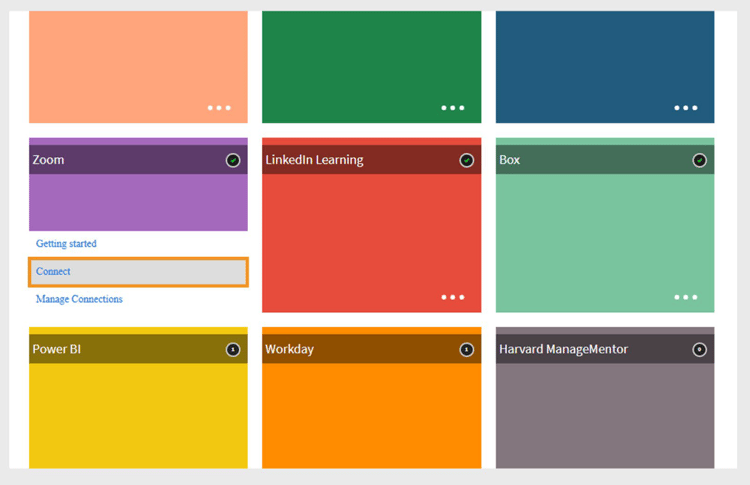
Configure Zoom Connector in Adobe Learning Manager -
Select Connect. The Zoom connector setup page opens.
-
Type the following account details in the respective fields. You can get these credentials from your Zoom account administrator:
- Connection Name
- Zoom Account ID
- Client Id
- Client Secret
- Super Admin Email address
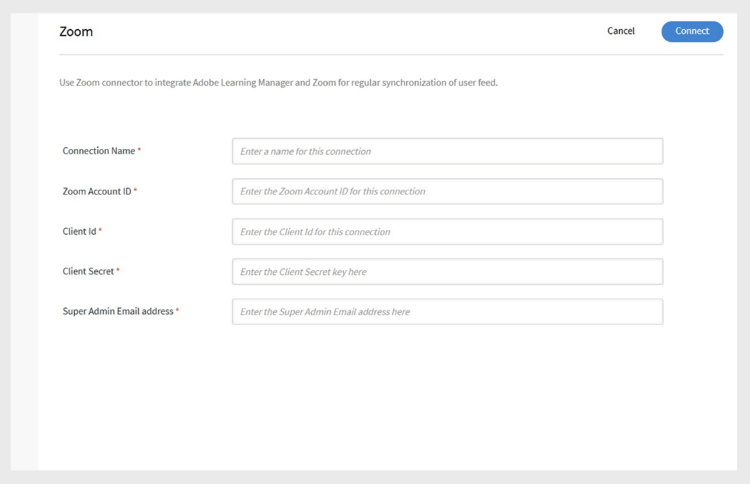
Type the configuration details to set up the Zoom connector -
Select Connect to establish the integration.
Create Zoom courses
Once the connection is established:
- Log in as an Author and create a new Virtual Classroom course.
- Select Zoom as the conferencing system during course creation.
- Assign learners to the course via administrators, managers, or through self-enrollment.
- Upon enrollment, learners receive an email with course details.
- Learners can log in to their Adobe Learning Manager account to access the course and join the Zoom session.
Track attendance and completion
After the virtual session ends:
- Adobe Learning Manager automatically receives the completion status from Zoom.
- Administrators can view attendance and scoring reports in Adobe Learning Manager to track learner participation and performance.
Create a Zoom server-to-server OAuth app
To use the Zoom Connector with Adobe Learning Manager, you must create a Zoom Server-to-Server OAuth app and configure the required scopes.
Required OAuth scopes
When creating the application in Zoom, ensure the following scopes are selected:
meeting:read:meeting:admin, meeting:read:list_meetings:adminmeeting:update:meeting:admin, meeting:delete:meeting:admin, meeting:write:meeting:adminreport:read:meeting:admin, report:read:user:admin (Pick the one matching your endpoint.)user:read:user:admin, user:read:list_users:adminuser:update:user:admin, user:write:user:adminmeeting:write:registrant:adminmeeting:read:list_registrants:adminmeeting:write:meeting:masterreport:read:list_meeting_participants:admin