Workday connector in Adobe Learning Manager
Introduction
Workday is a cloud-based system that helps organizations manage employees and financial data. It’s mainly used for HR tasks like hiring, payroll, and performance tracking. When connected with Adobe Learning Manager, it allows automatic syncing of user and skill data between the two platforms.
The Workday Connector allows you to seamlessly integrate Adobe Learning Manager with your organization’s Workday tenant. This integration enables automatic synchronization of user data and skills between the two systems, improving data accuracy and reducing manual effort.
Key benefits
- Import users from Workday to Adobe Learning Manager.
- Map attributes between Workday and Adobe Learning Manager.
- Export user skills from Adobe Learning Manager to Workday.
- Schedule data sync tasks to run automatically.
Prerequisites
Before configuring the Workday connector, obtain the following details from your Workday administrator:
- Host URL
- Tenant ID
- Username
- Password
Configure the Workday connector
You can configure the Workday connector in Adobe Learning Manager to allow you to import user data from Workday, export user skills back to Workday, and schedule automated syncs to keep both systems up to date.
To configure Workday connector:
-
Log in to Adobe Learning Manager as an integration administrator.
-
Hover over the Workday tile and select Connect.
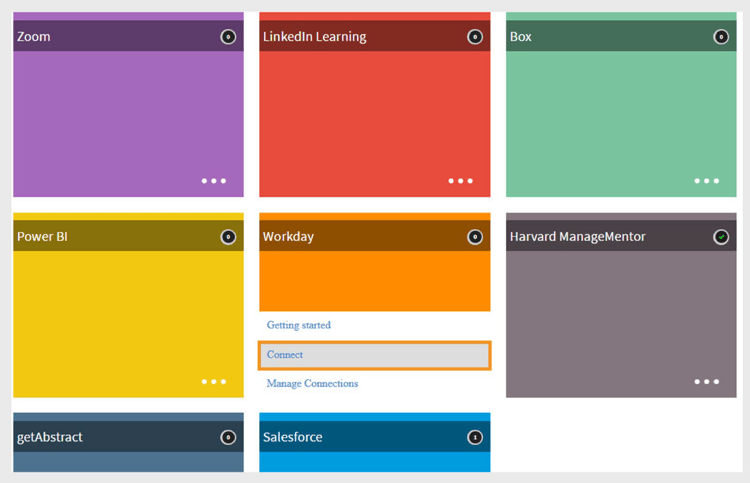
Configure Workday connector to import and export the data -
Type the following connection details:
- Connection name: A name of your choice for the connection.
- Host Url: Provided by your Workday Admin.
- Tenant: Internal identifier from your Workday Admin.
- Username and Password: The Workday admin creates an integrated system user (ISU) with the required security privileges and shares it with the integration admin.
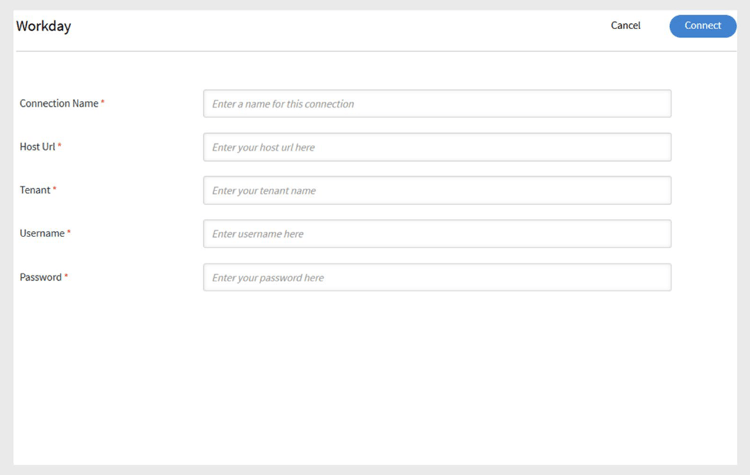
Add the necessary details to configure Workday connector -
Select Connect to complete the setup.
Import users from Workday
Map attributes
You can use the Workday connector to import active users from your Workday tenant into Adobe Learning Manager. This integration streamlines user management by keeping employee records in sync. In addition to Workday, Adobe Learning Manager also supports user imports from other data sources such as FTP and Salesforce.
Before importing users, you must map user attributes between Workday and Learning Manager.
-
Navigate to the Overview page in the Workday Connector.
-
Select Internal Users under the Import section.
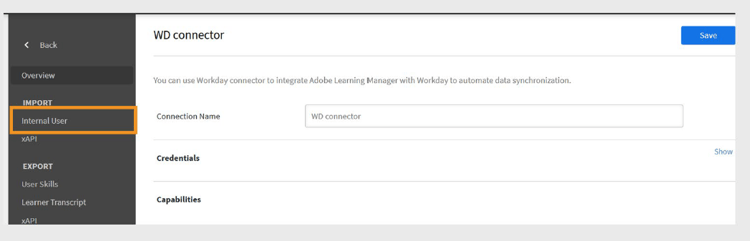
Select Internal Users to map the user attributes -
Use the Map Attributes option to link fields between the two systems:
- In the Adobe Learning Manager column, select the corresponding Adobe Learning Manager attribute.
- In the Workday column, use the drop-down menu to select the matching Workday attribute.
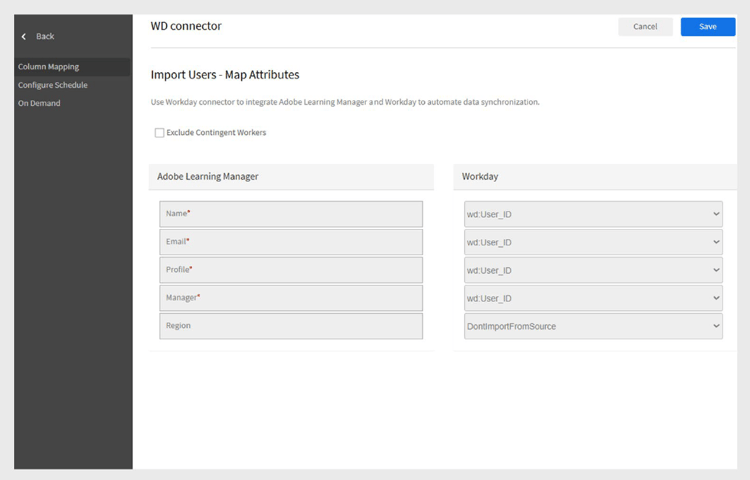
Mapping the Workday attributes with Adobe Learning Manager fieldsnote NOTE Adobe Learning Manager currently supports importing up to 69 user attributes from Workday. You can enable additional fields using the Active Fields feature in Adobe Learning Manager. To add custom Workday attributes, contact your Customer Success Account Manager (CSAM). -
Select the Exclude Contingent Workers checkbox to avoid importing temporary workers.
-
Apply filters if needed, for example, to import users under specific managers.
Supported Workday attributes
List of supported Workday attributes:
wd:User_ID wd:Worker_ID manager wd:Personal_Data.wd:Name_Data.wd:Preferred_Name_Data.wd:Name_Detail_Data.@wd:Formatted_Name wd:Personal_Data.wd:Name_Data.wd:Legal_Name_Data.wd:Name_Detail_Data.@wd:Formatted_Name wd:Personal_Data.wd:Name_Data.wd:Legal_Name_Data.wd:Name_Detail_Data.wd:Prefix_Data.wd:Title_Descriptor wd:Personal_Data.wd:Name_Data.wd:Preferred_Name_Data.wd:Name_Detail_Data.wd:Prefix_Data.wd:Title_Descriptor wd:Personal_Data.wd:Name_Data.wd:Preferred_Name_Data.wd:Name_Detail_Data.wd:First_Name wd:Personal_Data.wd:Name_Data.wd:Preferred_Name_Data.wd:Name_Detail_Data.wd:Last_Name wd:Personal_Data.wd:Name_Data.wd:Legal_Name_Data.wd:Name_Detail_Data.wd:First_Name wd:Personal_Data.wd:Name_Data.wd:Legal_Name_Data.wd:Name_Detail_Data.wd:Last_Name wd:Personal_Data.wd:Contact_Data.wd:Address_Data.0.@wd:Formatted_Address wd:Personal_Data.wd:Contact_Data.wd:Address_Data.0.wd:Postal_Code wd:Personal_Data.wd:Contact_Data.wd:Email_Address_Data.0.wd:Email_Address wd:Personal_Data.wd:Contact_Data.wd:Address_Data.0.wd:Country_Region_Descriptor wd:Personal_Data.wd:Contact_Data.wd:Phone_Data.0.@wd:Formatted_Phone wd:Personal_Data.wd:Contact_Data.wd:Phone_Data.0.wd:Country_ISO_Code wd:Personal_Data.wd:Contact_Data.wd:Phone_Data.0.wd:International_Phone_Code wd:Personal_Data.wd:Contact_Data.wd:Phone_Data.0.wd:Phone_Number wd:Personal_Data.wd:Primary_Nationality_Reference.wd:ID.1.$ wd:Personal_Data.wd:Gender_Reference.wd:ID.1.$ wd:Personal_Data.wd:Identification_Data.wd:National_ID.0.wd:National_ID_Data.wd:ID wd:Personal_Data.wd:Identification_Data.wd:Custom_ID.0.wd:Custom_ID_Data.wd:ID wd:User_Account_Data.wd:Default_Display_Language_Reference.wd:ID.1.$ wd:Role_Data.wd:Organization_Role_Data.wd:Organization_Role.0.wd:Organization_Role_Reference.wd:ID.1.$ wd:Employment_Data.wd:Worker_Job_Data.0.wd:Position_Data.wd:Position_Title wd:Employment_Data.wd:Worker_Job_Data.0.wd:Position_Data.wd:Business_Title wd:Employment_Data.wd:Worker_Job_Data.0.wd:Position_Data.wd:Business_Site_Summary_Data.wd:Name wd:Employment_Data.wd:Worker_Job_Data.0.wd:Position_Data.wd:Business_Site_Summary_Data.wd:Address_Data.@wd:Formatted_Address
wd:Employment_Data.wd:Worker_Job_Data.0.wd:Position_Data.wd:Job_Classification_Summary_Data.0.wd:Job_Classification_Reference.wd:ID.1.$ wd:Employment_Data.wd:Worker_Job_Data.0.wd:Position_Data.wd:Job_Classification_Summary_Data.0.wd:Job_Group_Reference.wd:ID.1.$ wd:Employment_Data.wd:Worker_Job_Data.0.wd:Position_Data.wd:Work_Space__Reference.wd:ID.1.$ wd:Employment_Data.wd:Worker_Job_Data.0.wd:Position_Data.wd:Job_Profile_Summary_Data.wd:Job_Family_Reference.0.wd:ID.1.$ wd:Employment_Data.wd:Worker_Job_Data.0.wd:Position_Data.wd:Job_Profile_Summary_Data.wd:Job_Profile_Name wd:Employment_Data.wd:Worker_Job_Data.0.wd:Position_Data.wd:Job_Profile_Summary_Data.wd:Job_Profile_Reference.wd:ID.1.$ wd:Employment_Data.wd:Worker_Job_Data.0.wd:Position_Data.wd:Business_Site_Summary_Data.wd:Address_Data.0.wd:Country_Reference.wd:ID.2.$ wd:Employment_Data.wd:Worker_Job_Data.0.wd:Position_Data.wd:Worker_Type_Reference.wd:ID.1.$ wd:Employment_Data.wd:Worker_Job_Data.0.wd:Position_Data.wd:Business_Site_Summary_Data.wd:Address_Data.0.@wd:Formatted_Address wd:Employment_Data.wd:Worker_Job_Data.0.wd:Position_Data.wd:Job_Profile_Summary_Data.wd:Management_Level_Reference.wd:ID.1.$ wd:Employment_Data.wd:Worker_Status_Data.wd:Active wd:Employment_Data.wd:Worker_Status_Data.wd:Active_Status_Date wd:Employment_Data.wd:Worker_Status_Data.wd:Hire_Date wd:Employment_Data.wd:Worker_Status_Data.wd:Original_Hire_Date wd:Employment_Data.wd:Worker_Status_Data.wd:Retired wd:Employment_Data.wd:Worker_Status_Data.wd:Retirement_Date wd:Employment_Data.wd:Worker_Status_Data.wd:Terminated wd:Employment_Data.wd:Worker_Status_Data.wd:Termination_Date wd:Employment_Data.wd:Worker_Status_Data.wd:Termination_Last_Day_of_Work wd:Organization_Data.wd:Worker_Organization_Data.0.wd:Organization_Data.wd:Organization_Code wd:Organization_Data.wd:Worker_Organization_Data.0.wd:Organization_Data.wd:Organization_Name wd:Organization_Data.wd:Worker_Organization_Data.0.wd:Organization_Data.wd:Organization_Type_Reference.wd:ID.1.$ wd:Organization_Data.wd:Worker_Organization_Data.0.wd:Organization_Data.wd:Organization_Subtype_Reference.wd:ID.1.$ wd:Qualification_Data.wd:Education.0.wd:School_Name wd:Qualification_Data.wd:External_Job_History.0.wd:Job_History_Data.wd:Job_Title wd:Qualification_Data.wd:External_Job_History.0.wd:Job_History_Data.wd:Company wd:Management_Chain_Data.wd:Worker_Supervisory_Management_Chain_Data.wd:Management_Chain_Data.0.wd:Manager.Employee_ID Primary Work Email wd:Organization_Type_Reference_Cost_Center_ID wd:Organization_Type_Reference_Cost_Center_Name wd:Organization_Type_Reference_Company wd:Organization_Subtype_Reference_Department
wd:Organization_Subtype_Reference_Division wd:Universal_ID wd:Employment_Data.wd:Worker_Job_Data.0.wd:Position_Data.wd:Business_Site_Summary_Data.wd:Address_Data.0.wd:Country_Region_Descriptor wd:Employment_Data.wd:Worker_Job_Data.0.wd:Position_Data.wd:Business_Site_Summary_Data.wd:Address_Data.0.wd:Country_Region_Reference.wd:ID.2.$ wd:Personal_Data.wd:Contact_Data.wd:Address_Data.0.wd:Municipality
Export user skills to Workday
You can export all active user skills from Adobe Learning Manager to Workday. Retired skills are not exported.
- Do not attempt to export skills from multiple Adobe Learning Manager accounts to the same Workday account simultaneously.
- If multiple Adobe Learning Manager accounts use the same Workday account, ensure skill names are consistent across accounts to avoid conflicts.
Configure a scheduled export
To configure the scheduled exports:
-
Select User Skills and then select Configure Schedule in the Workday Overview page.
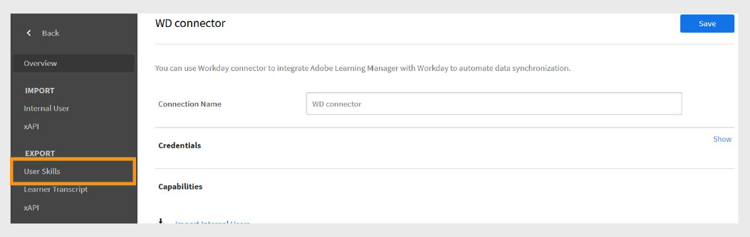
Select User Skills to schedule the export -
Select the Enable user-skill export using this connection checkbox.
-
Select Enable schedule.
-
Set the start date, time, and recurrence interval.
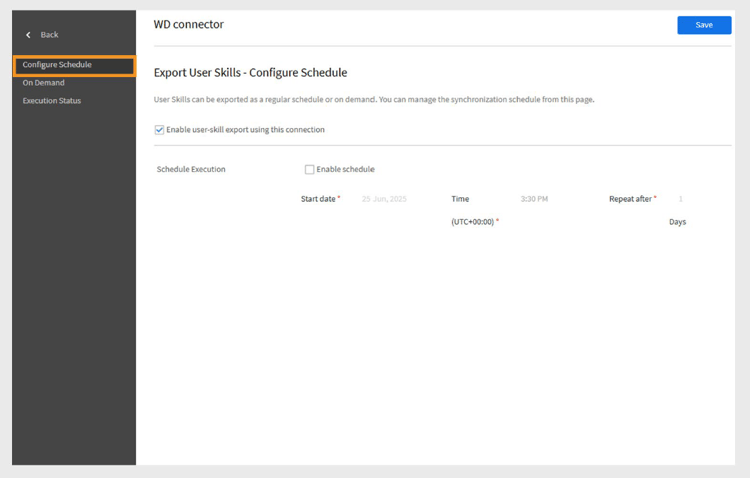
Configure the schedule export in the Workday connector -
Select Save to apply the schedule.
On demand export
To create on-demand exports:
- Select On Demand in the Workday Overview page.
- Type the start date from which the report should begin.
- Select Execute to run the report.
View execution status
- Go to Execution Status.
- View the status of all tasks and download error reports as needed.
Scheduling sync tasks
You can configure the connector to run data sync tasks automatically:
- Schedule daily user imports from Workday to Learning Manager.
- Schedule periodic exports of user skills to Workday.
Points to Remember
- The UUID field populated from Workday cannot be deleted by client-facing LMS Admins.
- The User Purge function only supports up to 50 users per run. Be cautious when importing users with UUIDs.
- Skills are mapped at the skill item level in Workday, using the skill name and level from Adobe Learning Manager.