Salesforce connector for Adobe Learning Manager
Introduction
The Salesforce connector integrates your Salesforce and Adobe Learning Manager (ALM) accounts, enabling automated user import, data synchronization, and learning record exports. This guide explains how to configure the connector, manage user data, and integrate learning insights within Salesforce.
The Salesforce connector for Adobe Learning Manager enables smooth integration by automatically importing users, supporting custom data mapping, and exporting learning records to Salesforce.
By following this guide, you will learn how to:
- Establish secure connections between Salesforce and Adobe Learning Manager.
- Configure automated user import processes from Salesforce.
- Map Salesforce fields to Adobe Learning Manager attributes effectively.
- Export learning records back to Salesforce for comprehensive reporting.
- Set up filtering and scheduling for targeted data synchronization.
What is the Salesforce Connector?
The Salesforce connector is a powerful integration tool that creates a seamless bridge between your Salesforce CRM and Adobe Learning Manager. This connector eliminates manual data entry by automatically synchronizing user information, contact data, and learning records between the two platforms.
Key capabilities
Attribute mapping
It helps create flexible links between Salesforce fields and Adobe Learning Manager user attributes. You can map standard fields like Name, Email, and Manager to corresponding attributes in Learning Manager. The connector also supports custom fields on both platforms, includes required field validation to maintain data accuracy, and allows you to save mapping configurations for reuse in future imports.
Automated user import
It streamlines user onboarding and maintenance through automated import processes that eliminate manual CSV file management.
- Direct import from Salesforce user objects without intermediate file formats.
- Real-time synchronization of user profile changes.
- Support for both standard users and external contacts.
Auto-schedule imports
Configure automated synchronization schedules that maintain data currency without manual intervention. Select from daily, weekly, or custom interval scheduling options.
- Time zone configuration for global organizations.
- Peak/off-peak scheduling to optimize system performance.
User filter
- Apply filtering criteria to target specific user populations and optimize data synchronization efficiency.
- Role-based filtering for targeted training programs.
- Geographic or location-based filtering for regional implementations
- Custom field filtering using Salesforce criteria and formulas.
Prerequisites
Before configuring the Salesforce connector, ensure your environment meets these requirements:
- Salesforce organization URL
- Admin login credentials for both Salesforce and Adobe Learning Manager.
- System Administrator or equivalent permissions in Salesforce.
- Active Adobe Learning Manager account with appropriate licensing
Configure Salesforce connector
The Salesforce Connector in Adobe Learning Manager allows Integration Administrators to automate the synchronization of user data and learning records between Salesforce and Adobe Learning Manager.
To create a Salesforce connector:
-
Log in as an integration admin.
-
Select Salesforce and then select Connect.
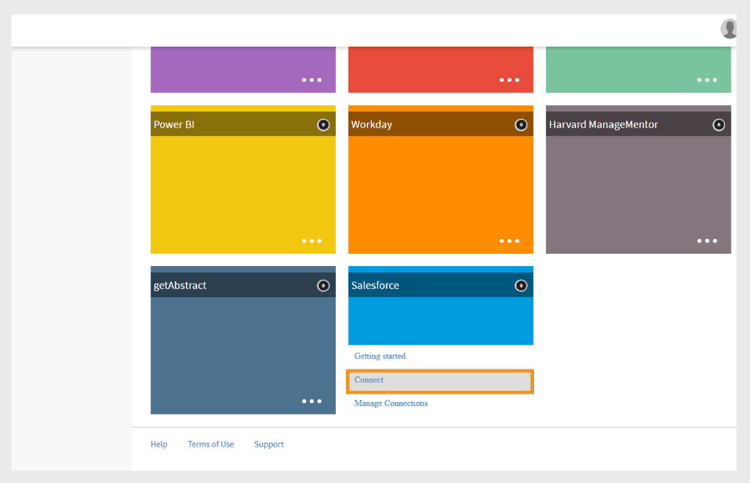
Adobe Learning Manager connectors page showing Salesforce connector with Connect button highlighted -
Type your Salesforce org URL and select Connect. This will take you to the Salesforce login page.
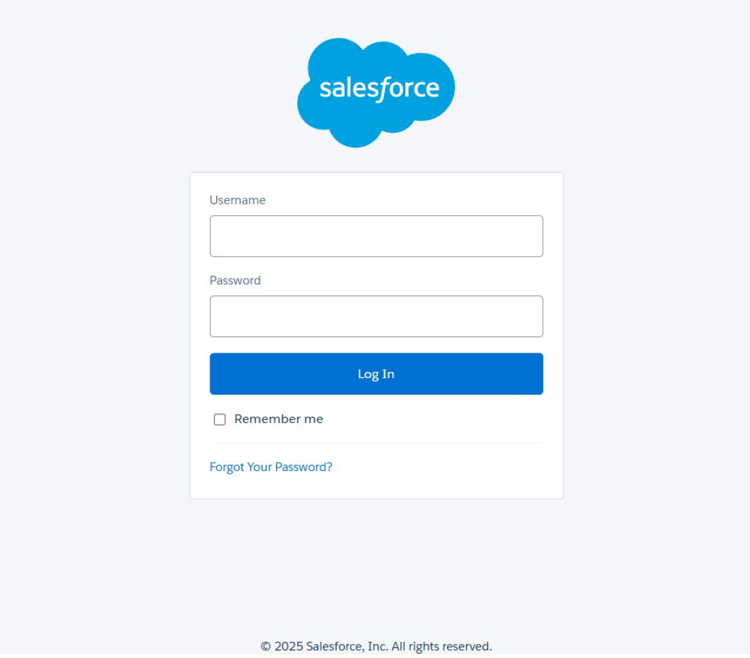
Salesforce login form displaying username and password input fields -
Log in with your username and password. Complete any extra authentication steps, such as twofactor verification or answering security questions.
After successful authentication, the connector overview page appears, confirming the established connection between systems.
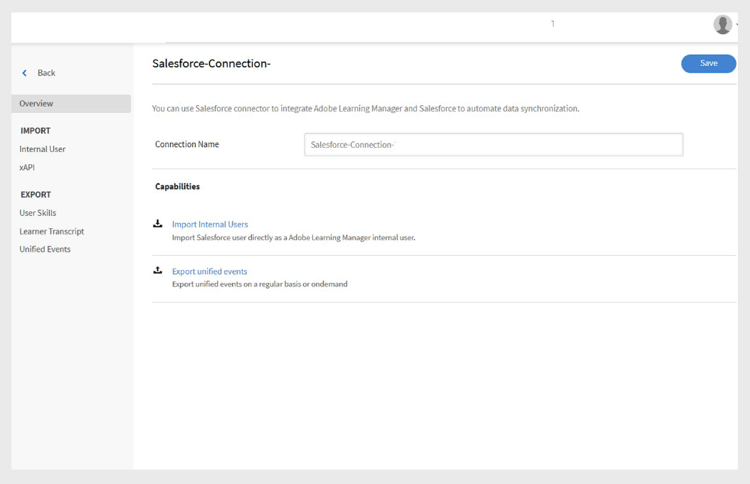
Salesforce connector overview page showing successful connection status
Map attributes
Understanding Attribute Mapping Attribute mapping creates the essential connection between Salesforce data fields and Adobe Learning Manager user attributes, ensuring that user information transfers accurately between systems.
Mapping Requirements
- All required Adobe Learning Manager fields must be mapped to the corresponding Salesforce fields
- Mapping configurations are reusable and persistent across multiple imports
To map the attributes:
-
Navigate to the Salesforce connector overview page.
-
Select Internal Users and then select Configure Mapping.
-
Select one of the following:
- Users: Standard Salesforce accounts used by employees or internal team members
- Contacts: External individuals such as customers, partners, or vendors.
-
Match Adobe Learning Manager’s active fields with Salesforce columns on the mapping page. The Manager field must map to a user manager email field.
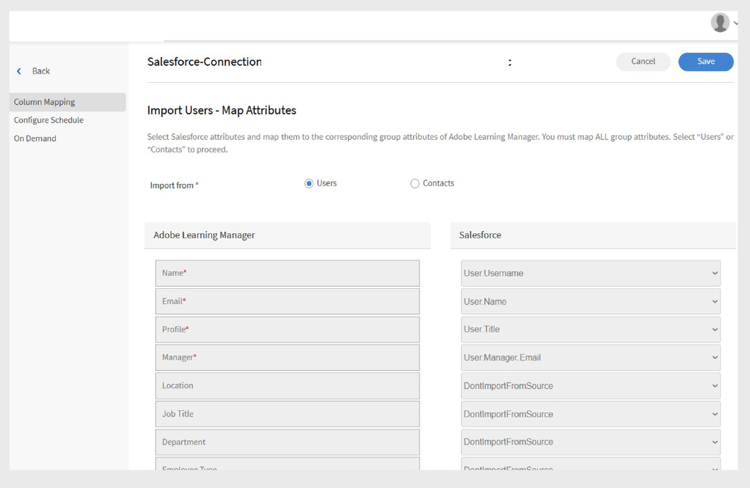
Field mapping interface displaying Adobe Learning Manager user attributes on the left and Salesforce field dropdown selections on the right -
Select Save to complete the mapping.
Import users and contacts
The Salesforce connector allows Adobe Learning Manager to connect with your Salesforce account and automatically import users based on your configuration.
- Internal Users: Employees and staff members with Salesforce user accounts.
- External Contacts: Customers, partners, vendors, and other external stakeholders.
- Mixed Imports: Combination of users and contacts in a single synchronization process.
- Filtered Imports: Targeted synchronization based on specific criteria.
The Salesforce connector allows Adobe Learning Manager to connect with your Salesforce account and automatically import users based on your configuration.
The connector supports importing contacts in addition to standard Salesforce users. This helps extend training programs to external stakeholders, such as clients or partners.
To import contacts:
-
Select Salesforce on the Connectors page.
-
Select Import Internal Users on the connection page.
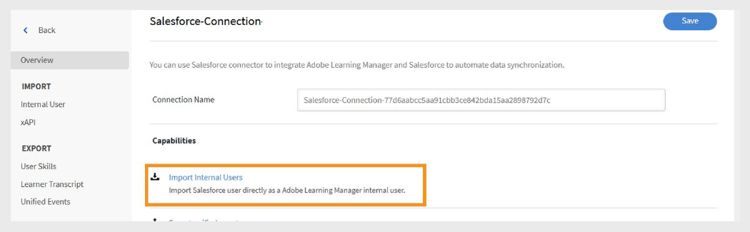
Salesforce connector page with Import Internal Users option highlighted -
Select Contacts on Import Users page.
-
Select Yes for the Filter Contacts before import option. **
-
Configure the following options:
- Choose Contacts column: Select the field that you want to import to Adobe Learning Manager.
- Specify values: Select the values that represent the field selected.
- Map the Salesforce attributes with the Adobe Learning Manager fields
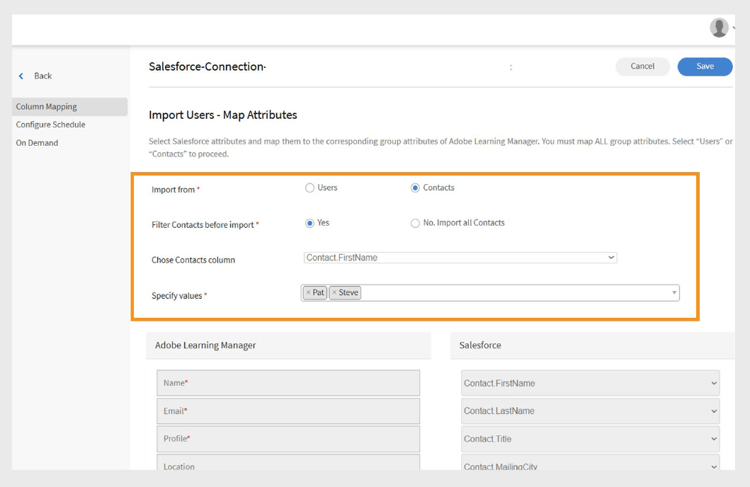
Contact import configuration showing filtering options and field mapping -
Select Save.
-
If you select No. Import all Contacts, you can map the fields directly without filtering the contacts.
Export learning records
The learning record export functionality enables you to share Adobe Learning Manager data with Salesforce, creating comprehensive reporting and analytics capabilities that combine learning outcomes with CRM data.
Custom objects in Salesforce
Before you export learning records from Adobe Learning Manager, create custom objects in Salesforce. Custom objects allow you to store data that is specific to your organization or industry needs. For more information, view Salesforce custom objects.
Install Adobe Learning Manager packages
Adobe provides pre-built packages that create the necessary custom objects:
Package installation process
To install the packages:
- Log in to Salesforce as an administrator.
- Navigate to each package URL in your browser.
- Follow the installation wizard for each package and grant appropriate permissions to users who will access learning data.
- Rename the names of the custom objects in Salesforce.
- Select the events and click Save.
Export records
To export the records to Salesforce:
-
Select Export unified records in the Salesforce connectors page.
-
Select the events from the following:
- New User addition
- Training Enrollment
- Training Completion
- Skill Enrollment
- Skill Completion
-
Select Contact object in the Links event with option. This ensures that users who exist in Adobe Learning Manager but not in Salesforce will be created in Salesforce.
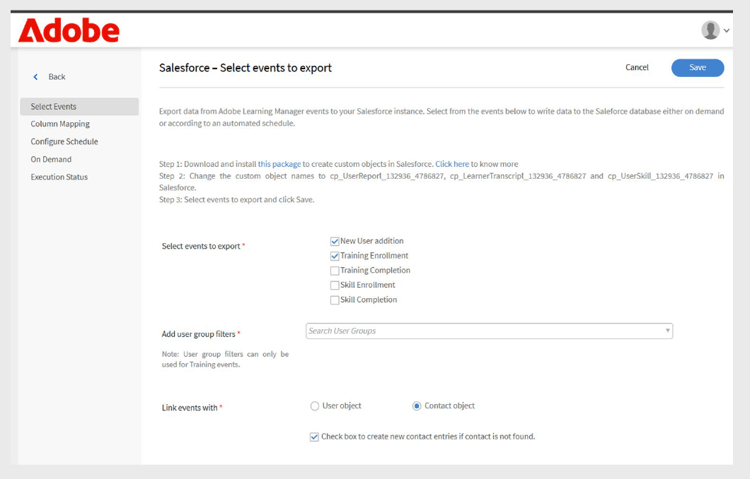
Learning record export configuration showing event selection and linking options
Salesforce application setup
Adobe Learning Manager provides a Salesforce App package. Once installed and configured in your Salesforce instance, sales users can access and complete training directly within the Salesforce portal. The app allows users to discover new courses, view personalized recommendations, and consume content without leaving Salesforce.
Access the Salesforce application
To set up the Salesforce application:
-
Log in as an integration admin.
-
Select Applications and then select Featured Apps.
-
Select Salesforce.
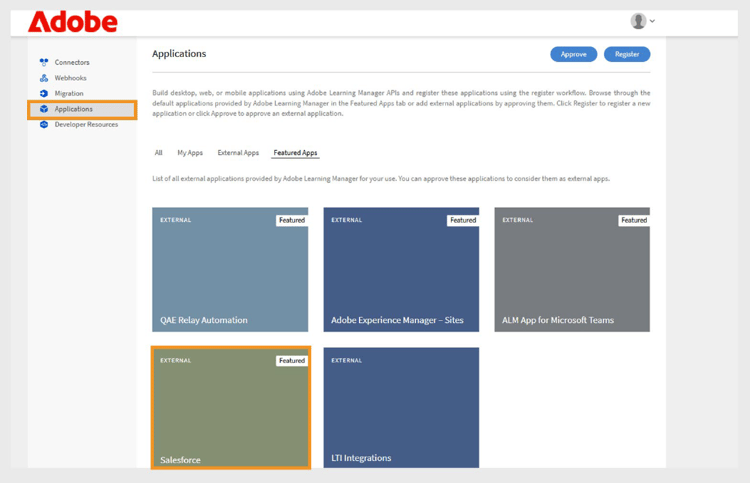
Adobe Learning Manager Applications page showing Featured Apps section with Salesforce app tile highlighted -
Note the Application ID and Client Secret shown in the description text box.
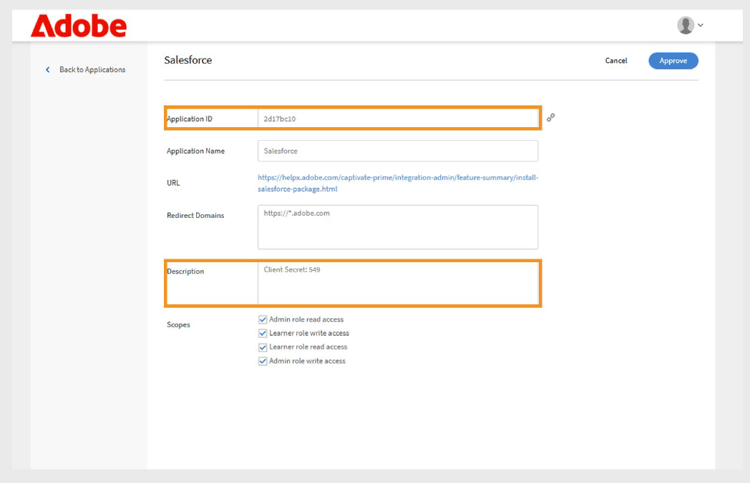
Salesforce application details page in Adobe Learning Manager showing Application ID and Client Secret in the description box -
Select Approve to enable the application.
Generate access tokens
To generate access tokens:
- Navigate to Developer Resources in Adobe Learning Manager.
- Select Access Tokens for Testing and Development.
- In the Get OAuth Code section, type the Client ID (Application ID) and the scope must be set to admin:read,admin:write.
- Select Submit.
- In the Get Refresh Token section, type the Client ID and Client secret.
- Select Submit and note the refresh token and access token.
Create a Salesforce account
If you don’t have a Salesforce account, follow these steps to create one using the same email address as your Adobe Learning Manager account. You can use either the Developer or Enterprise edition. It’s important to sign up using the same email ID associated with your Adobe Learning Manager account.
- Go to the Salesforce Developer sign-up page.
- Type the required details using the same email address used for your Adobe Learning Manager account.
- Check your inbox and verify your account through the email sent by Salesforce.
- Set your password and log in to Salesforce.
- After logging in, note your Salesforce URL (e.g., https://yourorg.lightning.force.com) for use during configuration.
Install the Adobe Learning Manager package
This section covers installing the Adobe Learning Manager package in your Salesforce environment.
Install the Package
To install the package:
- Open the Adobe Learning Manager package URL.
- Type your username and password in the log in page.
- Select Install. On the installation page, keep the Install for Admins Only option selected; do not change it.
- Select Done. You will be guided to the Installed Packages page, where you can see the Adobe Learning Manager installed package.
You’ll be redirected to the Installed Packages page, where you can verify the Adobe Learning Manager package installation
Configure the application
To configure the application:
-
Select App Launcher (9-dot grid icon next to Setup)
-
Search for Adobe Learning Manager.
-
To configure the app, select Configure.
-
Select New and add the following details:
- Config: Enter a name of your choice.
- ClientID: Enter the value that you’d obtained from the first section.
- ClientSecret: Enter the value that you’d obtained from the first section.
- RefreshToken: Enter the value that you’d obtained from the first section.
- LearningManagerBaseURL: The URL of the site where Adobe Learning Manager is hosted.
Remote site configuration
Salesforce requires remote site settings to allow communication with external services like Adobe Learning Manager.
Adding remote site settings
To add remote site settings:
-
In Salesforce, select Setup in the top-right corner.
-
Select Setup in the top-right corner of the page.
-
Search for Remote Site Settings in Quick Find.
-
Select New Remote Site.
-
Enter the details:
- Remote Site Name: Type a name of your choice (for example, Adobe Learning Manager).
- Remote Site URL: Type the URL where Adobe Learning Manager is hosted.
-
Select Save.
Set up notifications
Configure notifications to keep users informed about learning activities and updates.
Creating custom notifications
To enable the notifications:
-
Select Setup in the upper-right corner.
-
Search for Custom Notifications and then select New.
-
Type the following details:
- Custom Notification Name: LearningManagerNotification
- API Name: LearningManagerNotification
-
Select both Desktop and Mobile as supported channels.
-
Select Save.
Enable mobile push notifications (optional)
For users who want to receive notifications on mobile devices:
To enable push notifications for mobile devices, follow the steps below:
- Install the Salesforce mobile app on your mobile phone.
- Log in to the app using your credentials.
- Go to Setup and then select Notification Delivery Settings.
- Add Salesforce for iOS and Android.
User configuration and permissions
This section covers setting up user access and permissions for the Adobe Learning Manager app within Salesforce.
Understanding user profiles
The Adobe Learning Manager app supports various user profiles that correspond to roles in Adobe Learning Manager:
- Administrator
- Integration Admin
- Instructor
- Learner
- Custom Profiles (as needed)
Assign or create user profiles
You can either use existing profiles or create custom profiles for Adobe Learning Manager users:
Use existing profiles
- Navigate to Setup and select Users.
- Select Profiles.
- Select a profile that aligns with your users’ roles
- Assign this profile to users during the package installation.
Create custom profiles
- Navigate to **Setup and select Users. **
- Select Profiles.
- Click New Profile.
- Create a custom profile based on an existing one, tailored to Adobe Learning Manager users.
Configure the profile
To configure a profile:
-
After installing the package, select Configure and then select New.
-
Type the following details:
- Config Name
- ClientID
- ClientSecret
- LearningManagerBaseURL
- Disable Redirect
Set user permissions
Select the users and assign the necessary permissions to access the Adobe Learning Manager app.
Update profile settings
- Select a profile (e.g., Standard Profile) and then select Edit.
- In the Custom App Settings section, check the box for Adobe Learning Manager to make the app accessible.
- In the Custom Tab Settings section, set Learner Home to Default On.
- Select Save to apply the changes.
Learners with the assigned profiles can now access the Adobe Learning Manager app in Salesforce.
You have successfully configured the Salesforce connector for Adobe Learning Manager. Users can now access their learning content directly within Salesforce, improving adoption and engagement with your organization’s training programs.