Power BI connector in Adobe Learning Manager
Introduction
The Power BI connector allows you to integrate Adobe Learning Manager with Microsoft Power BI (commercial license) so you can analyze, visualize, and share your learning data.
With this integration, the integration administrator can automatically export live data sets such as learner transcripts, user skills, and xAPI activity reports directly to a selected Power BI workspace.
Once connected, you can use Power BI’s full capabilities to create custom dashboards and reports. This helps your organization gain deeper insights into learner progress, skill achievements, and training effectiveness and make informed decisions based on real-time learning data.
Prerequisites
- Only Microsoft Power BI with a commercial license is supported.
- Ensure you have permission to create Power BI apps and workspaces.
- Obtain your Tenant Name, App Client ID, App Client Secret, and Workspace ID (optional).
Configure the Power BI connector
To connect ALM with Power BI:
-
Log in to Adobe Learning Manager as an integration administrator.
-
Hover over the Power BI connector tile and select Connect.
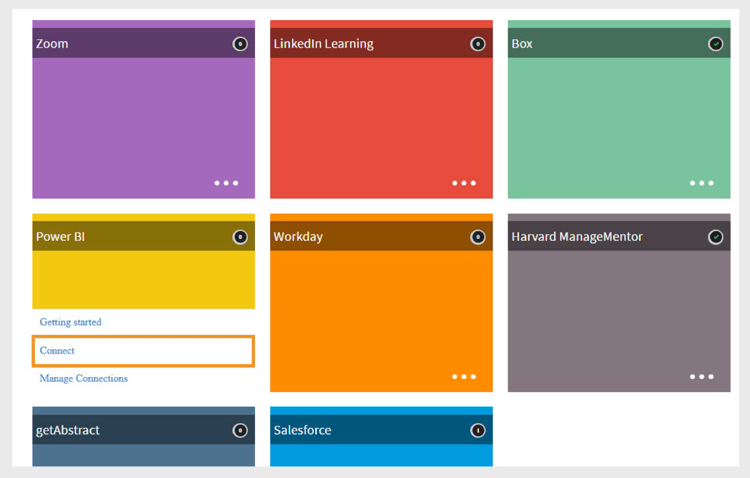
Select Connect to configure Power BI connector -
Type the following details:
- Client Id
- Client Secret
- Tenant name
- Workspace Id (optional)
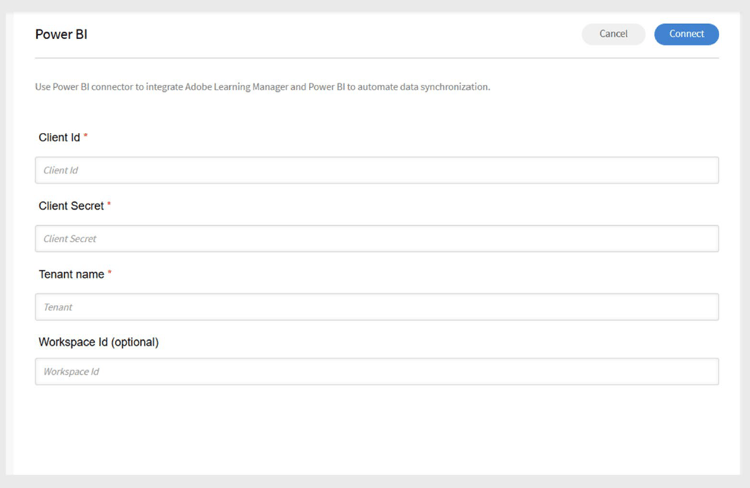
Type the required details to configure Power BI -
Select Connect.
Register the Power BI app
To register the Power BI app:
- Go to Register the Power BI app.
- Select Embed for your organization and log in to your Microsoft account.
- Type a name for your app.
- Select Server-side Web app under App type.
- In the Redirect URL section, select Use a custom URL and type this URL: (Replace the domain if needed for your environment.)
- In the Home URL field, type this URL.
- In the Permissions section, select Read All data sets and Read and Write all data sets.
- Contact your Power BI administrator to get the Tenant Name.
- If you do not have a Workspace ID, create a workspace in Power BI (requires Power BI Pro) and copy the ID from the URL.
- Select Register app and save the Client Id and Client Secret for later use.
Export reports to Power BI
After configuring the connection, you can export these reports:
- Learner Transcripts
- User Skills
- xAPI Activity Reports
- Unified Reports (a combination of multiple reports)
Learner transcript
Schedule exports
-
Select Learner Transcripts in the left panel.
-
Select Enable Schedule on the Export page.
-
Select the start date and time.
-
Define the interval for how often the export should repeat (daily, weekly, etc.).
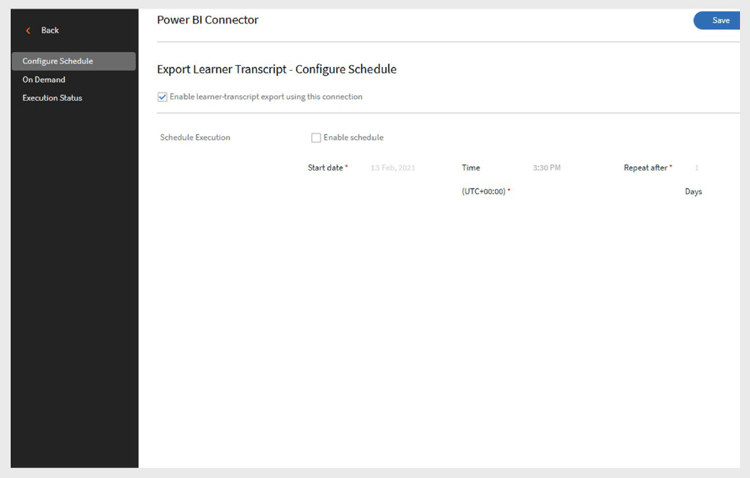
Enable the schedule export for learner transcript -
Select Save.
Export on demand
- You can generate reports manually by specifying the start date and running an on-demand export.
- The report will include data from the specified date to the present.
User skills
Schedule exports
-
Select User Skills in the left panel.
-
Select Enable Schedule on the Export page.
-
Select the start date and time.
-
Define the interval for how often the export should repeat (daily, weekly, etc.).
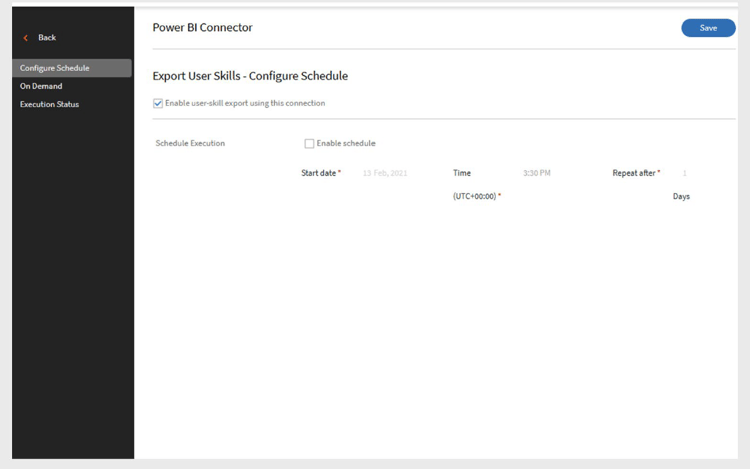
Enable the schedule export of user skills report -
Select Save.
Export on demand
- You can generate reports manually by specifying the start date and running an on-demand export.
- The report will include data from the specified date to the present.
Manage xAPI activity reports
xAPI statements can also be exported to Power BI.
Configure xAPI exports
-
Select Export xAPI Activity Report.
-
Select Configuration in the left pane.
- Fill in JSON path fields to match your CSV columns.
- Select Add to include more paths.
- Use Edit to update fields.
-
Select Save.
Schedule exports
- Select Configure Schedule.
- Select Enable xAPI statements export using this connection.
- Set the start date, time, and interval.
- Select Save.
On demand export
- Select On Demand.
- Specify the start date.
- Select Execute.
View execution status
- Use Execution Status to view the history of exports, including start time, duration, and status.
- A warning icon indicates failed runs. Click the link to download error reports as .CSV.
Unified reports
Unified Reports combine data from:
- Learner Transcript
- Gamification
- Feedback Report
- Login/Access
- User Skill
- User Report
- Training Report
This helps you create more powerful dashboards by merging data in Power BI.
Create unified report configuration
-
Select Unified Reports and then select Configuration.
-
Type a unique name in the Data Set Name field.
-
Select one or more reports you want to include in this dataset under Select Reports for Data Export.
- Learner Transcript
- Login/Access
- Training Report
- Gamification
- User Skill
- Feedback Report
- User Report
-
Use the Add user group filters field to select which user groups’ data you want to export. By default, All Users is selected.
-
Use the Add Content Catalog Filters field to filter reports by content catalog.
-
The filter table shows which reports support User group, Catalog, or Time filters.
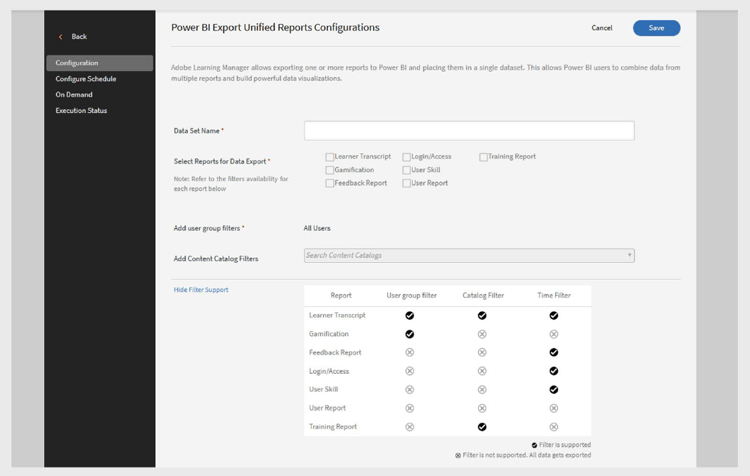
Create a configuration for unified reports -
After selecting reports and filters, select Save at the upper right.
Filter learner transcripts by status
- All: All records in the date range
- Completed: Only completed learning activities
- In Progress: Only ongoing activities
- Not Started: Excludes records not yet started
- Unenrolled: Includes unenrolled records
Download Power BI Templates
Adobe provides ready-made Power BI templates to help you get started quickly.
- Download templates, import your reports, and customize as needed.
- Use templates to create compelling dashboards without starting from scratch.
Learning Path related settings
How Learning Paths appear in your reports depends on your admin settings:
-
Existing Connections:
- If Learning Path is disabled, no related rows or columns are included.
- If enabled, the report includes the Learning Path (Higher Level) for enrolled learners.
-
New Connections:
-
If Learning Path is disabled, columns show:
- Embedded Path: Learning Program name.
- Embedded Path ID: ID for the Learning Program.
- Embedded Course ID: IDs of courses within the Learning Path.
-
If enabled, the Type column uses Learning Path (Higher Level) where relevant.
-
For new connections, changes apply after 30 days.
-
Where to See Your Data**
All exported data appears as datasets under your Power BI account. Use these to build custom dashboards and visualizations.