LinkedIn Learning connector in Adobe Learning Manager
Introducction
The LinkedIn Learning connector allows you to seamlessly integrate LinkedIn Learning content with Adobe Learning Manager. With this connector, organizations can automatically bring LinkedIn Learning courses into Adobe Learning Manager so learners can find, enroll in, and complete LinkedIn courses directly within the platform.
When set up, learner progress on LinkedIn Learning content is tracked back in Adobe Learning Manager, allowing administrators to monitor completions and time spent. You can schedule automatic content synchronization, run on-demand imports, and filter which courses are brought into your system by language, library, or custom tags.
Configure LinkedIn Learning portal settings
To configure LinkedIn Learning portal settings:
-
Log in to LinkedIn Learning LMS as an administrator.
-
Select Admin from the top navigation panel.
-
Click the Settings tab.
-
From the left navigation, select Playback Integration, then select the Integration tab.
-
Expand LMS Content Launch Settings.
-
Add the following hostnames:
- learningmanager.adobe.com
- learningmanagerlrs.adobe.com
- cpcontents.adobe.com
-
Select Enable AICC integration.
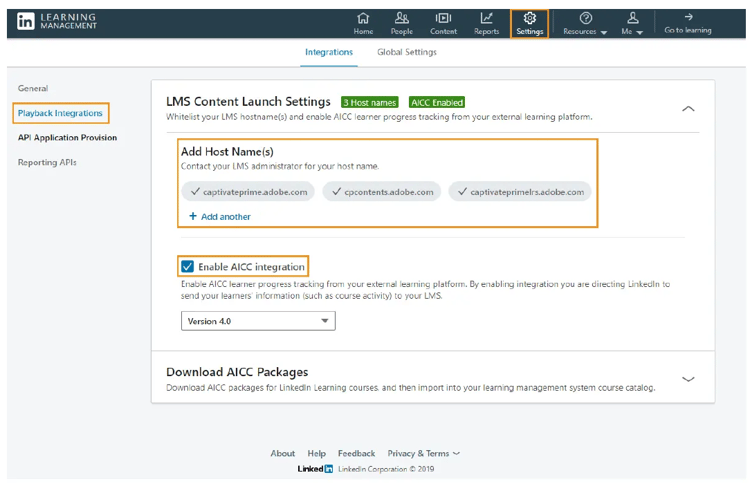
Select Enable AICC integration to configure the LinkedIn Learning connector
Connect LinkedIn Learning in Adobe Learning Manager
To configure the LinkedIn Learning connector:
-
Log in to Adobe Learning Manager as an integration administrator.
-
Hover over the LinkedIn Learning tile and select Connect.
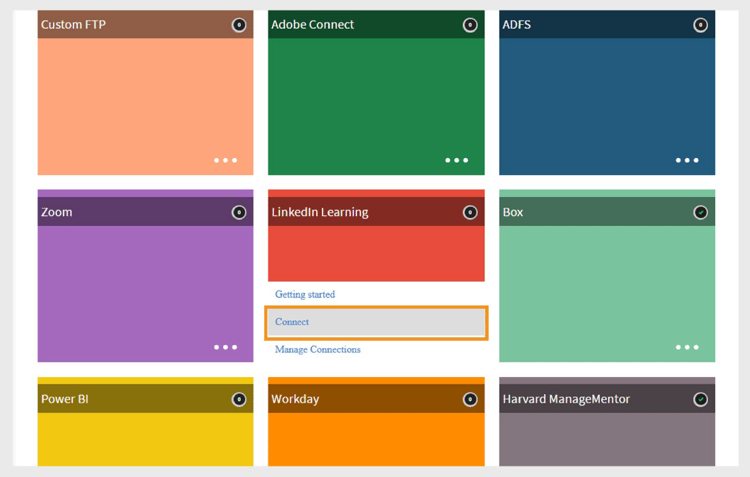
Select Connect to configure LinkedIn Learning connector -
On the connection setup page:
- Type a Connection Name.
- Type the Application Key and Secret Key.
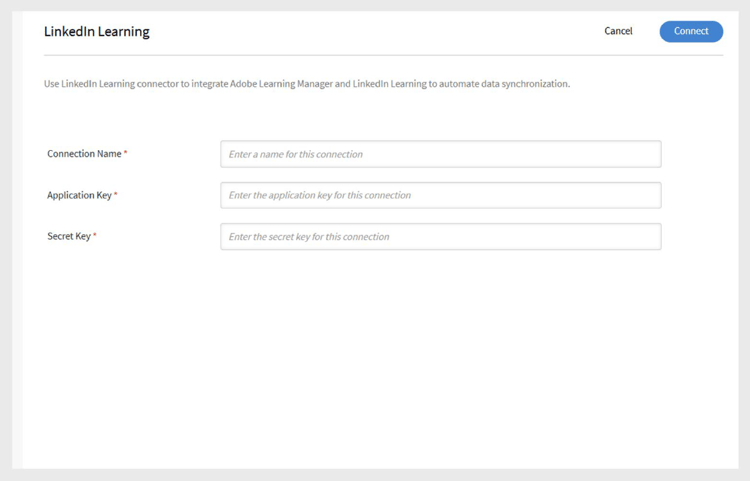
Type the connection name, application key, and secret key to configure the LinkedIn Learning connectornote NOTE The enterprise admin can generate these keys by creating an application in the LinkedIn Learning Admin portal. -
Select Save to add the connection.
To edit an existing connection, select Manage Connections on the LinkedIn Learning tile.
Manage connection and synchronization
To manage the LinkedIn Learning connector:
-
Select Manage Connections and select the connection.
-
From the left pane, select Configure.
-
Select Enable Connection.
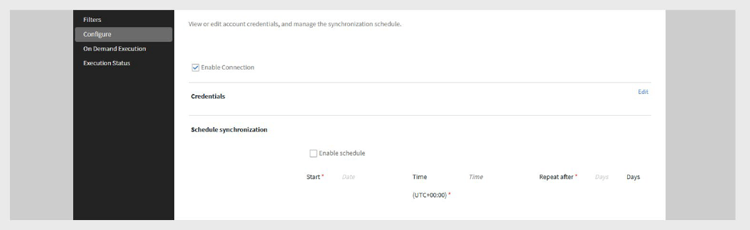
Select Enable Connection in the Configure LinkedIn Learning connector page -
Select Edit to update credentials. Use Reset to undo edits.
-
To automate syncing, select Enable Schedule.
-
Set the start date, time, and frequency (for example, every 3 days).
-
Select Save.
On-demand sync
To run on-demand synchronization:
-
Select On Demand Execution in the left pane.
-
Type a Start Date.
-
Select any of the options from the following to Enable or Disable access to Adobe Learning Manager during execution:
- Enable access to Adobe Learning Manager during execution: No downtime for users.
- Disable access to Adobe Learning Manager during execution: The application is unavailable during sync.
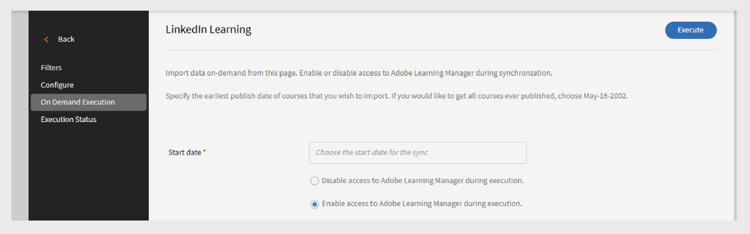
Select On Demand Execution to run the import -
Select Execute to import user feeds and data from LinkedIn Learning from that date forward.
To monitor all sync runs:
Select Execution Status in the left pane to view the history of all syncs, their duration, type (scheduled or on-demand), and current status (in progress, completed).
Filter LinkedIn Learning content
When setting up your connector, you can filter which LinkedIn Learning courses to import.
To set up your filter:
-
Select Filter on the left pane.
-
Select the required option under Filter Trainings using.
- No Filter – Import all courses.
- Language – Filter courses by specific languages.
- Library – Filter courses by LinkedIn Learning libraries.
-
If filtering by Language, select the languages you want. For example, English and Spanish.
-
In Import Trainings to, select where the courses will be imported.
-
Choose how to organize the imported courses.
-
Select any of the options below for Segregate Trainings based on option:
- Language – Group by language.
- Library – Group by library.
-
Under Import tags, select the tag types you want to apply to imported courses.
- Language
- Library
- Subject
- Topic
- Custom Tag
-
In the Custom Tag field, type a custom tag you want to assign. Separate multiple tags with commas.
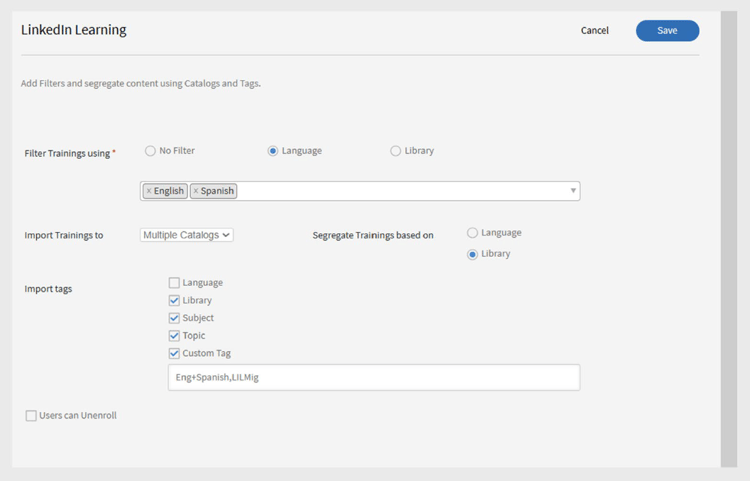
Select filter options to import the data from the LinkedIn Learning connector -
If you want learners to be able to unenroll from these courses, select Users can Unenroll.
-
Select Save to apply your filter and import settings.