Harvard ManageMentor connector in Adobe Learning Manager
Introduction
The Harvard ManageMentor connector is designed for enterprise customers who use Harvard ManageMentor. It allows learners to discover and access Harvard ManageMentor courses directly from Adobe Learning Manager. Once connected, the system can fetch learner progress data periodically and create courses in Adobe Learning Manager based on the imported metadata.
This article explains how to configure and use the Harvard ManageMentor connector in Adobe Learning Manager.
With this integration, integration admins can connect the company’s Harvard ManageMentor account to Adobe Learning Manager to automatically import courses and track learner progress, without creating new training content from scratch.
Prerequisite
Ensure the Migration feature is enabled for your account before configuring the connector.
Set up the connector
Use the Harvard ManageMentor connector to bring courses from Harvard ManageMentor into Adobe Learning Manager. After you connect your account, you can import course details and track learner progress.
To set up the connector:
-
Log in as an integration admin.
-
Select Harvard ManageMentor on the home page.
-
Select from the following options on the connector tile:
- Getting Started
- Connect
- Manage Connections
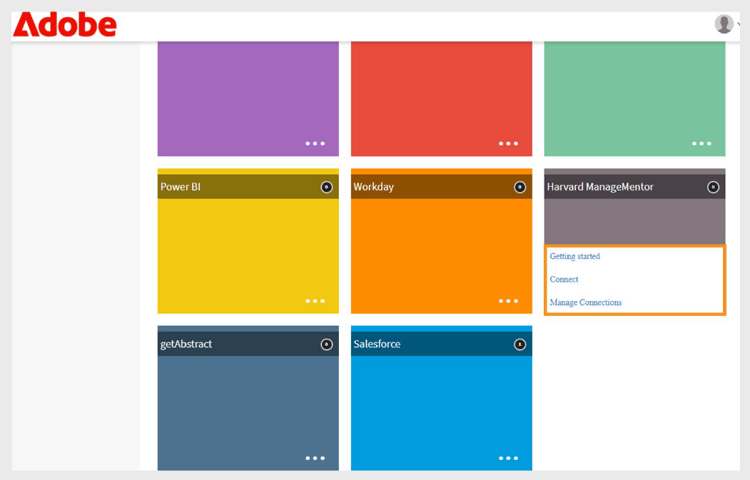
Harvard ManageMentor tile shows three options for configuration
Create a new connection
To create a new connection:
-
Select Connect on the Harvard ManageMentor tile.
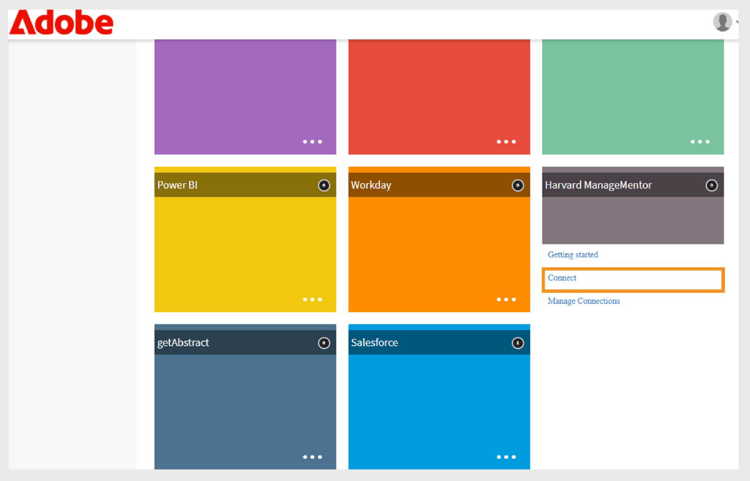
Select Connect to create a new Harvard ManageMentor connection -
Type the connection in the Connection Name field.
-
Select Connect to create the connection.
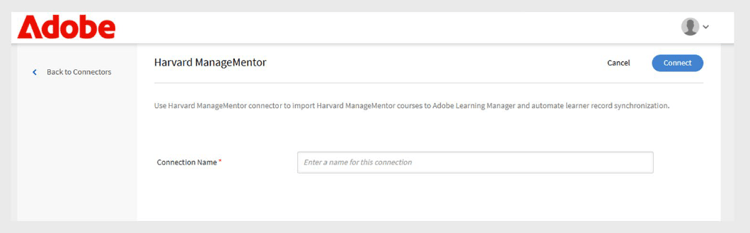
Type the name in the Connection Name field
Manage the connection
After setting up the Harvard ManageMentor connector, you can manage your connection in the Adobe Learning Manager. You can change sync settings and run syncs manually or on a schedule.
Enable the connection
To enable the connection:
-
Select Manage Connections on the Harvard ManageMentor tile.
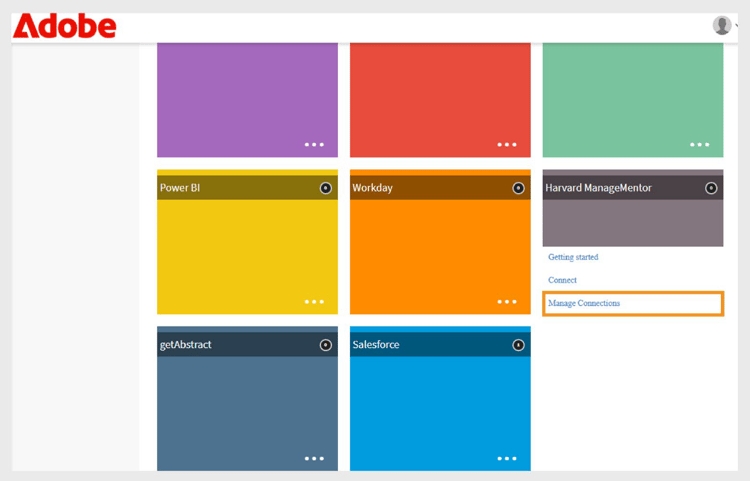
Manage connections to configure and schedule the data import -
Select the connection.
-
Select Configure from the left navigation pane.
-
Select Enable Connection and then select Save.
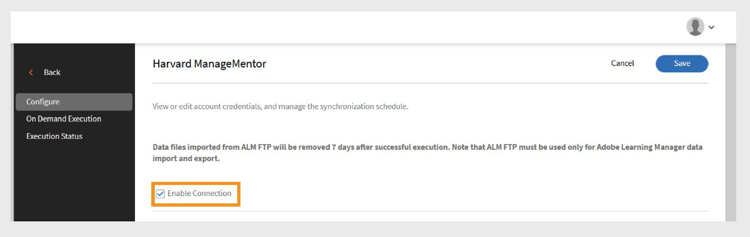
Enable the Harvard ManageMentor connector to import the data
Schedule synchronization
To schedule synchronization:
-
Select Manage Connections on the Harvard ManageMentor tile.
-
Select the connection.
-
Select Configure from the left navigation pane.
-
Select Enable schedule under the Schedule synchronization section.
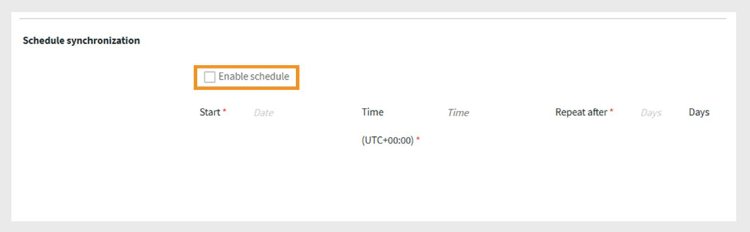
Schedule the data import from Harvard ManageMentor to Adobe Learning Manager -
Select the start date and time in UTC.
-
Type the number of days after which the synchronization should repeat.
-
Select Save.
The synchronization settings are saved. The connector will run on the schedule and import data from Harvard ManageMentor into Adobe Learning Manager.
Run on-demand synchronization
The On-Demand Synchronization option lets you manually import data from Harvard ManageMentor into Adobe Learning Manager. This is useful when you want to update learner activity data immediately, without waiting for the next scheduled sync.
To run on-demand data import:
-
Select Manage Connections on the Harvard ManageMentor tile.
-
Select the connection.
-
Select On Demand Execution from the left pane.
-
Select Start Date.
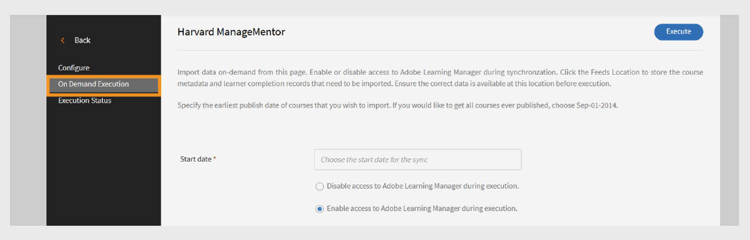
Run the on-demand request for immediate data import from Harvard ManageMentor to Adobe Learning Manager -
Select one of the following options:
- Disable access to Adobe Learning Manager during execution: Recommended if synchronization may cause downtime.
- Enable access to Adobe Learning Manager during execution: Recommended to avoid service disruption.
-
Select Execute to import all data from the start date to the present.
View execution history
The Execution Status page lists all sync runs in order. If a run has errors, a warning icon appears. If needed, you can check the error log, fix the CSV file, and rerun the latest sync.
To view the execution history:
-
Select Execution Status in the left pane.
-
You can see the following columns:
- Run
- Start Date
- Duration
- Type (Scheduled or On-Demand)
- Status (In Progress or Complete)
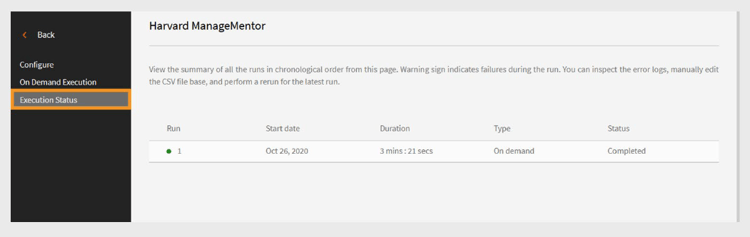
View the execution status of the on-demand and scheduled imports
Requirememt for synchronization
Make sure the following files are present in the Harvard ManageMentor FTP folder:
- hmm12_metadata.csv This file contains course metadata. Follow the correct file naming format.
- client_hmm12_yyyyMMdd.csv This file is the user feed. The date format should match yyyyMMdd.
Sample files