getAbstract connector for Adobe Learning Manager
Introduction
The getAbstract connector is designed for enterprise customers of getAbstract.com. It enables learners to discover and consume getAbstract content directly through Adobe Learning Manager. The connector also allows administrators to import user engagement data and track learner completion records automatically.
Adobe Learning Manager wants to offer learners ongoing, self-directed learning opportunities focused on leadership and soft skills. Rather than developing all content internally, the administrator connects the organization’s getAbstract account to Adobe Learning Manager using the getAbstract connector.
- Automatically imports getAbstract content into Adobe Learning Manager.
- Tracks learner consumption of courses and learning paths.
This article outlines the steps to configure and manage the getAbstract connector in Adobe Learning Manager.
Prerequisites
- Ensure the Migration feature is enabled for your account before configuring the connector.
- Obtain the Client ID and Client Secret from your getAbstract account representative. These credentials are required to retrieve course metadata and user consumption data.
Configure the getAbstract connector
The getAbstract connector enables Adobe Learning Manager administrators to enhance the learning experience by integrating high-quality, curated content from getAbstract.
To configure the getAbstract connector:
-
Log in as an integration admin.
-
Select getAbstract on the home page.
-
Select from the following options on the Connector tile:
- Getting Started: Overview of the connector.
- Connect: Create a new connection.
- Manage Connections: View or modify existing connections.
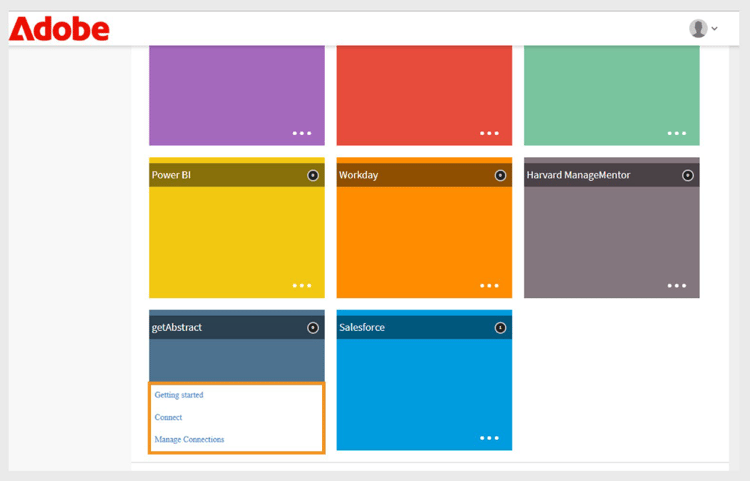
getAbstract tile shows three options for configuration
Create a new connection
To create a new connection:
-
Select Connect.
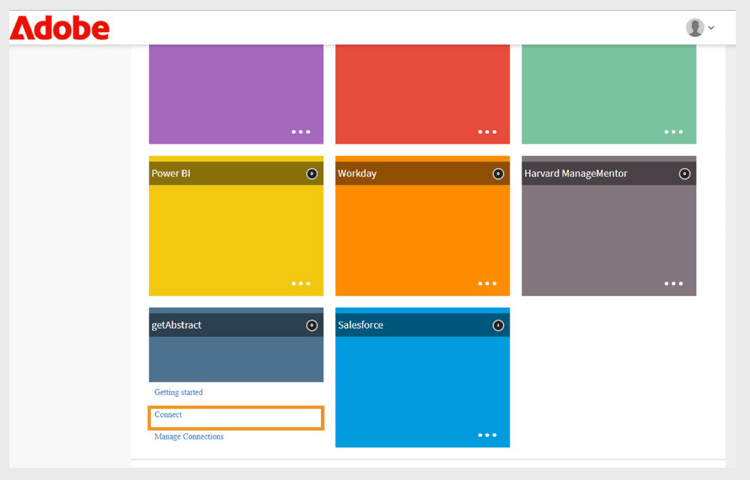
Select Connect on getAbstract tile to create a new connection -
Type a Connection Name.
-
Type the Client ID and Client Secret.
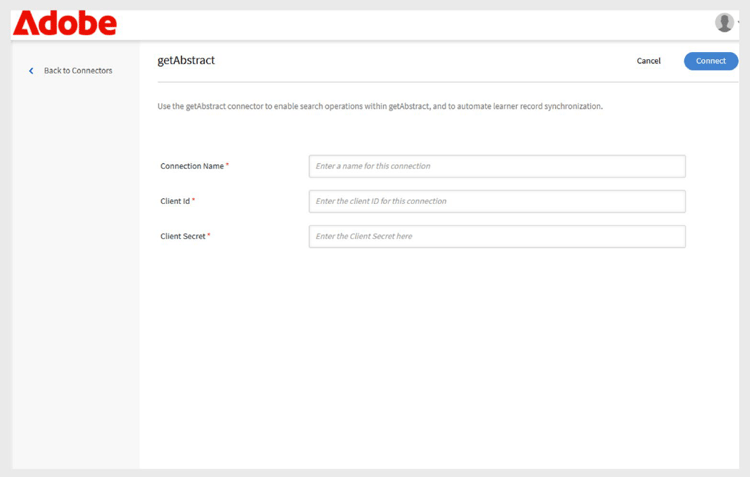
Type the connection, client ID, and client secret on the getAbstract connection page -
Select Save to create the connection.
Manage getAbstract connector
Before importing data, you must configure the connector and set up a synchronization schedule. Once configured, the connector automatically pulls usage data, enabling you to monitor learner progress and include getAbstract content in learning plans and reports.
Enable the connection
To enable the connection:
-
Select Manage Connections on the getAbstract tile.
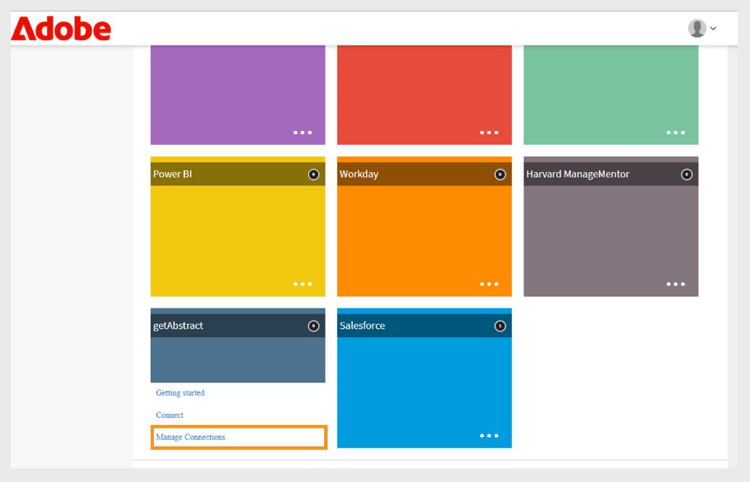
Manage connections to configure and schedule the data import -
Select the connection.
-
Select Configure on the left navigation pane.
-
Select Enable Connection and then select Save.
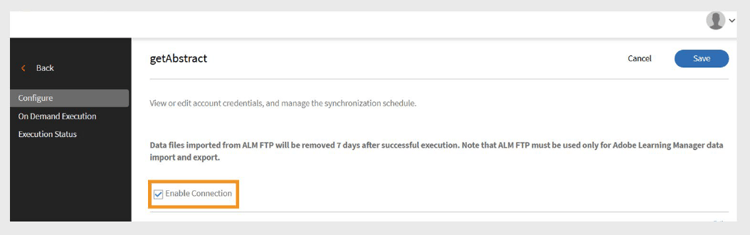
Enable the connection to import the data from getAbstract to Adobe Learning Manager
Edit the connection
To edit the connection:
-
Select Manage Connections on the getAbstract tile.
-
Select the connection.
-
Select Configure on the left navigation pane.
-
Select Edit to update the Client Id and Client Secret.
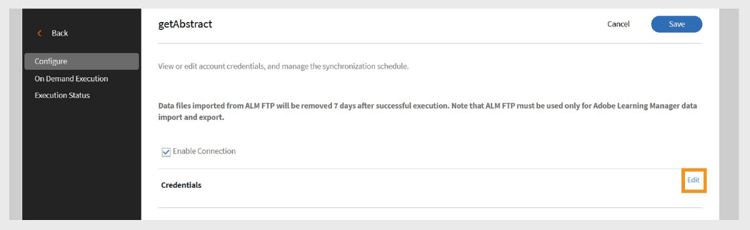
Edit the credentials including client ID and client secret -
Select Save.
Schedule synchronization
To schedule synchronization:
-
Select Manage Connections on the getAbstract tile.
-
Select the connection.
-
Select Configure on the left navigation pane.
-
Select Enable schedule under the Schedule synchronization section.
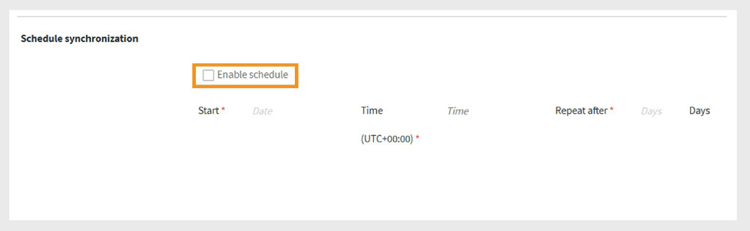
Schedule the data import from getAbstract to Adobe Learning Manager -
Select the start date and time in UTC.
-
Type the number of days after which the synchronization should repeat.
-
Select Save.
The synchronization settings are saved. The connector will run on the schedule and import data from getAbstract into Adobe Learning Manager.
Run on-demand synchronization
The On-Demand Synchronization option lets you manually import data from getAbstract into Adobe Learning Manager. This is useful when you want to update learner activity data immediately, without waiting for the next scheduled sync.
To run on-demand data import:
-
Select Manage Connections on the getAbstract tile.
-
Select the connection.
-
Select On Demand Execution from the left pane.
-
Select Start Date.
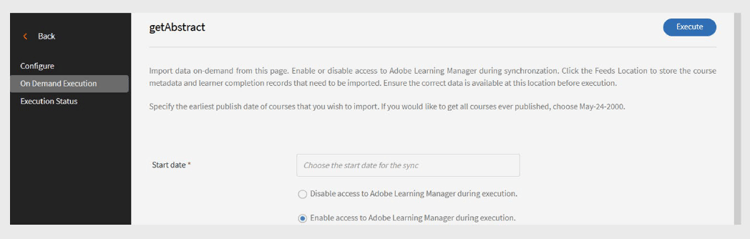
Run the on-demand request for immediate data import from getAbstract to Adobe Learning Manager -
Select one of the following options:
- Disable access to Adobe Learning Manager during execution: Recommended if synchronization may cause downtime.
- Enable access to Adobe Learning Manager during execution: Recommended to avoid service disruption.
-
Select Execute to import all data from the start date to the present.
View execution history
The Execution Status page lists all sync runs in order. If a run has errors, a warning icon appears. You can check the error log, fix the CSV file, and rerun the latest sync if needed.
To view the execution history:
-
Select Execution Status in the left pane.
-
You can see the following columns:
- Run
- Start Date
- Duration
- Type (Scheduled or On-Demand)
- Status (In Progress or Complete)
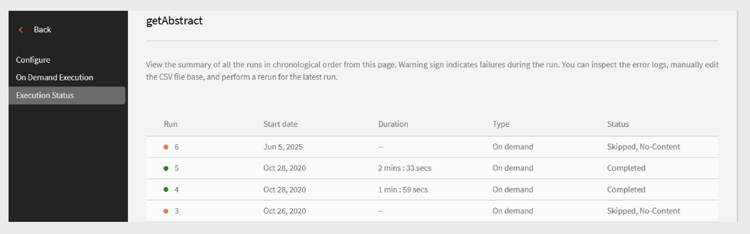
View the execution status of the on-demand and scheduled imports
Requirements for successful synchronization
To ensure synchronization works correctly:
-
A valid user feed file must be in the getAbstract FTP folder for the specified synchronization dates.
-
The file should follow the naming format:
- report_export_yyyy_MM_dd_HHmmss.xlsx or,
- report_export_yyyy_MM_dd.xlsx
Download a sample getAbstract user feed file to understand the format.