ADFS connector in Adobe Learning Manager
Introduction
The ADFS Connector in Adobe Learning Manager allows you to integrate with Microsoft Azure Active Directory using Active Directory Federation Services (ADFS). This integration enables automatic synchronization of user data from Azure AD into Learning Manager. With features like attribute mapping, user filtering, and scheduled imports, the connector helps streamline user management and ensures that learner data remains accurate and up to date. It is especially useful for organizations that rely on ADFS for centralized identity and access management.
Prerequisites
Before you configure the ADFS connector in Adobe Learning Manager, complete the following steps in the Azure Portal:
- Register an application
- Generate a client secret
- Set API permissions
Register an application in Azure
To register an application in Azure:
- Log in to the Azure Portal.
- Navigate to Azure Active Directory.
- Select Add and then select App registration.
- Type a name for your application and select Register.
Generate a client secret
To create a client secret:
- In the newly registered app, go to Certificates & Secrets.
- Select New client secret.
- Add a description and set the expiry to 24 months.
- Save the client secret value in a secure location.
Set API permissions
To add API permission:
-
Select API Permissions and then select Add a permission.
-
Select Microsoft Graph and then select Application permissions.
-
Search and select the following permissions:
- Directory.Read.All – Read directory data
- User.Read.All – Read all users’ full profiles
-
Select Add permissions.
-
Grant Admin consent for the permissions.
Configure ADFS Connector in Learning Manager
You can configure the ADFS connector in Adobe Learning Manager to import user data from ADFS, export user skills back to ADFS, and schedule automated syncs to keep both systems up to date.
To configure the ADFS connector:
-
Log in to Adobe Learning Manager as an integration administrator.
-
Hover over the ADFS connector tile.
-
Select Connect.
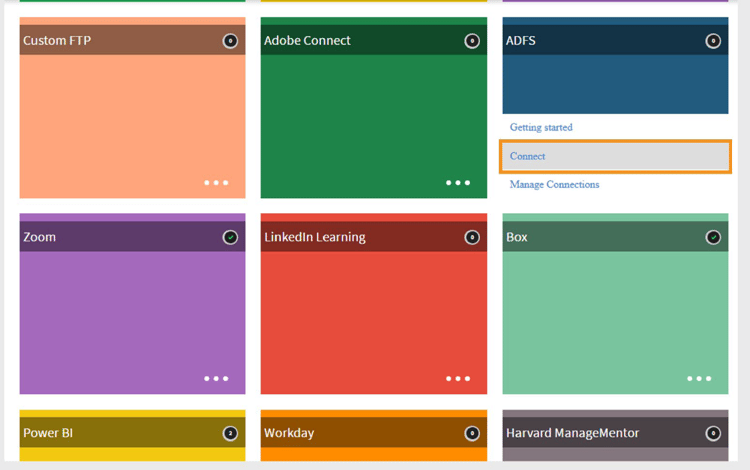
Select Connect to configure ADFS connector
Enter connection details
On the ADFS configuration page:
-
Type the following details:
- Connection Name
- Client Id
- Client Secret
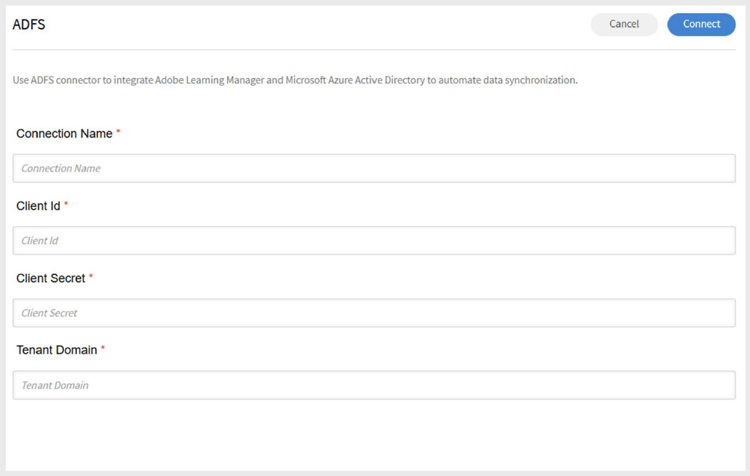
Type the configuration details to connect ADFS -
Select Connect.
-
Adobe Learning Manager will fetch and auto-populate the Tenant ID and Primary Domain from your Azure portal.
Importing users from ADFS
Map attributes
- Integration Administrators can map ADFS attributes to corresponding groupable attributes in Adobe Learning Manager.
- This mapping is a one-time configuration and is reused for all subsequent user imports.
- You can modify the attribute mapping at any time if needed.
Automated user import
- Adobe Learning Manager automatically pulls user data from ADFS at scheduled intervals.
- This helps keep user records in sync across systems.
Filtering users
- Administrators can apply filters to limit imported users.
- For example, import only users under specific managers or departments.