Configure the Adobe Learning Manager MCP server
Configure the Model Context Protocol (MCP) server once for your organization. Configuration has two parts: create an MCP server in Learning Manager, and then connect it to your AI assistant. Afterward, learners sign in to Learning Manager from the AI assistant and can use the MCP tools.
Before you begin, ensure that:
- The MCP server is enabled for your Learning Manager account. Contact your Adobe Customer Success Manager or Adobe Support to enable it. Until then, every request returns 403 Forbidden.
- The AI assistant administrator has permission to add and configure connectors in that platform.
Prerequisite: Model Context Protocol server is a backend flag based feature which works only for Ultimate tier accounts.
Create an MCP server in Learning Manager
Creating an MCP server sets up an OAuth application and gives you the MCP server URL, Client ID, and Client Secret.
-
Sign in to Learning Manager as an Integration Admin.
-
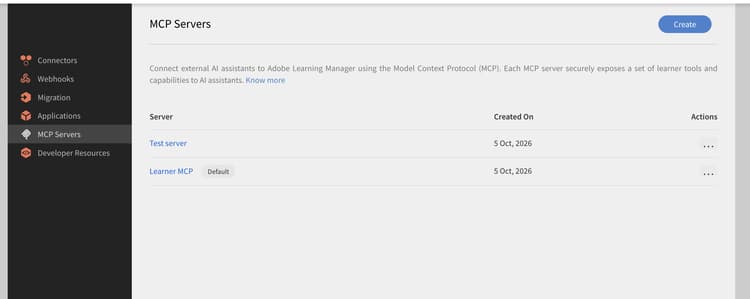
In the navigation menu, select MCP Servers.
-
In the upper-right corner, select Create.
-
On the Application Details page, enter the following, and then select Next:
- Application Name: Enter up to 50 characters, for example, ALM for Claude. Learners see this name when they authorize the connection, so choose a name they recognize.
- Redirect Domains: Enter the callback domain of each AI assistant, one domain per line. Start each with and don’t include a path. This field is required.
- Description: Enter up to 150 characters, for example, lets learners use ALM from Claude.
-
On the Tool Configuration page, review the tools and the descriptions that AI assistants use to decide when to call each tool. To change a description, select Actions (…) > Edit. To restore the default, select Reset. Then select Next.
-
On the Client Credentials page, copy the MCP Server URL, Client ID, and Client Secret. Store them securely. You need them to connect your AI assistant.
The MCP server always has Learner scope, so there are no scopes to select.
Register the domain for each AI assistant you plan to connect.
Register exact domains, such as https://chatgpt.com. Don’t use partial wildcards such as https://chatgpt.com, because they can match unrelated domains. To allow subdomains, use a whole-label wildcard such as https://.example.com.
One MCP server can serve several AI assistants if you list all their redirect domains. To revoke access for one assistant without affecting the others, create a separate MCP server for each. All servers use the same MCP server URL.
You need only the MCP server URL. Claude and ChatGPT automatically discover the Learning Manager OAuth endpoints. For manual setup, view OAuth endpoints for the Learning Manager MCP server.
Connect Claude Pro or Max
Refer to Claude documentation if these steps no longer match the interface.
-
In Claude, go to Customize > Connectors.
-
Select Add (+), and then select Add custom connector.
-
Enter the connector details, and then select Continue:
- Name: Enter a name your learners recognize, for example, Adobe Learning Manager.
- Remote MCP server URL: Enter the MCP Server URL from the Client Credentials page, in the format https://alm-host/v1/mcp.
-
Under Authentication, keep Sign in now. Claude reads the Learning Manager OAuth settings and marks matching options as Detected.
-
Under OAuth client, select Use your own OAuth client. Paste the Client ID and Client Secret.
-
Select Add. Claude opens the Learning Manager sign-in page. After you sign in, the connector shows as connected.
Connect Claude Team or Enterprise
Only an organization Owner, or a member with a role that can manage connectors, can add the connector. Members never see the Client ID or Client Secret.
- In Claude, sign in as an organization Owner or a member with permission to manage connectors.
- Go to Organization settings > Connectors.
- Select Add, hover over Custom, and then select Web.
- Enter the name and MCP server URL, and then set Authentication and OAuth client as described in steps 4 and 5 of the previous procedure.
- Select Add.
The connector is now available to your organization. Each member selects Connect and signs in to Learning Manager with their own account.
Connect ChatGPT Team or Enterprise
-
Log in to ChatGPT as a workspace owner or admin.
-
In the left sidebar, click Plugins.
-
Click Add in the upper-right corner and select Create MCP App.
-
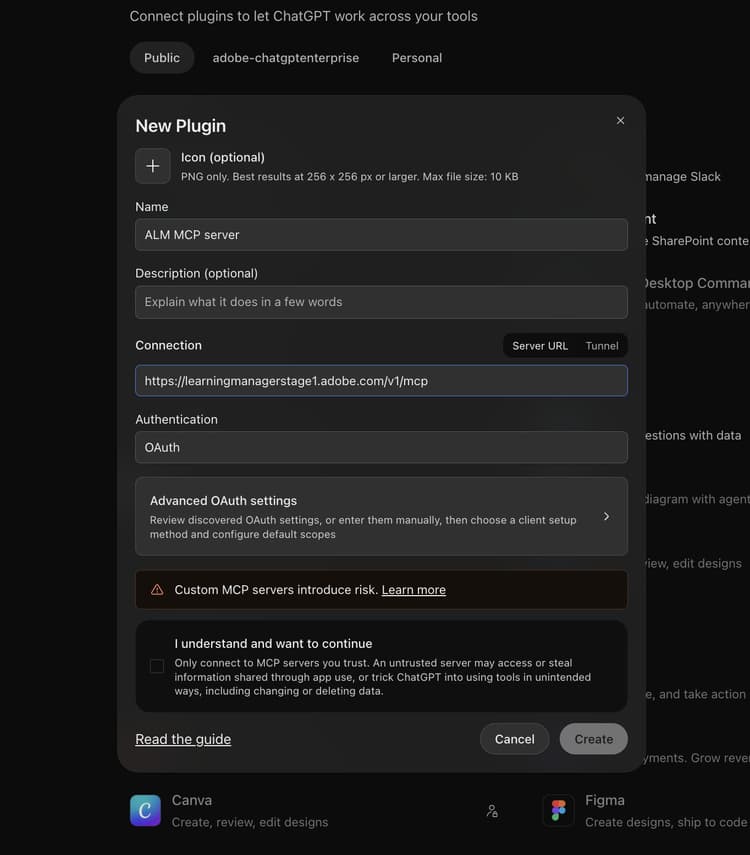
In the New Plugin window, configure the connection:
-
Name: Adobe Learning Manager, or the name your learners know your learning platform by.
-
Connection: keep Server URL selected and enter https://alm-host/v1/mcp
-
Authentication: OAuth
-
-
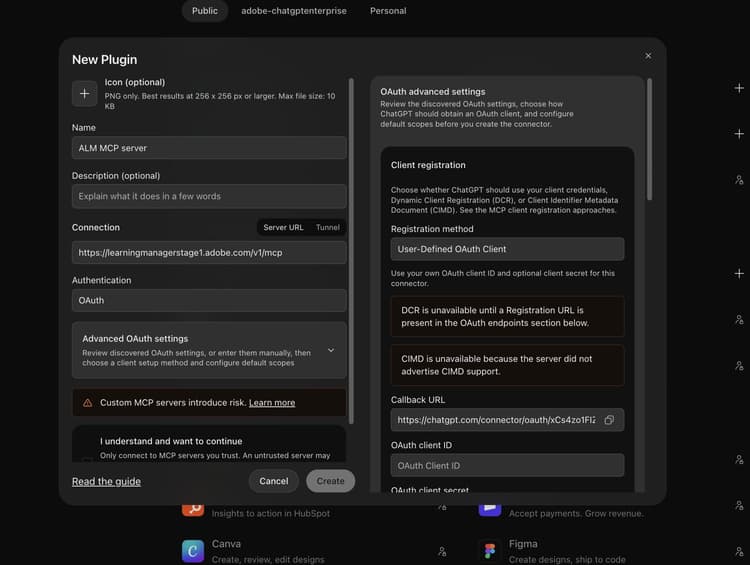
Click Advanced OAuth settings. ChatGPT discovers the ALM OAuth endpoints automatically.
-
Under Client registration, keep Registration method set to User-Defined OAuth Client, then enter the OAuth client ID and OAuth client secret from Step 1.
-
Check the Callback URL shown in this panel. Its domain (https://chatgpt.com) must be in the MCP server’s Redirect Domains from Step 1.
Endpoints are discovered automatically
You normally don’t need to change the OAuth endpoints. If ChatGPT asks for them, use: Auth URL https://alm-host/oauth/o/authorize, Token URL https://alm-host/oauth/token, Registration URL empty, Resource https://alm-host/v1/mcp, scope learner:write.
- Select I understand and want to continue, then click Create.
- In the Connect window, click Continue and sign in to ALM. The window should show Approved by your admin.
- Make the plugin available to the target users in your workspace.
End-user authentication
Once the administrator has finished configuring the MCP server, learners add the ALM connector from their AI assistant’s list of connectors and click Connect. This opens the ALM sign-in page. After signing in (with SSO, if your account uses it) and approving access, the AI assistant is linked to the learner’s ALM account.
Rotate the Client Secret or revoke access
You can’t regenerate a Client Secret. To rotate it:
- Create a new MCP server, as described earlier in this article.
- Update your AI assistant with the new Client ID and Client Secret.
- In Integration Admin > MCP Servers, select Actions (…) > Delete for the old server.
Learners must sign in again after you switch.
To disconnect an AI assistant for all learners, delete its MCP server from the same page.
Available tools
The MCP server exposes the following tools. All of them run with the signed-in learner’s permissions.
"Free classroom trainings in French"
"What's due soon?"
"My completed trainings"
Conversations started through answer_learning_content_question appear in the Learner AI Conversation report, the same as conversations in the ALM Learning Assistant.
Limits
OAuth endpoints reference
Claude and ChatGPT discover these automatically. They’re listed here for clients or proxies that need them entered by hand. Replace [alm-host] with the host in your MCP Server URL (your region host or ALM custom domain).
Troubleshooting
FAQ
Can learners use the MCP server without an admin setting it up?
No. An Integration Admin must create an MCP server in ALM (Step 1), because the MCP server doesn’t support dynamic client registration.
Can we use our own domain?
Yes. If your ALM account has a custom domain, use it in place of [alm-host] in all URLs.
Which ALM roles can use the MCP server?
Any ALM user can connect. The tools act in the learner context, and ALM’s own permission checks apply to every request.