ALM-Workfront cancellation/update trigger
Overview
Adobe Learning Manager (Learning Manager) can now cancel and reactivate instructor-led and virtual instructor-led (ILT/VILT) sessions based on changes made in Workfront. If your organization schedules sessions in Workfront and brings them into Learning Manager through the Workfront-to-Learning Manager migration, you can set the state of each session to Active or Cancelled in the migration data. Learning Manager then applies the change as if an admin had cancelled the session in the user interface.
Cancelling a session through migration behaves the same as cancelling it from the Learning Manager user interface. The one deliberate difference is reactivation, which is described in Reactivate a cancelled session.
The requirement
Updates to a session, such as date and time, instructor, location or link, and capacity, already flow from Workfront to Learning Manager through migration. Cancellations did not. When a session was cancelled in Workfront, Learning Manager had no way to know, which caused the following problems:
- Learners stayed enrolled in a session that no longer ran, leading to confusion and no-shows.
- Admins had to repeat the cancellation manually in Learning Manager.
- Workfront and Learning Manager drifted out of sync, which undermined Workfront as the source of truth for scheduling.
How it works
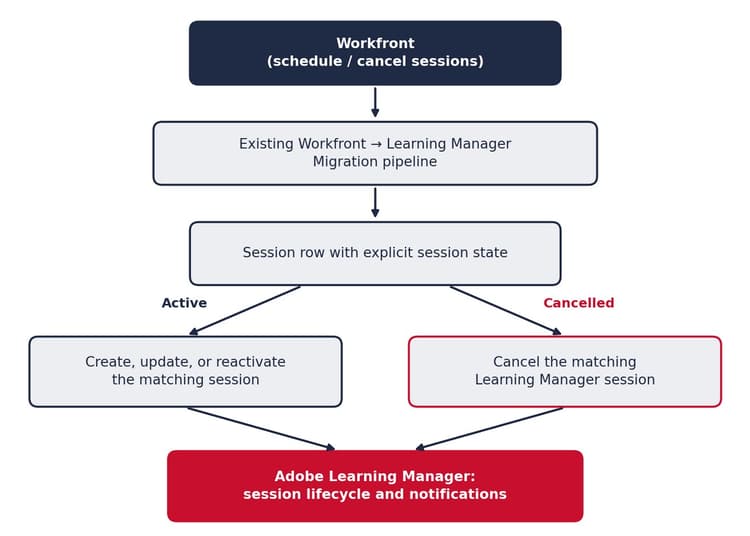
- A delivery manager cancels a session in Workfront.
- The session row in the migration data includes the new session state column, set to Cancelled.
- A systems administrator runs the migration through the API.
- Learning Manager marks the matching session as cancelled and sends the same notifications that a cancellation from the user interface sends.
End-to-end workflow
The following diagram shows how a session row moves from Workfront to Learning Manager.
Use cases
The following roles are involved in a cancellation that starts in Workfront.
Roles involved
Common scenarios
Key features
- Session state column. The migration schema includes an optional session state field that supports Active and Cancelled.
- Cancellation through migration. When a row has the state Cancelled, the matching session in Learning Manager is cancelled. Learning Manager uses the same matching key that migration already uses to create and update sessions.
- No manual work in Learning Manager. Admins do not need to cancel the session again in the user interface.
- Same behavior as cancelling in the user interface. Enrollment handling, learner-facing visibility, reporting, the audit trail, and notifications match a cancellation from the user interface.
- Reactivation. You can set a cancelled session back to Active by setting the state explicitly in the migration data.
- Protection for cancelled sessions. Migration does not change the details of a cancelled session unless the row explicitly sets the state to Active.
- Backward compatibility. The state column is optional, so existing migration files continue to work without changes.
- Complete notifications. Learners, instructors, admins, authors, and managers receive the same cancellation emails as they do for a cancellation from the user interface.
Session states
Every session in Learning Manager is in one of two states.
State transition rules for migration
The following table shows what happens when a migration row is processed. Learning Manager identifies the session by using the matching key that migration already uses for create and update.
Rules for the session state column
- The column is optional on every row.
- When the column is empty, the session will be updated to Active.
- A session becomes active again through migration only when the column explicitly says Active.
Use one of the following values in the session state column:
state = Activestate = Cancelled
Updates to cancelled sessions
You cannot update the details of a cancelled session through migration. If a row for a cancelled session contains changed values and does not set the state to Active, Learning Manager returns a validation error, leaves the session cancelled, and neither applies nor stores the changed details. Learning Manager does not send a session-updated email for the attempt.
Cancel a session by using migration
Use this procedure when a session has been cancelled in Workfront and you want Learning Manager to reflect the change.
Before you begin
- The session already exists in Learning Manager, imported through the Workfront-to-Learning Manager migration.
- You know the matching key that your migration uses to identify the session.
- In Workfront, cancel the session.
- In the session CSV file that you use for migration, locate the row for the session. Make sure the matching key is the same as the one used when the session was created.
- In the session state column, enter Cancelled.
- Run the migration through the API.
- In Learning Manager, verify that the session is cancelled.
Learning Manager marks the session as cancelled, handles the enrolled learners as it does for a cancellation from the user interface, and sends the cancellation notifications. No action is required in the Learning Manager user interface.
Update an active session
For an active session, the existing migration update behavior remains available. Set the session state to Active or leave it blank, and include the changed values in the row. You can continue to update details such as date and time, instructor, location or link, and capacity through the migration pipeline.
Active keeps the existing create and update behavior. Cancelled invokes the same session cancellation that the user interface provides, through the session CSV migration.
Reactivate a cancelled session
A cancelled session returns to the active state only when you set the state to Active explicitly. You can reactivate a session through migration or by editing it in the user interface.
- In the session CSV file, locate the row for the cancelled session. Make sure the matching key is the same as the one used when the session was created.
- In the session state column, enter Active.
- (Optional) Update any other values in the row that you want to change, such as date and time, instructor, location or link, or capacity.
- Run the migration through the API.
The session becomes active and its details can be modified. A session that is reactivated through migration or through the user interface can be cancelled again through either path.
Notifications
Learning Manager sends every email that it sends for a cancellation from the user interface when a session is cancelled through migration. Recipient coverage is not reduced, and the content uses the same template, so recipients cannot tell how the cancellation was started.
The recipients, as applicable to the session, are as follows.
Emails for cancelled sessions
A cancelled session does not generate session-updated emails. While a session is cancelled, changes to date and time, instructor, location or link, and capacity do not trigger the session-updated email. Only cancellation and reactivation notifications apply to a cancelled session.
Considerations and limitations
- Because the feature uses migration, a cancellation made in Workfront reaches Learning Manager when the migration runs. Webhook-based, real-time cancellation is not supported.
- Migration cannot change the details of a cancelled session. To change them, first set the state to Active.
- The session state column is optional. Rows that omit it never change the state of a session.
- The feature extends the existing migration integration. It does not add a second, real-time integration path.
- The migration schedule or trigger depends on the tooling that your organization uses to run it. This guide does not define a fixed schedule.
- Delivery managers work only in Workfront. They do not need access to the Learning Manager user interface to cancel a session.