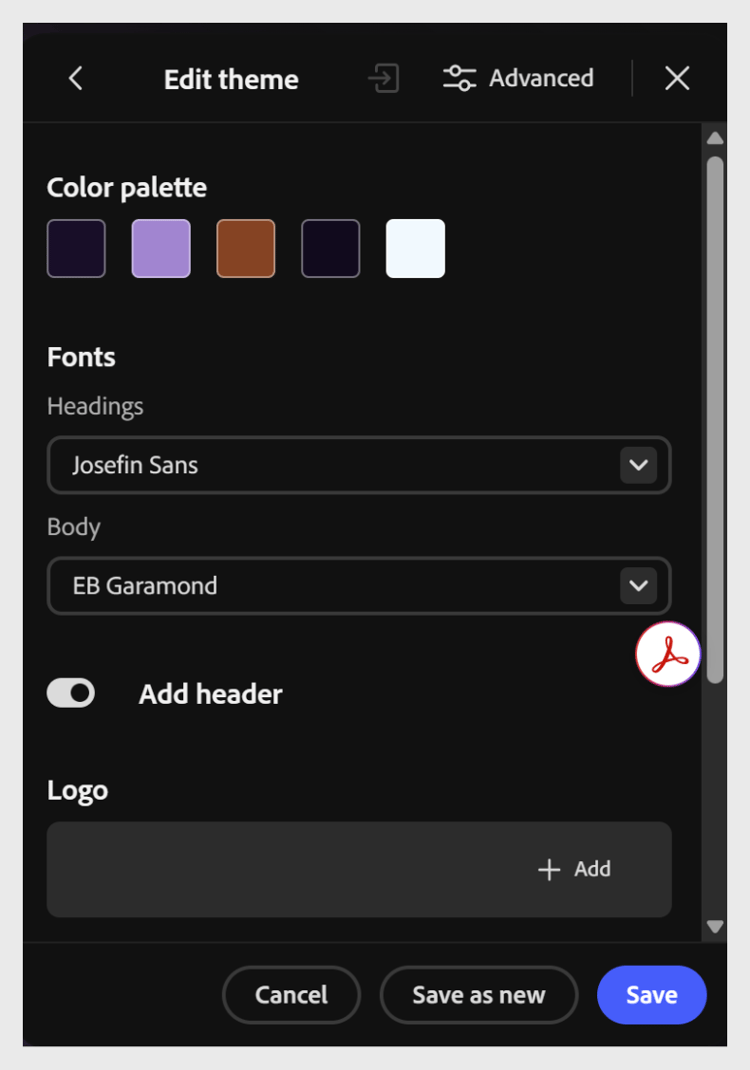
Change fonts
Update the heading and body fonts to better match your content or brand.
-
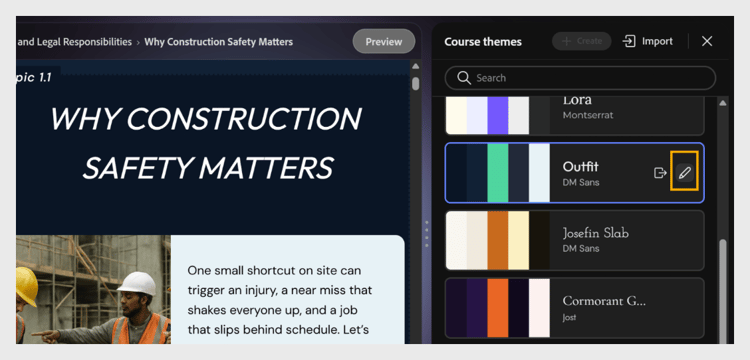
Select Themes from the toolbar, then hover over the applied theme and select Edit. The Edit theme panel opens, displaying the theme’s color palette and fonts.
-
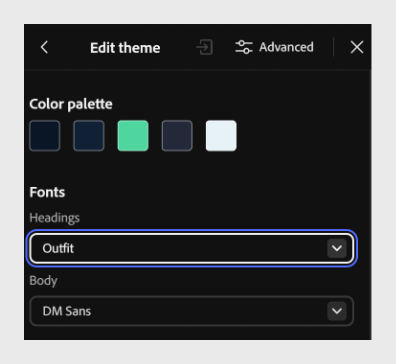
Under Fonts, select the Headings dropdown and choose a font for all headings in your course. For example, select Outfit.
-
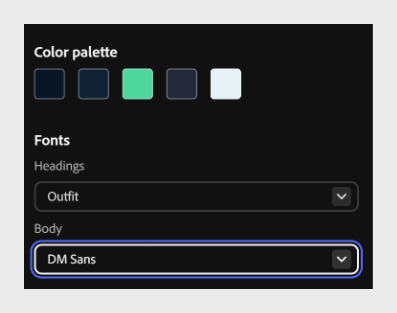
Select the Body dropdown and choose a font for the body text in your course. For example, select DM Sans.
-
Select Save to overwrite the existing theme with your changes or Save as new to create a new custom theme while keeping the original unchanged.