Gradebook for authors
Configure Gradebook for a course
Set up weighted scoring for a course in Adobe Learning Manager so that each learner receives an aggregate score calculated from their module performance, and so that course completion can be tied to achieving a minimum score threshold.
Gradebook is configured at the course level when creating a new course. It cannot be added to an existing published course.
Enable Gradebook for a course
-
Sign in to Adobe Learning Manager as an author.
-
In the left navigation, select Courses and then select Add to create a new course.
-
Enter the course name, description, and other required details.
-
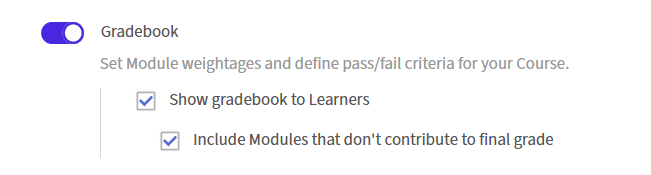
In the Modules section, locate the Gradebook toggle.
-
Select the Gradebook toggle to enable it. Two options appear beneath it. Both are on by default:
- Show Gradebook to learners: Learners see a Gradebook tab in the course player showing their module scores, weightage breakdown, and aggregate result. Turn this off to calculate grades internally without exposing them to learners.
- Include modules that don’t contribute to final grade: Modules that are not part of passing criteria requirement will also be shown in the gradebook. If this setting is not checked, only those modules will be shown that are part of the passing criteria.
Add modules and assign weightage
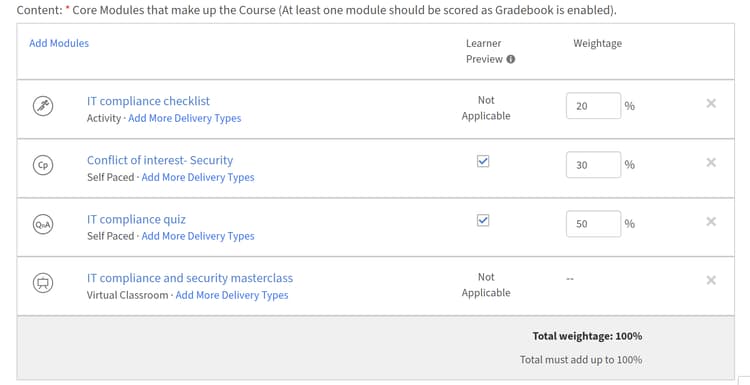
After enabling Gradebook, add your content modules and assign a weightage percentage to each scorable module. Weightage percentages must add up to exactly 100 before you can save the configuration.
-
Select Add Modules.
-
In the module picker, select the modules you want to add and select Add. The modules appear in the Content section. Scorable modules, SCORM, Captivate content, AICC, xAPI, native quizzes, Activity modules, classroom sessions, and virtual classroom sessions, display a Weightage input field. Non-scorable modules show a dash in the weightage column.
-
Enter a percentage value in the Weightage field for each scorable module. A Total weightage indicator updates as you type and must reach exactly 100% before you can save.
-
For modules with multiple delivery types: weightage can only be assigned if all delivery types in the module support scoring. If any one delivery type does not support scoring, the entire module cannot be weighted.
Set the minimum passing score
-
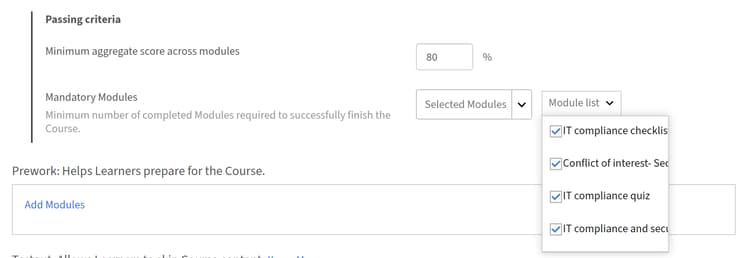
In the course editor, locate the Passing criteria section.
-
In the Minimum aggregate score across modules field, enter a percentage between 0 and 100.
-
A value of 0 means the course completes based on required module completion alone, with no aggregate score threshold.
-
Any value above 0 means the learner must complete the required modules AND meet or exceed this aggregate score.
-
In the Mandatory Modules field, enter the required number or select it from the dropdown.
-
Select Save.
The minimum passing score is visible to learners in the Gradebook tab so they know the threshold before they start.
Configure score settings for modules with multiple attempts configurescoresettingsmultipleattempts
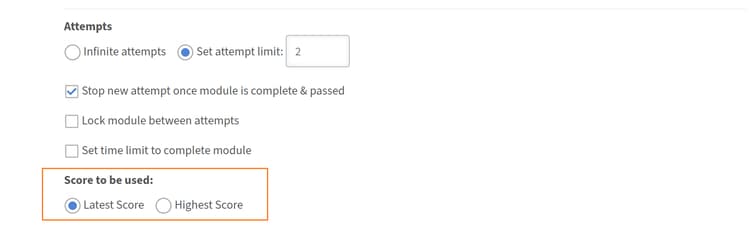
When a module allows multiple attempts, choose which attempt score is used in the Gradebook calculation.
-
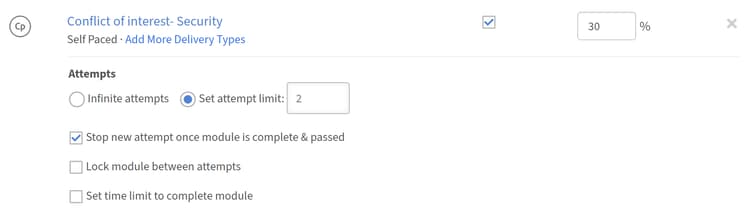
In the course editor, locate a module that has multiple attempts enabled.
-
Locate the Score to be used setting next to that module.
-
Select Latest or Highest:
-
Latest: the most recent attempt score is always used. A lower score on a later attempt replaces a higher earlier one.
-
Highest: the best score from any attempt is retained. A lower score on a later attempt does not reduce the stored score.
-
-
Select Save.
Publish the course
After configuring all Gradebook settings, publish the course using the standard workflow. Select Save, then select Publish to make the course available to learners.
Best practices
- Assign weightage that reflects the relative importance of each module. Give higher percentages to modules most critical to the learning objective.
- Enable Show Gradebook to learners unless there is a specific reason to hide scores. Learners who can see their weightage and running score are better positioned to prioritize their effort.
- Set the minimum passing score before learners enroll. Changing it after active enrollments may affect in-progress completions.
- Use Highest for the multiple-attempts setting when modules are assessments learners are expected to retry. Use Latest when you want to capture current knowledge level rather than best performance.
- Verify the Total weightage indicator shows exactly 100% before saving.