Duplicate and reuse a report in Report Builder
Duplicating a report copies all its columns, aliases, group by settings, aggregations, filters, and sorting into a new editable report. Use this when you want to create a version of a report for a different catalog, user group, or time period.
Duplicate a report
- Open the report you want to duplicate.
- Select Actions > Duplicate. A copy of the report opens in edit mode with the name “[original report name]-Copy”. For example, Structured performance view across managers - Copy
- Enter a new name for the report.
- Make any changes, for example, update filters, adjust columns, or change sorting.
- Select Save Report.
The duplicated report is saved to your Reports tab and is independent of the original.
Duplicate a template
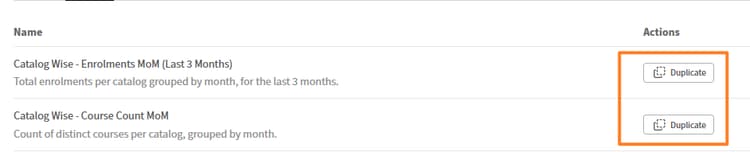
You can also duplicate templates from the Templates tab. Duplicating a template creates a new editable report in the Reports tab. The original template remains unchanged.
-
Select the Templates tab.
-
Locate the template you want to copy.
-
Select Duplicate.
-
Enter a name, make adjustments, and select Save Report.
Best practices
- Duplicate a well-tested report as the base when you need variations for different teams, catalogs, or time periods. This is faster than building from scratch and ensures a consistent structure.
- Rename the copy immediately to reflect what makes it different from the original, for example, “Compliance by VP - APAC” rather than “Copy of compliance report”.
- After duplicating a template, update the name before making any other changes so the report is identifiable in the Reports tab.