Manage Holidays
Use the Holidays setting to define organization-wide holidays in Adobe Learning Manager. Holidays appear in the Instructor calendar as non-working days, affecting Instructor availability when scheduling Live Hub sessions.
You can add holidays individually or import multiple holidays using a CSV file. After you add holidays, they appear on the Holidays page, where you can view, search, and manage them.
Access the Holiday settings
To access the Holidays settings:
-
Sign in to Adobe Learning Manager.
-
Select Settings from the Configure.
-
Navigate to the Advanced section in the left navigation pane.
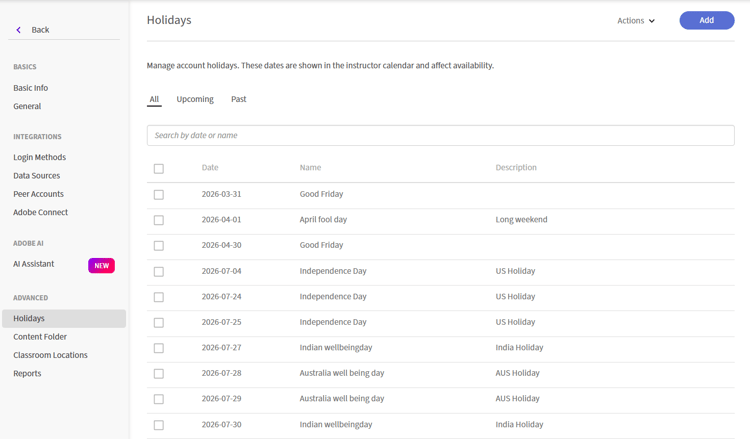
Navigate to the Advanced section in the left navigation pane to find Holidays. -
Select Holidays. The Holidays page appears.
Add holidays
Use the Add Holiday option to create a single holiday or import multiple holidays from a CSV file.
-
Select Add on the top right corner of the Holidays page. The Add Holidays pop-up window appears.
-
Select one of the following options:
-
Add a single holiday
-
Add holidays in bulk (Upload CSV)
-
Add a single holiday
To add a holiday manually:
-
Select Add a single holiday.
-
Select Date and enter the holiday name.
-
(Optional) Enter a description.
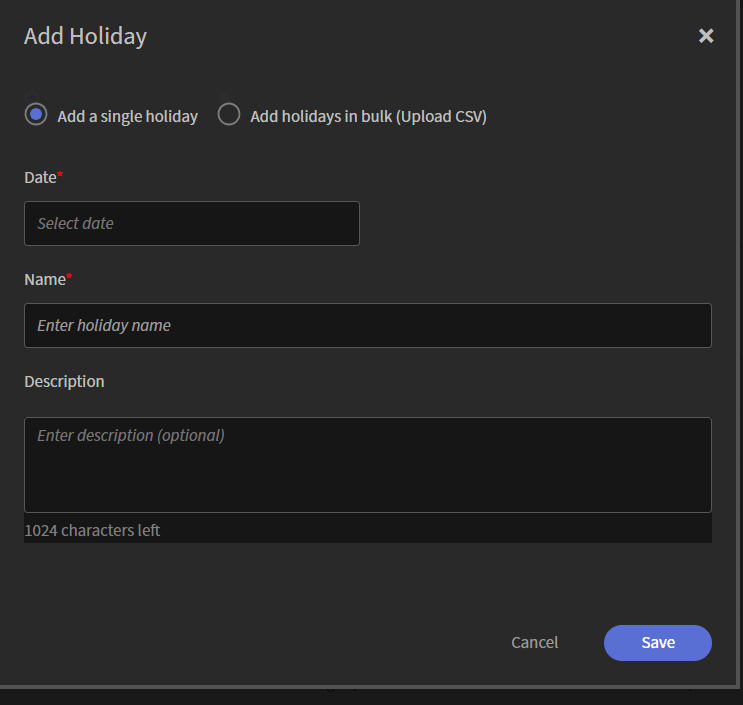
Select a date, enter the holiday name, and optionally add a description. -
Select Save. The holiday is added to the list.
Add holidays in bulk
Use a CSV file to add multiple holidays at once.
-
Select Add holidays in bulk (Upload CSV).
-
Select Download sample CSV template and add your holiday details to the file.
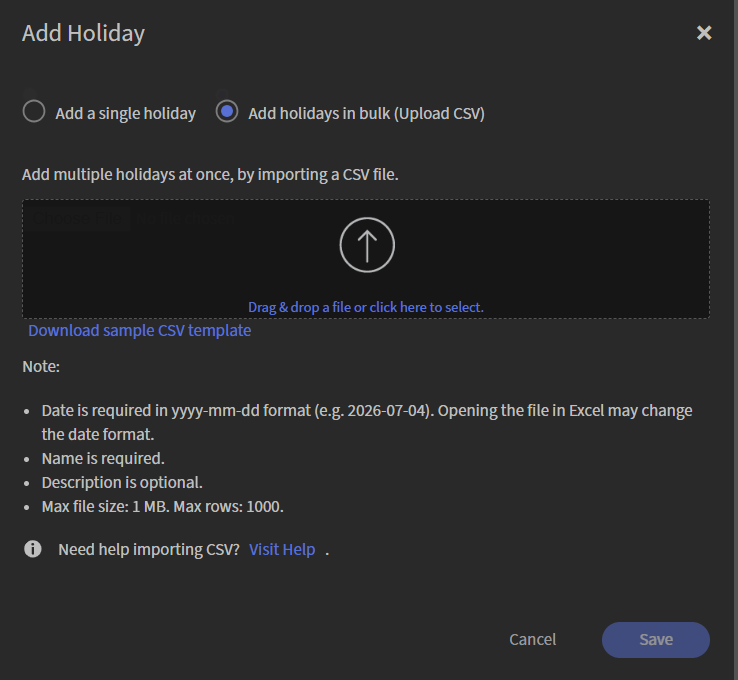
Download the sample CSV template, then upload your completed file. -
Drag the CSV file into the upload area, or select the upload area to browse and select the file.
-
Select Save. The holidays are imported and added to the list.